

Objective:
In this part of this series, we shall explore how to add the Silverlight Toolkit to your application and how to create the AutoCompleteBox control.
Let's go through this step by step. We will begin with creating a new Silverlight application using Visual C#. Consider that the scenario involves a Web portal for a car rental system. Assume that this the user interface of this Web application will require an AutoCompleteBox for the car manufacturer name. For the purpose of this article, let's just focus on this single field, without considering the rest of the UI.
We create the new application and name it AutoCompleteCars as shown in Figure 1.
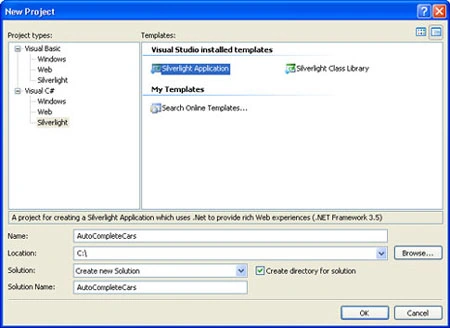
Figure 1: Creating the Silverlight application
Next, we download the Silverlight Toolkit from the codeplex site. The link for download is:
http://www.codeplex.com/Silverlight/Release/ProjectReleases.aspx?ReleaseId=18804
Actually we can even download the Toolkit before creating the Silverlight application, that's upto us, whether to do it, before or after.
After downloading the zip file, extract the contents into a folder.
In the newly created application, to view and use the Toolkit controls, we have to follow certain steps.
We open the Toolbox and right click on it. In the shortcut menu that opens as shown in Figure 2, we select the Choose Items... option.
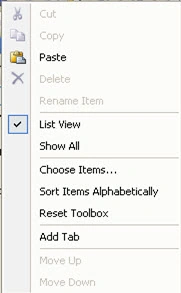
Figure 2: Toolbox shortcut menu
This will launch the Choose Toolbox Items dialog box. We select the Silverlight Components tab in the dialog box.
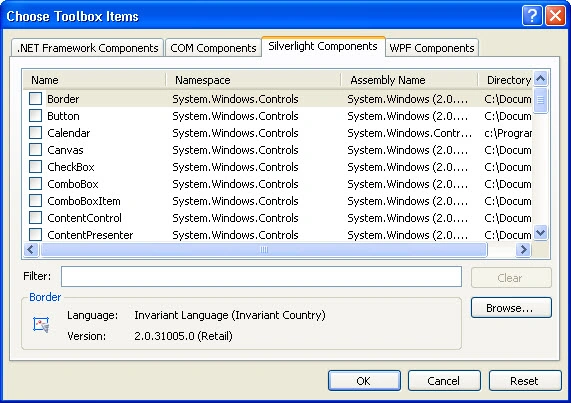
Figure 3: Selecting the Silverlight Components tab
Then we click Browse because we want to select the dll for the Toolkit. We navigate to the folder where we'd installed the Toolkit files. We select the Microsoft.Windows.Controls.dll file as shown in Figure 4.
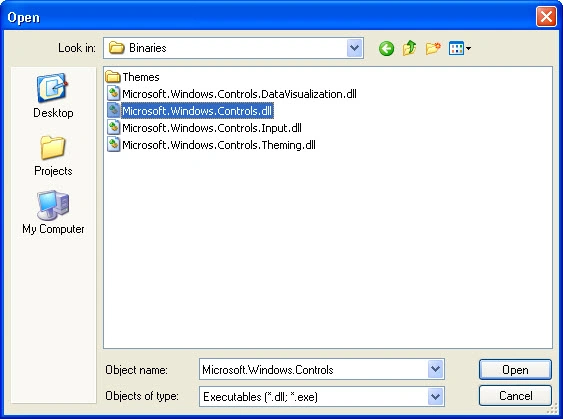
Figure 4: Choosing the dll file for the Silverlight Toolkit controls
Once the dll file has been chosen, the Choose Toolbox Items dialog box shows the available controls in the Toolkit. Figure 5 and 6 depict these.
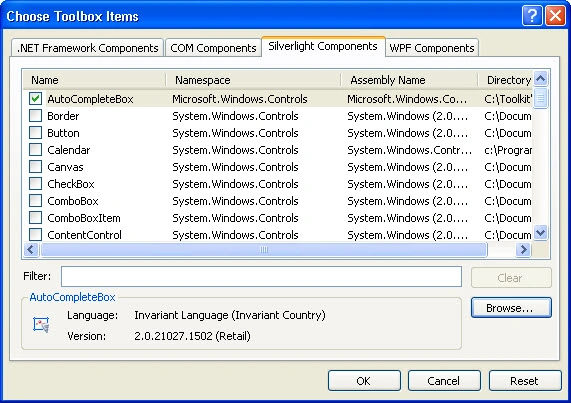
Figure 5: Silverlight Controls
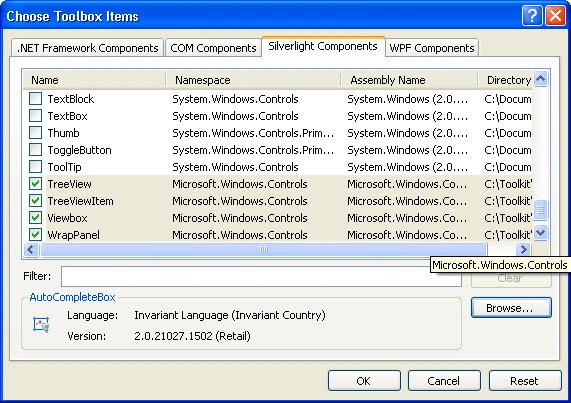
Figure 6: More Silverlight Controls
We click OK to finish the task of adding the Toolkit to our Toolbox.
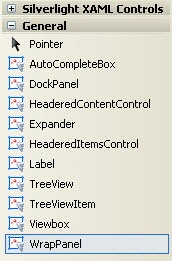
Figure 7: Silverlight Toolkit Controls as seen in the Toolbox
Now, we are ready to use these controls in your Silverlight application.
When we open the Page.xaml file of AutoCompleteCars, we will observe the following code:
<UserControl xmlns:controls="clr-namespace:Microsoft.Windows.Controls;assembly=Microsoft.Windows.Controls"
x:Class="AutoCompleteCars.Page"
xmlns="http://schemas.microsoft.com/winfx/2006/xaml/presentation"
xmlns:x="http://schemas.microsoft.com/winfx/2006/xaml"
Width="550" Height="300">
The lines marked in bold indicate the new changes, which have taken place after we included the Toolkit controls.
Next, we edit the Page.xaml file of AutoCompleteCars so that it looks like the following code:
<Grid x:Name="LayoutRoot" Background="Pink" Width="370" Height="100">
<Grid.ColumnDefinitions>
<ColumnDefinition Width="150" />
<ColumnDefinition Width="170" />
</Grid.ColumnDefinitions>
<Grid.RowDefinitions>
<RowDefinition Height="Auto" />
</Grid.RowDefinitions>
</Grid>
We place the cursor at the line above </Grid> and insert a blank line. At this position in the code, from the Toolbox, we drag and drop the TextBlock control. Thereafter, we drag and drop the AutoCompleteBox control. Then we edit their properties so that the code looks like the following:
<TextBlock Grid.Row="0" Grid.Column="0" Name="txtblkCars" Width="150" Height="55" Text="Enter Car Manufacturer:" Margin="10" HorizontalAlignment="Left">
</TextBlock>
<controls:AutoCompleteBox Name="autocomCars" Height="25" Width="140" Grid.Row="0" Grid.Column="1" Margin="10" VerticalAlignment="top">
</controls:AutoCompleteBox>
The complete code for Page.xaml now looks like below:
<UserControl xmlns:controls="clr-namespace:Microsoft.Windows.Controls;assembly=Microsoft.Windows.Controls" x:Class="AutoCompleteCars.Page"
xmlns="http://schemas.microsoft.com/winfx/2006/xaml/presentation"
xmlns:x="http://schemas.microsoft.com/winfx/2006/xaml"
Width="550" Height="300">
<Grid x:Name="LayoutRoot" Background="Pink" Width="370" Height="100">
<Grid.ColumnDefinitions>
<ColumnDefinition Width="150" />
<ColumnDefinition Width="170" />
</Grid.ColumnDefinitions>
<Grid.RowDefinitions>
<RowDefinition Height="Auto" />
</Grid.RowDefinitions>
<TextBlock Grid.Row="0" Grid.Column="0" Name="txtblkCars" Width="150" Height="55" Text="Enter Car Manufacturer:" Margin="10" HorizontalAlignment="Left"></TextBlock>
<controls:AutoCompleteBox Name="autocomCars" Height="25" Width="140" Grid.Row="0" Grid.Column="1" Margin="10" VerticalAlignment="top"></controls:AutoCompleteBox>
</Grid>
</UserControl>
We save the file and switch to the codeview, that is, Page.xaml.cs file. Within the constructor, we add the line marked in bold.
public Page()
{
InitializeComponent();
autocomCars.ItemsSource = new string[] {"Lexus", "Land Rover", "Ford", "Porsche","Pontiac", "Ferrari", "Fiat" };
}
Then we save the .cs file and proceed to build the application. Upon successful build, we click Debug->Start Debugging (or press F5).
A sample output of the application is shown in Figure 8.
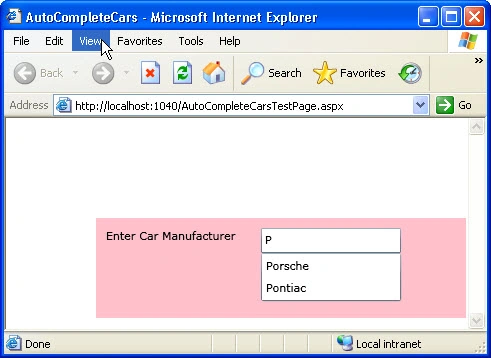
Figure 8: AutoCompleteBox in action
Conclusion
Let's go through this step by step. We will begin with creating a new Silverlight application using Visual C#. Consider that the scenario involves a Web portal for a car rental system. Assume that this the user interface of this Web application will require an AutoCompleteBox for the car manufacturer name. For the purpose of this article, let's just focus on this single field, without considering the rest of the UI.
We create the new application and name it AutoCompleteCars as shown in Figure 1.
Figure 1: Creating the Silverlight application
Next, we download the Silverlight Toolkit from the codeplex site. The link for download is:
http://www.codeplex.com/Silverlight/Release/ProjectReleases.aspx?ReleaseId=18804
Actually we can even download the Toolkit before creating the Silverlight application, that's upto us, whether to do it, before or after.
After downloading the zip file, extract the contents into a folder.
In the newly created application, to view and use the Toolkit controls, we have to follow certain steps.
We open the Toolbox and right click on it. In the shortcut menu that opens as shown in Figure 2, we select the Choose Items... option.
Figure 2: Toolbox shortcut menu
This will launch the Choose Toolbox Items dialog box. We select the Silverlight Components tab in the dialog box.
Figure 3: Selecting the Silverlight Components tab
Then we click Browse because we want to select the dll for the Toolkit. We navigate to the folder where we'd installed the Toolkit files. We select the Microsoft.Windows.Controls.dll file as shown in Figure 4.
Figure 4: Choosing the dll file for the Silverlight Toolkit controls
Once the dll file has been chosen, the Choose Toolbox Items dialog box shows the available controls in the Toolkit. Figure 5 and 6 depict these.
Figure 5: Silverlight Controls
Figure 6: More Silverlight Controls
We click OK to finish the task of adding the Toolkit to our Toolbox.
Figure 7: Silverlight Toolkit Controls as seen in the Toolbox
Now, we are ready to use these controls in your Silverlight application.
When we open the Page.xaml file of AutoCompleteCars, we will observe the following code:
<UserControl xmlns:controls="clr-namespace:Microsoft.Windows.Controls;assembly=Microsoft.Windows.Controls"
x:Class="AutoCompleteCars.Page"
xmlns="http://schemas.microsoft.com/winfx/2006/xaml/presentation"
xmlns:x="http://schemas.microsoft.com/winfx/2006/xaml"
Width="550" Height="300">
The lines marked in bold indicate the new changes, which have taken place after we included the Toolkit controls.
Next, we edit the Page.xaml file of AutoCompleteCars so that it looks like the following code:
<Grid x:Name="LayoutRoot" Background="Pink" Width="370" Height="100">
<Grid.ColumnDefinitions>
<ColumnDefinition Width="150" />
<ColumnDefinition Width="170" />
</Grid.ColumnDefinitions>
<Grid.RowDefinitions>
<RowDefinition Height="Auto" />
</Grid.RowDefinitions>
</Grid>
We place the cursor at the line above </Grid> and insert a blank line. At this position in the code, from the Toolbox, we drag and drop the TextBlock control. Thereafter, we drag and drop the AutoCompleteBox control. Then we edit their properties so that the code looks like the following:
<TextBlock Grid.Row="0" Grid.Column="0" Name="txtblkCars" Width="150" Height="55" Text="Enter Car Manufacturer:" Margin="10" HorizontalAlignment="Left">
</TextBlock>
<controls:AutoCompleteBox Name="autocomCars" Height="25" Width="140" Grid.Row="0" Grid.Column="1" Margin="10" VerticalAlignment="top">
</controls:AutoCompleteBox>
The complete code for Page.xaml now looks like below:
<UserControl xmlns:controls="clr-namespace:Microsoft.Windows.Controls;assembly=Microsoft.Windows.Controls" x:Class="AutoCompleteCars.Page"
xmlns="http://schemas.microsoft.com/winfx/2006/xaml/presentation"
xmlns:x="http://schemas.microsoft.com/winfx/2006/xaml"
Width="550" Height="300">
<Grid x:Name="LayoutRoot" Background="Pink" Width="370" Height="100">
<Grid.ColumnDefinitions>
<ColumnDefinition Width="150" />
<ColumnDefinition Width="170" />
</Grid.ColumnDefinitions>
<Grid.RowDefinitions>
<RowDefinition Height="Auto" />
</Grid.RowDefinitions>
<TextBlock Grid.Row="0" Grid.Column="0" Name="txtblkCars" Width="150" Height="55" Text="Enter Car Manufacturer:" Margin="10" HorizontalAlignment="Left"></TextBlock>
<controls:AutoCompleteBox Name="autocomCars" Height="25" Width="140" Grid.Row="0" Grid.Column="1" Margin="10" VerticalAlignment="top"></controls:AutoCompleteBox>
</Grid>
</UserControl>
We save the file and switch to the codeview, that is, Page.xaml.cs file. Within the constructor, we add the line marked in bold.
public Page()
{
InitializeComponent();
autocomCars.ItemsSource = new string[] {"Lexus", "Land Rover", "Ford", "Porsche","Pontiac", "Ferrari", "Fiat" };
}
Then we save the .cs file and proceed to build the application. Upon successful build, we click Debug->Start Debugging (or press F5).
A sample output of the application is shown in Figure 8.
Figure 8: AutoCompleteBox in action
Conclusion
Thus, we explored step by step how to add the Silverlight Toolkit controls to an application and how to use the AutoCompleteBox control.
Gowtham RajamanickamPosted May 20, 2015, 12:57 AM
useful..