

Programming WPF Applications
One of the key features of Windows Vista (and other versions of Windows that support WinFX) is the ability to differentiate applications by drastically enhancing the user experience using the Windows Presentation Foundation (WPF). WinFX introduces a new graphics driver model that is fault tolerant and designed to use the power of the graphics processor unit (GPU) that is on board most modern desktop computers. Its memory manager and scheduler enable different graphics applications to use the GPU to run simultaneously. Built on top of the GPU and graphics driver is the Windows Graphics Foundation (WGF), also known as Direct3D 10. Applications can use this application programming interface (API) to take direct advantage of the power available in the GPU.
In this chapter, you will get a very high-level overview of the architecture that makes this possible. You'll look at the different types of WPF applications that you can build, as well as the choices you have for distributing them, which of course affects how you build them.
You'll then look at the architecture of WPF and how it all hangs together, including taking a brief tour of some of the underlying classes that do the grunt work for your applications.
Finally, you'll look at the high-level classes such as Application and Window that form the workhorse of your WPF application. Although much of the information is theoretical in this chapter, it will give you the basis for understanding the stuff to come in later chapters, which is where you'll build a real-world application and get into the details of the application-level classes you can use to put together the latest, greatest WPF application.
What Are WPF Applications?
Any application you build using WPF will typically consist of a number of Extensible Application Markup Language (XAML) pages plus their supporting code. However, as you can imagine, the functionality that a collection of independent pages can provide is limited and is not sufficient for meeting most requirements. For example, the processing that occurs on the page level cannot support necessities such as preserving the state of a page as a user navigates, passing data or context between pages, detecting when new pages have loaded, managing global-level variables, and so on.
As such, the application model for WPF supports collecting XAML pages into a single application in the traditional manner. If you think about it in terms of Windows forms applications, a XAML page is analogous to a form file, so where a traditional .NET WinForms application collects a number of forms together into a single executable, a WinFX desktop application does the same-except that instead of WinForms, it collects XAML pages.
XAML applications can run in one of two ways:
XAML browser applications: They can run as XAML browser applications where they are hosted in the browser. They are not run on a user's system and cannot run offline. From a security point of view, they execute in the Internet security zone, which limits their access to system resources. Because of this higher level of safety, they do not require user permission to run.
Installed applications: They can also run as installed applications. These applications will either be hosted in a stand-alone window (like any Windows application, as shown in Figure 2-1) or be hosted in the WPF navigation window (see Figure 2-2). This window contains a navigation band at the top of the client region with forward and backward buttons. This band is overridable by developers who want to build their own navigator, and to that end the navigation window is programmable through the System.Windows. Navigation.NavigationWindow class. This is beyond the scope of this book, but you can check out the Windows software development kit (SDK) documentation for this class for details about how to do this. Each type has full access to system resources.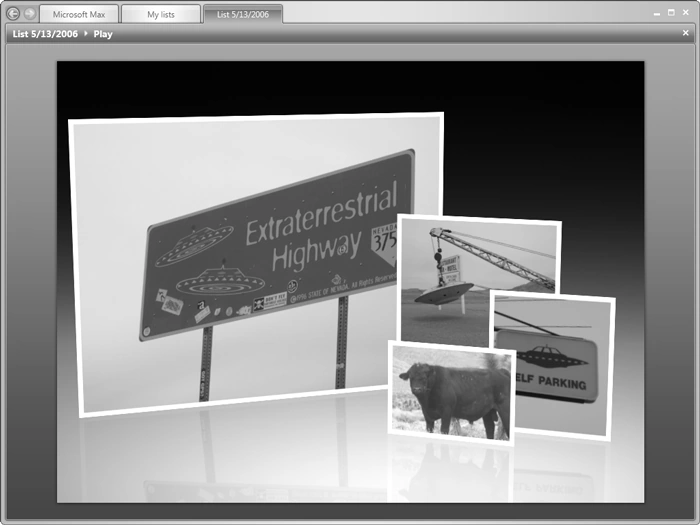
Figure 2-1. Running a XAML application as a stand-alone installed application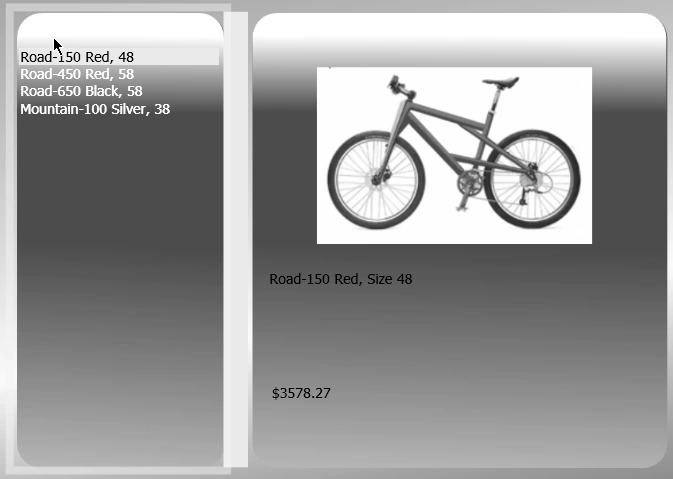
Figure 2-2. Running a XAML application using the NavigationWindow class
When using WPF, you can use custom controls or other components, and these behave, from a security point of view, in a similar manner to installed applications, because they are compiled into a DLL file. As such, they are available only to applications and not directly to the user.
In the next section, you will look at these methodologies in a little more detail and learn how you should consider designing your application for hosting or deployment.
Choices in Application Distribution
As you saw earlier, you have two types of application and three types of deployment, with the browser application running only in the browser and the installed application being able to run stand-alone or in the navigation window. Which option you choose will have an impact on security; therefore, it is a good idea to understand each type of application in order to make an informed decision.
Choosing a XAML Browser Application
If you want a web-like experience in your application, you should consider the XAML browser application type. This will allow a user to have a seamless web-like experience, including the ability to navigate to other web pages and then return. Of course, if the application runs in this manner, you have to treat it as a typical web application, and as such it is restricted to the Internet security zone. Thus, if your application needs to go beyond this-to access the file system or the Windows registry, for example-then this type of application isn't suitable. If you want the user to browse directly to your application and not have to accept installation dialog boxes, this of course is a good approach. Finally, many applications require offline access- when building a XAML browser application, offline access isn't available, so you should consider in this case an installed application.
A XAML browser application is intended to provide a rich experience to a web user. Typically, web applications are quite static in nature, and they require many page refreshes and round-trips to perform processing tasks. Therefore, they don't usually create the most engaging experience, but advances in design and technology with frameworks and methodologies such as asynchronous JavaScript and XML (Ajax) are driving a more compelling web experience. Microsoft offers the framework code-named Atlas, which provides a consistent server-side programming model that enables ASP.NET developers to quickly and easily build Ajax applications.
Additionally, plug-ins to the browser such as the near-ubiquitous Flash and Shockwave from Adobe offer this rich experience. In many ways, XAML in the browser is a competitor to them, and it is a powerful one offering the same programming model as will be used in the next generation of desktop applications, which could be a decisive factor. In fact, Microsoft is developing an API called Windows Presentation Foundation Everywhere (WPF/E) that provides a browser plug-in that renders XAML and appears to be the basis of a competitor to Flash and Shockwave. This API is in its earliest stages at the moment and as such is not covered in this book.
A XAML browser application is browsed to rather than deployed. The browser makes a request to the server to retrieve the application, which is downloaded and executed within the browser. The rich features of WPF are then available to the browser-based (and hence web) application.
You create and build browser XAML applications in the same way as installed applications . The differentiator happens at compile time where you change compiler settings. Indeed, using this methodology, a single-source code base is available to be shared between a browser and an installed application. Thus, if you are developing an application that needs to run on both (perhaps with an enhanced offline mode), you can use this single-source code base and make the changes at compile time. You'll see more about this in Chapter 9.
When building a XAML browser application, the build process creates three files:
Deployment manifests: These are denoted by the .xbap file extension. ClickOnce uses this file type to deploy the application.
Application manifests: These are denoted by the .exe.manifest extension. This contains the standard .NET metadata that is created for any managed application.
Executable code: This is denoted by the .exe extension. Yes, that's right, this is an EXE file that your users download and execute. It's not too scary, though, because you are still protected by the Internet security zone in the browser.
Deployment occurs when the user navigates to the uniform resource indicator (URI) of the .xbap file. This invokes ClickOnce to download the application. Note that users can deploy XAML browser applications only using ClickOnce. Therefore, Chapter 10 is devoted to this task and how you can create, build, and deploy a XAML browser application. The application cannot later be invoked by launching the .exe file; you have to browse to the .xbap file on the hosting server to run the application again. This also ensures application version consistency because only the server-hosted application version can be run.
Note that if the .xbap file resides on your system (instead of a server as is intended), it will run in the browser with local security zone permissions. This is particularly useful when developing, but of course, you should do your final testing from a server so you can test the application running in Internet security zone permissions.
Because the application runs in the Internet security zone, a number of features are not permitted. This is because the application runs with partial trust. This occurs regardless of where the server is hosted, be it the Internet or an intranet. Features that are not allowed in XAML browser applications and that will incur a compiler error are launching new windows,using application-defined dialog boxes, and using the UIAutomation client.
Choosing an Installed Application
A WPF installed application, from the point of view of requirements, behaves similarly to a traditional WinForms application. If your requirements call for access to system resources such as the file system or the registry, you should use an installed application. Of course, if you also need to have an offline experience, then this approach is best.
WPF installed applications are rich client applications that have full access to system resources, and they behave in the same way as any other installed application. They run stand-alone in their own window and not within a browser.
When you build a WPF installed application, you will build three standard files. These are the deployment manifest (an .application extension) , which ClickOnce uses to deploy the application; the application manifest (an .exe.manifest extension), which contains the standard application metadata that is created for any managed application; and the executable (an .exe extension), which is the application's executable code.
Additionally, you can create support DLLs as needed.
An installed application is typically deployed from a server using either ClickOnce or Microsoft Windows Installer (MSI). Of course, because it supports these technologies, it can also be deployed from media such as a DVD or a CD.
When it comes to security, take note that the installable application type has the same access to system resources as the logged-on user, in the same manner as any other Windows application. The security gateway comes at deployment time, so you should make sure your application distribution is controlled. Also, your users should be trained to understand that even though they may install WPF applications from a browser, the browser sandbox will not protect them when they run the application.
Windows Presentation Foundation Architecture
You'll now look at the WPF architecture from a programmer's viewpoint, taking a tour of the class libraries that a typical WPF application uses. You'll look into the major classes used by a WPF application and how they interact. Although the framework handles much of your work, particularly when using Microsoft Expression Interactive Designer (as you'll see in Chapters 3 and 4), it's still a good idea to have an inkling of what lies beneath.
The primary WPF programming model is exposed as managed code classes that run on top of the common language runtime (CLR). The presentation framework is built on top of the presentation core libraries (also managed code), which then run on the CLR. However, because WPF uses DirectX to interact with the video hardware, it requires a component that runs on top of this. This component is called milcore, and Figure 2-3 shows all three components.
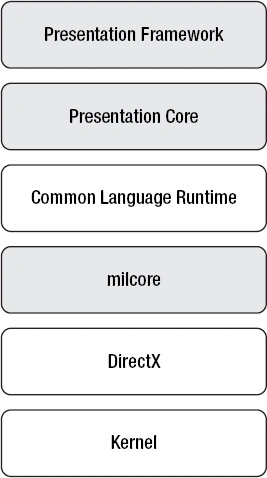
Figure 2-3. WPF architecture
Now let's start looking into the major classes that WPF uses.
System.Threading.DispatcherObject
Most WPF objects derive from the DispatcherObject object. It provides the basic underlying constructs that deal with concurrency and threading. It handles messages such as mouse movements (a raw input notification), layout, and user commands. When you derive from a DispatcherObject object, you are effectively creating an object that has single-thread affinity execution and will be given a pointer to a dispatcher at the time the object is created.
System.Windows.DependencyObject
A primary design consideration in WPF is to use properties as much as possible and to use, wherever possible, properties instead of methods and events to handle object behaviors. As such, you could achieve a data-driven system for displaying user interface content via properties. For example, you can define much of the behavior of a user interface by binding properties, such as binding to a data source.
So, to beef up the behavior of a system that is driven by properties, the property system should be richer than the classic property model where properties define nonfunctional behavior such as color and size. So, for example, if you want to bind a property to the property of another object, then a change notification on properties needs to be supported; in fact, both sides of the binding need to support this.
This is where you use the DependencyObject type. The classic example of this is in inherited properties where you can have a property that is inheritable (for example, FontSize) and want this property on a child object to automatically update when the property on the parent object changes.
Property dependency is also nicely demonstrated when using control templates in WPF. You can specify a template for how a control or set of controls should appear and then apply that to a number of control sets to set their properties coherently.
For example, if you look at Figure 2-4, you can see the bicycle application that will be introduced in Chapter 3. This shows how the controls are laid out and how their default physical properties are set. The application has two panes; the left pane contains a list of products, and the right pane contains details for the selected product.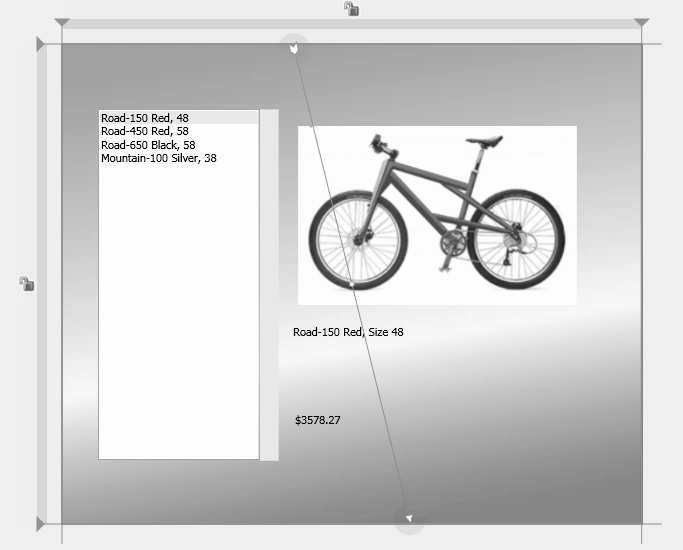
Figure 2-4. Default physical appearance of WPF controls
Now consider Figure 2-5. In this case, a template has been created for the controls, and each pane of the application derives its styling from this template. This uses the Dependency- Object under the hood to pass property information from the template to the controls within the pane, presenting a coherent user interface between the two panes that has to be developed only once.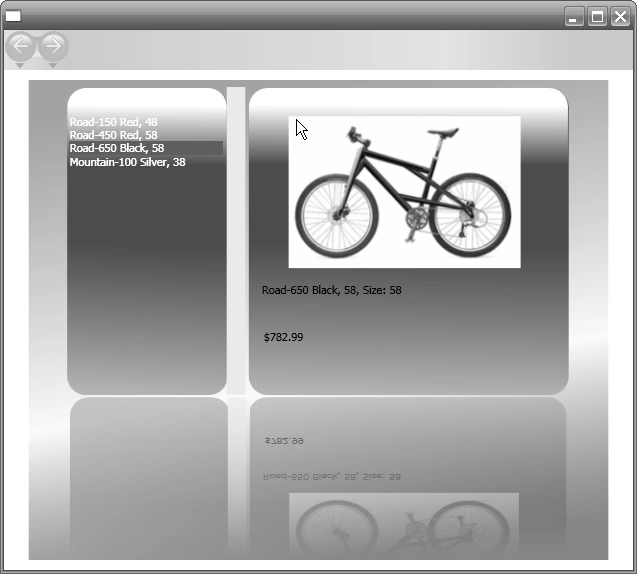
Figure 2-5. Controls deriving their properties from a template
System.Windows.Media.Visual
This is the entry point into the WPF composition system. It displays data by traversing the data structures managed by the milcore, and these are represented using a hierarchical display tree with rendering instructions at each node of the tree. When you build a WPF user interface, you are creating elements of this class, which communicate with milcore using an internal messaging protocol.
System.Windows.UIElement
UIElement is at the heart of three major subsystems in WPF-layout, input, and events.Layout is a core concept in WPF, and UIElement introduces a new concept of how this is achieved differently from the familiar flow, absolute, and table layouts. It does this using two passes, called measure and arrange.
The measure pass allows a component to specify how much real estate it needs. This allows applications to automatically size their content areas, determining a desired size based on the size of the application.
When a measure phase results in changes to the desired size of controls, the arrange pass may need to change how they are arranged on the screen.
When it comes to input, a user action originates as a signal on a device driver (such as that for the mouse) and gets routed via the kernel and User32 to WPF. At the WPF level, it is converted into a raw WPF message that is sent to the dispatcher. At this level, it can be converted into multiple events; for example, a mouse move event can also spawn a mouse enter event for a specific control. These events can then be captured at the UIElement layer and passed to derived controls for the programmer to handle.
System.Windows.FrameworkElement
The primary features provided by FrameworkElement relate to application layout. FrameworkElement builds on the layout introduced by UIElement (see the previous section) and makes it easier for layout authors to have a consistent set of layout semantics. Effectively, it allows the programmer or designer to override the automatic layout functionality introduced by UIElement by specifying alignment and layout properties for controls. These then use FrameworkElement under the hood.
Two critical elements that FrameworkElement introduces to the WPF platform are data binding and styles. You'll see these used throughout WPF applications.
How to Program WPF Applications
In Chapters 3 and 4, you will use Expression Interactive Designer and Visual Studio 2005 with the Cider designer to build a WPF application. Earlier, you saw the underlying classes that support WPF applications, but before you start developing applications, it's a good idea to know how your higher-level managed code works. You may not directly use many of the classes in the previous sections, but you are likely to use the ones in the following sections extensively. So, before you get down and dirty with development, let's take a tour of these objects.
Using the Application Object
At the core of all WPF applications is the Application object. The class is in the System.Windows namespace and is in the presentationframework.dll assembly.
This object forms the interface between your application and the operating system,allowing you to manage your application as a collection of XAML pages.
It handles message dispatching on your behalf, so you do not need to implement a message loop, and it supports navigation between pages in its collection. It also has an application-level global object that provides a way to share data between pages and a number of application-level events that can be handled by the programmer, such as when the application starts.
This object is global to the application. Every page has access to the same Application object. It is created when the executable is launched and runs for the duration of the application. It is also local to the user's system. The application does not communicate with a server to update it.
By providing methods and events that can be overridden and handled respectively, you can customize your Application object because it is extensible.
The WPF creates the Application object at compile time using the application definition file, which is the XAML file, and its (optional) associated code-behind file. The application definition file is distinguished from other XAML files by using an ApplicationDefinition item instead of a Page definition item. Listing 2-1 shows an example of a simple Application definition file.
Listing 2-1. Application Definition File
<Application
xmlns="http://schemas.microsoft.com/winfx/2006/xaml/presentation"
xmlns:x="http://schemas.microsoft.com/winfx/2006/xaml"
x:Class="UntitledProject1.MainApplication"
StartupUri="Scene1.xaml"/>
Similarly, Listing 2-2 shows a Page definition file.
Listing 2-2. Page Definition File
<Page
xmlns="http://schemas.microsoft.com/winfx/2006/xaml/presentation"
xmlns:x="http://schemas.microsoft.com/winfx/2006/xaml"
xmlns:mc="http://schemas.openxmlformats.org/markup-compatibility/2006"
xmlns:d="http://schemas.microsoft.com/expression/interactivedesigner/200"
mc:Ignorable="d"
x:Name="RootPage"
x:Class="UntitledProject1.Page1"
WindowTitle="Root Page">
<Page.Resources>
<Storyboard x:Key="OnLoaded"/>
</Page.Resources>
<Page.Triggers>
<EventTrigger RoutedEvent="FrameworkElement.Loaded">
<BeginStoryboard x:Name="OnLoaded_BeginStoryboard" Storyboard="{DynamicResource OnLoaded}"/>
</EventTrigger>
</Page.Triggers>
<Grid Background="#FFFFFFFF" x:Name="DocumentRoot" Width="640" Height="480">
<Grid.ColumnDefinitions>
<ColumnDefinition/>
</Grid.ColumnDefinitions>
<Grid.RowDefinitions>
<RowDefinition/>

Wulfrano LopezPosted Jun 10, 2013, 2:14 PM
Can a wpf application developed with VS2008 be installed on windows 8?