

Introduction
ASP.NET MVC (Mode-View-Controller) is a free, fully supported, Microsoft product that enables developers to easily build great web applications. It provides total control over your HTML and URLs, enables rich AJAX integration, and facilitates test driven development.
The ASP.NET MVC Framework uses a Model-view-controller pattern. Microsoft added this framework to ASP.NET. It allows software developers to build a Web application as a composition of three roles: Model, View and Controller. A Model represents the state of a particular aspect of the application. Frequently, a model maps to a database table with the entries in the table representing the state of the table. A Controller handles interactions and updates the model to reflect a change in state of the application. A View extracts necessary information from a model and renders a user interface to display that.
Controllers - A controller is responsible for controlling the way that a user interacts with an MVC application. A controller contains the flow control logic for an ASP.NET MVC application. A controller determines what response to send back to a user when a user makes a browser request. A controller is just a class (for example, a Visual Basic or C# class). The sample ASP.NET MVC application includes a controller named HomeController.cs located in the Controllers folder.
Example:
HomeController.cs
using System;
using System.Collections.Generic;
using System.Linq;
using System.Web;
using System.Web.Mvc;
namespace MVCUsingADONETEntityDataModel.Controllers
{
    [HandleError]
    public class HomeController : Controller
    {
        public ActionResult Index()
        {
            ViewData["Message"] = "Welcome to ASP.NET MVC!";
            return View();
        }
        public ActionResult About()
        {
            return View();
        }
    }
}
AccountController.cs
Views - The two controller actions exposed by the HomeController class, Index() and About(), both return a view. A view contains the HTML markup and content that is sent to the browser. A view is the equivalent of a page when working with an ASP.NET MVC application.
You must create your views in the right location. The HomeController.Index() action returns a view located at the following path: \Views\Home\Index.aspx
The HomeController.About() action returns a view located at the following path:\Views\Home\About.aspx
There are three folders by default in Views:
1. Account - This folder has four .aspx pages.
-
ChangePassword.aspx
-
ChangePasswordSuccess.aspx
-
LogOn.aspx
-
Register.aspx
2. Home - It has two folders.
-
About.aspx
-
Index.aspx
3. Shared - It can have asp.net page and user controls and master pages.
-
Error.aspx
-
LogOnUserControl.ascx
-
Site.master
Models - An MVC model contains all of your application logic that is not contained in a view or a controller. The model should contain all of your application business logic, validation logic, and database access logic. For example, if you are using the Microsoft Entity Framework to access your database, then you would create your Entity Framework classes (your .edmx file) in the Models folder.
A view should contain only logic related to generating the user interface. A controller should only contain the bare minimum of logic required to return the right view or redirect the user to another action (flow control). Everything else should be contained in the model.
In general, you should strive for fat models and skinny controllers. Your controller methods should contain only a few lines of code. If a controller action gets too fat, then you should consider moving the logic out to a new class in the Models folder.
Note - You can download ASP.NET MVC framework SDK 1.0 here:
Get Started - After installing MVC framework SDK you will see a new template in installed visual studio templates 'ASP.NET MVC Web Application'.
Create a new project using ASP.NET MVC Web Application -
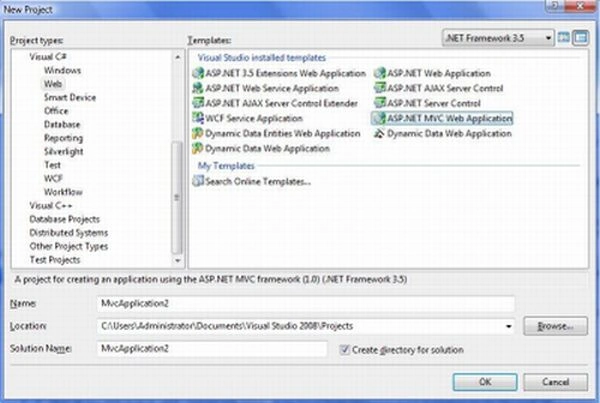
Figure 1.
Next step is if you want to create a unit test project or not? When you create a new ASP.NET MVC application, the Create Unit Test Project dialog appears (see Figure 2). This dialog enables you to create a separate project in your solution for testing your ASP.NET MVC application. Select the option No, do not create a unit test project and click the OK button.
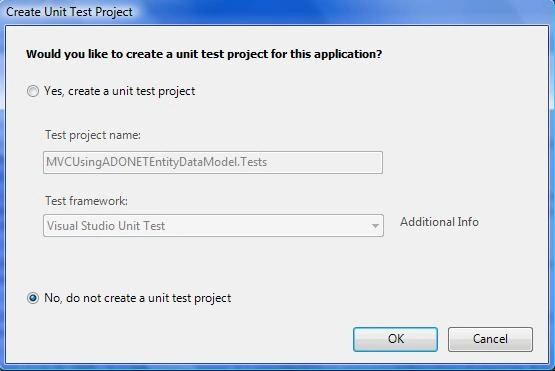
Figure 2.
After the new ASP.NET MVC application is created, you will see several folders and files in the solution explorer. There are five folders by default Content, Controllers, Models, Scripts, and Views.
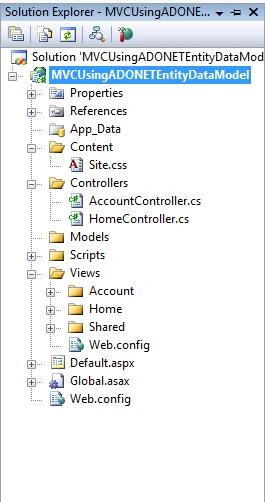
Figure 3.
After execution output will look like this.
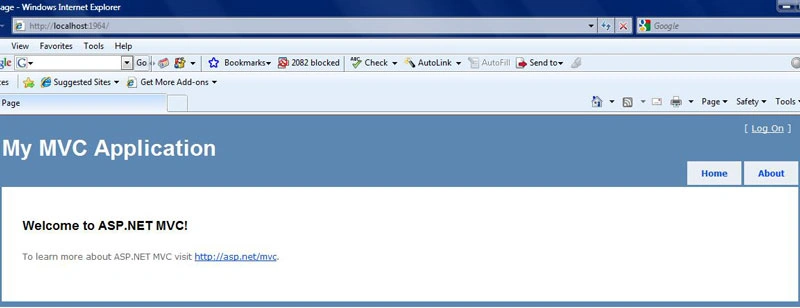
Figure 4.
Now time to add a new item 'ADO.NET Entity Data Model'
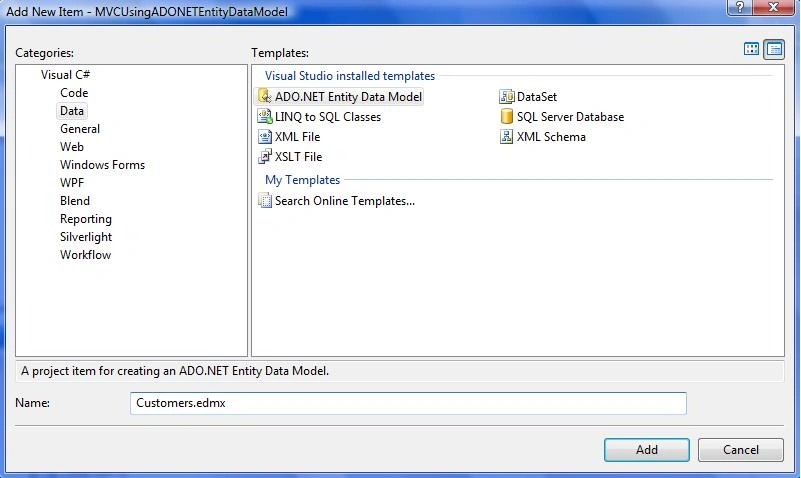
Figure 5.
In this MVC application, I am using NORTHWND database…you can copy that from App_Data folder.
Now generate model from database.
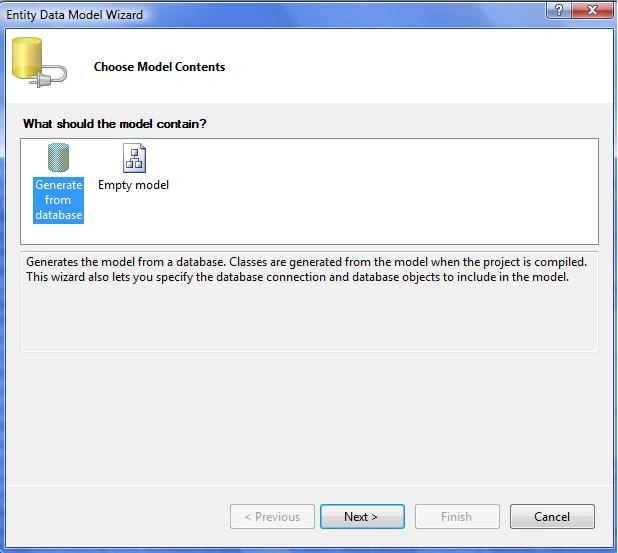
Figure 6.
Now choose data connection.
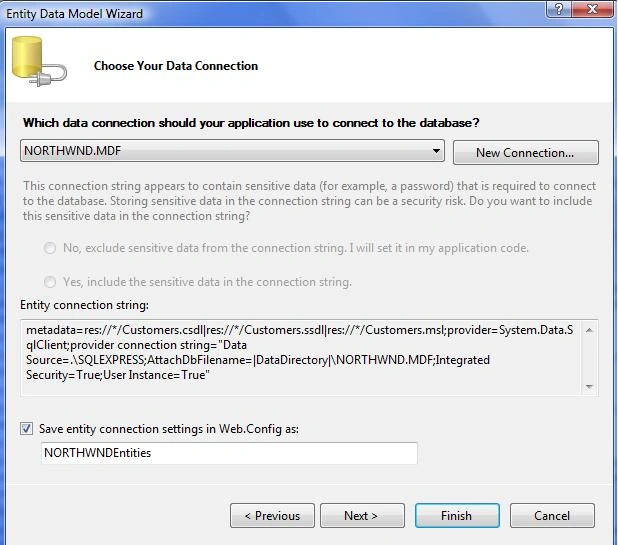
Figure 7.
Now time to choose Database Objects, I have selected Products table you can select multiple tables if you want and click Finish.
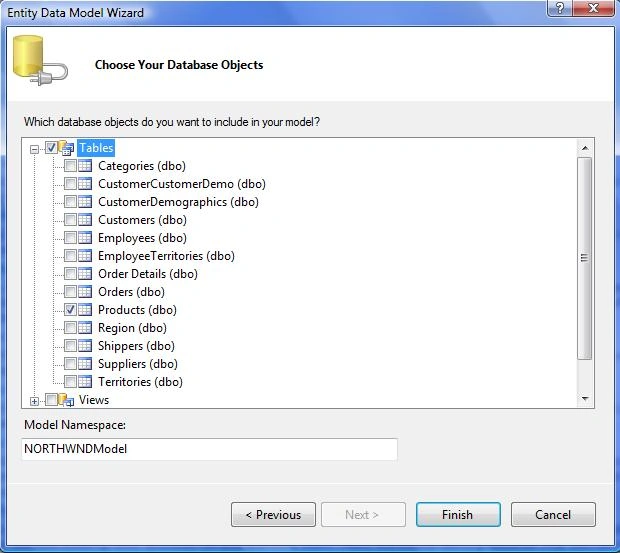
Figure 8.
ADO.NET Entity Data Model will look like this.
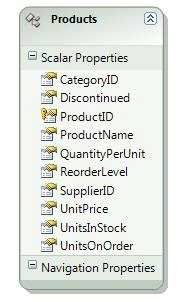
Figure 9.
You can rename of model if you want like this. Double click on model name and change name.
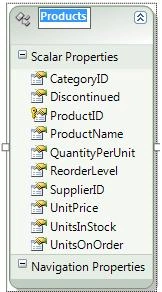
Figure 10.
So we done with data model here! now let's start work with controllers. Right click on controllers and add a new controller and do check Add action method for Create, Update and Details scenarios, That will add methods for Create, Update and Details.
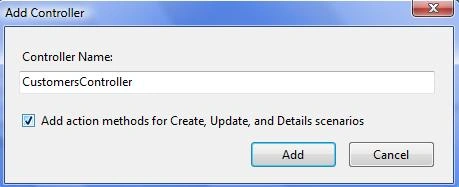
Figure 11.
CustomersController.cs
using System;
using System.Collections.Generic;
using System.Linq;
using System.Web;
using System.Web.Mvc;
using System.Web.Mvc.Ajax;
namespace MVCUsingADONETEntityDataModel.Controllers
{
    public class CustomersController : Controller
    {
        //
        // GET: /Customers/
        public ActionResult Index()
        {
            return View();
        }
        //
        // GET: /Customers/Details/5
        public ActionResult Details(int id)
        {
            return View();
        }
        //
        // GET: /Customers/Create
        public ActionResult Create()
        {
            return View();
        }
        //
        // POST: /Customers/Create
        [AcceptVerbs(HttpVerbs.Post)]
        public ActionResult Create(FormCollection collection)
        {
            try
            {
                // TODO: Add insert logic here
                return RedirectToAction("Index");
            }
            catch
            {
                return View();
            }
        }
        //
        // GET: /Customers/Edit/5
        public ActionResult Edit(int id)
        {
            return View();
        }
        //
        // POST: /Customers/Edit/5
        [AcceptVerbs(HttpVerbs.Post)]
        public ActionResult Edit(int id, FormCollection collection)
        {
            try
            {
                // TODO: Add update logic here
                return RedirectToAction("Index");
            }
            catch
            {
                return View();
            }
        }
    }
}
Now right click on Index method and Add View. You need to build your project before adding View.
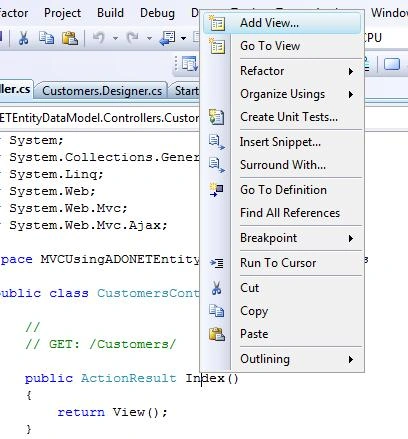
Figure 12.
Now you to select view data class name from drop down list.
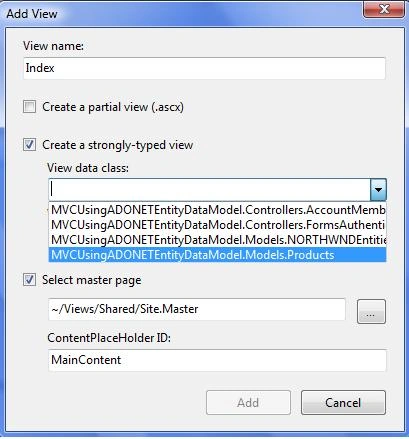
Figure 13.
Now you have to select View Content type from drop down list. I m going to show products list sho I m selecting List View and click Add.
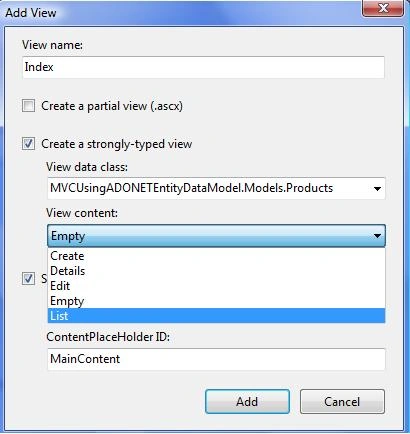
Figure 14.
After that will add a new folder Customers in Views name of Index that will have HTML code like this.
Views/Customers/Index.aspx
<%@ Page Title="" Language="C#" MasterPageFile="~/Views/Shared/Site.Master" Inherits="System.Web.Mvc.ViewPage<IEnumerable<MVCUsingADONETEntityDataModel.Models.Products>>" %>
<asp:Content ID="Content1" ContentPlaceHolderID="TitleContent" runat="server">
      Index
</asp:Content>
<asp:Content ID="Content2" ContentPlaceHolderID="MainContent" runat="server">
    <h2>Index</h2>
    <table>
        <tr>
            <th></th>
            <th>CategoryID</th>
            <th>Discontinued</th>
            <th>ProductID</th>
            <th>ProductName</th>
            <th>QuantityPerUnit</th>
            <th>ReorderLevel</th>
            <th>SupplierID</th>
            <th>UnitPrice</th>
            <th>UnitsInStock</th>
            <th>UnitsOnOrder</th>
        </tr>
    <% foreach (var item in Model) { %>
        <tr>
            <td>
                <%= Html.ActionLink("Edit", "Edit", new { id=item.ProductID }) %> |
                <%= Html.ActionLink("Details", "Details", new { id=item.ProductID })%>
            </td>
            <td>
                <%= Html.Encode(item.CategoryID) %>
            </td>
            <td>
                <%= Html.Encode(item.Discontinued) %>
            </td>
            <td>
                <%= Html.Encode(item.ProductID) %>
            </td>
            <td>
                <%= Html.Encode(item.ProductName) %>
            </td>
            <td>
                <%= Html.Encode(item.QuantityPerUnit) %>
            </td>
            <td>
                <%= Html.Encode(item.ReorderLevel) %>
            </td>
            <td>
                <%= Html.Encode(item.SupplierID) %>
            </td>
            <td>
                <%= Html.Encode(String.Format("{0:F}", item.UnitPrice)) %>
            </td>
            <td>
                <%= Html.Encode(item.UnitsInStock) %>
            </td>
            <td>
                <%= Html.Encode(item.UnitsOnOrder) %>
            </td>
        </tr>
    <% } %>
    </table>
    <p>
        <%= Html.ActionLink("Create New", "Create") %>
    </p>
</asp:Content>
Now we need to do some work on Controller class. First of all add a namespace for those models.
using MVCUsingADONETEntityDataModel.Models;
Now you have to make entity model object.
private NORTHWNDEntities _entities = new NORTHWNDEntities();
//
// GET: /Customers/
public ActionResult Index()
{
    return View(_entities.Products.ToList());
}
And now execute application that will show you default indext page… you need to change the url.
http://localhost:1964/Customers
Output will look like this.
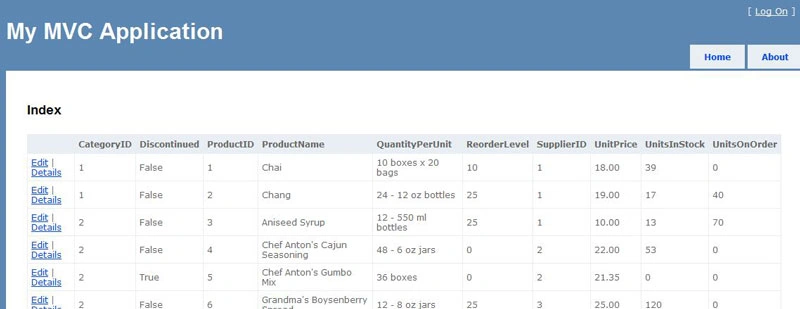
Figure 15.
Now you done with show data using ASP.NET MVC application.
Now let's work on create new product. Almost same this you have to do Add View and select Create View Content and click Add.
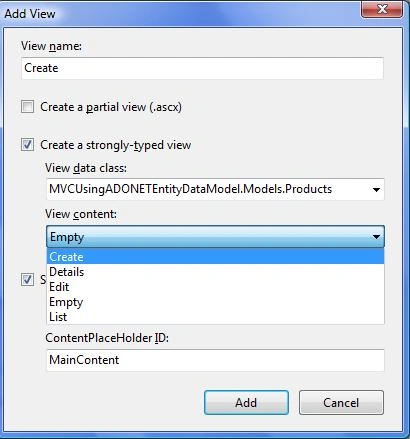
Figure 16.
Views/Customers/Create.aspx
<%@ Page Title="" Language="C#" MasterPageFile="~/Views/Shared/Site.Master" Inherits="System.Web.Mvc.ViewPage<MVCUsingADONETEntityDataModel.Models.Products>" %>
<asp:Content ID="Content1" ContentPlaceHolderID="TitleContent" runat="server">
      Create
</asp:Content>
<asp:Content ID="Content2" ContentPlaceHolderID="MainContent" runat="server">
    <h2>Create</h2>
    <%= Html.ValidationSummary("Create was unsuccessful. Please correct the errors and try again.") %>
    <% using (Html.BeginForm()) {%>
        <fieldset>
            <legend>Fields</legend>
            <p>
                <label for="CategoryID">CategoryID:</label>
                <%= Html.TextBox("CategoryID") %>
                <%= Html.ValidationMessage("CategoryID", "*") %>
            </p>
            <p>
                <label for="Discontinued">Discontinued:</label>
                <%= Html.TextBox("Discontinued") %>
                <%= Html.ValidationMessage("Discontinued", "*") %>
            </p>
            <p>
                <label for="ProductID">ProductID:</label>
                <%= Html.TextBox("ProductID") %>
                <%= Html.ValidationMessage("ProductID", "*") %>
            </p>
            <p>
                <label for="ProductName">ProductName:</label>
                <%= Html.TextBox("ProductName") %>
                <%= Html.ValidationMessage("ProductName", "*") %>
            </p>
            <p>
                <label for="QuantityPerUnit">QuantityPerUnit:</label>
                <%= Html.TextBox("QuantityPerUnit") %>
                <%= Html.ValidationMessage("QuantityPerUnit", "*") %>
            </p>
            <p>
                <label for="ReorderLevel">ReorderLevel:</label>
                <%= Html.TextBox("ReorderLevel") %>
                <%= Html.ValidationMessage("ReorderLevel", "*") %>
            </p>
            <p>
                <label for="SupplierID">SupplierID:</label>
                <%= Html.TextBox("SupplierID") %>
                <%= Html.ValidationMessage("SupplierID", "*") %>
            </p>
            <p>
                <label for="UnitPrice">UnitPrice:</label>
                <%= Html.TextBox("UnitPrice") %>
                <%= Html.ValidationMessage("UnitPrice", "*") %>
            </p>
            <p>
                <label for="UnitsInStock">UnitsInStock:</label>
                <%= Html.TextBox("UnitsInStock") %>
                <%= Html.ValidationMessage("UnitsInStock", "*") %>
            </p>
            <p>
                <label for="UnitsOnOrder">UnitsOnOrder:</label>
                <%= Html.TextBox("UnitsOnOrder") %>
                <%= Html.ValidationMessage("UnitsOnOrder", "*") %>
            </p>
            <p>
                <input type="submit" value="Create" />
            </p>
        </fieldset>
    <% } %>
    <div>
        <%=Html.ActionLink("Back to List", "Index") %>
    </div>
</asp:Content>
Need to change in Create method in controller class.
// GET: /Customers/Create
public ActionResult Create()
{
    return View();
}
//
// POST: /Customers/Create
[AcceptVerbs(HttpVerbs.Post)]
public ActionResult Create(Products productToCreate)
{
    try
    {
        // TODO: Add insert logic here
        _entities.AddToProducts(productToCreate);
        _entities.SaveChanges();
        return RedirectToAction("Index");
    }
    catch
    {
        return View();
    }
}
And now run the application.
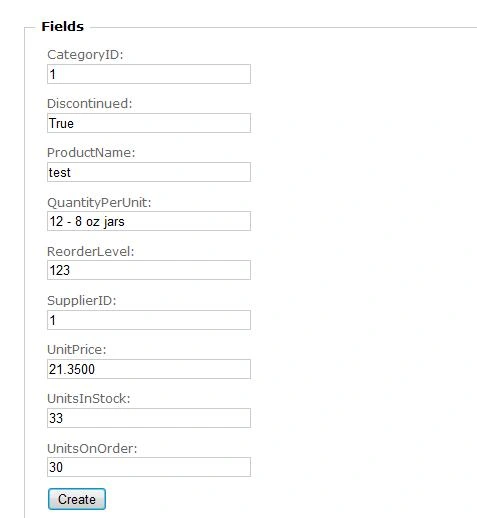
Figure 17.
Fill new product detail and press Create button, you will see you record has been inserted in database and that will redirect you on index page.

Figure 18.
We done with Create method here now let's start work on Edit method. Same thing you need to do go in controller class and Add View and select strongly-typed view with Edit Content View.
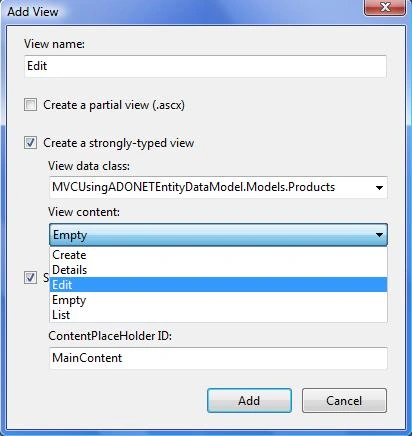
Figure 19.
Views/Customers/Edit.aspx
<%@ Page Title="" Language="C#" MasterPageFile="~/Views/Shared/Site.Master" Inherits="System.Web.Mvc.ViewPage<MVCUsingADONETEntityDataModel.Models.Products>" %>
<asp:Content ID="Content1" ContentPlaceHolderID="TitleContent" runat="server">
      Edit
</asp:Content>
<asp:Content ID="Content2" ContentPlaceHolderID="MainContent" runat="server">
    <h2>Edit</h2>
    <%= Html.ValidationSummary("Edit was unsuccessful. Please correct the errors and try again.") %>
    <% using (Html.BeginForm()) {%>
        <fieldset>
            <legend>Fields</legend>
            <p>
                <label for="CategoryID">CategoryID:</label>
                <%= Html.TextBox("CategoryID", Model.CategoryID) %>
                <%= Html.ValidationMessage("CategoryID", "*") %>
            </p>
            <p>
                <label for="Discontinued">Discontinued:</label>
                <%= Html.TextBox("Discontinued", Model.Discontinued) %>
                <%= Html.ValidationMessage("Discontinued", "*") %>
            </p>
            <p>
                <label for="ProductID">ProductID:</label>
                <%= Html.TextBox("ProductID", Model.ProductID) %>
                <%= Html.ValidationMessage("ProductID", "*") %>
            </p>
            <p>
                <label for="ProductName">ProductName:</label>
                <%= Html.TextBox("ProductName", Model.ProductName) %>
                <%= Html.ValidationMessage("ProductName", "*") %>
            </p>
            <p>
                <label for="QuantityPerUnit">QuantityPerUnit:</label>
                <%= Html.TextBox("QuantityPerUnit", Model.QuantityPerUnit) %>
                <%= Html.ValidationMessage("QuantityPerUnit", "*") %>
            </p>
            <p>
                <label for="ReorderLevel">ReorderLevel:</label>
                <%= Html.TextBox("ReorderLevel", Model.ReorderLevel) %>
                <%= Html.ValidationMessage("ReorderLevel", "*") %>
            </p>
            <p>
                <label for="SupplierID">SupplierID:</label>
                <%= Html.TextBox("SupplierID", Model.SupplierID) %>
                <%= Html.ValidationMessage("SupplierID", "*") %>
            </p>
            <p>
                <label for="UnitPrice">UnitPrice:</label>
                <%= Html.TextBox("UnitPrice", String.Format("{0:F}", Model.UnitPrice)) %>
                <%= Html.ValidationMessage("UnitPrice", "*") %>
            </p>
            <p>
                <label for="UnitsInStock">UnitsInStock:</label>
                <%= Html.TextBox("UnitsInStock", Model.UnitsInStock) %>
                <%= Html.ValidationMessage("UnitsInStock", "*") %>
            </p>
            <p>
                <label for="UnitsOnOrder">UnitsOnOrder:</label>
                <%= Html.TextBox("UnitsOnOrder", Model.UnitsOnOrder) %>
                <%= Html.ValidationMessage("UnitsOnOrder", "*") %>
            </p>
            <p>
                <input type="submit" value="Save" />
            </p>
        </fieldset>
    <% } %>
    <div>
        <%=Html.ActionLink("Back to List", "Index") %>
    </div>
</asp:Content>
Put this code in controller class on Edit method click and run the application and click on Edit link button.
// GET: /Customers/Edit/5
public ActionResult Edit(int id)
{
    var productToUpdate = _entities.Products.First(m => m.ProductID == id);
    ViewData.Model = productToUpdate;
    return View();
}
//
// POST: /Customers/Edit/5
[AcceptVerbs(HttpVerbs.Post)]
public ActionResult Edit(int id, FormCollection collection)
{
    // Get product to update
    //var id = Int32.Parse(collection["ProductID"]);
    var productToUpdate = _entities.Products.First(m => m.ProductID == id);
    // Deserialize (Include white list!)
    TryUpdateModel(productToUpdate, new string[] { }, collection.ToValueProvider());
    // Validate
    if (String.IsNullOrEmpty(productToUpdate.ProductName))
        ModelState.AddModelError("ProductName", "ProductName is required!");
    if (ModelState.IsValid)
    {
        // TODO: Add update logic here
        _entities.SaveChanges();
        return RedirectToAction("Index");
    }
    return View(productToUpdate);
}
Output.
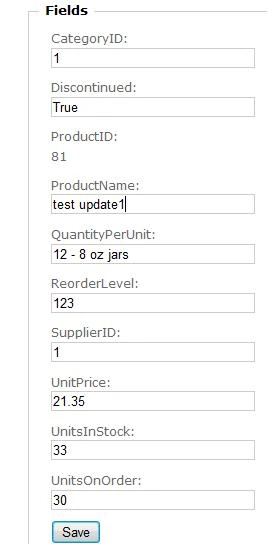
Figure 20.
Here we have done with Edit. Now we are going to see Delete Method.
Add a new line in Index.aspx
<%= Html.ActionLink("Delete", "Delete", new { id=item.ProductID })%>
Put this method in controller class.
public ActionResult Delete(int id)
{
    // Get movie to delete
    var productToDelete = _entities.Products.First(m => m.ProductID == id);
    // Delete
    _entities.DeleteObject(productToDelete);
    _entities.SaveChanges();
    // Show Index view
    return RedirectToAction("Index");
}
And finally run the application and click on Delete link button that will delete that row from database. If you have any doubt I am attaching my sample application please download this application and if you like this article drop me a comment in c-sharp corner comment section that will encourage the author to write some good articles.
Manav PandyaPosted Jan 7, 2017, 4:20 AM
Thanks its working fine sir
Manish Kumar ChoudharyPosted Jan 27, 2015, 1:02 AM
shaik peerulla you can use both with mvc.
shaik peerullaPosted Jan 27, 2015, 12:20 AM
hi,i am new to asp.netMVC and can any one tell me that we have to use only EntityFramework for MVC or we can use only ADO.NET classes like sqlconnection,sqlcommand,.....or we can use both
Eubern AndradaPosted Jan 22, 2015, 8:57 PM
very nice!
Saravanakumar SekaranPosted Nov 30, 2014, 8:30 AM
very nice
victor APosted Feb 9, 2011, 1:05 AM
Hi Everybody, Any one knows about how to use html5 contrloes in mvc application,please guide me with step by step process thank u Geninus........ Regards , Victor..........
victor APosted Dec 16, 2010, 3:35 AM
Hi Raj, Very good Artical.I really needed a step by step to embrace MVC. Thank You Very much.... Reards, Victor....
Jean Paul OlveraPosted Oct 25, 2010, 11:37 AM
Hi! When I add the Edit and Delete Views and run the Web Page, by the moment I click the Edit or Delete link I receive Server Error in '/' Application Some body know why?
sasindra kalutotaPosted Feb 11, 2010, 5:40 PM
Heyy sorry plzz ignore my previous post!!!
sasindra kalutotaPosted Feb 11, 2010, 5:28 PM
what is the meaning of this line m => m.ProductID == id ? I mean if your products table didn't have a productID, If it only had a string or varchar type primary key.. how would you edit that model? Thanks Dilanka
HenriquePosted Nov 23, 2009, 7:29 AM
Very good. I really needed a step by step to embrace MVC. Thank you.
SenthilkumarPosted Oct 9, 2009, 10:47 PM
Hey Rajkumar, Thanks lot for post this articles. Really it looks good and very good practical approach. we are expecting the articles like this. Please continue to share your programming stuffs.
Mahesh ChandPosted Oct 9, 2009, 9:30 AM
With step by step details. Good work.