INTRODUCTION
In this article I will show you how to Select, Insert, Update, Delete data using LinqDataSource control. Language-Integrated Query (LINQ) is a query syntax that defines a set of query operators that enable traversal, filter, and projection operations to be expressed in a declarative way in any .NET-based programming language. The data object can be an in-memory data collection or an object that represents data from a database. You can retrieve or modify the data without having to write SQL commands for each operation.
The LinqDataSource control enables you to use LINQ in an ASP.NET Web page by setting properties in markup text. The LinqDataSource control uses LINQ to SQL to automatically generate the data commands.
<asp:LinqDataSource ID="LinqDataSource1" runat="server"
ContextTypeName="DataClassesDataContext"
Select="new (VendorId, VendorFName, VendorLName, VendorCity,
VendorState, VendorCountry, PostedDate, VendorDescription)"
TableName="Vendors" >
</asp:LinqDataSource>
First of all make a new website using ASP.NET and connect your database using Server Explorer.
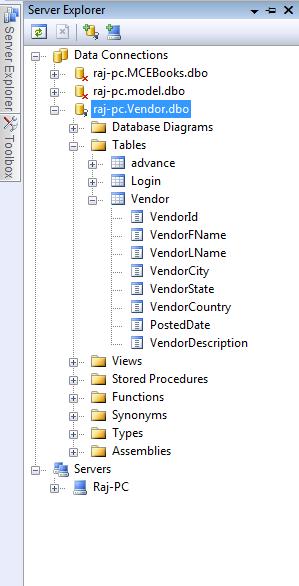
Figure1.
Now drag and drop LinqDataSource and GridView control from toolbox.
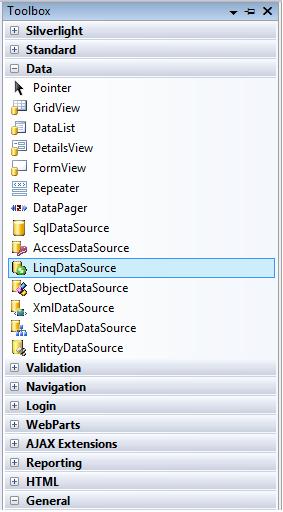
Figure2.
Now add a LINQ to SQL class in solution explorer.
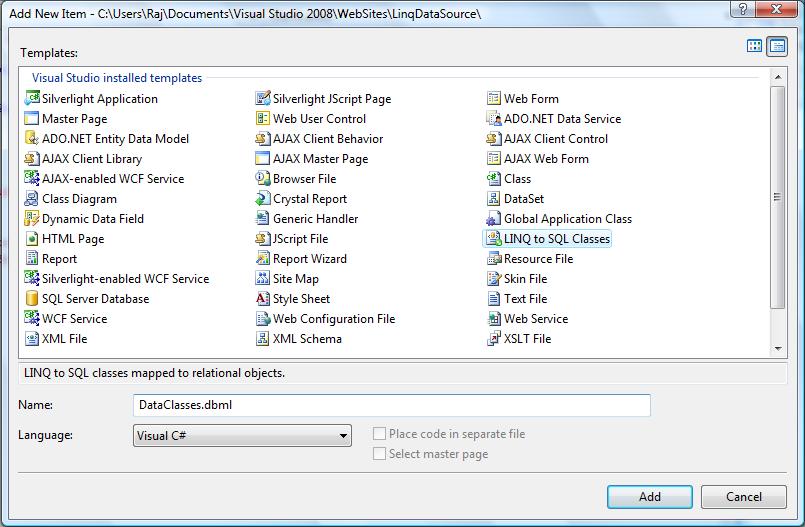
Figure3.
By default it saves in App_Data folder. You can save wherever you want.
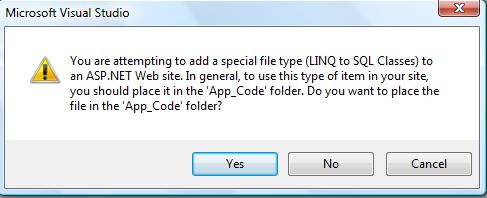
Figure4.
Now drag and drop you table from Server Explorer to DataClass.
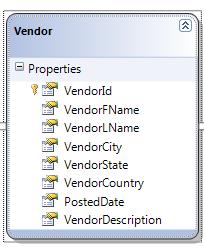
Figure5.
Now time to configure LinqDataSource.

Figure6.
Choose a context object.
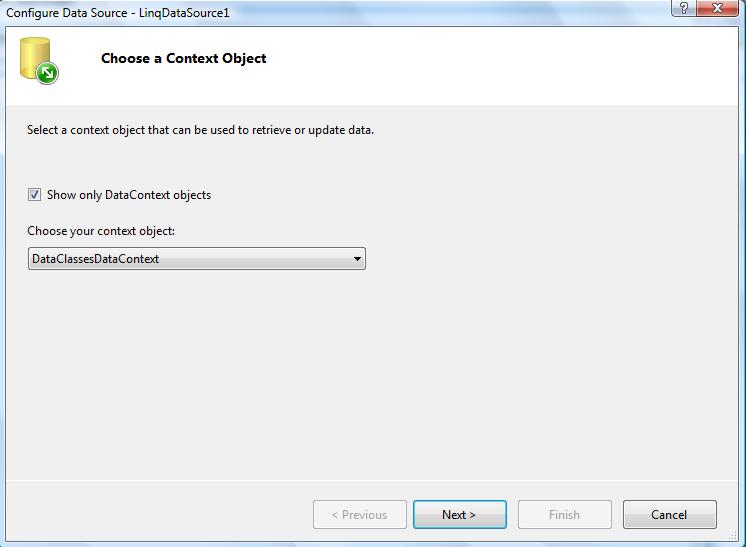
Figure7.
Select tables, columns whatever you want show.
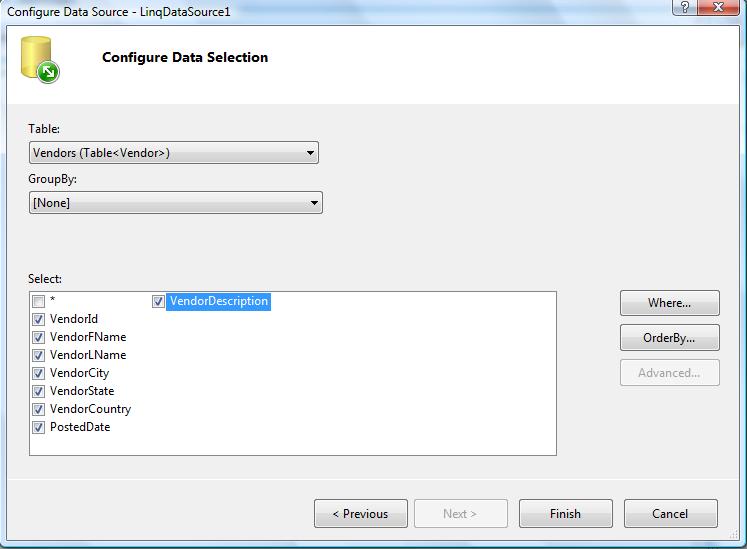
Figure8.
Put GridView DataSourceID = LinqDataSourceID
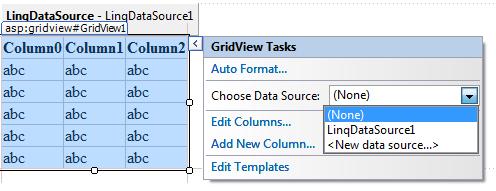
Figure9.
Here is my page code for showing data in grid view.
Select Data
<h2>Select Data Using LinqDataSource</h2>
<asp:LinqDataSource ID="LinqDataSource1" runat="server"
ContextTypeName="DataClassesDataContext"
Select="new (VendorId, VendorFName, VendorLName, VendorCity, VendorState, VendorCountry, PostedDate, VendorDescription)"
TableName="Vendors"
EnableDelete="true"
EnableInsert="true"
EnableUpdate="true">
</asp:LinqDataSource>
<asp:GridView ID="GridView1" runat="server" AllowPaging="True"
AutoGenerateColumns="False" BackColor="LightGoldenrodYellow" BorderColor="Tan"
BorderWidth="1px" CellPadding="2" DataSourceID="LinqDataSource1"
ForeColor="Black" GridLines="None" AutoGenerateSelectButton="True"
DataKeyNames="VendorId">
<Columns>
<asp:BoundField DataField="VendorId" HeaderText="VendorId" ReadOnly="True"
SortExpression="VendorId" />
<asp:BoundField DataField="VendorFName" HeaderText="VendorFName"
ReadOnly="True" SortExpression="VendorFName" />
<asp:BoundField DataField="VendorLName" HeaderText="VendorLName"
ReadOnly="True" SortExpression="VendorLName" />
<asp:BoundField DataField="VendorCity" HeaderText="VendorCity" ReadOnly="True"
SortExpression="VendorCity" />
<asp:BoundField DataField="VendorState" HeaderText="VendorState"
ReadOnly="True" SortExpression="VendorState" />
<asp:BoundField DataField="VendorCountry" HeaderText="VendorCountry"
ReadOnly="True" SortExpression="VendorCountry" />
<asp:BoundField DataField="PostedDate" HeaderText="PostedDate" ReadOnly="True"
SortExpression="PostedDate" />
<asp:BoundField DataField="VendorDescription" HeaderText="VendorDescription"
ReadOnly="True" SortExpression="VendorDescription" />
</Columns>
<FooterStyle BackColor="Tan" />
<PagerStyle BackColor="PaleGoldenrod" ForeColor="DarkSlateBlue"
HorizontalAlign="Center" />
<SelectedRowStyle BackColor="DarkSlateBlue" ForeColor="GhostWhite" /
<HeaderStyle BackColor="Tan" Font-Bold="True" />
<AlternatingRowStyle BackColor="PaleGoldenrod" />
</asp:GridView>
Output
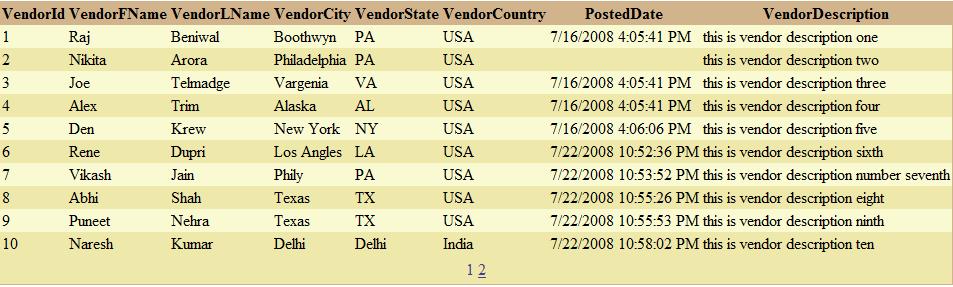
Figure10.
Insert, Update, Delete.
With the LinqDataSource control, you can create Web pages that enable users to update, insert, and delete data. You do not have to specify SQL commands, because the LinqDataSource control uses dynamically created commands for those operations. To let users modify data, you can enable update, insert, or delete operations on the LinqDataSource control. You can then connect the control to a data-bound control that lets users update data, such as the DetailsView or GridView control. If you want to customize the values to be updated, you can add parameters or create an event handler and change values dynamically.
<asp:LinqDataSource ID="LinqDataSource2"
runat="server"
ContextTypeName="DataClassesDataContext"
TableName="Vendors"
EnableDelete="true"
EnableInsert="true"
EnableUpdate="true">
</asp:LinqDataSource>
<asp:DetailsView AutoGenerateRows="false" DataSourceID="LinqDataSource2" DataKeyNames="VendorId"
ID="DetailsView1" runat="server" CellPadding="4"
ForeColor="#333333" GridLines="None" Height="50px" Width="125px"
AllowPaging="True" AutoGenerateDeleteButton="True"
AutoGenerateEditButton="True" AutoGenerateInsertButton="True">
<FooterStyle BackColor="#5D7B9D" Font-Bold="True" ForeColor="White" />
<CommandRowStyle BackColor="#E2DED6" Font-Bold="True" />
<RowStyle BackColor="#F7F6F3" ForeColor="#333333" />
<FieldHeaderStyle BackColor="#E9ECF1" Font-Bold="True" />
<PagerStyle BackColor="#284775" ForeColor="White" HorizontalAlign="Center" />
<Fields>
<asp:BoundField DataField="VendorId" HeaderText="VendorId"
InsertVisible="False" ReadOnly="True" SortExpression="VendorId" />\
<asp:BoundField DataField="VendorFName" HeaderText="VendorFName"
SortExpression="VendorFName" />
<asp:BoundField DataField="VendorLName" HeaderText="VendorLName"
SortExpression="VendorLName" />
<asp:BoundField DataField="VendorCity" HeaderText="VendorCity"
SortExpression="VendorCity" />
<asp:BoundField DataField="VendorState" HeaderText="VendorState"
SortExpression="VendorState" />
<asp:BoundField DataField="VendorCountry" HeaderText="VendorCountry"
SortExpression="VendorCountry" />
<asp:BoundField DataField="PostedDate" HeaderText="PostedDate"
SortExpression="PostedDate" />
<asp:BoundField DataField="VendorDescription" HeaderText="VendorDescription"
SortExpression="VendorDescription" />
</Fields>
<HeaderStyle BackColor="#5D7B9D" Font-Bold="True" ForeColor="White" />
<EditRowStyle BackColor="#999999" />
<AlternatingRowStyle BackColor="White" ForeColor="#284775" />
</asp:DetailsView>
Output:
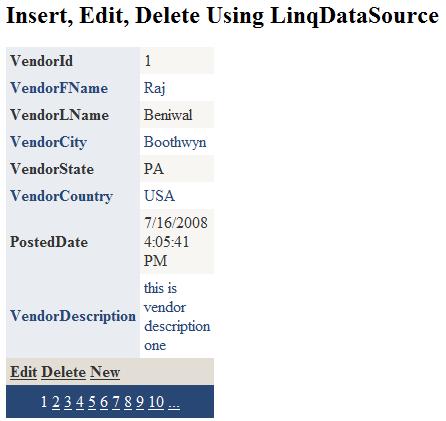
Figure11.
When you click on Edit link button.
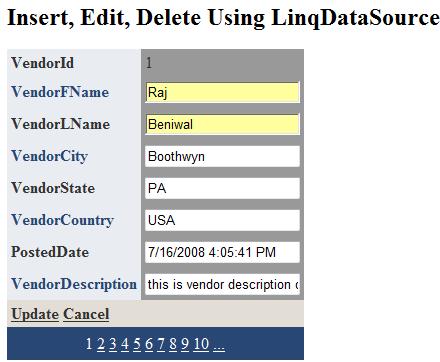
Figure12.
When you click on Insert link, looks like this
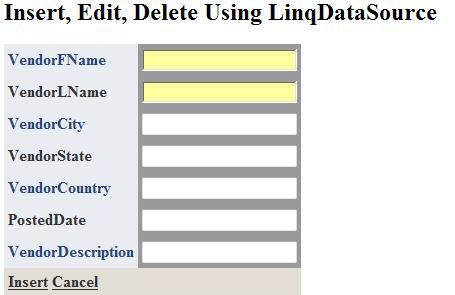
Figure13.
This is it for now