

Background
I have decided to write this article after considering the requirements of students and beginners that often ask how to insert form data and display the data in a gridview programmatically using a Single Stored Procedure. As a result I have explained those requirements with the basics so they can get an idea of how to submit form data and display it in a gridview using a single Stored Procedure.
So let us start the walkthrough.
Create a table "Student" as in the following:
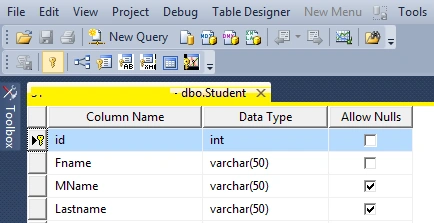
Create a Stored Procedure named "Studenentryview" as:
- Create procedure studentEntryView
- (
- @Action varchar (10),
- @fname Varchar (50),
- @Mname varchar (50),
- @Lname Varchar (50)
- )
- as
- begin
- If @Action='Insert' --used to insert records
- Begin
- Insert into Student (Fname,MName,Lastname) values (@fname,@Mname,@Lname)
- End
- else if @Action='View' --used to view records
- Begin
- select *from Student
- End
- End
In the preceding Stored Procedure I have declared four variables, they are @Action, @fname, @Mname and @Lname to store Fname, MName and Lastname into the table and the action is used to perform the exact operation; that is view or display as the user requests; in other words if the user inserts the record then the Insert action is executed and if user the user views the record then the view action is to be executed.
Now create the one sample application "StudentEntryView" as:
- Start - All Programs - Microsoft Visual Studio 2010.
- File - New Website - C# - Empty website (to avoid adding a master page).
- Provide the web site a name such as "StudentEntryView" or another as you wish and specify the location.
- Then right-click on Solution Explorer - Add New Item - Default.aspx page.
- Drag and drop one button, three textboxes, one gridview and two hidden fields to the hidden value to the database and one label on the <form> section of the Default aspx page.
Then switch to the design view; the <form> section of the Default aspx page source will look as in the following:
- <form id="form1"runat="server">
- <div>
- First Name <asp:TextBox ID="TextBox1" runat="server"></asp:TextBox>
- Middle Name<asp:TextBox ID="TextBox2" runat="server"></asp:TextBox>
- Last Name <asp:TextBox ID="TextBox3" runat="server"></asp:TextBox>
- <asp:ButtonID="Button1"runat="server"Text="Add"onclick="Button1_Click" />
- </div>
- <asp:HiddenFieldID="HiddenField1"runat="server"Value="insert" />
- <asp:HiddenField ID="HiddenField2" runat="server" Value="View" />
- <asp:GridViewID="GridView1"runat="server">
- </asp:GridView>
- </form>
In the preceding source code.
Insert Data To DataBase as
Double-click on "Button" then write the following code:
- protected void Btnsave_Click(object sender, EventArgs e)
- {
- connection();
- query = "studentEntryView"; //Stored Procedure name
- SqlCommand com = new SqlCommand(query, con); //creating SqlCommand object
- com.CommandType = CommandType.StoredProcedure; //here we declaring command type as stored Procedure
- /* adding paramerters to SqlCommand below *\
- com.Parameters.AddWithValue("@Action", HiddenField1.Value).ToString(); //for ing hidden value to preform insert operation
- com.Parameters.AddWithValue("@FName",TextBox1.Text.ToString()); //first Name
- com.Parameters.AddWithValue("@Mname ", TextBox2.Text.ToString()); //middle Name
- com.Parameters.AddWithValue("@LName ",TextBox3.Text.ToString()); //Last Name
- com.ExecuteNonQuery(); //executing the sqlcommand
- Label1.Visible = true;
- Label1.Text = "Records are Submitted Successfully";
- }
In the preceding code, I have explained in detail in each line through comments what each line is used for and what purpose, I hope you understand it.
Now run the application; the starting page should be as follows:
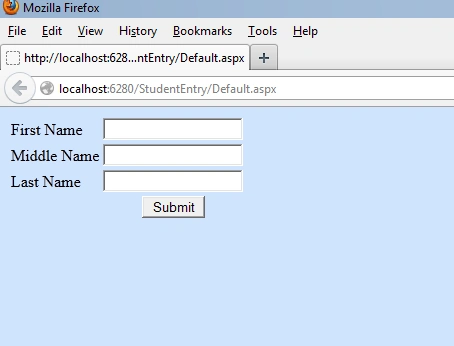
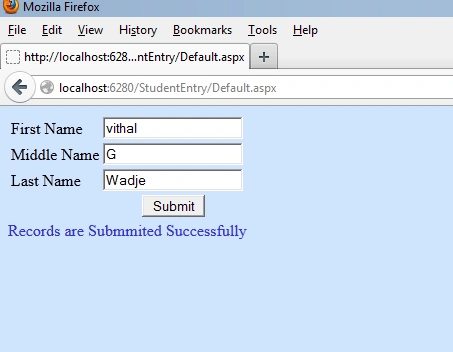
Now insert some data and click on the submit button, the following message will be shown after successful submission of the data:
Display Data In Gridview
Now we have inserted the data into the database as above, next we learn how to display the data in the gridview that we inserted above
Use the following code to display the data in the gridview at page load or any event that you want:
- protected void Page_Load(object sender, EventArgs e)
- {
- connection();
- query = "studentEntryView";
- SqlCommand com = new SqlCommand(query, con);
- com.CommandType = CommandType.StoredProcedure;
- com.Parameters.AddWithValue("@Action", HiddenField2.Value).ToString();
- DataSet ds =new DataSet();
- SqlDataAdapter da = new SqlDataAdapter(com);
- da.Fill(ds);
- GridView1.DataSource = ds;
- GridView1.DataBind();
- }
In the preceding page load code the view action value of the hidden field is ed to the database and performs the exact block of code.
Note
- For detailed code please download the zip file attached above.
- Don't forget to apply the relevant changes in the Web.config file depending on your Server location.
Summary
Now we have learned how to submit the form data into the database and display it in the gridview using a single Stored Procedure. I hope this article is useful for all students and beginners. If you have any suggestion related to this article please contact me.
Vithal WadjePosted Feb 12, 2015, 12:52 PM
great..
Maha LakshmiPosted Feb 12, 2015, 4:06 AM
yes i got how to solve
Maha LakshmiPosted Feb 12, 2015, 1:13 AM
It is showing exception error that expects parameter value
Vithal WadjePosted Feb 11, 2015, 12:43 PM
IN sql server database
Maha LakshmiPosted Feb 11, 2015, 3:55 AM
where the procedure should be created?
Vithal WadjePosted Mar 17, 2014, 7:46 AM
it is a connection string (DataBase connection)
parul mishraPosted Mar 16, 2014, 11:39 PM
what is connection(); please explain
Vithal WadjePosted Feb 12, 2013, 11:18 PM
thanks sir referer my article here http://www.c-sharpcorner.com/UploadFile/0c1bb2/insertselectupdate-delete-records-in-single-stored-proce/
Aarthi RamaniPosted Feb 12, 2013, 12:48 AM
how to create stored procedure? I need step by step process to connect clearly sir......