

Introduction
This article explains how to delete the AutoComplete History in Windows 8. You can delete the AutoComplete data such as User Name, Password, Web Address, Search Bar, Forms and others. The IE10 automatically stores the information when users type in the address bar. When you enter text into the address bar it shows the matching history.
If it is not good for security and user privacy then you can delete it. The Internet Explorer 10 AutoComplete history is a useful feature since it saves a decent amount of user's time. But sometimes you might enter your bank account user name or password and then it is automatically saved and if multiple users use the same computer then it is necessary to delete the AutoComplete history for security purposes. AutoComplete history is saved on the hard disk.
Delete AutoComplete History for IE 10
- In Desktop mode, open the Internet Explorer.
- After opening the IE, click on the Tools menu and then Internet options.
- In the Internet Options window, click on the Content Tab.
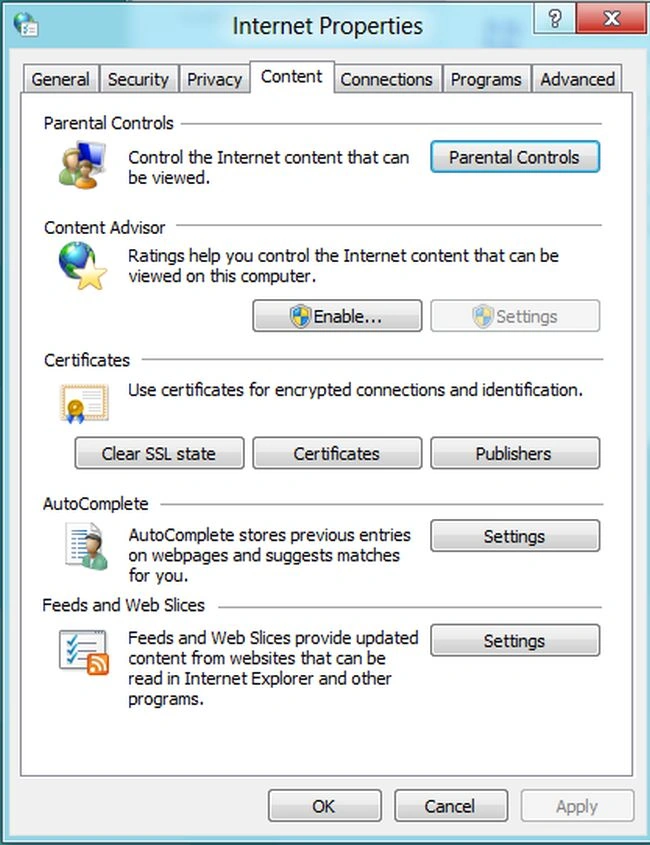
- In the Content tab, click on the Settings Button under the AutoComplete.
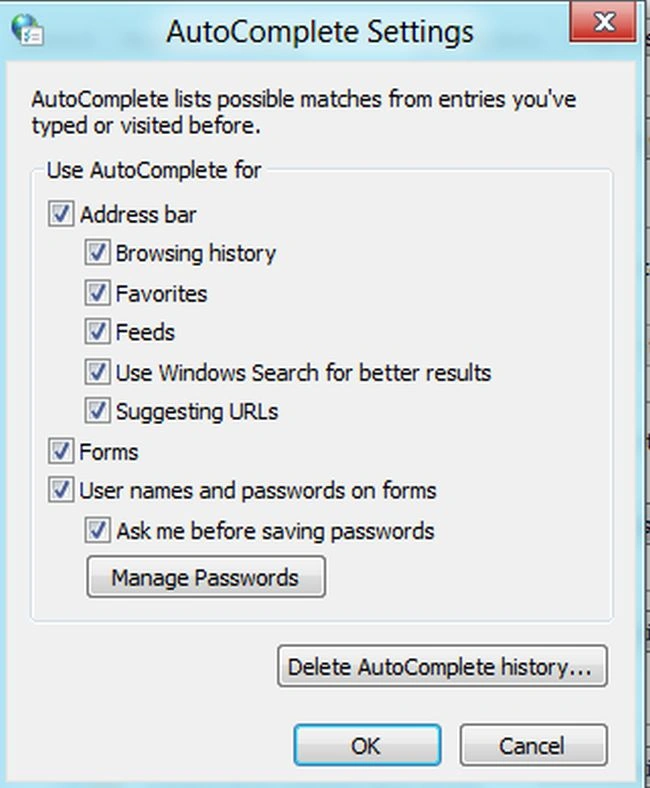
- After opening the AutoComplete Settings, you click on the Delete AutoComplete History Button.
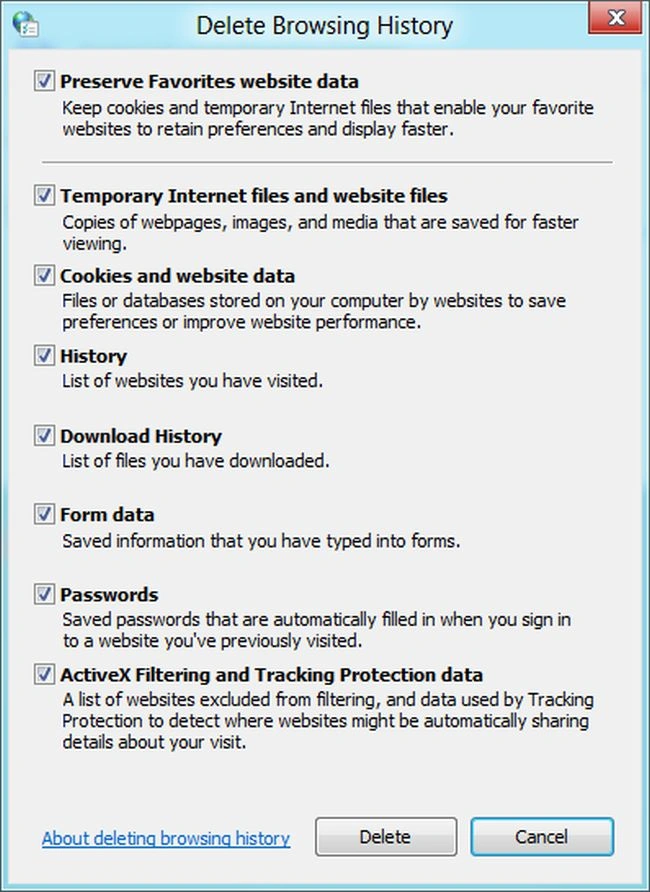
- When the Delete AutoComplete Window appears, you can select what you want to delete and then click the Delete Button and then Ok.
Delete AutoComplete History for Mozilla Firefox users
- Open Firefox.
- After opening Firefox, you click on the Tools menu and then Internet Option under the Tool menu.
- In the Options window, you click on the Privacy Button and click on the Clear Button on the Saved Form Information.
Steps How to Delete AutoComplete History in Windows 8
Step 1
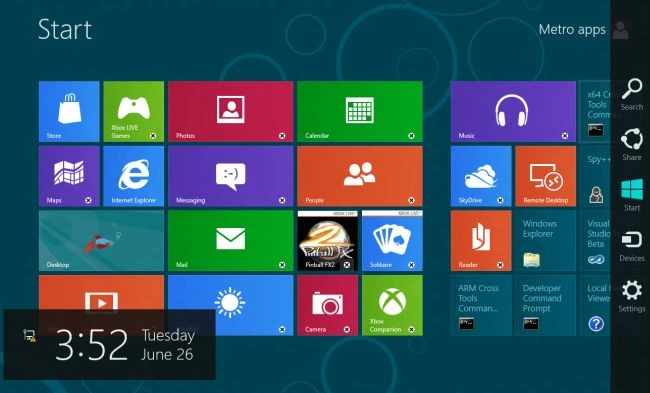
In the Windows 8 OS, you can move the cursor on the right bottom and click on the search box. In the search box, you can specify what you want.
Step 2
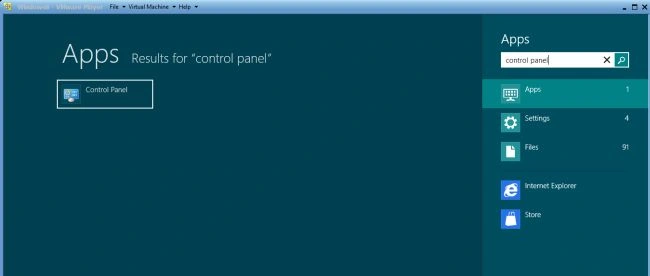
In the search box, you can type the name "Control Panel" and click on the Control Panel.
Step 3
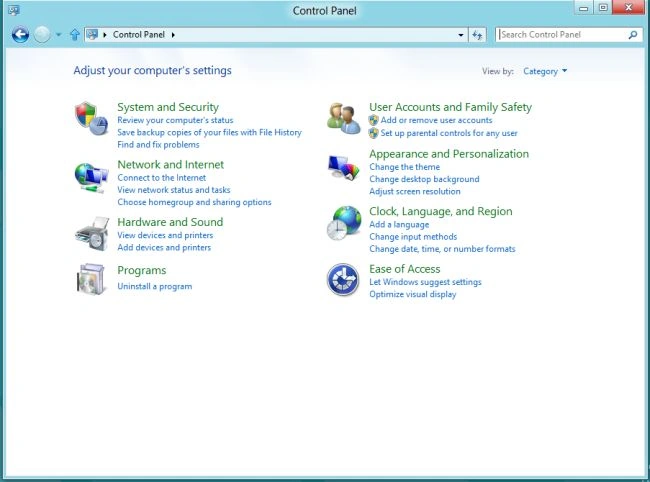
After opening the Control Panel, you will see many programs such as System and Security, Network and Internet, Hardware and Sound, programs and others. You click the "Network and Internet".
Step 4
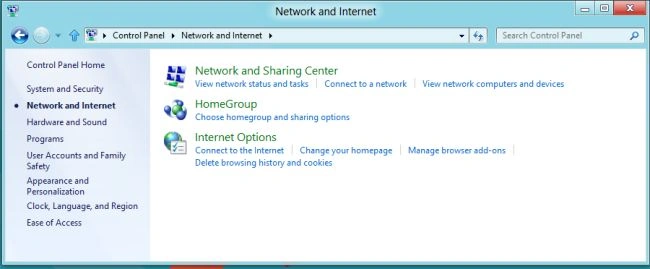
In this step, you click on the Internet Options.
Step 5
In this step, you click on the Content Tab and click on the Settings Button under the AutoComplete.
Step 6
After opening the AutoComplete Settings window, click on Delete AutoComplete History.
Step 7
In this step, you will see the Delete Browsing History Window and you can select whatever you want to delete such as History, Password, and others and then you click on the Delete Button. After completion click on Ok Button.
Summary
In this article, we learned about Delete AutoComplete History in Windows 8.
Join the conversation! Your thoughts help the community grow.