Introduction
Windows 10 users may want to change the Network & Internet Settings to configure the internet connection like VPN network, Proxy Setting, Ethernet etc. All these settings are not easy to configure by a user. To customize these settings we will follow some steps in detail.
Open Network and Internet Setting
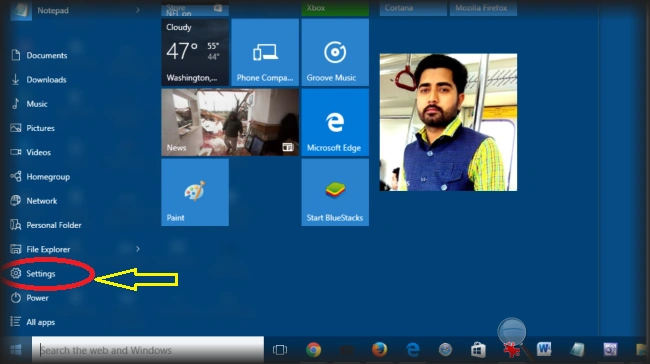
Firstly, open Network & Internet Settings. Press the Windows Key button from the keyboard or single click on Start Menu, then single click on Settings option as in the following screenshot:
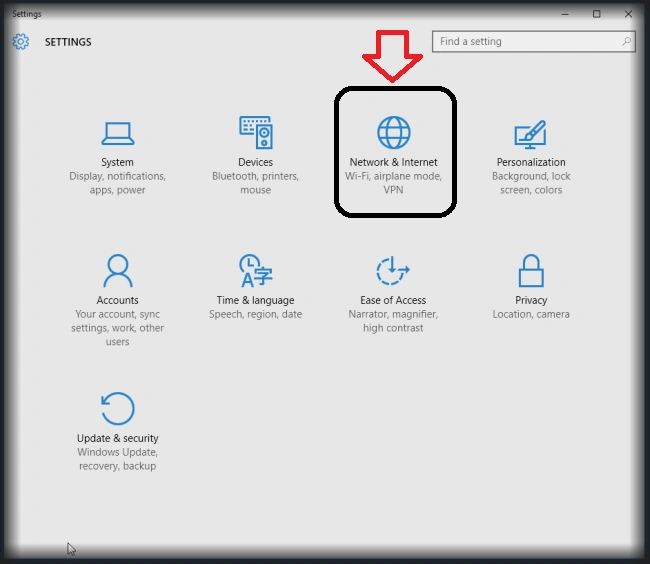
Now we can see a new SETTINGS window with multiple options. A single click on Network & Internet option as in the following screenshot:
Data Usage
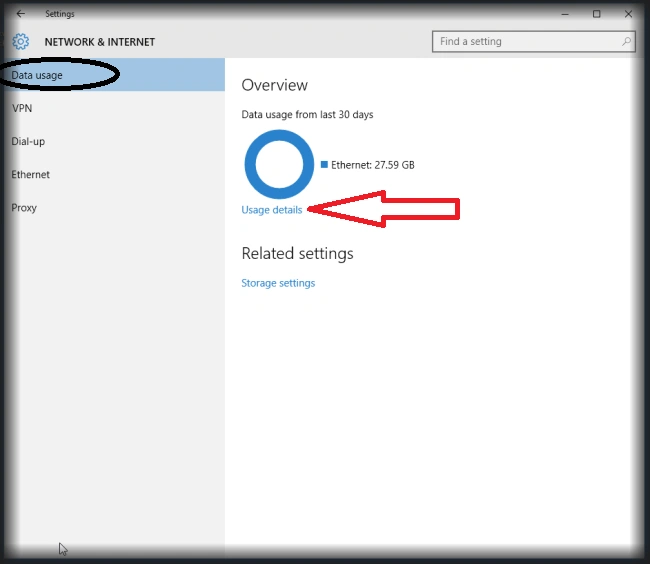
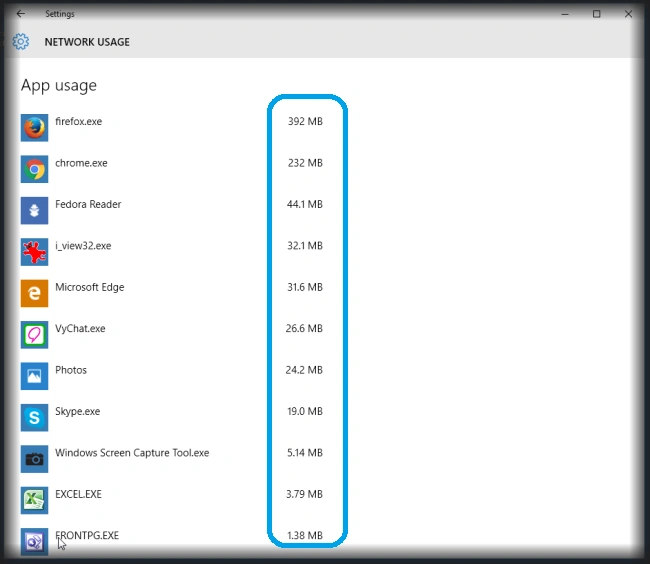
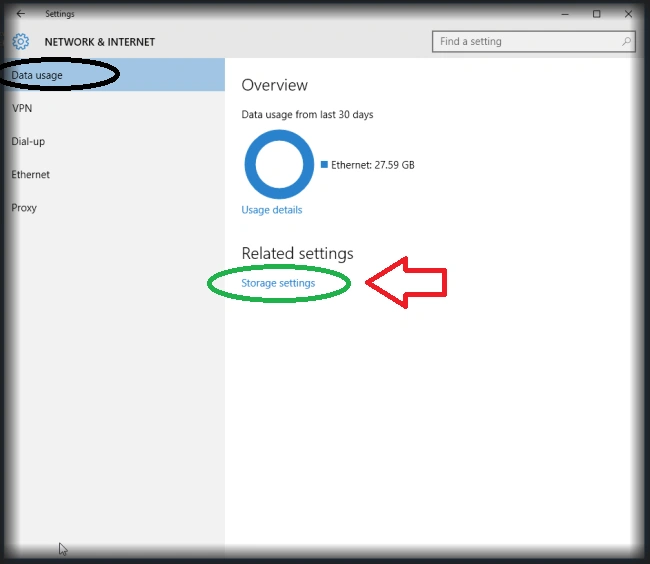
Click on Usage details option marked with RED arrow to check how much data we are using through the Internet.
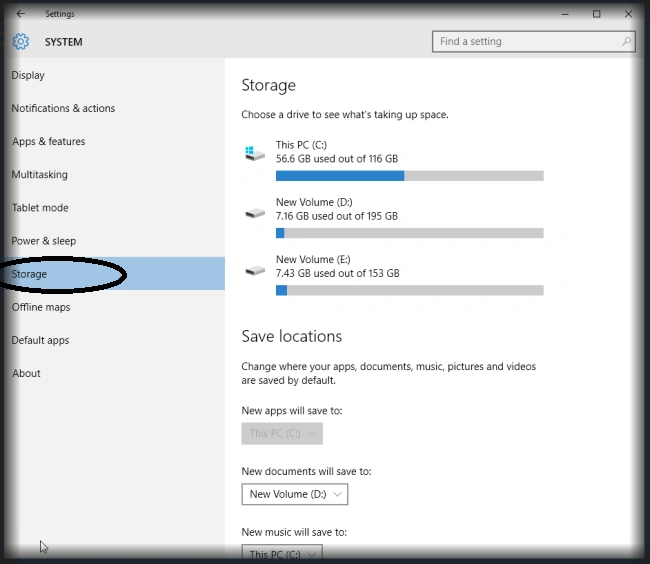
If you want to change the Storage settings click on it as in the following screenshot.
VPN
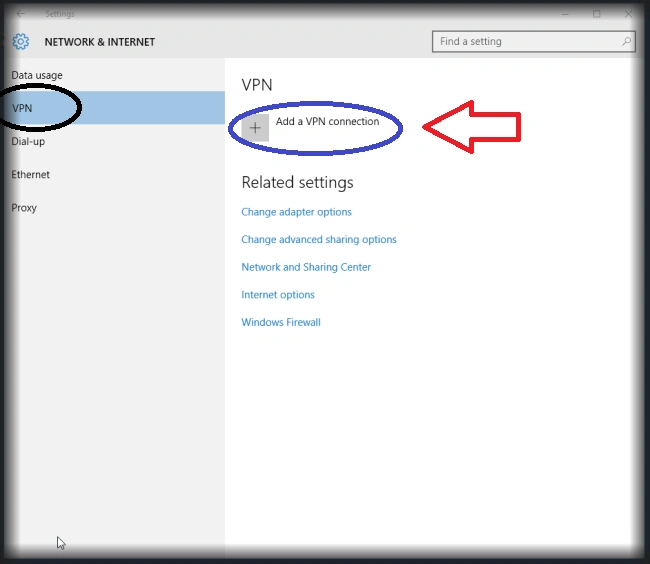
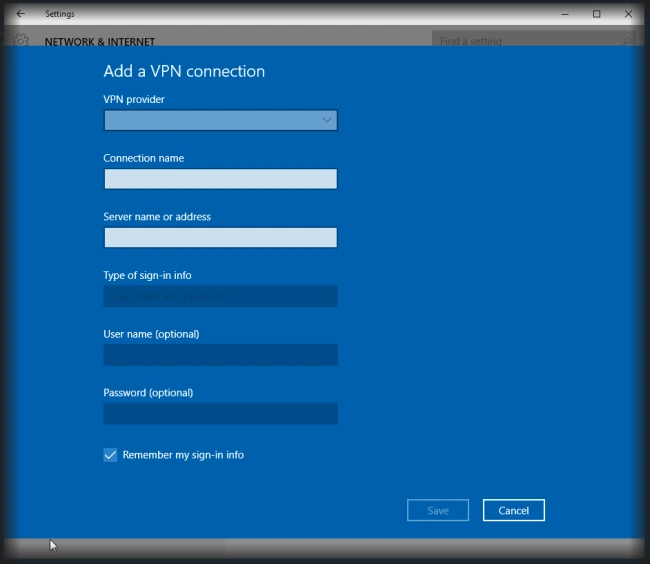
To create a new Virtual Private Network just click on the VPN menu option marked with BLACK color and then select Add a VPN connection option marked as BLUE color.
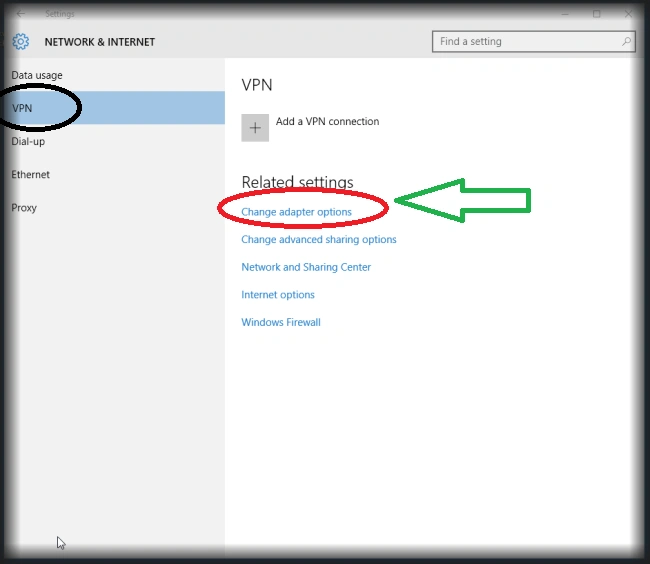
Click on Change adapter options marked as a RED color circle for changing he adapter settings as in the following screenshot:
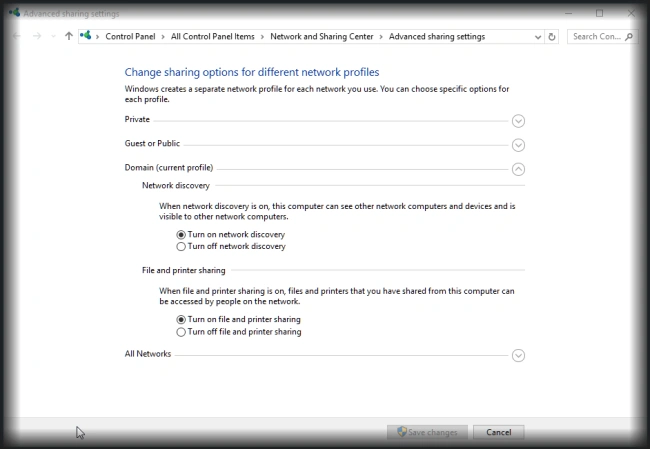
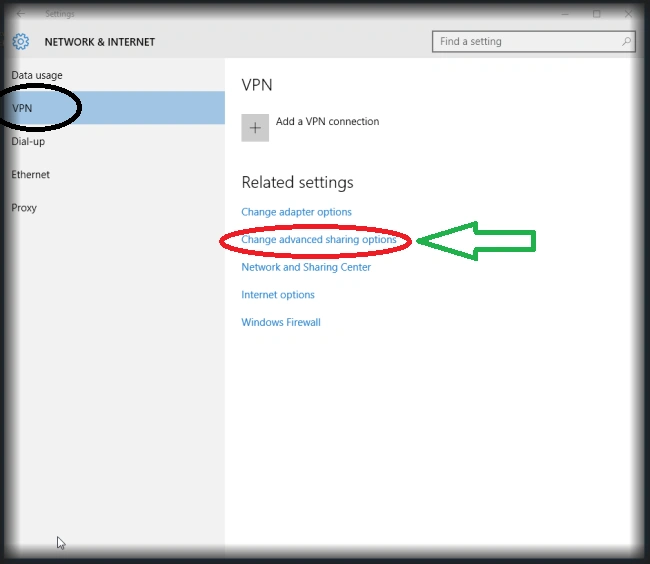
To change network sharing options click on the Change advanced sharing options marked with the RED color circle as in the following screenshot:
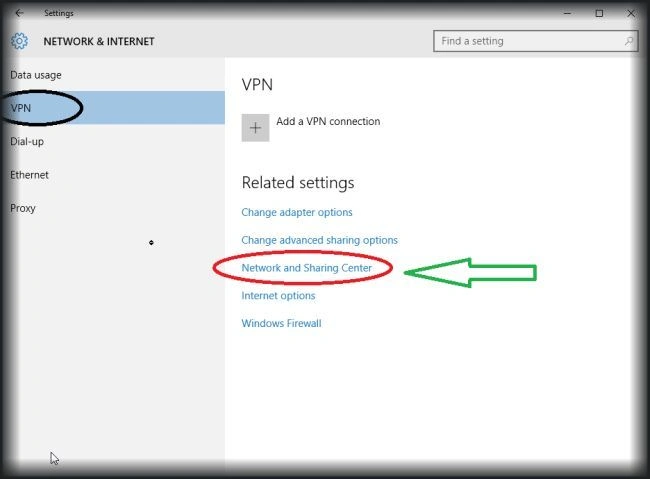
Click on Network and Sharing Center to configure network sharing settings.
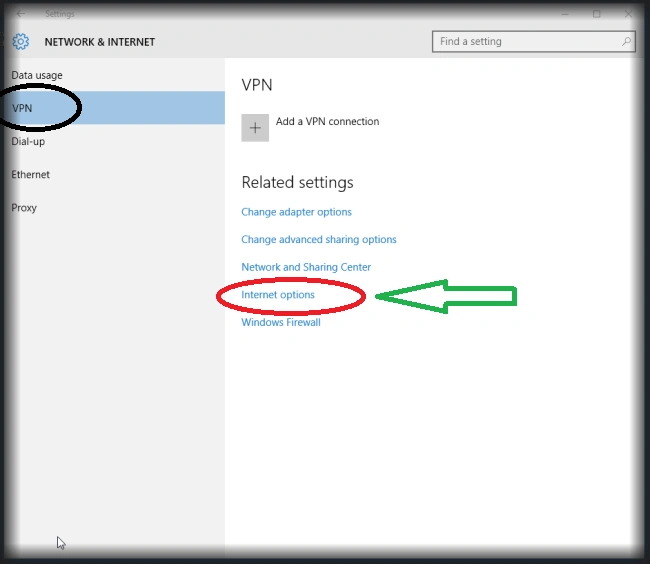
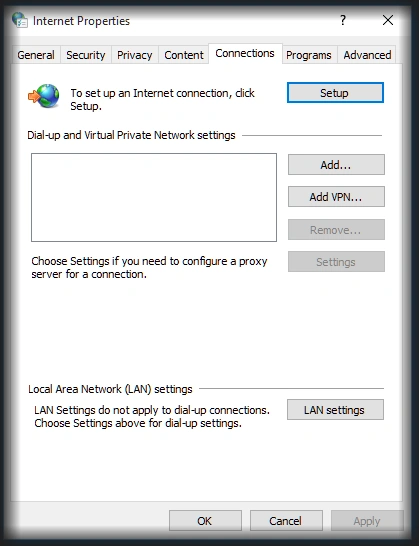
If you want to change the Internet properties click on the Internet options marked with RED color as in the following screenshot:
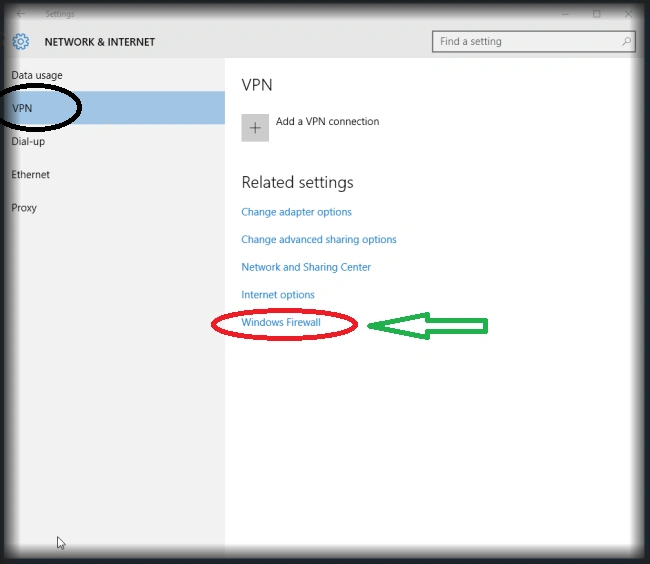
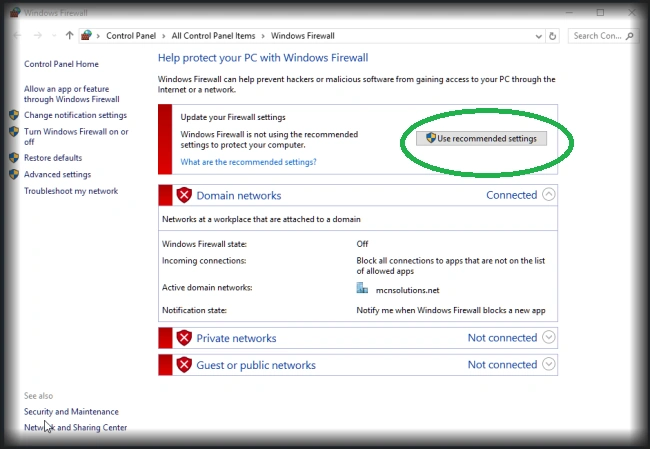
Whenever your system is at risk, you must use the Windows Firewall program. Click on Windows Firewall
Dial-up
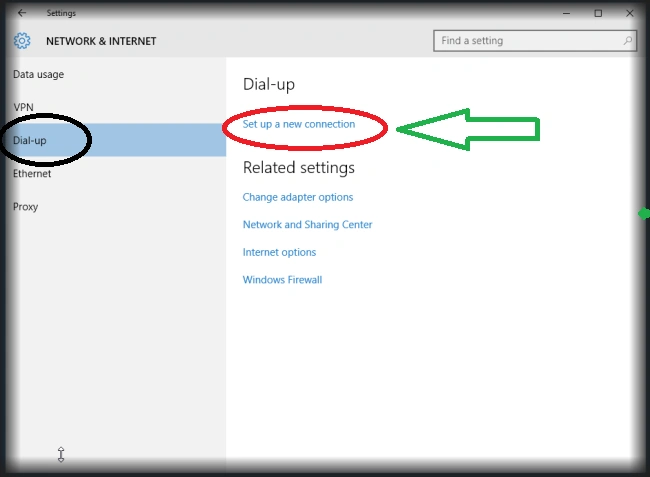
We can also create a new Dial-up Connection via any phone device like landline and mobile phones. Click on Set up a new connection marked with RED color circle as in the following screenshot:
Ethernet
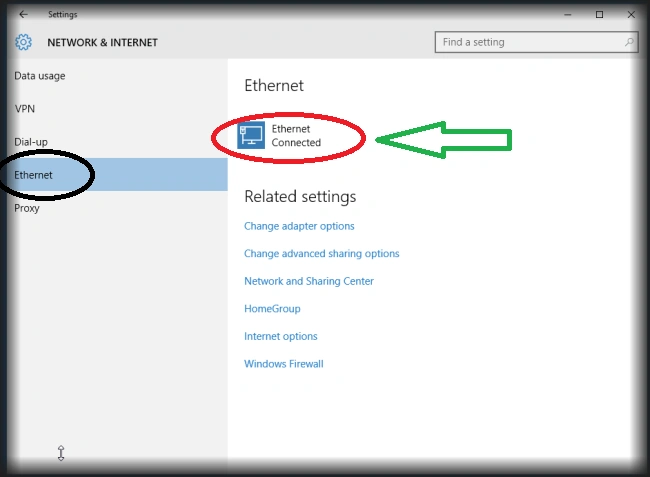
Click on Ethernet tab and then click Connected option:
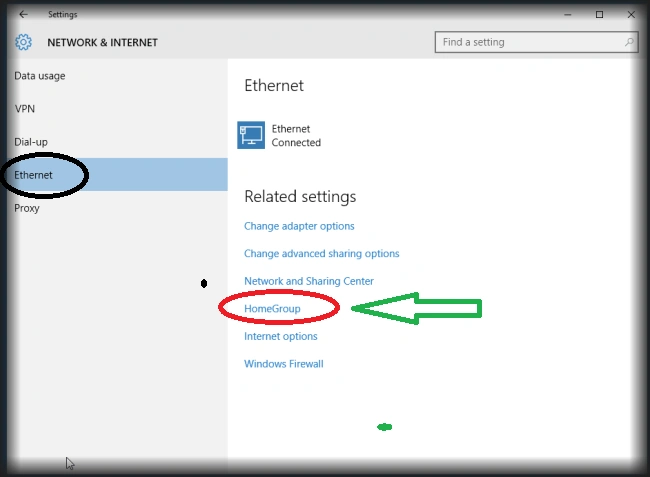
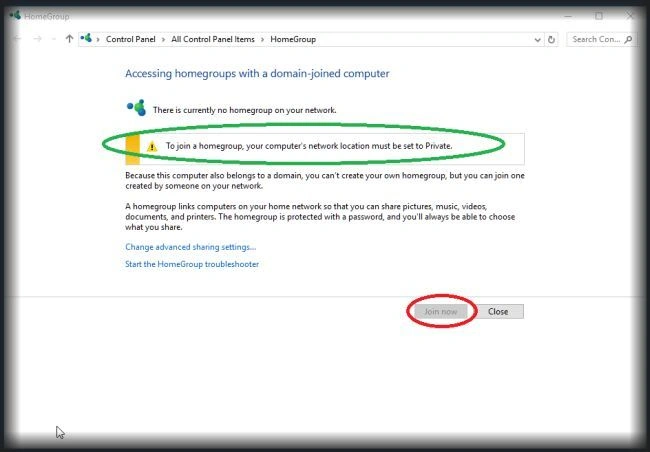
In this Ethernet tab menu, we can also create HomeGroup in a small network. Just click on HomeGroup marked with RED color as in the following screenshot:
Proxy
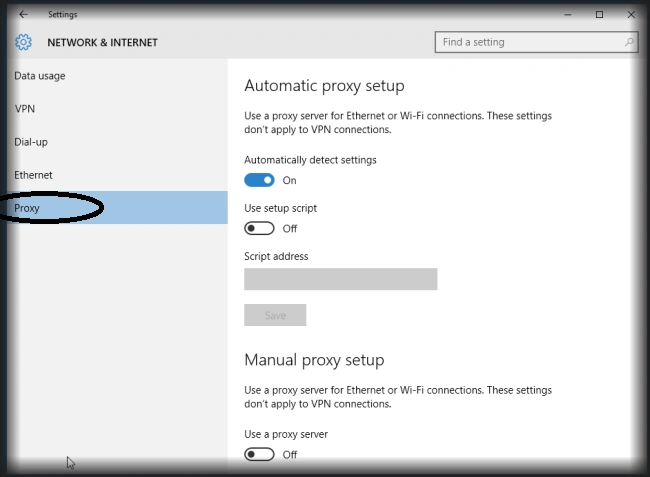
To change the internet proxy setting just click on the Proxy tab and change multiple settings regarding proxy.
Summary
In this article, we learned how to configure your network settings or customized network settings. I hope you liked this article.




Santhakumar MunuswamyPosted Jan 13, 2016, 10:11 AM
Thanks for nice share
Pankaj Kumar ChoudharyPosted Jan 12, 2016, 8:05 PM
Nice Explain Sonu Kmuar . I have a question that i am using window 10 from long time. Window 10 always remain in update state. it's update process run in background. it never stop to update and due to this a large volume of my data pack become waste.. I have tried many method but no one can't stop window to update. Can so tell me any way or method by which i can resolve this issue...........
Karthikeyan KPosted Jan 12, 2016, 11:49 AM
Thanks for sharing..
Ankit SaxenaPosted Jan 12, 2016, 11:44 AM
Very Informative article.