Finally Microsoft has included the Ribbon control in Windows Presentation Foundation, similar to the Microsoft Office Ribbon Bar, all the basic features and functionality including tabs, groups, controls, Quick Access Toolbar, integration with the Windows Title Bar, and resizing with dynamic layout; everything.
Ribbon Function and Feature
- Automatic Resizing and Minimization
- Application Menu, Recent Documents Menu
- Quick Access Toolbar
- Nested Controls
- Screen Tips
- Styling and Appearance
- Commands Support
- Localization Support
- Enhanced Routed Events Framework
- WPF Code Compatibility
- Similar to Office 2010 Interface and function
All features of the Ribbon with a WPF Window
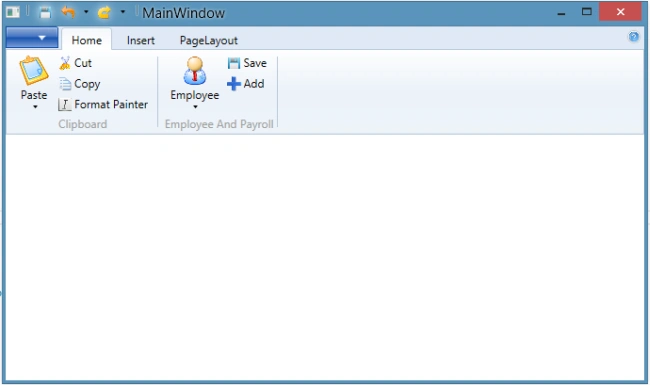
Visual structure of Ribbon
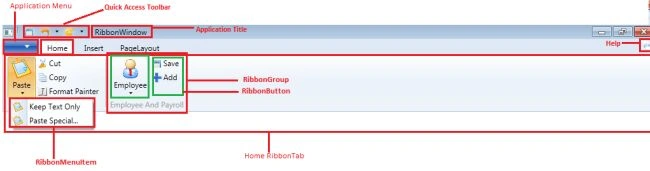
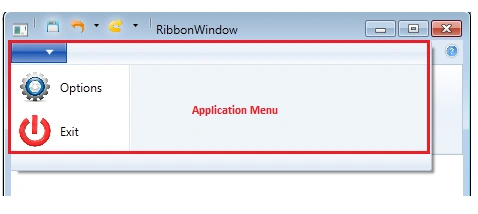
Application Menu : Every ribbon includes an Application Menu as the first tab in the ribbon, we kept some commands and application function setting utility command.
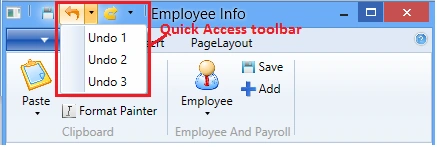
Quick Access Toolbar: The Quick Access toolbar is a very useful tool, we can keep here quick access setting command like undo, save etc.
Application Title : In the Application title section, we define the title of the application.
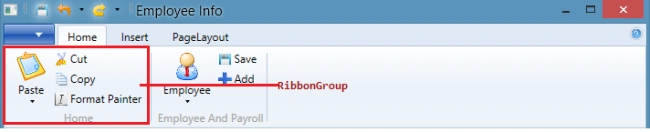
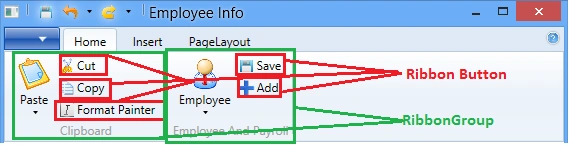
Ribbon Group: This is a very useful container, we use it for categories of related content or to collect related navigation links in a group. We can also keep data in a collection.
Ribbon Button: The Ribbon button functionally works nearly similarly the same as a normal WPF button. This is for ing an event and communicating with business logic. It is responsible for providing an interface for the actions exposed by your application.
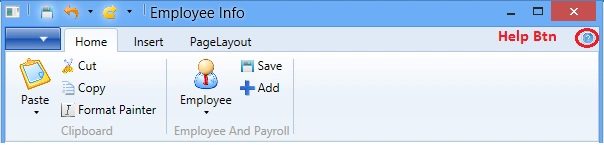
Help Icon : The help button is located always on the right side of the Ribbon bar.
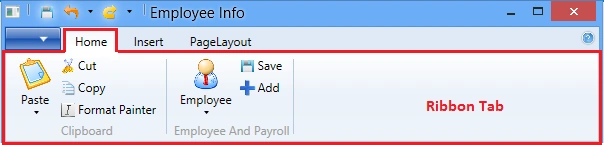
Ribbon Tab
Step-by-step Ribbon creates one Ribbon sample Example.
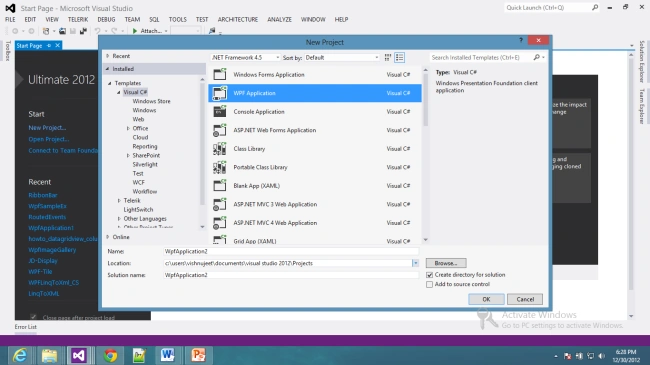
Step 1: Open Visual Studio 12, then create a new WPF Project.
Step 2: Add a Ribbon Bar Reference to right-click on the Project Solution Explorer then select "Add reference" and search for the system.windows.controls.ribbon dll.
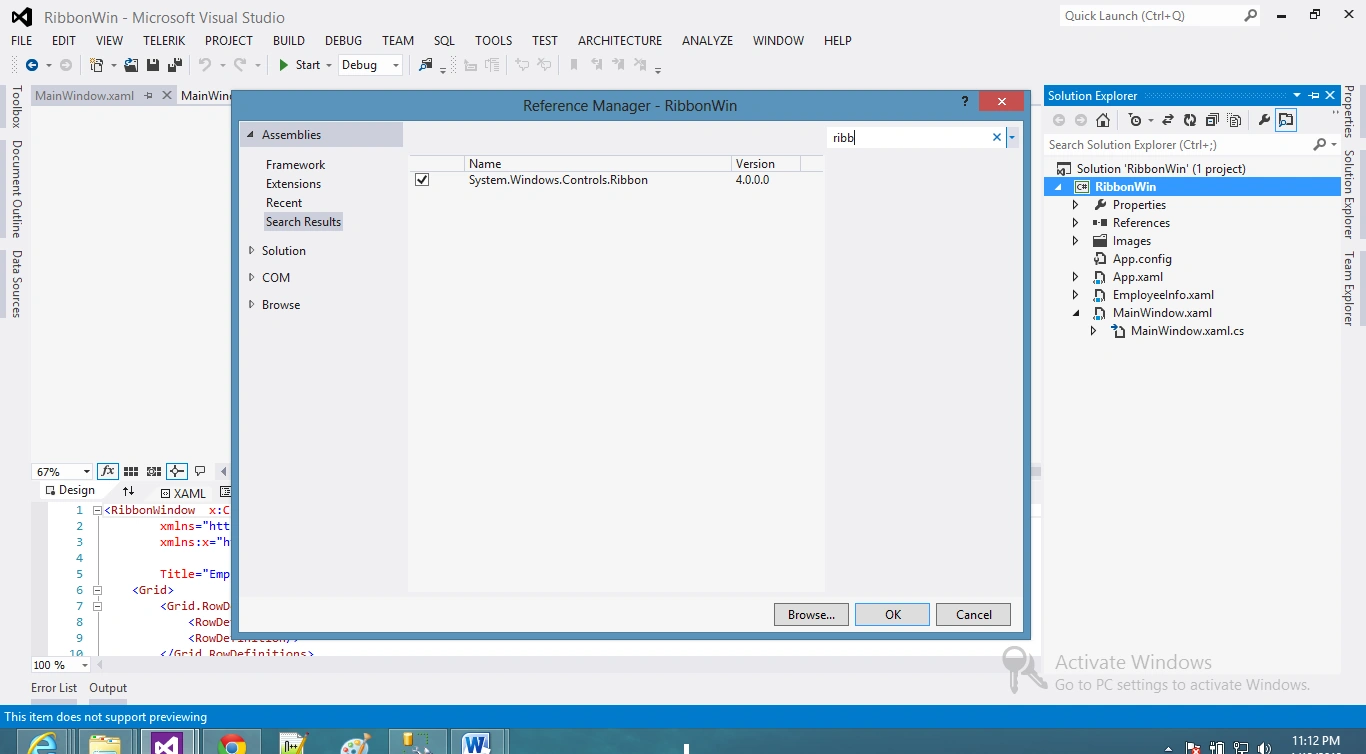
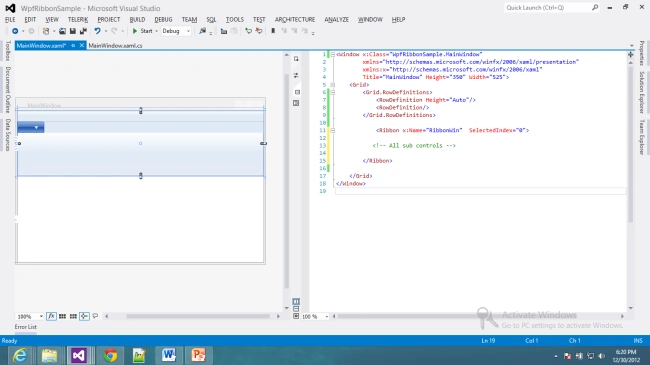
Step 3: Add the ribbon control to the code window.
- <Window x:Class=" RibbonBar.MainWindow "
- xmlns="http://schemas.microsoft.com/winfx/2006/xaml/presentation"
- xmlns:x="http://schemas.microsoft.com/winfx/2006/xaml"
- Title="MainWindow" Height="350" Width="525">
- <Grid>
- <Grid.RowDefinitions>
- <RowDefinition Height="Auto"/>
- <RowDefinition/>
- </Grid.RowDefinitions>
- <Ribbon x:Name="RibbonWin" SelectedIndex="0">
- </Ribbon>
- </Grid>
- </Window>
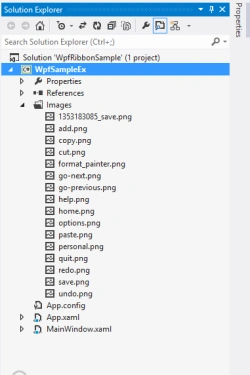
Solution Explorer content
- <Window x:Class=" RibbonBar.MainWindow "
- xmlns="http://schemas.microsoft.com/winfx/2006/xaml/presentation"
- xmlns:x="http://schemas.microsoft.com/winfx/2006/xaml"
- Title="MainWindow" Height="350" Width="525">
- <Grid>
- <Grid.RowDefinitions>
- <RowDefinition Height="Auto"/>
- <RowDefinition/>
- </Grid.RowDefinitions>
- <Ribbon x:Name="RibbonWin" SelectedIndex="0">
-
- <Ribbon.HelpPaneContent>
- <RibbonButton SmallImageSource="Images\help.png" />
- </Ribbon.HelpPaneContent>
-
- <Ribbon.QuickAccessToolBar>
- <RibbonQuickAccessToolBar>
- <RibbonButton x:Name ="Save" SmallImageSource="Images\save.png" />
- <RibbonSplitButton x:Name ="Undo" SmallImageSource="Images\undo.png">
- <RibbonSplitMenuItem Header="Undo 1" />
- <RibbonSplitMenuItem Header="Undo 2" />
- <RibbonSplitMenuItem Header="Undo 3" />
- </RibbonSplitButton>
- <RibbonSplitButton x:Name="Redo" SmallImageSource="Images\redo.png" >
- <RibbonSplitMenuItem Header="Redo 1" />
- <RibbonSplitMenuItem Header="Redo 2" />
- </RibbonSplitButton>
- </RibbonQuickAccessToolBar>
- </Ribbon.QuickAccessToolBar>
-
- <Ribbon.ApplicationMenu>
- <RibbonApplicationMenu KeyTip="F">
- <RibbonApplicationMenuItem Header="Options" ImageSource="Images\options.png" />
- <RibbonApplicationMenuItem Header="Exit" ImageSource="Images\quit.png" />
- </RibbonApplicationMenu>
- </Ribbon.ApplicationMenu>
-
- <RibbonTab Header="Home" KeyTip="H" >
-
- <RibbonGroup x:Name="ClipboardGroup" Header="Home">
- <RibbonMenuButton LargeImageSource="Images\paste.png" Label="Paste" KeyTip="V">
- <RibbonMenuItem ImageSource="Images\paste.png" Header="Keep Text Only" KeyTip="T"/>
- <RibbonMenuItem ImageSource="Images\paste.png" Header="Paste Special..." KeyTip="S"/>
- </RibbonMenuButton>
- <RibbonButton SmallImageSource="Images\cut.png" Label="Cut" KeyTip="X" />
- <RibbonButton SmallImageSource="Images\copy.png" Label="Copy" KeyTip="C" />
- <RibbonButton SmallImageSource="Images\format_painter.png" Label="Format Painter" KeyTip="FP" />
- </RibbonGroup>
-
- <RibbonGroup x:Name="Employee" Header="Employee And Payroll">
- <RibbonMenuButton LargeImageSource="Images\personal.png" Label="Employee" KeyTip="V">
- <RibbonMenuItem ImageSource="Images\paste.png" Header="Keep Text Only" KeyTip="T"/>
- <RibbonMenuItem ImageSource="Images\paste.png" Header="Paste Special..." KeyTip="S"/>
- </RibbonMenuButton>
- <RibbonButton SmallImageSource="Images\save.png" Label="Save" KeyTip="X" />
- <RibbonButton SmallImageSource="Images\add.png" Label="Add" KeyTip="C" />
- </RibbonGroup>
- </RibbonTab>
-
- <RibbonTab Header="Insert" KeyTip="I">
- </RibbonTab>
-
- <RibbonTab Header="PageLayout" KeyTip="L">
- </RibbonTab>
- </Ribbon>
- </Grid>
- </Window>
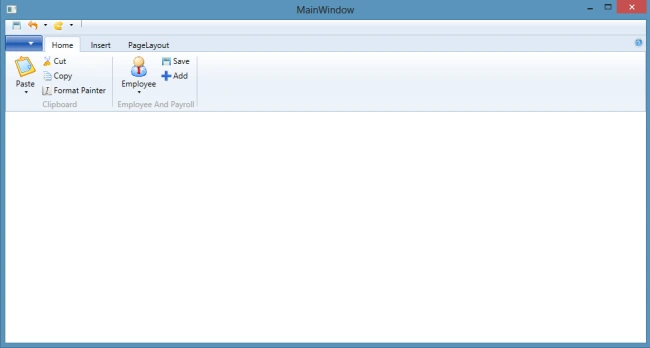
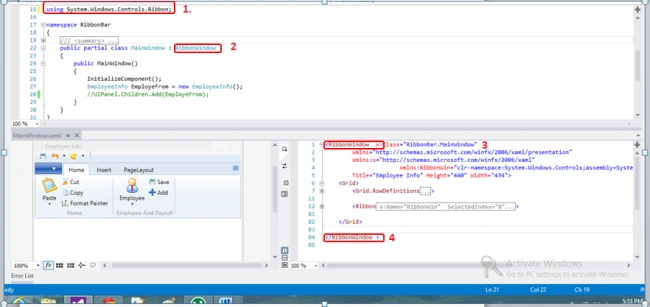
To add a ribbon window change some code to only the previous code as in the following 4 steps.
- Add using System.Windows.Controls.Ribbon.
- Inherit RibbonWindow.
- Use RibbonWindow instead of Window.
- Use </RibbonWindow> instead of </Window>.


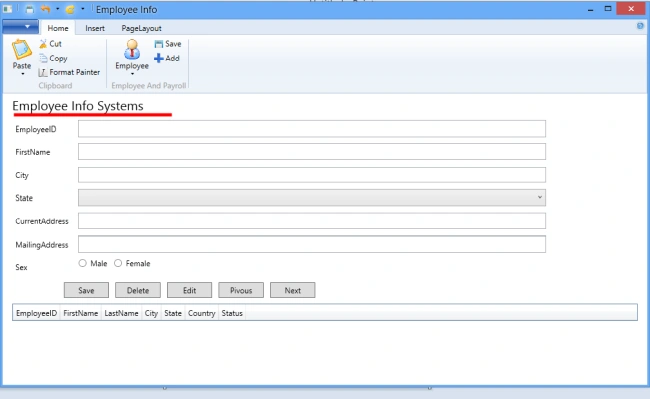
Israel VicunaPosted Aug 31, 2015, 5:20 PM
Hi, This is really useful, I would like to help me to understand how I'll interact with forms for each type of button. e.g. from your sample, - when it clicks on Home > Red: I want to display the create user form - when it clicks on Home > Green: I want to display the Edit/Delete user how should I manage the interaction with each form? Thanks in advanced for your help -iv