
Introduction
Ajax (Asynchronous JavaScript and XML) is a new web development technique used for interactive websites. With AJAX help we can develop a web application and retrieve small amounts of data from the web server. AJAX consists of a different type of technology.
- JavaScript
- XML
- Asynchronous Call to the server
Accordion Control
An Accordion control is used to create expandable & collapsible navigation bars or to display page contents which the user can expand and collapse to view one pane at a time. The Accordion control contains multiple panes and display them one at a time. It is the same as the Collapsible panel control where only one can be expanded at a time. The Accordion control contains multiple Accoridionpane controls. Each AccordionPane control has a template for its header and its content. The selected pane is automatically persisted across postbacks.
Property
- HeaderCSSClass
- ContentCssClass
- HeaderSelectedCssClass
- FadeTransiation
Step 1 : Open Visual Studio 2010
- Go to File->New->WebSite
- Select ASP.NET Empty WebSite
Step 2 : Go to Solution Explorer and right-click.
- Select Add->New Item
- Select WebForm
- Default.aspx page open
Step 3 : Go to Default.aspx page and click on the [Design] option and drag control from Toolbox.
- Drag ScriptManager control, RadioButtonList
Step 4 : Now go to Toolbox option and drag AccordionPane Control from AJAXToolkit.
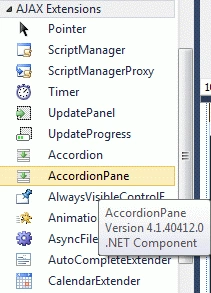
Step 5 : Go to Default.aspx [Source] option and define several List Item inside the RadioButton Control with AccordianPane control.
Code
<asp:AccordionPane ID="AccordionPane1" runat="server">
<Header>Name</Header>
<Content>
<asp:RadioButtonList ID="RadioButtonList1" runat="server">
<asp:ListItem>raj</asp:ListItem>
<asp:ListItem>amit</asp:ListItem>
<asp:ListItem>bhavana</asp:ListItem>
<asp:ListItem>manish</asp:ListItem>
</asp:RadioButtonList>
</Content>
</asp:AccordionPane>
Step 6 : We will define CSS for the Password Strength.
Code
<style type="text/css">
.Header
{
background-color: White;
color: Teal;
padding: 4px;
font-weight: bold;
}
.SelectedHeader
{
background-color: Black;
color: Gray;
padding: 4px;
font-weight: bold;
}
.Contents
{
background-color: Gray;
padding: 5px;
}
</style>
Step 7 : Go to Toolbox option and drag Accordion control.
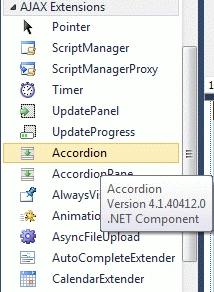
Step 8 : Go to Default.aspx[Source] page option and define all Accordion property.
Code
<asp:Accordion ID="Accordion1" runat="server" HeaderCssClass="Header" ContentCssClass="Contents" HeaderSelectedCssClass="SelectedHeader" Font-Names="Verdana" Font-Size="10" BorderColor="#000000" BorderStyle="Solid" BorderWidth="1" FramesPerSecond="100"
FadeTransitions="true" TransitionDuration="500">
Step 9 : Go to Default.aspx. page and write a code.
Code
<head runat="server">
<title></title>
<style type="text/css">
.Header
{
background-color: White;
color: Teal;
padding: 4px;
font-weight: bold;
}
.SelectedHeader
{
background-color: Black;
color: Gray;
padding: 4px;
font-weight: bold;
}
.Contents
{
background-color: Gray;
padding: 5px;
}
</style>
</head>
<body>
<form id="form1" runat="server" style="background-color: #D6F5D7">
<asp:ScriptManager ID="ScriptManager1" runat="server">
</asp:ScriptManager>
<div>
<asp:Accordion ID="Accordion2" runat="server" HeaderCssClass="Header" ContentCssClass="Contents" HeaderSelectedCssClass="SelectedHeader" Font-Names="Verdana" Font-Size="10" BorderColor="#000000" BorderStyle="Solid" BorderWidth="1" FramesPerSecond="100"
FadeTransitions="true" TransitionDuration="500">
<Panes>
<asp:AccordionPane ID="AccordionPane1" runat="server">
<Header>Name</Header>
<Content>
<asp:RadioButtonList ID="RadioButtonList1" runat="server">
<asp:ListItem>raj</asp:ListItem>
<asp:ListItem>amit</asp:ListItem>
<asp:ListItem>bhavana</asp:ListItem>
<asp:ListItem>manish</asp:ListItem>
</asp:RadioButtonList>
</Content>
</asp:AccordionPane>
<asp:AccordionPane ID="AccordionPane2" runat="server">
<Header>Class</Header>
<Content>
<asp:RadioButtonList ID="RadioButtonList2" runat="server">
<asp:ListItem>mca</asp:ListItem>
<asp:ListItem>mca</asp:ListItem>
<asp:ListItem>mca</asp:ListItem>
<asp:ListItem>mca</asp:ListItem>
</asp:RadioButtonList>
</Content>
</asp:AccordionPane>
<asp:AccordionPane ID="AccordionPane3" runat="server">
<Header>subject</Header>
<Content>
<asp:RadioButtonList ID="RadioButtonList3" runat="server">
<asp:ListItem>c</asp:ListItem>
<asp:ListItem>c++</asp:ListItem>
<asp:ListItem>java</asp:ListItem>
<asp:ListItem>asp.net</asp:ListItem>
</asp:RadioButtonList>
</Content>
</asp:AccordionPane>
</Panes>
</asp:Accordion>
</div>
</form>
</body>
</html>
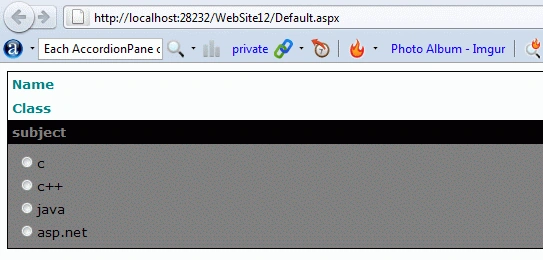
Step 10 : Now run the application by Pressing F5 and select any name from Name list.
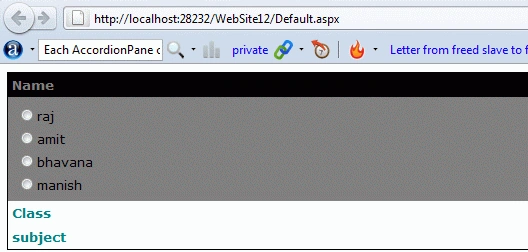
Step 11 : When we click on class option then all related class list item will be open.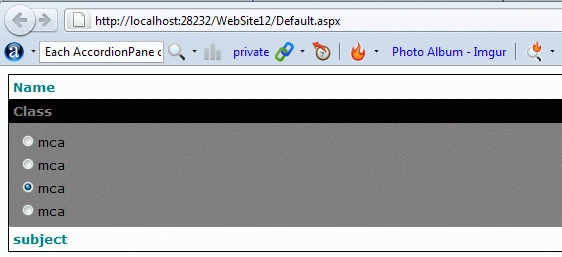
Resource
Mukesh KumarPosted Oct 19, 2015, 1:05 AM
Good One!
Saber ShaikhPosted Feb 2, 2015, 12:29 AM
nice
EdPosted Feb 1, 2012, 3:24 PM
If you are programming WebForms, controls on the Accordian does NOT maintain it's state through postback.