
In this article I am describing various techniques of databinding with a ComboBox control. A ComboBox control shows data in a dropdown list. Before starting the databinding with ComboBox, let's know its two important properties - DisplayMember and ValueMember.
DisplayMember : This property is used to specify the name of a column ( Database Table's Column ) to be displayed in the ComboBox.
ValueMember : This property is used to specify the name of a column ( Database Table's Column ) to be stored as values of selected item in ComboBox.
I am using a "student" database which has a table "student_detail" with some records. Now take a Windows Forms application -> Take a label and ComboBox controls as in the following figure.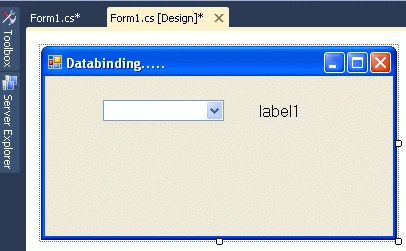
Go to smart property of ComboBox control.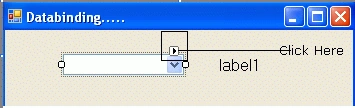
Follow the given steps.
Step 1 : Check the CheckBox of Use Data Bound Items.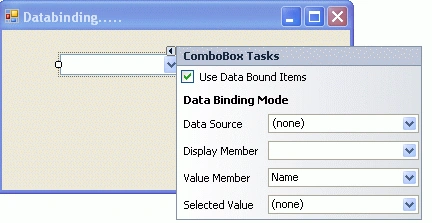
Step 2: Click on the down arrow of the Data Source.

Step 3: Click at Add Project Data Source link. A new window will open.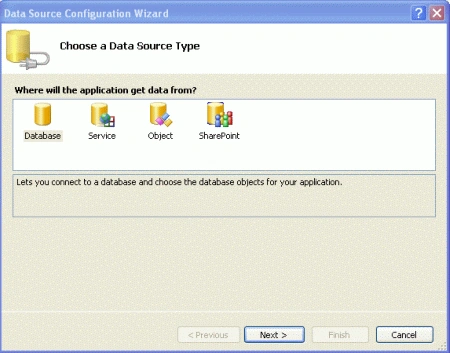
Step 4: Select "Database" as Data Source ( By default Database is selected ). Click the next button. A new window will open.
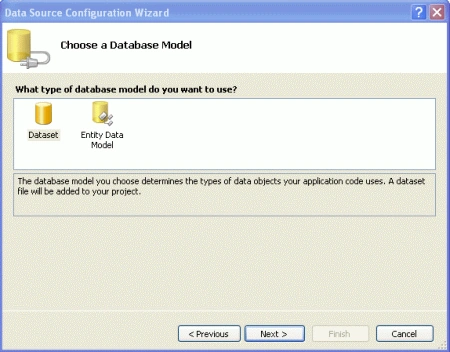
Step 5: Select "Dataset" as Database model ( By default Dataset is selected ). Click the next button. A new window will open.
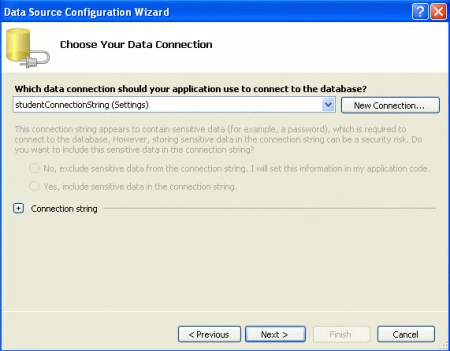
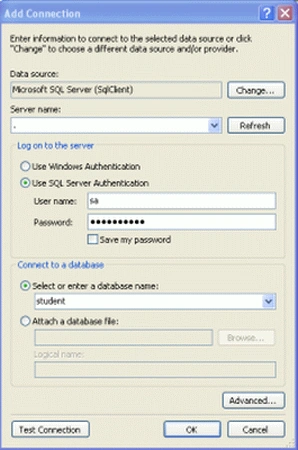
Step 6: Click the "New Connection" button. A new window will open. In the new window enter the Server name (I have used dot), write user name and password of your SQL Server and select database ( I have selected "student" ). Look at the following figure.
Step 7: Click the "ok" button. Now a connection has been made to the student database. You will look at the "Data Source Configuration Wizard" window. 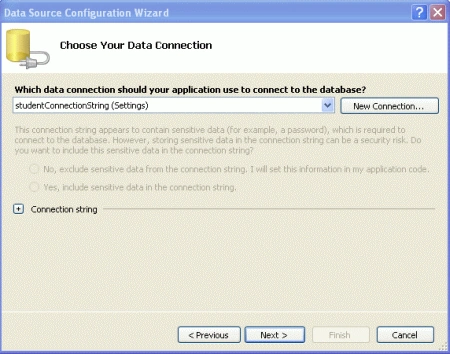
Step 8: Click the next button.
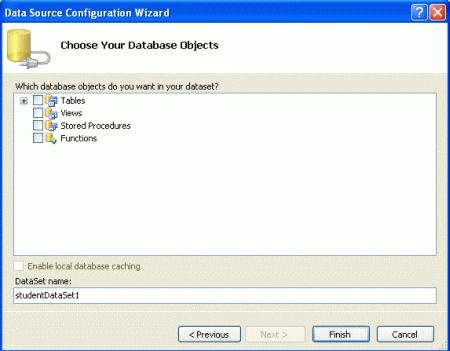
Step 9: Click the plus ( + ) sign to explore all tables of the student Database.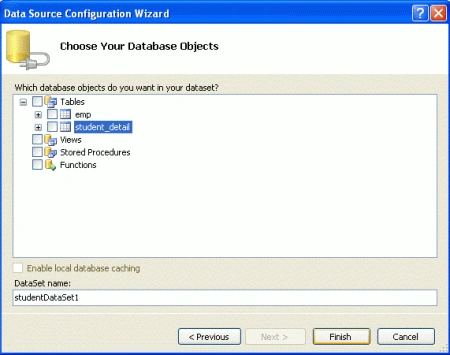
Step 10: Again click the plus sign for "student_detail" to show all columns of the Database table. Check the all CheckBox.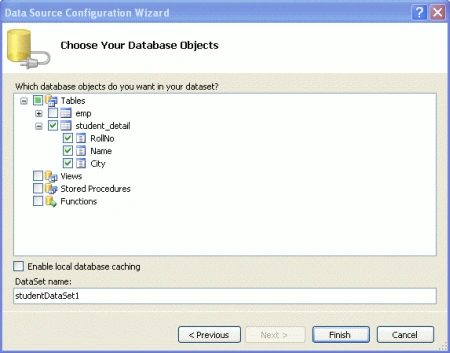
Step 11: Click the Finish button. Now set the DisplayMember and ValueMember property of ComboBox. Click at down arrow of Display Member and select "rollno". Same as set "name" as Value Member property.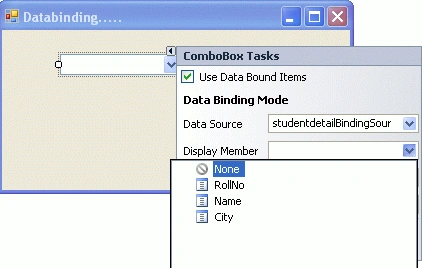
Run the application.
Output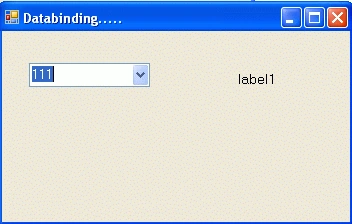
It will show all values from the "RollNo" column because we have set RollNo to the DisplayMember property of combobox. Now stop the running program -> go to design window of your application and write the following code on SelectedIndexChanged event of ComboBox.
private void comboBox1_SelectedIndexChanged(object sender, EventArgs e)
{
label1.Text = comboBox1.SelectedValue.ToString();
}
Run the application. Select a different value in ComboBox. It will show the student name in Label regarding to selected Roll Number.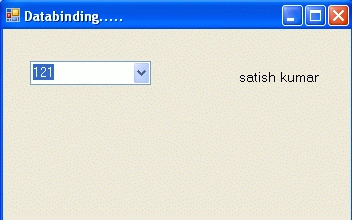
Now we bind the ComboBox with data by code. Take another ComboBox ( Say CombBox2) and a Label and write the following code.
using System;
using System.Collections.Generic;
using System.ComponentModel;
using System.Data;
using System.Drawing;
using System.Linq;
using System.Text;
using System.Windows.Forms;
using System.Data.SqlClient;
namespace DataBindingWIthComBox
{
public partial class Form1 : Form
{
public Form1()
{
InitializeComponent();
}
private void Form1_Load(object sender, EventArgs e)
{
SqlDataAdapter dadpter=new SqlDataAdapter("select * from student_detail","server=.;database=student;user=sa;password=wintellect");
DataSet dset = new DataSet();
dadpter.Fill(dset);
comboBox2.DataSource = dset.Tables[0];
comboBox2.DisplayMember = "rollno"; // to display roll no. in combobox
comboBox2.ValueMember = "name"; // to store name as value of combobox for selected roll no.
}
private void comboBox2_SelectedIndexChanged(object sender, EventArgs e)
{
label2.Text = comboBox2.SelectedValue.ToString();
}
}
}
Run the application. It will do same work as before.
Here are some related resources.
Ifraz ImanudeenPosted Sep 5, 2018, 5:44 AM
What does this mean "Tables[0]" in comboBox2.DataSource = dset.Tables[0];
Vivek JoyPosted Sep 8, 2015, 8:03 AM
can you say what to do when there is more textboxes(10nos)?
Vivek JoyPosted Sep 8, 2015, 8:02 AM
hi sir
hamed2011 .Posted Apr 23, 2015, 5:01 AM
thanks for useful information but how to set a condition for selecting column ? for exmaple if a textbox value match with a value in sql column then select its name column and fill in combo box
kamlesh patidareditedPosted Oct 25, 2012, 5:14 AMEdited Oct 25, 2012, 5:20 AM
Thanks dear, Really its very useful for beginners student. I hope any entry level developer , quick get it as read it, becouse here use franklly word for explnnation.