

Introduction
In my previous article I explained how to generate a XML file using Access 2013. Just follow that article first to create that XML file, then in this article I will explain how to export this XML File to our Access 2013 database. To do so use the following steps.
Step 1
Open Access 2013 and select the blank database and use whatever name for the database that you want to use; I used "ExportXml" as:
Step 2
A blank database is opened. Go to the External data menu and select XML File as in: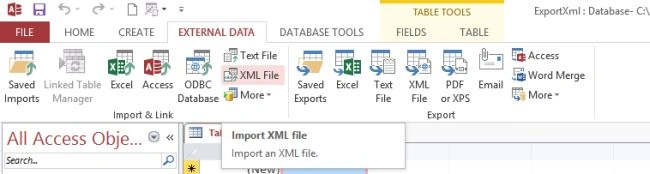
Step 3
When we click on this, a window is opened which prompts for the path where the XML file resides, so to give the path click browse the button as in:
Step 4
When the browse button is clicked on, a window is opened for selecting your XML file, as in: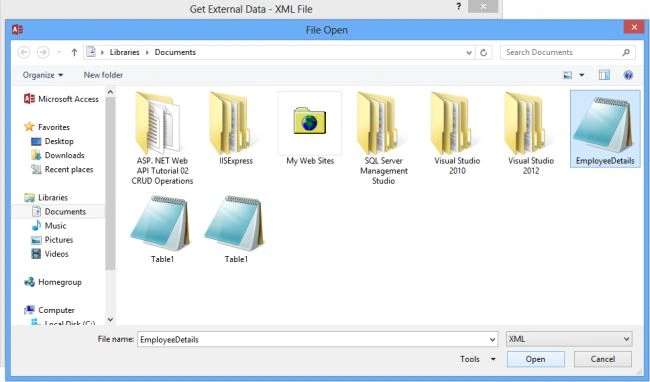
Step 5
After selecting the file, the file path is set in the Export XML windows. Then click ok as in:
Step 6
Now another window is opened; click ok without changing any thing in it, as in: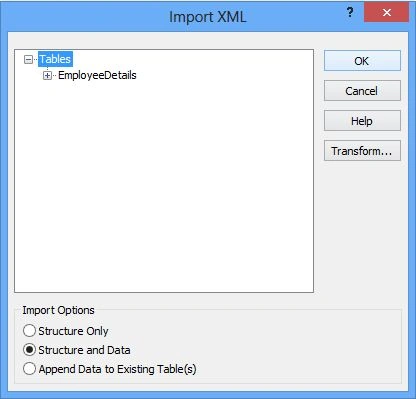
Step 7
Now click on the XML file which resides at the left of the Access; see:
Step 8
The table with the XML File is displayed, and the output looks such as: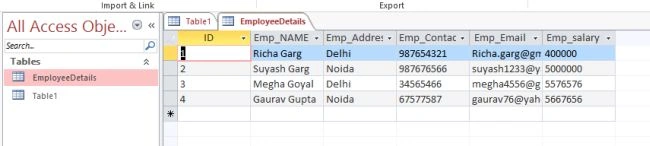
Summary
In this way we can export the XML file from Access 2013.
Join the conversation! Your thoughts help the community grow.