This article shows a real-world usage of Tablet PC InkPicutre control and ink. The attached file is a Visual Studio 2003 project, which allows you to load an image file, write on the image using ink and save the ink. It also allows you to load and view the saved ink on the image.
The Application
The application is a simple Widnows Application with two Button controls, a CheckBox control, and an InkPicture control. ( See Figure 1).
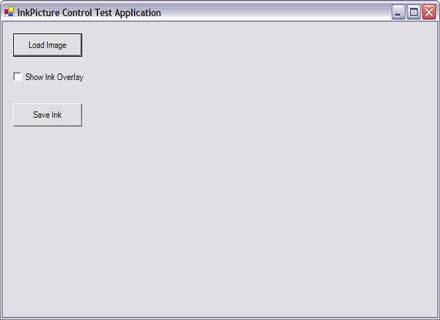
Figure 1. InkPicture test application.
Loading Image
The Load Image button allows you to load in Image using the following code:
OpenFileDialog fileDlg = new OpenFileDialog();
fileDlg.Filter = "Image files (*.bmp; *.gif; *.jpg; *.png)|*.bmp;*.gif;*.jpg;*.png|" + "All files (*.*)|*.*";
if (fileDlg.ShowDialog() == DialogResult.OK)
{
try
{
inkPicture1.Image = Image.FromFile(fileDlg.FileName);
}
catch (Exception)
{
MessageBox.Show(this, "Unable to load the image file!", "Load Image Failed");
}
}
As you can see from this code, I simply set the file name selected from the Open File Dialog as Image property of InkPicture control, which views the image. After that I write something on InkPicuture using the pen. See Figure 2.
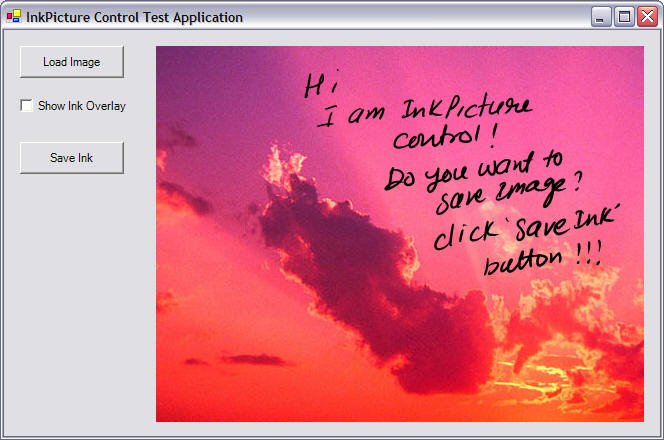
Figure 2. InkPicture control with an image.
Saving Image
The Save Ink button click saves the image. The following code saves the ink:
private
void saveImageButton_Click(object sender, System.EventArgs e)
{
SaveFileDialog savedlg = new SaveFileDialog();
savedlg.Filter = "ISF files (*.isf)|*.isf| All files (*.*)|*.*";
if (savedlg.ShowDialog() == DialogResult.OK)
{
stream = savedlg.OpenFile();
if (stream != null)
{
if (inkPicture1.Image != null)
{
SaveInkImage(inkPicture1.Image, inkPicture1.Ink);
}
bytes = inkPicture1.Ink.Save();
stream.Write(bytes, 0, bytes.Length);
stream.Close();
}
}
}
private void SaveInkImage(Image image, Ink imgInk)
{
memStream = new MemoryStream();
BinaryFormatter bf = new BinaryFormatter();
bf.Serialize(memStream, image);
bytes = memStream.GetBuffer();
imgInk.ExtendedProperties.Add(guidImage, bytes);
}
The Save method also calls Save As dialog where you can specify the name of the ink file (.isf). See Figure 3.
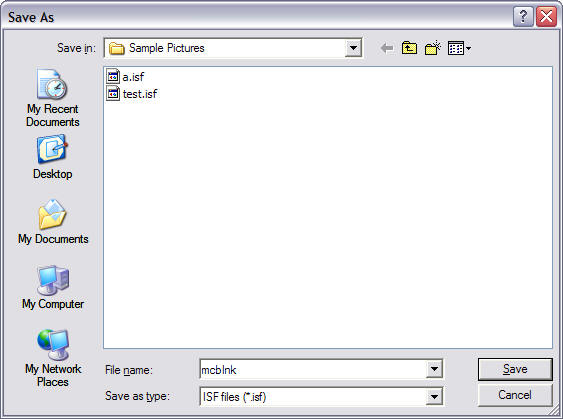
Figure 3. Save Ink dialog.
Loading Ink
The following code is Show Ink Overlay CheckBox click which calls an Open File Dialog where you can select a saved ink and display it. See Figure 4.
As you can see from this code, I create an Ink control and call its Load method, which takes a byte stream, which I create from the ink file. The GetInkImage method takes an Ink object and converts into an Image object. You can set the Image property of InkPicture control to display the image.
private
void showInkCheckBox_CheckedChanged(object sender, System.EventArgs e)
{
if(showInkCheckBox.Checked)
{
OpenFileDialog opendlg = new OpenFileDialog();
opendlg.Filter = "ISF files (*.isf)|*.isf| All files (*.*)|*.*";
if (opendlg.ShowDialog() == DialogResult.OK)
{
stream = opendlg.OpenFile();
if (stream != null && stream.Length > 0)
{
bytes = new byte[stream.Length];
if (stream.Read(bytes, 0, bytes.Length) == stream.Length)
{
Ink ink = new Ink();
ink.Load(bytes);
inkPicture1.InkEnabled = false;
inkPicture1.Ink = ink;
inkPicture1.InkEnabled = true;
inkPicture1.Image = GetInkImage(ink);
inkPicture1.Invalidate();
}
stream.Close();
}
}
}
}
private Image GetInkImage(Ink imgInk)
{
if (imgInk.ExtendedProperties.Contains(guidImage))
{
bytes = (byte[])imgInk.ExtendedProperties[guidImage].Data;
System.IO.MemoryStream ms = new System.IO.MemoryStream(bytes);
BinaryFormatter formatter = new BinaryFormatter();
retImage = (Image)formatter.Deserialize(ms);
}
return retImage;
}
}
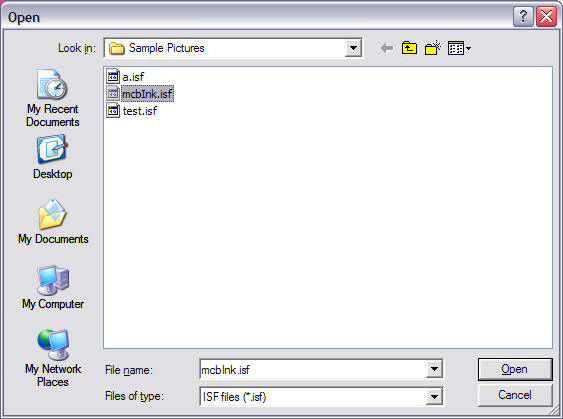
Figure 4. Loading an image.
See the attached project for more details.
Summary
In this article, I discussed the usage of Tablet PC ink and InkPicture control in real world applications. You can extend this application by allowing the users to select the color and width of the ink and select and delete the ink from the InkPicture control.