In my previous article, I discussed some of the cool features of VS 2005. In this article, I will continue the designer features and updates. To see some of the designer features, I create a Windows Forms application. As I mentioned in my previous article, VS 2005 manages its functionality in a better way and one of its example is breaking default Form1.cs class in multiple classes.
Solution Explorer
Visual Studio 2005 takes advantage of C# partial classes by breaking the main Form.cs class into three classes. The Solution Explorer is shown in Figure 1. As you can see from this figure, there are three .cs classes - EntryPoint.cs, Form1.cs, and Form1.Designer.cs.
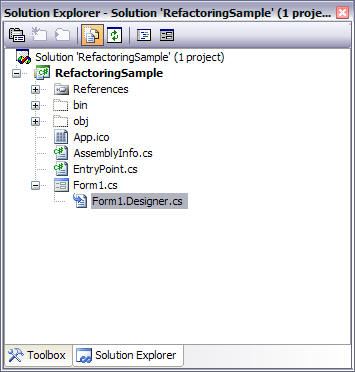
Figure 1. Solution Explorer.
As you can guess, EntryPoint.cs class only contains the code that allows the entry point of the application. See Figure 2. As you can see from Figure 2, this class calls the Form1 constructor, which is responsible for displaying Form1.
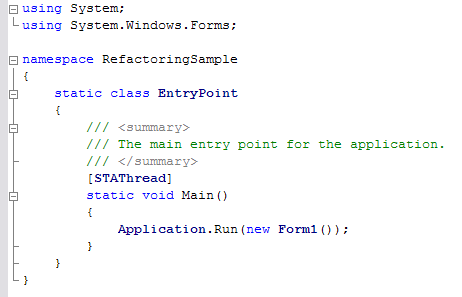
Figure 2. EntryPoint.cs
VS 2005 breaks down the Form's functionality into two partial classes Form1.cs. As you can see from Figure 3 & 4, both classes names are Form1 but they reside in different files - Form1.cs and Form1.Designer.cs. The new feature of C#, partial classes, allows a class to be saved in multiple files. By saving Form1.cs, we can easily separate designer written code with our code.
Form1.cs contains the code we would write.
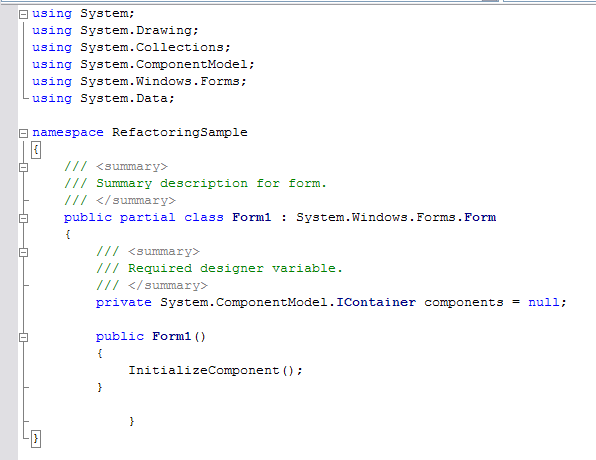
Figure 3. Form1.cs
Form1.Designer.cs contains the code designer writes. See Figure 4.
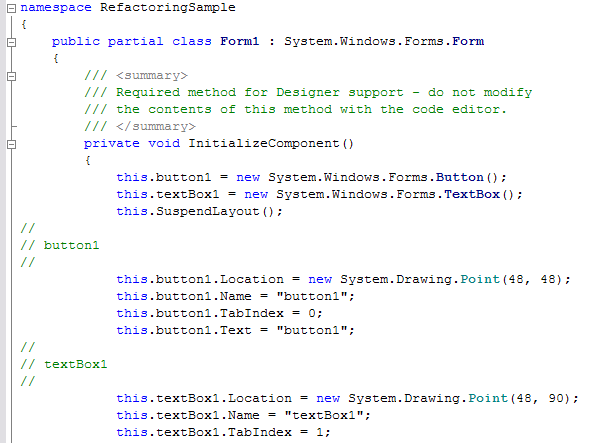
Figure 4. Form1.Designer.cs
I personally like this idea of breaking Form1.cs into multiple classes so its easy to manage and edit the code and I don't have to worry about messing designer generated code by not touching the Form1.Designer.cs file.
The Error List
Error List contains the list of errors when you compile a project. See Figure 5. This is again a nice looking window with a cleaner way to represent the errors.
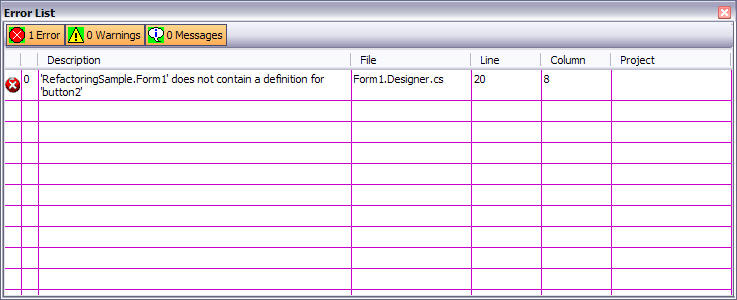
Figure 5. Error List.
Summary
In my forthcoming articles, I will cover some more exciting features of VS 2005.