SIGN UP MEMBER LOGIN:    
ARTICLE

Creating a Web User Control in .NET

Posted by Mike Gold Articles | WebForms Controls February 05, 2003
One of our C# Corner readers gave me the idea of converting my Add/Remove Control from a Windows Form control to a User Web Control, so we will use this control as an example for this tutorial
Reader Level:
Download Files:
 

Sometimes its desirable to have access to a web control that is not available in the control panel shipped with Visual Studio.   Luckily, Visual Studio gives you some capability to create your own web user controls if you need them.  One of our C# Corner readers gave me the idea of converting my Add/Remove Control from a Windows Form control to a User Web Control, so we will use this control as an example for this tutorial.

The first step in demonstrating how to create a Web User Control is to create a new Web Application.  Creating Web Apps is performed simply by going to the New-->Project menu item, and choosing a new ASP.NET Web Application.   Once we've created the application that will be running our Web User Control, we can actually create our Web User control and drag it directly into our Web Application. 
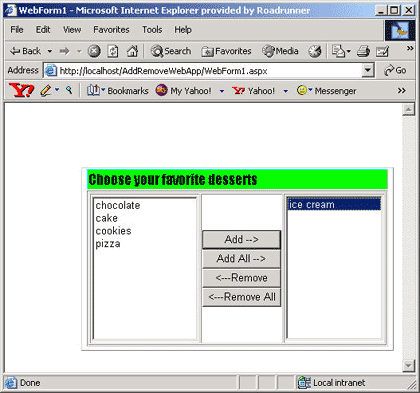
Figure 1 - Add/Remove Web User Control in Internet Explorer

Begin by choosing right clicking on the Solution Explorer and Choosing Add-->Add Web User Control as shown in Figure 2:
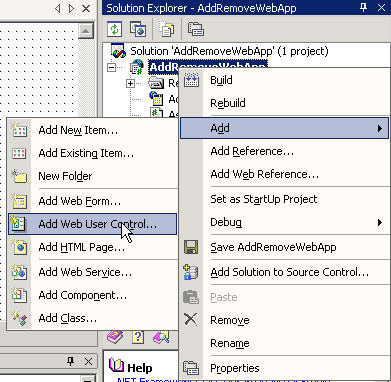
Figure 2 - Creating a Web User Control inside our Web App

This menu Item will bring up the Add New Item dialog with a default user control.  Simply change the name of the control to the desired name of the control (in our case the AddRemoveControl).  Note that all Web User controls contain the file extension ascx.
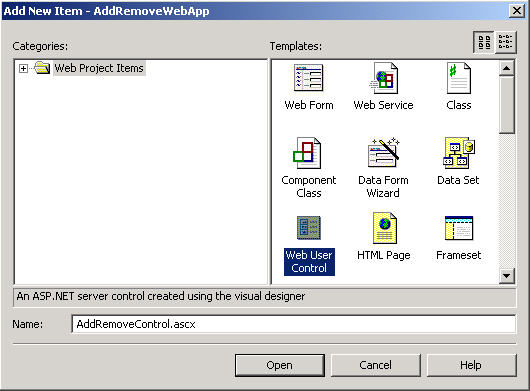
Figure 3 - Choosing the Web User Control Template

Once we've clicked the Open button, this places the Web User Control in our solution explorer where we can work with it:
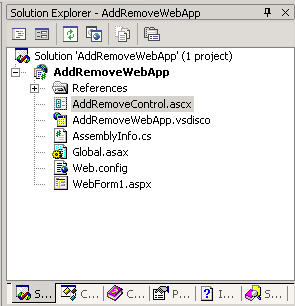
Figure 4 - The Web User Control File appearing in the Solution Explorer

Double clicking on the ascx file in the solution explorer gives us a design view in which we can put generic html and web form controls into our Web User Control simply by dragging them from the Control Panel.  Below is the group of controls we placed from the control panel onto our Add/Remove Web User Control.  You can't see it here, but the controls are placed in an html table consisting of a single row and three columns.
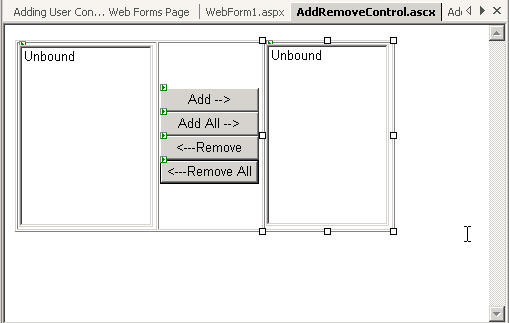
Figure 5 - Controls added to the Web User Control Design View

Now we need to place the web user control inside our web application.  Placing the user control is again a trivial task made easy by the Design View.  Simply drag the AddRemoveControl.ascx file from the solution explorer onto the WebForm we want to populate.  Note The Web User Control appears with the ID of the control in a gray box on the design form.
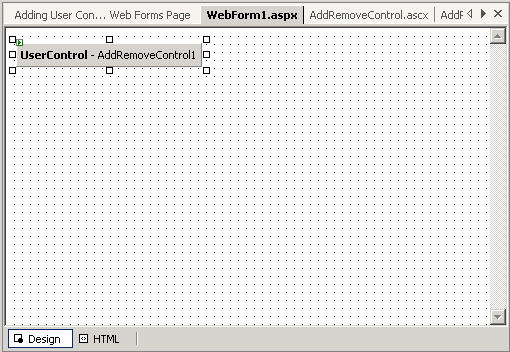
Figure 6 - User Control Appearing in the Web Form Page

Unfortunately the task is not completely automated.  In order to use the User Control inside the Form we also need to add a declaration statement that matches the exact name of the user control class and the ID of the control.  I'm not sure why Microsoft didn't automatically generate this line of code for us, but I suspect in the future they will.  Below is the line of code placed in the WebForm1.aspx.cs code- behind of our web page:

Listing 1 - Declaration for the Add/Remove Web User Control in the Web Form Page public class WebForm1 :

System.Web.UI.Page
{
protected AddRemoveControl AddRemoveControl1; // Here is the declaration line
...

Now we need to fill in the web user control itself with some useful functionality.  Most of the functionality could actually be taken out of my previous article on the Window Form User Control. For the most part, all I needed to do was drag the contents of the Windows User Control methods into the AddRemoveControl.ascx.cs file.   The windows controls behave almost identical to the web form controls down to the method name. Unfortunately,  the Window Form property and method set for ListBoxes is much richer, so this example is only for a single selection Add/Remove control. What I couldn't quite understand was although it is possible to set up the Web Form ListBox  for multiple selection, there didn't seem to be many properties that support multiple section.  Also,  the ListBox didn't seem to respond to the SelectionChange event when clicking the mouse on the ListBox, so I was forced to forgo some of the control logic.   Despite these minor kinks, I was able to reproduce most of the behavior of the Add/Remove Control.  Below is a sample event handler that demonstrates the code executed when the Add Button is pressed. 

Listing 2 - Add Button Event Handler in the Web User Control

private void AddButton_Click(object sender, System.EventArgs e)
{
// precondition
if (SourceListBox.SelectedIndex == -1)
return;
// copy selected strings in the source list to the destination list
DestinationListBox.Items.Add(SourceListBox.SelectedItem.ToString());
// remove selected strings from the source list
SourceListBox.Items.Remove(SourceListBox.SelectedItem);
ControlLogic();
}

Conclusion

It seems like Microsoft did a good job mirroring the architecture of projects between Windows and the Web with .NET.  In this way, if you learn to program the Windows architecture, programming the same application for the Web is not a big leap.  Also the symmetry between the class libraries for the web controls and the window controls makes porting your apps from Windows to the Web a lot easier than it used to be.  The addition of both the Windows User Control and the Web User Control gives you a powerful way to create custom controls that you can reuse throughout your particular organization.

Login to add your contents and source code to this article
share this article :
post comment
 
Nevron Gauge for SharePoint
Become a Sponsor
PREMIUM SPONSORS
  • Finally – a virtual platform that delivers next-generation Windows Server 2008 Hyper-V virtualization technology from a managed hosting partner you can truly depend on. Visit www.maximumasp.com/max for a FREE 30 day trial. Hurry offer ends soon. Climb aboard the MaxV platform and take advantage of High Availability, Intelligent Monitoring, Recurrent Backups, and Scalability – with no hassle or hidden fees. As a managed hosting partner focused solely on Microsoft technologies since 2000, MaximumASP is uniquely qualified to provide the superior support that our business is built on. Unparalleled expertise with Microsoft technologies lead to working directly with Microsoft as first to offer IIS 7 and SQL 2008 betas in a hosted environment; partnering in the Go Live Program for Hyper-V; and product co-launches built on WS 2008 with Hyper-V technology.
    ceTE software specializes in components for dynamic PDF generation and manipulation. The DynamicPDF™ product line allows you to dynamically generate PDF documents, merge PDF documents and new content to existing PDF documents from within your applications. Visit DynamicPDF here
6 Months Free & No Setup Fees ASP.NET Hosting!
Become a Sponsor