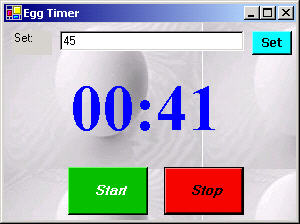
Figure 1 - Egg Timer Form in .NET
Today my girlfriend and I realized that we needed to time two things in the oven but we only had one timer. Well, what better way to solve it than to create a quick .NET egg timer application! This simple timer app will count down from whatever value is set in the textbox. The operation of the timer is shown in the state diagram drawn below. The timer is set in the top edit box by typing in the number of minutes and seconds in the form xx:xx and pressing the set button. The timer starts counting down when start is pressed. When the time reaches zero, it sounds the alarm and stops. The timer will also stop if the stop button is pressed and will resume if start is pressed again.
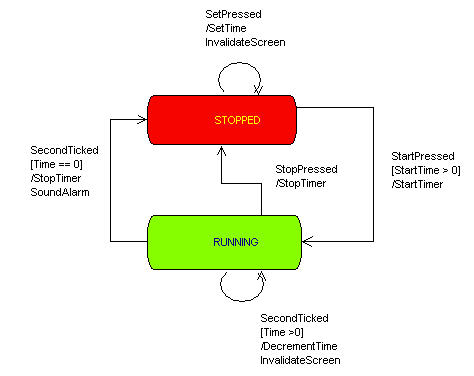
Figure 2 - State Diagram of Egg Timer Drawn with WithClass
Listing 1 shows the event handlers for the start and stop buttons of the egg timer. Note how the StartPressed event and the condition (StartTime > 0) are reflected in the state diagram in Figure 2.
private void StartButton_Click(object sender, System.EventArgs e)
{
// start the timer only if the time is greater than zero
if (StartTime > 0)
{
timer1.Start();
}
}
private void StopButton_Click(object sender, System.EventArgs e)
{
timer1.Stop();
}
Listing 1 - Event handlers fot the start and stop buttons
The timer event occurs every second because the timer1 object's Interval property is set to 1000 milliseconds. The timer event handler, timer1_Tick, is therefore entered every second and is represented by the looping transition at the bottom of the green RUNNING state above in figure 2. Every time the timer1_Tick handler is called (once a second) by the timer event, the time remaining is decremented and the screen is repainted. Listing 2 below shows the event handler for the timer tick event.
private void timer1_Tick(object sender, System.EventArgs e)
{
// Decrement the time
StartTime--;
// Repaint the screen
Invalidate();
// Has the time decremented to zero?
if (StartTime == 0)
{
// Stop the timer
timer1.Stop();
// Beep
PlaySound("ringin.wav", (IntPtr)0, 0);
PlaySound("ringin.wav", (IntPtr)0, 0);
}
}
Listing 2- Timer Event Handler occuring once a second if the timer is started
The Egg Timer will transition out of the RUNNING state into the STOPPED state if after the timer tick event occurs, the timer countdown has reached zero. If the condition is met that the decremented time reaches zero, the timer is stopped, and the alarm is sounded (as illustrated in the state diagram on the outer left transition of figure 2).
Painting the Time:
The new time of the timer is painted each time the screen is invalidated. Painting occurs in the paint event handler which paints the time string just below the bottom of the Time Setting Text Box. The string is drawn in a very large bold Times New Roman font. You can play around with the font size and family to get some interesting looking numbers on the clock. Note that a function called ConvertToTime is used to display the StartTime as minutes:seconds.
Font ClockFont =
new Font("Times New Roman", 48, FontStyle.Bold);
private void EggTimerForm_Paint(object sender, System.Windows.Forms.PaintEventArgs e)
{
if (this.SetTextBox.Text.Trim().Length != 0)
{
// calculate position of text box
int height = SetTextBox.Height;
Point p = new Point(SetTextBox.Left, SetTextBox.Top + height + 20);
// Place String below text box
Graphics g = e.Graphics;
g.DrawString( ConvertToTime(StartTime), ClockFont, Brushes.Blue, p, new StringFormat() );
}
}
// **************
public string ConvertToTime(long tickCount)
{
// tickcount is in seconds, convert to a minutes: seconds string
long seconds = tickCount;
string val = (seconds/60).ToString("00") + ":" + (seconds % 60).ToString("00");
return val;
}
Listing 3 - Paint Event Handler for painting the time on the Form
Conclusion
The Egg Timer is a simple project to help you get your hands dirty with the .NET timer component. I noticed a few possible improvements that could be implemented if you want to give it a try. You could add an hour section to the timer for longer cooking times. It would also be nice to be able to type in say 1/2 minute in settings and have it figure out the appropriate conversion (Currently the setting only parses a time in the form of xx:xx or xx.xx or xx xx). Another cool feature would be to have the alarm sound indefinitely until stop is pressed. Anyway, feel free to take some time out and experiment with .NET. You never know what you can cook up next!