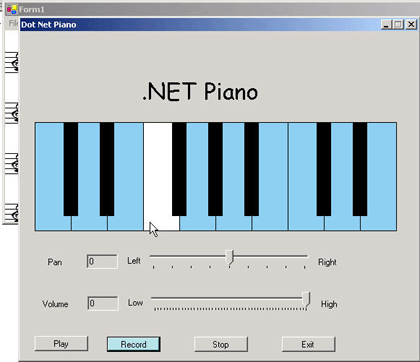
Figure 1 - Music Recorder/Play in .NET
I'm no great musician, but I certainly appreciate the art of making music. This is an article to allow you to record and replay the music you performed on the piano. Because the music is recorded in the same format as the sheet music editor, you can also view the sheet music after recording the song. Below is part of the song When I'm 64, by the Beatles after I played and recorded it on the Virtual Piano:
Note: (The R key on my keyboard has been acting up so if this aticle is missing a few r's, please fogive me!).
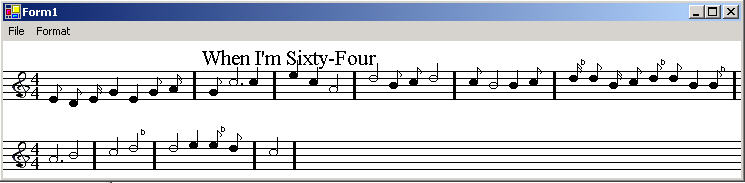
Figure 2 - Song played on the virtual piano and recorded by the Sheet Music Recorder
There are many aspects of this program I'd like to talk about. To turn the virtual piano into a recorder was not too bad a task. It simply required capturing each note as it was played. Below is the section of the UML class diagram that illustrates the Recorder and Player classes used by the PianoForm:
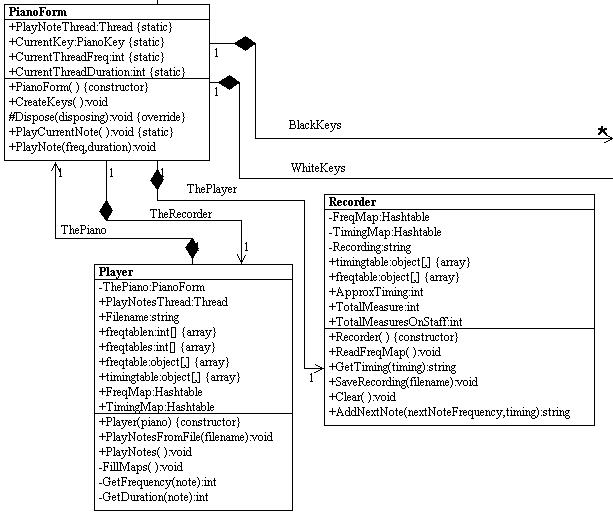
Figure 3 - Section of UML diagram illustrating playing and recording functionality reversed using WithClass
The PianoForm simply calls the AddNextNote method each time a key is played by the musician. After the recording is finished and the musician hits the Stop button, the PianoForm calls the SaveRecording method of the Recorder to save the recording to a notes file. The action taken by the program in response to these events is shown in the WithClass UML sequence diagram shown below:
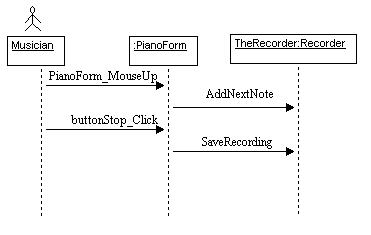
Figure 4 - Sequence diagram for recording music drawn using WithClass
The corresponding C# code for the MouseUp from the piano keyboard is shown in Listing 1. The PianoForm passes The Recorder the frequency and the duration of time the note was pressed since the MouseDown event started.:
private void PianoForm_MouseUp(object sender, System.Windows.Forms.MouseEventArgs e)
{
EndDuration = this.TimeInterval;
StopCurrentSound();
if (CurrentKey != null)
{
Invalidate(CurrentKey.Border);
CurrentKey = null;
}
// Here is the Recording code illustrated by the UML diagram
if (Recording)
{
// Add next note using the Frequency and duration calculated from the timer
RecordString = TheRecorder.AddNextNote(CurrentFrequency, (int)(EndDuration - StartDuration));
}
}
Listing 1 - The Mouse Up Handler in the Piano Form that calls the Recorder
The AddNextNote method in the Recorder uses a hash table to look up the corresponding note string for the frequency and another hash table to look up the corresponding character for the timing. Timing also needs to be interpolated for values that fall in between the times contained in the hash table:
int TotalMeasure = 0;
int TotalMeasuresOnStaff = 0;
public string AddNextNote(int nextNoteFrequency, int timing)
{
// Look up note from Frequency hashtable
string theNote = (string)FreqMap[nextNoteFrequency];
// Use the duration of the key press to get the closest timing value to one that is in the TimingMap
string timingCode = (string)GetTiming(timing);
// Add the note string and the timing code to the entire recording
Recording += theNote + timingCode;
// Track the amount of timing in the measure
TotalMeasure += ApproxTiming;
if (TotalMeasure >= 16) // this hard codes 4/4 timing, will be changed in a later version
{
Recording += "/"; // add a measure, reset measure counter
TotalMeasure = 0;
TotalMeasuresOnStaff ++; // track staff line
if (TotalMeasuresOnStaff > 4)
{
Recording += "\n"; // add a line feed
TotalMeasuresOnStaff = 0; // reset staff counter
}
}
else
Recording += " "; // add a space to the recording to separate the notes
return Recording;
}
Listing 2 - The AddNextNote method in the Recorder saves the notes in a string
So as we play, the Recording string grows until we hit the stop button. When we hit the stop button, the user is prompted with a save dialog so he can save the notes of his music. Then the PianoForm calls the Recorder's SaveRecording method to save the final recording to a .notes file (which can later be read into the MusicEditor and display sheet music):
private void StopButton_Click(object sender, System.EventArgs e)
{
if (Recording == true)
{
// Allow the user to choose a file and directory to save the recording
if (this.saveFileDialog1.ShowDialog() == DialogResult.OK)
{
// Save the Recording to a file
TheRecorder.SaveRecording(saveFileDialog1.FileName);
}
TheRecorder.Clear();
Recording = false;
}
.// Stop button is also used when the user wants to stop playing a song through DirectX
if (Playing == true)
{
ThePlayer.PlayNotesThread.Abort();
Playing = false;
PlayButton.BackColor = StopButton.BackColor;
if (null != applicationBuffer)
{
applicationBuffer.Dispose();
applicationBuffer = null;
}
}
RecordButton.BackColor = StopButton.BackColor;
}
Listing 3 - Stop Button Event Handler to stop the recording and save the music
The SaveRecording method of the Recorder simply saves the Recording string containing the notes and places the string in a file. It also adds the necessary file header information needed by the Sheet Music Editor:
public void SaveRecording(string filename)
{
// Open a file in order to write out the music
FileStream fs = new FileStream(filename, FileMode.CreateNew, FileAccess.Write);
StreamWriter sw = new StreamWriter(fs);
// Use the file name to create a song title
sw.WriteLine("Title:" + filename.Substring(filename.LastIndexOf("\\") + 1, filename.LastIndexOf(".") - (filename.LastIndexOf("\\") + 1)));
// Write the signature header
sw.WriteLine("Signature1:4");
sw.WriteLine("Signature2:4");
// Save the recording string that we created with AddNextNote
sw.WriteLine(Recording);
// close the StreamWrite and the FileStream
sw.Close();
fs.Close();
}
Listing 4 - Save the Recording to a File
Playing the music is a bit more complicated. In order to play the music, we placed our sound creation inside of a thread. This way, while the note is playing, the form isn't frozen. Below is the simple UML sequence diagram that shows what happens when you click the Play button in the Virtual Piano:
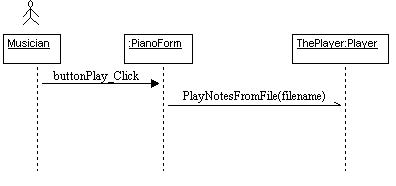
Figure 5 - Sequence diagram for playing music drawn using WithClass
Note that the call to PlayNotesFromFile is Asynchronous. This means that when we go tell the Player to play, we don't have to wait for it to finish playing, we just return and do what we normally do in a form. Below is the code in the PlayNotesFromFile that activates the threaded method called PlayNotesThread in the Player class:
public void PlayNotesFromFile(string filename)
{
Filename = filename;
// Create the trhead that will play the notes in the file
PlayNotesThread = new Thread(new ThreadStart(this.PlayNotes));
// Now play the notes in a separate thread
PlayNotesThread.Start();
}
Listing 5 - Start the thread that plays all the notes in the file
The code for playing the notes in the file is just a big long parser that actually calls back to the PianoForm in order to play the sound of the note. To see how to play a note in DirectX, please refer to my previous article, the Virtual Piano. This update actually improves note playing slightly by not recreating the Secondary Buffer every time we want to play a note. Below is the PlayNotes method in the Player class that parses through the notes file and plays each note according to the format described in the MusicMaker article.
public void PlayNotes()
{
// Open the stream that contains the notes
FileStream fs = new FileStream(Filename, FileMode.Open, FileAccess.Read);
StreamReader sr = new StreamReader(fs);
// Loop through each line of the file, parse them and play each note
string strLine = sr.ReadLine();
while (strLine != null)
{
// skip title information and signature information.
int keyIndex = strLine.IndexOf(":");
if (keyIndex != -1) // contains non-note information
{
string strKey = strLine.Substring(0, keyIndex);
strKey = strKey.ToLower();
switch (strKey)
{
case "title":
break;
case "signature1":
break;
case "signature2":
break;
default:
break;
}
}
else // read in the notes
{
strLine = strLine.Trim();
string[] theMeasures = strLine.Split(new char[]{'/'});
// Parse the notes out of the measure
for (int i = 0; i < theMeasures.Length; i++)
{
if (theMeasures[i].Length > 0)
{
// read each note in the measure
if (theMeasures[i][theMeasures[i].Length -1] == '/') // chop it off
{
theMeasures[i] = theMeasures[i].Substring(0, theMeasures[i].Length -1);
theMeasures[i] = theMeasures[i].Trim();
}
// parse the notes out of the measure
string[] notes = theMeasures[i].Split(new char[]{' '});
// Go through each note and play it using the PianoForm object
for (int j = 0; j < notes.Length; j++)
{
// Look up the frequency from the note string
int freq = GetFrequency(notes[j]);
// Look up the duration from the timing symbol
int duration = GetDuration(notes[j]);
// Play the note
ThePiano.PlayNote(freq, duration);
// Wait for the thread to finish before playing the next note
while (PianoForm.PlayNoteThread.IsAlive){}
}
}
}
}
// read the next line of music
strLine = sr.ReadLine();
}
// Close the stream
sr.Close();
fs.Close();
}
Listing 6 - Playing all the notes in the music file
Conclusion
This program is a fun little project that can help you create simple sheet music by playing the piano. To improve the program, I really need to add rests, chords, song words and other music capabilities but this is a good framework to begin. I noticed that the music player seems to play the music a bit choppy so I suspect it can use a lot of improvement. One thing that would probably make the player better is if all of the notes were placed in the Secondary Buffer at once and then played. We'll look into doing this in the next version. Enjoy composing your own songs. If anyone creates any cool classic riffs, e-mail them to me, and I'll add them to the upload.