
Introduction
In this article I will explain how to implement a scrollable GridView with a fixed header using jQuery in ASP.Net.
Description
In this article
- First I create a database in the SQL Server 2008.
- Create an ASP.NET website and add a GridView control.
- I am binding the GridView with a DataTable object that I created in the Page Load event in the code behind file.
- Next add the jQuery script file reference inside the <head> section of the page depending on the script file location and jQuery version you are using.
- Next add the following jQuery code inside a script block in the <head> section of the page.
Now it is time to see all the activity in detail.
First go through SQL Server and make a table. The following snapshot shows the process.

Step 1: First we must create a Web Application.
- Go to Visual Studio 2010.
- New--> And select the Web Application.
- Give whatever name you want to.
- Click OK.
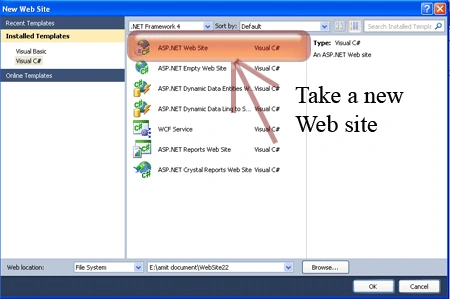
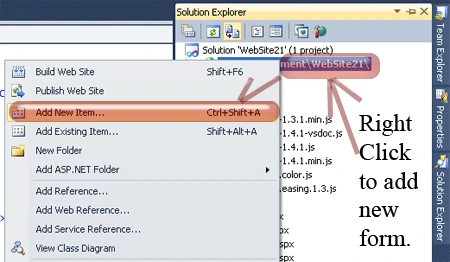
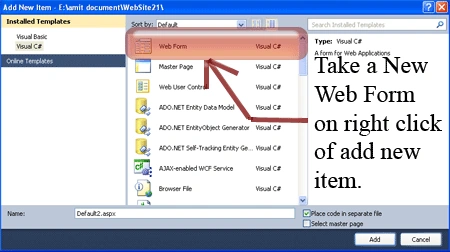
Step 2: Secondly you must add a new page to the website.
- Go to the Solution Explorer.
- Right-click on the project name.
- Select add new item.
- Add new web page and give it a name.
- Click OK.
Step 3: In this step we must write the script reference to the aspx page; let us see from where you must write the script code.
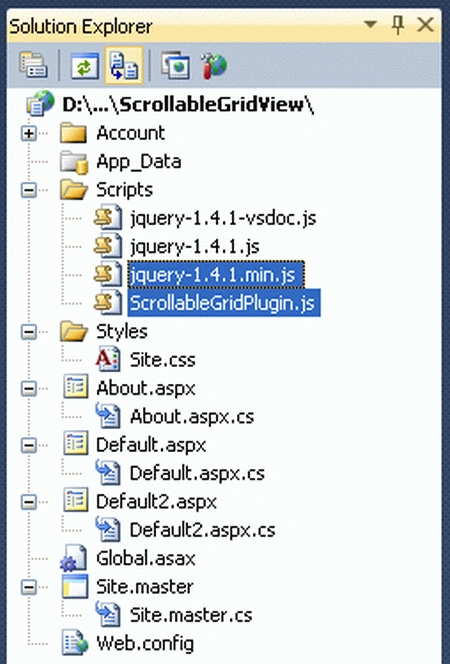
Right-click on both files respectively -> copy and paste it inside <Head> section of your page see step 4.
Step 4: Let us see the script code that you must add inside the <script></script> tags and that will be placed either in the head section or the body section as you prefer.
<script type="text/javascript" src="Scripts/jquery-1.4.1.min.js"></script>
<script type="text/javascript" src="Scripts/ScrollableGridPlugin.js"></script>
You might have noticed that in the code above I added jquery-1.4.1.min.js and ScrollableGridPlugin.js script files in the header section of code; you need to download the attached code to get these script files by using these files we can manage the GridView header fixed postion.
Step 5: In this step we must write the jQuery code that is given below.
<script type="text/javascript">
$(document).ready(function () {
$('#<%=GridView1.ClientID %>').Scrollable();
});
</script>
Step 6: In this step you will see the body code of the Default2.aspx page that is given below.
Body Code:
<body>
<form id="form1" runat="server">
<asp:GridView runat="server" ID="GridView1" AutoGenerateColumns="false">
<RowStyle BackColor="#EFF3FB" />
<FooterStyle BackColor="#507CD1" Font-Bold="True" ForeColor="White" />
<PagerStyle BackColor="#2461BF" ForeColor="White" HorizontalAlign="Center" />
<HeaderStyle BackColor="#507CD1" Font-Bold="True" ForeColor="White" />
<AlternatingRowStyle BackColor="White" />
<Columns>
<asp:BoundField DataField="id" HeaderText="Id" />
<asp:BoundField DataField="name" HeaderText="Name" />
<asp:BoundField DataField="salary" HeaderText="Salary" />\
<asp:BoundField DataField="addres" HeaderText="Address" />
</Columns>
</asp:GridView>
</form>
</body>
Step 7: In this step we will see the complete code of the Default2.aspx page that is given below.
Code:
<%@ Page Language="C#" AutoEventWireup="true" CodeFile="Default2.aspx.cs" Inherits="Default2" %>
<!DOCTYPE html PUBLIC "-//W3C//DTD XHTML 1.0 Transitional//EN" "http://www.w3.org/TR/xhtml1/DTD/xhtml1-transitional.dtd">
<html xmlns="http://www.w3.org/1999/xhtml">
<head runat="server">
<title>Scrollable GridView With a Fixed Header Using jQuery</title>
<script type="text/javascript" src="Scripts/jquery-1.4.1.min.js"></script>
<script type="text/javascript" src="Scripts/ScrollableGridPlugin.js"></script>
<script type="text/javascript">
$(document).ready(function () {
$('#<%=GridView1.ClientID %>').Scrollable();
});
</script>
<body>
<form id="form1" runat="server">
<asp:GridView runat="server" ID="GridView1" AutoGenerateColumns="false">
<RowStyle BackColor="#EFF3FB" />
<FooterStyle BackColor="#507CD1" Font-Bold="True" ForeColor="White" />
<PagerStyle BackColor="#2461BF" ForeColor="White" HorizontalAlign="Center" />
<HeaderStyle BackColor="#507CD1" Font-Bold="True" ForeColor="White" />
<AlternatingRowStyle BackColor="White" />
<Columns>
<asp:BoundField DataField="id" HeaderText="Id" />
<asp:BoundField DataField="name" HeaderText="Name" />
<asp:BoundField DataField="salary" HeaderText="Salary" />\
<asp:BoundField DataField="addres" HeaderText="Address" />
</Columns>
</asp:GridView>
</form>
</body>
</html>
Step 8: In this step we will see the design of the Default2.aspx page that is given below.
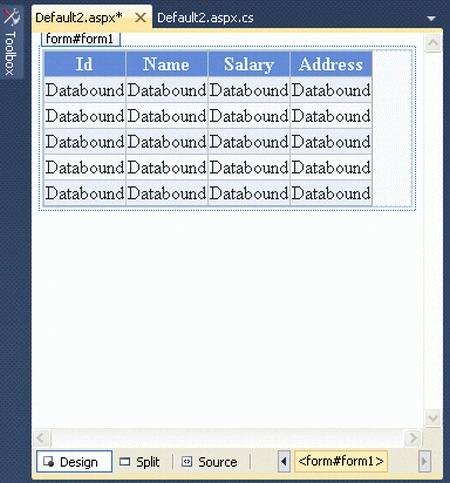
Step 9: In this step I am binding the GridView with a DataTable object that I created in the Page Load event in the code behind file of Default2.aspx page.
Code:
using System;
using System.Collections.Generic;
using System.Linq;
using System.Web;
using System.Web.UI;
using System.Web.UI.WebControls;
using System.Data;
using System.Data.SqlClient;
public partial class Default2 : System.Web.UI.Page
{
protected void Page_Load(object sender, EventArgs e)
{
SqlConnection con = new SqlConnection(@"Data Source=.;Initial Catalog=akshay;Persist Security Info=True;User ID=sa;Password=wintellect";
SqlDataAdapter adap = new SqlDataAdapter("select * from Person",con);
DataSet ds=new DataSet();
adap.Fill(ds,"Person");
GridView1.DataSource = ds.Tables["Person"];
GridView1.DataBind();
GridView1.UseAccessibleHeader = true;
GridView1.HeaderRow.TableSection = TableRowSection.TableHeader;
}
}
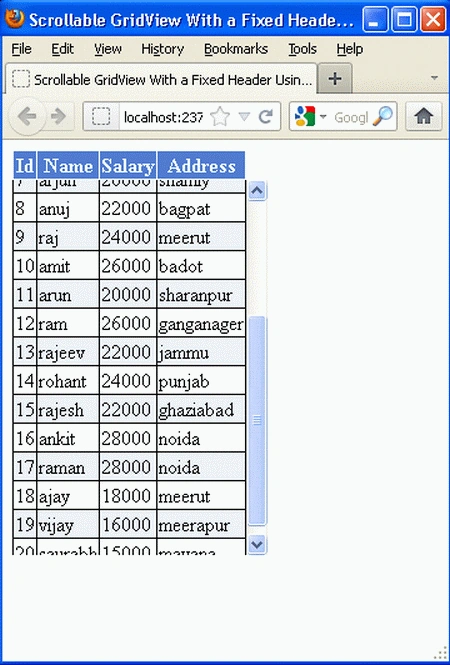
Step 10: In this step we are going to run the Default2.aspx page by pressing F5.

Now you can scroll the GridView.

Reference: http://aspsnippets.com/Authors/Mudassar-Khan.aspx
Aung ThawPosted May 7, 2019, 3:18 AM
The header row fixed but the header column and item column mismatched.Can someone help me please?
Ramzanali MominPosted Nov 22, 2018, 10:47 PM
Very bad way of implement this concept
Gowtham RajamanickamPosted Apr 1, 2015, 4:33 AM
good
Chaitanya Teja ChinthapalliPosted Aug 2, 2013, 2:56 AM
hi this is working fine in page load but when i applied update pannel in grid script is not calling can u please help me??????????
Jitendra PatelPosted Jan 3, 2013, 1:22 PM
Hi, Thanks a lot, I have solved my problem with this article.
ViswanathanPosted Jul 17, 2012, 8:34 AM
Good article. But if we allow paging and navigate between pages then there comes the problem where the header is not fixed. Is there any solution.