Blue Theme Orange Theme Green Theme Red Theme
 
Home | Forums | Videos | Photos | Downloads | Blogs | Interviews | Jobs | Beginners | Training
 | Consulting  
Submit an Article Submit a Blog 
 Login Close
User Id:
Password:
 
Forgot Password
Forgot Username
Why Register
 Jump to
Skip Navigation Links
TechnologyExpand Technology
WebsiteExpand Website
 Resources  
Close
 Our Network  
Close
Search :       Advanced Search »
Home » Sharepoint » Programmatically uploading multiple files to Custom sharepoint list in 2007

Programmatically uploading multiple files to Custom sharepoint list in 2007

This article describes step by step processes to create a webpart in share point server 2007, and using the same how to programmatically upload Multiple files to Custom Share Point List in Share Point Server 2007.

Total page views :  36568
Total downloads : 
   Print Read/Post comments Post a comment  Similar Articles  
   Email to a friend  Bookmark  Author's other articles  
 
Become a Sponsor

Introduction:


A custom SharePoint list can be configured to collect any type of data and SharePoint automatically generates the forms for adding new items, editing items and viewing items.


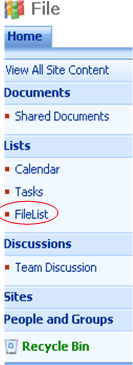
Team Web site comes with a built-in List Calendar, Task, which is listed on the Quick Launch bar. A new custom list has to be created for storing the files.


Steps creating custom list:
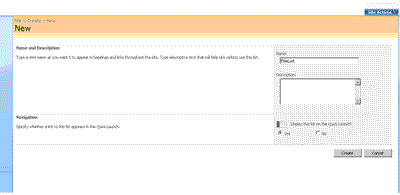


Custom list created


Custom Column Creation
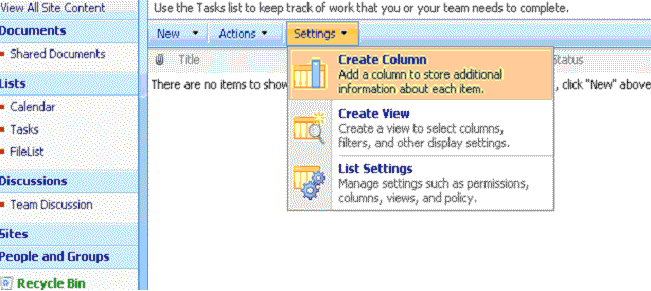
 

  1. While creating custom list Named as FileList default column will create Title.
  2. Modify column name Title as Filename.
  3. Create one more column as Filedate.
  4. Create one more column as FileSize.

Implementation of Web part

The files are added to the custom GridView (list) in web part level using browse file upload button. You can add and delete multiple files in this list. Finally all the files are uploaded in custom share point list Filelist using submit button in webpart.


The steps to create a web part

  • Make sure installed VS.net 2005.
  • Make sure installed Web part Project Library in your system.
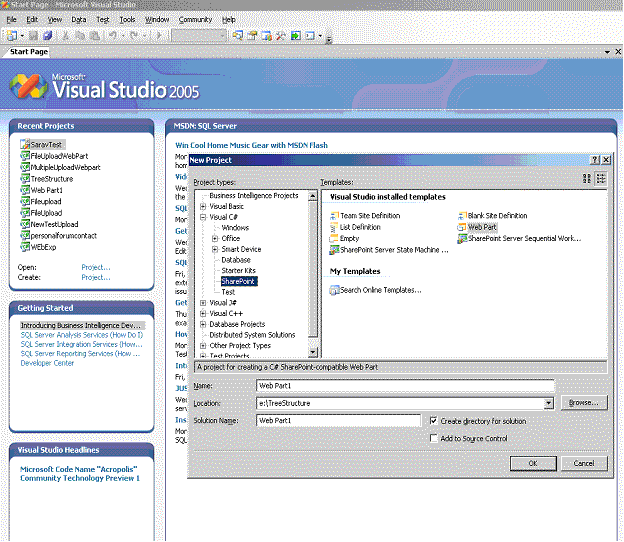
  • Start VS.Net 2005 and create a new project.
  • Select Project Type as Visual C#-->SharePoint.
  • Visual Studio Installed templates as Web Part.
  • Change Name as MultipleUploadWebpart.
  • Change Location as e:\ MultipleUploadWebpart.
  • Change Solution name as FileUploadWebPart.
 

Using the Render method


The Web part base class seals the Render method of System.Web.UI.Control because the Web Part infrastructure needs to control rendering the contents of a Web Part. For this reason, custom Web Parts must override the Render method of the Web part base class.


The Complete Web part Code


#region File Information

///<summary>

/// ------------------------------------------------------------------------------------------------------

/// Namespace : MultipleFileUploadWebPart

///

/// Purpose   : To Create Webpart to programmatically upload MultipleFiles to Custom SharePoint List

///        

/// Change History

/// -------------------------------------------------------------------------------------------------------

/// Date            Edit            Author            Comment             

/// -------------+--------+-------------------------------------------------------------------------------

/// 12-July-2007    [100]          Saravanan_Gajendran     Create Webpart

/// -------------+--------+-------------------------------------------------------------------------------

///</summary>

using System;

using System.Runtime.InteropServices;

using System.Web.UI;

using System.Web;

using System.Web.UI.WebControls;

using System.Web.UI.HtmlControls;

using System.Web.UI.WebControls.WebParts;

using System.Xml.Serialization;

using System.Data;

using System.IO;

using System.Text;

using System.Web.SessionState;

using Microsoft.SharePoint;

using Microsoft.SharePoint.WebControls;

using Microsoft.SharePoint.WebPartPages;


namespace MultipleUploadWebpart

{

     [Guid("2115a405-ff46-4040-8370-6e4fcb7b9194")]

     public class MultipleUploadWebpart : System.Web.UI.WebControls.WebParts.WebPart

     {

          #region Variables

          private HtmlInputFile inputFile;

          private Button btnUpload;

          private Label lblMessage;

          private GridView dgdUpload;

          private string fileName = "";

          private Button btnSubmit;

          private HyperLinkField hlnkFileName;        

          private BoundField bndFileSize;

          private BoundField bndFileKb;

          private ButtonColumn btnclmDelete;

          private CommandField cmdDelete;

          private double length;

          byte[] contents;

          DataTable dt;//datatable use for multiple file upload

          DataRow dr;//datarow use for multiple file upload

          DataColumn dc;//datacolumn use for multiple file upload

          double count = 0;//count of file size

          #endregion

          #region Create Child Control

          protected override void CreateChildControls()

          {

               #region inputfile

               this.inputFile = new HtmlInputFile();

               this.inputFile.ID = "_fileUpload";

               #endregion           

               #region message label

               this.lblMessage = new Label();

               this.lblMessage.ID = "_lblMessage";

               this.lblMessage.Text = "";
               #endregion
  
               #region
  Button

               this.btnUpload = new Button();

               this.btnUpload.ID = "_btnUploadUpload";

               this.btnUpload.Text = "Upload";

               this.btnUpload.Click += new EventHandler(btnUploadUploadClick);

               this.btnSubmit = new Button();

               this.btnSubmit.ID = "_btnSubmit";

               this.btnSubmit.Text = "Submit";

               this.btnSubmit.Click += new EventHandler(btnSubmit_Click);

               #endregion

               #region GridView

               this.dgdUpload = new GridView();

               this.hlnkFileName = new HyperLinkField();

               this.hlnkFileName.DataTextField = "FileName";

               this.hlnkFileName.DataNavigateUrlFormatString = "FilePath";

               this.hlnkFileName.HeaderText = "FileName";

               this.bndFileSize = new BoundField();

               this.bndFileSize.HeaderText = "FileSize";

               this.bndFileSize.DataField = "FileSize";

               this.bndFileKb = new BoundField();

               this.bndFileKb.HeaderText = "";

               this.bndFileKb.DataField = "KB";

               this.cmdDelete = new CommandField();

               this.cmdDelete.HeaderText = "Delete";

               this.cmdDelete.ButtonType = ButtonType.Link;

               this.cmdDelete.InsertImageUrl = "delete.gif";

               this.cmdDelete.DeleteText = "Delete";

               this.cmdDelete.ShowDeleteButton = true;

               this.dgdUpload.ID = "_dgdFileUpload";

               this.dgdUpload.Columns.Add(hlnkFileName);

               this.dgdUpload.Columns.Add(bndFileSize);

               this.dgdUpload.Columns.Add(bndFileKb);

               this.dgdUpload.Columns.Add(cmdDelete);

               this.dgdUpload.AutoGenerateColumns = false;          

               this.dgdUpload.RowDeleting += new GridViewDeleteEventHandler
              
(dgdUpload_RowDeleting);

               #endregion

               #region Add Controls

               this.Controls.Add(dgdUpload);

               this.Controls.Add(inputFile);
               this.Controls.Add(lblMessage);

               this.Controls.Add(btnUpload);

               this.Controls.Add(btnSubmit);

               base.CreateChildControls();

               #endregion

          }

          #endregion

          #region RowDeleting

          private void dgdUpload_RowDeleting(object sender, GridViewDeleteEventArgs e)

          {

               int recordToDelete= e.RowIndex;

               dt = (DataTable)Page.Session["Files"];

               int cn = dt.Rows.Count;

               dt.Rows.RemoveAt(recordToDelete);

               dt.AcceptChanges();
               Page.Session["Files"] = dt;
               this.dgdUpload.DataSource = dt
               this.dgdUpload.DataBind();

           }

           #endregion

           #region OnLoad

           protected override void OnLoad(EventArgs e)

           {

                base.OnLoad(e);

           }

           #endregion

           #region File in SharePoint List

           private void btnSubmit_Click(object sender, EventArgs e)

           {

                SPWeb site = SPContext.Current.Web;

                SPList list = site.Lists["FileList"];

                SPListItem myNewItem ;          

                dt = (DataTable)Page.Session["Files"];

                int _dtcnt = dt.Rows.Count;

                string strDate="";

                foreach (DataRow dr in dt.Rows)

            {

                 strDate = System.DateTime.Now.Date.TimeOfDay.ToString();

                 myNewItem = list.Items.Add();

                 fileName = dr["Filename"].ToString();              

                 string strFilepath= dr["FilePath"].ToString()

                 StreamReader sr = new StreamReader(strFilepath);

                 Stream fStream=sr.BaseStream ;               

                 contents = new byte[fStream.Length];

                 fStream.Read(contents, 0, (int)fStream.Length);

                 fStream.Close();

                 myNewItem["Filename"] = dr["Filename"].ToString();

                 myNewItem["FileSize"] = dr["FileSize"].ToString();

                 myNewItem["Filedate"] = strDate;

                 myNewItem.Attachments.Add(fileName, contents);

                 myNewItem.Update();

                 System.IO.File.Delete(strFilepath);

             }

             lblMessage.Text = "Sucessfully Submited";

             }

             #endregion

             #region Upload File Add in List

             protected void btnUploadUploadClick(object sender, EventArgs e)

             {

                  fileName = System.IO.Path.GetFileName(inputFile.PostedFile.FileName);

                  if (fileName != "")

             {

                  string _fileTime = DateTime.Now.ToFileTime().ToString();

                  string _fileorgPath =  System.IO.Path.GetFullPath
                  (inputFile.PostedFile.FileName);

                  string _newfilePath = _fileTime + "~" + fileName;

                  length = (inputFile.PostedFile.InputStream.Length) / 1024;

                  string tempFolder = Environment.GetEnvironmentVariable("TEMP");

                  string _filepath = tempFolder + _newfilePath;               

                  inputFile.PostedFile.SaveAs(_filepath);

                  AddRow(fileName, _filepath, length);

                  lblMessage.Text = "Successfully Added in List";

             }

             else
 
           {

                  lblMessage.Text="Select a File";

                  return;

             }

        }

        #endregion

        #region Render

        protected override void Render(HtmlTextWriter writer)

        {

             // TODO: add custom rendering code here.

             EnsureChildControls();

             this.inputFile.RenderControl(writer);

             this.btnUpload.RenderControl(writer);

             this.lblMessage.RenderControl(writer);

             this.dgdUpload.RenderControl(writer);

             this.btnSubmit.RenderControl(writer);

        }

        #endregion

        #region AddMoreRows for file upload

        private void AddMoreColumns()

        {

             dt = new DataTable("Files");

             dc = new DataColumn("FileName", Type.GetType("System.String"));

             dt.Columns.Add(dc);

             dc = new DataColumn("FilePath", Type.GetType("System.String"));

             dt.Columns.Add(dc);

             dc = new DataColumn("FileSize", Type.GetType("System.String"));

             dt.Columns.Add(dc);

             dc = new DataColumn("KB", Type.GetType("System.String"));

             dt.Columns.Add(dc);

             Page.Session["Files"] = dt;

        }

        #endregion

        #region AddRow for file upload

        private void AddRow(string file, string path, double length)

        {

             dt = (DataTable)Page.Session["Files"];

             if (dt == null)

            {

                 AddMoreColumns();

            }

            dr = dt.NewRow();

            dr["FileName"] = file;

            dr["FilePath"] = path;          

            dr["FileSize"] = Convert.ToString(length);

            dr["KB"] = "KB";         

            dt.Rows.Add(dr);

            Page.Session["Files"] = dt;

            this.dgdUpload.DataSource = dt;

            this.dgdUpload.DataBind();//bind in grid

       }

       #endregion

   }
}


Deploy File Upload Web part in the share point server

  1. Right click solution file then select properties. 
  2. Select Debug Start browser with URL selects your respective SharePoint Site.
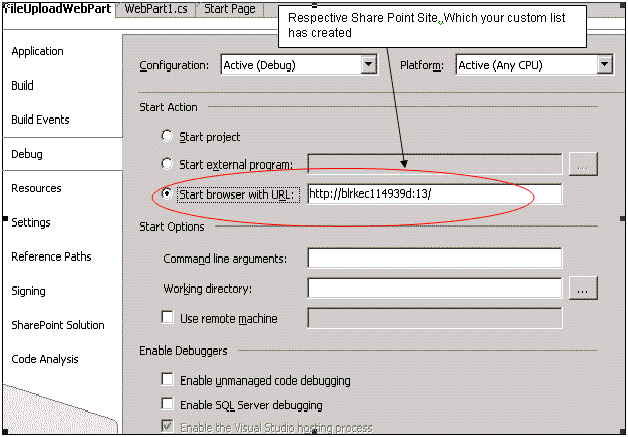

  3. Select Signing option.


  4. Ensure the strong name key and sign the assembly check box.
  5. Right Click properties select Deploy.


  6. It is automatically deployed the web part in respective site.
  7. Deploy will take care of .Stop IIS, Buliding solution, Restarting Solution, Creating GAC, Restarting IIS like that.
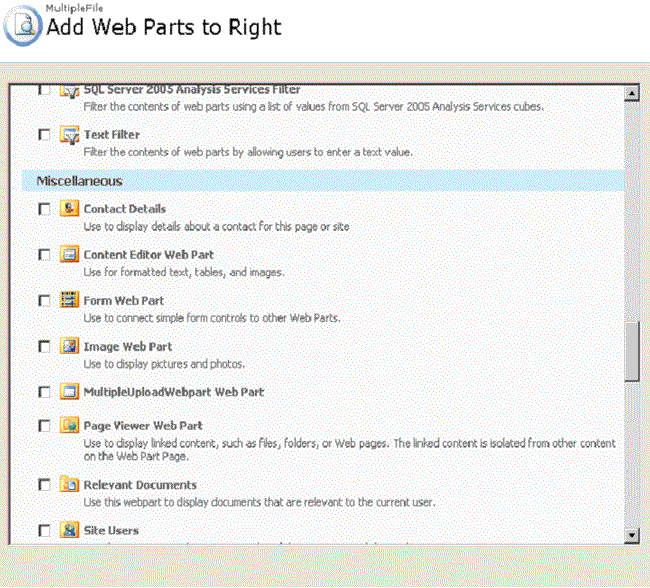

  8. Multiple Upload Webpart is new one.
  9. New MultipleUploadWebpart Web Part.

Events

1. Browse Button

It is used to browse and select the particular file.

2. Upload Button

It is used to upload file to the windows temp folder then list the files.

3. Submit Button

It is used to store all files in share point custom list.
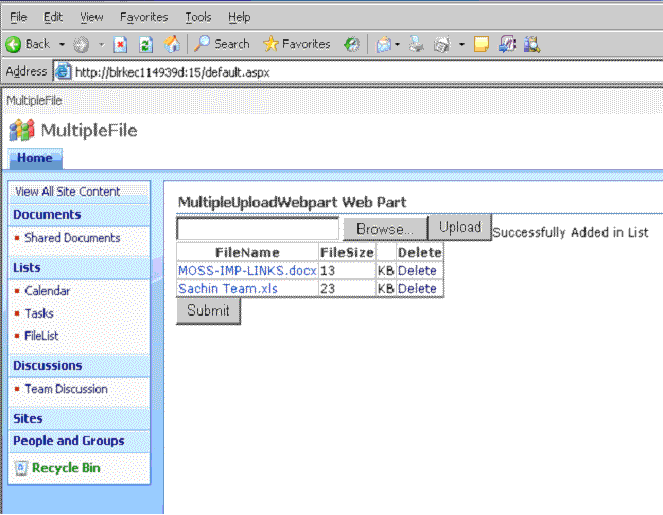


All the files are listed

Delete

using this option you need to delete the file in this list.Whenever you give the submit only it will go to SharePoint list.
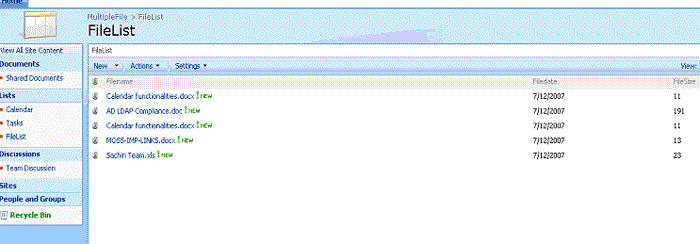


All the files are uploading in respective share point custom list.


Login to add your contents and source code to this article
 About the author
 
Saravanan Gajendran

Saravanan Gajendran: Is an Electronics engineer, who graduated in the  year of 2004-from  Chennai university, India, He is currently working on Microsoft .NET technology. His main experience is  based on ASP.NET,C#.NET,VB.NET,SQL server 2000,Javascript,HTML,DHTML,VSS,VSTS,WSS 3.0, MOSS 2007 with Ajax and Telerik Radcontrols. Likes to read about new technologies and books on self learning and personality development. He is very self driven and gives every job he takes up his best.Microsoft certified professional in MCP 070-315: Developing and Implementing Web Applications with Microsoft® Visual C#™ .NET and Microsoft® Visual Studio® .NET and Brain bench Certification - .NET Framework: Enterprise Application Developer Emil: saravanandotnet@hotmail.com

Looking for C# Consulting?
C# Consulting is founded in 2002 by the founders of C# Corner. Unlike a traditional consulting company, our consultants are well-known experts in .NET and many of them are MVPs, authors, and trainers. We specialize in Microsoft .NET development and utilize Agile Development and Extreme Programming practices to provide fast pace quick turnaround results. Our software development model is a mix of Agile Development, traditional SDLC, and Waterfall models.
Click here to learn more about C# Consulting.
 
Introducing MaxV - one click. infinite control. Hyper-V Hosting from MaximumASP.
Finally – a virtual platform that delivers next-generation Windows Server 2008 Hyper-V virtualization technology from a managed hosting partner you can truly depend on. Visit www.maximumasp.com/max for a FREE 30 day trial. Hurry offer ends soon. Climb aboard the MaxV platform and take advantage of High Availability, Intelligent Monitoring, Recurrent Backups, and Scalability – with no hassle or hidden fees. As a managed hosting partner focused solely on Microsoft technologies since 2000, MaximumASP is uniquely qualified to provide the superior support that our business is built on. Unparalleled expertise with Microsoft technologies lead to working directly with Microsoft as first to offer IIS 7 and SQL 2008 betas in a hosted environment; partnering in the Go Live Program for Hyper-V; and product co-launches built on WS 2008 with Hyper-V technology.
Dynamic PDF
ceTE software specializes in components for dynamic PDF generation and manipulation. The DynamicPDF™ product line allows you to dynamically generate PDF documents, merge PDF documents and new content to existing PDF documents from within your applications.
Go.NET
Build custom interactive diagrams, network, workflow editors, flowcharts, or software design tools. Includes many predefined kinds of nodes, links, and basic shapes. Supports layers, scrolling, zooming, selection, drag-and-drop, clipboard, in-place editing, tooltips, grids, printing, overview window, palette. 100% implemented in C# as a managed .NET Control. Document/View/Tool architecture with many properties&events. Optional automatic layout.
Dundas Software
Dundas Chart for .NET is the most advanced .NET charting package available today.  With an extremely complete feature set, elegant architecture and easy implementation, Dundas Chart can quickly add advanced Charting functionality to enhance and transform ASP.NET and Windows Forms applications.  Whether you are implementing charting into internal projects, or building applications for clients, Dundas Chart offers advanced technology and advanced results to get the most out of data.
Clickatell's SMS Gateway
Clickatell's Developer Solutions allow you to SMS enable any website or application via a range of API's. Learn More about our API connections.
Free access to .NET Memory Management video
Everything you need to know about Garbage Collection, Temporary Objects, Fragmentation, Finalization and common causes of memory leaks in .NET. Watch the video here.
Microsoft Visual Studio 2010 Professional
Microsoft Visual Studio 2010 Professional will launch on April 12, but you can beat the rush and secure your copy today by pre-ordering at the affordable estimated retail price of $549 (US). Pre-order now.
Nevron Chart for .NET 2010.1 Now Available
The leading .NET charting control now features PDF, Flash and Silverlight export, visualization of large datasets and more. Deliver true charting functionality to your BI, Scorecard, Presentation or Scientific apps. Download evaluation now.
Developer-Ready ASP.NET 2.0 Web Hosting with 3 MONTHS FREE
Now supporting .NET 3.0 Framework with Windows Workflow Foundation, Windows Communication Foundation (WCF), Windows Presentation Foundation (WPF), windows CardSpace (WCS)! Providing more flexibility for Developers with Web Services Support and a User/Permission Manger. Also supporting MS SQL 2005/2000 with Real-Time Backups, FREE Automated Attach .MDF Tool, FREE SQL Restore and Shrink SQL DB Tools, and SQL
 
   Print Read/Post comments Post a comment  Similar Articles  
   Email to a friend  Bookmark  Author's other articles  
 
 Post a Feedback, Comment, or Question about this article
Subject:  
Comment:  
Become a Sponsor
 Comments
Thanks for the article by Hemant On January 9, 2008
Thanks for the article
Reply | Email | Delete | Modify | 
How can i uplaod file after list or library has been customized. by Kuldeep On March 10, 2008
Hi, I had faced a problem a lot of time, when i am going to uplaod a file in customized by SPD. It will give me error(may be you had already seen). So is there any solution for that one.
Reply | Email | Delete | Modify | 
Re: How can i uplaod file after list or library has been customized. by Saravanan On March 24, 2008
Reply | Email | Delete | Modify | 
Geting Error by Jagruti On November 17, 2008
On Submit button geting this error An unexpected error has occurred. Web Parts Maintenance Page: If you have permission, you can use this page to temporarily close Web Parts or remove personal settings. For more information, contact your site administrator.
Reply | Email | Delete | Modify | 
Question by Jagruti On November 17, 2008
How you add this web part with FileList. I added File in my page int that only I have added this web part . So It will link with this web part. why I am geting error on Submit Button. and one more question How I can trace the error ?
Reply | Email | Delete | Modify | 
Re: Question by Saravanan On December 8, 2008
Question Jagruti 11/17/2008
How you add this web part with FileList. I added File in my page int that only I have added this web part . So It will link with this web part. why I am geting error on Submit Button. and one more question How I can trace the error ?

Answer:

You will be able to add webpart in the site level itself .The site contains as custom list "FileList " .This webpart would be refering to the list (That code is presented in this article)

What error did  you get while clicking on submit button?

If want to trace the error ,you will need to debug the webpart code(Your site needs to attach with webpart code )


Reply | Email | Delete | Modify | 
Excellent by santhosh On December 24, 2008
Excellent Excellent ......Thanks For giving this...
Reply | Email | Delete | Modify | 
Its a very good article by BalaGopal On May 8, 2009
It is very useful article for me. Thanks for providing this ariticle.

Please keep posting.
Reply | Email | Delete | Modify | 
Hi by anup On May 25, 2009
This is very useful artical.
can you give me download link
Reply | Email | Delete | Modify | 
sharepoint file type by nagu On September 25, 2009
Hi  i am nagu working as sharepoint developer in hitachi,can you tell how to make upload file to accept the special charecter in file names
Reply | Email | Delete | Modify | 
Nice one by sdnaag On December 14, 2009
its Nice one but i done with vs2008 that is sharepoint extension for vs2008.but here whenever u upload file the files are binding in gridview but not showing in the list.
and second 1 is files are not binding in gridview when page loads...let me know if any updates
Reply | Email | Delete | Modify | 
Nice one by sdnaag On December 14, 2009
its Nice one but i done with vs2008 that is sharepoint extension for vs2008.but here whenever u upload file the files are binding in gridview but not showing in the list.
and second 1 is files are not binding in gridview when page loads...let me know if any updates
Reply | Email | Delete | Modify | 

 Hosted by MaximumASP  |  Found a broken link?  |  Contact Us  |  Terms & conditions  |  Privacy Policy  |  Site Map  |  Suggest an Idea  |  Media Kit
Current Version: 5.2009.6.2
 © 2010  contents copyright of their authors. Rest everything copyright Mindcracker. All rights reserved.