Introduction:
This article describes a quick and simple approach to creating a custom web control used to display Microsoft Visio files within an ASP.NET page using Internet Explorer.
It is entirely possible to code the page to display a Visio diagram without using a custom control, having the control handy simplifies the process to the point where someone using it need only drop it onto the page and set a file path property within the IDE (or at runtime) to bring the Visio diagram into the page.
Further, it is possible to open a Visio file directly into Microsoft Internet Explorer; to do this, one need only create hyperlink and set it to navigate directly to the Visio file. Of course Visio files may also be converted to a web page or image format and displayed as images added to a web page. The only advantage to using a custom control is that it allows the developer to build a page and add the Visio file to that page as content rather than to merely open the diagram as a standalone page. Also, if the Visio diagram is converted to an image, the image will not have the control options available (e.g., scrolling, panning, etc.) when viewing the diagram in the control.
Getting Started:
In order to get started, open up the Visual Studio 2005 IDE and start a new project. From the new project dialog (Figure 1), under project types, select the "Windows" node from beneath "C#", then select the "Web Control Library" template in the right hand pane. Key in a name for the project and then click "OK".
Once the project has opened; right click on the solution and click on the "Add" menu option, and then select "New Item". When the "Add New Item" dialog appears (Figure 2), select the "Web Custom Control" template, after selecting the template, key "ShowVisio.cs" into the name field and then click "Add" to close the dialog. You may now delete the default web control that was created when the project was originally initialized from the template.
At this point, we should have an open web control library project with a single web control named "ShowVisio.cs" in that project. One last step prior to writing the code for this project will be to add in one needed reference. To add this reference, right click on the references folder in the solution explorer and then click on the "Add Reference" menu option. When the "Add Reference" dialog opens, select the .NET tab, and search down the list until you find the "System.Design" reference. Select this library and click on the "OK" button.
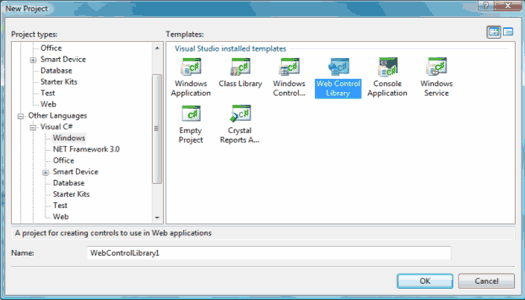
Figure 1: Visual Studio 2005 New Project Dialog
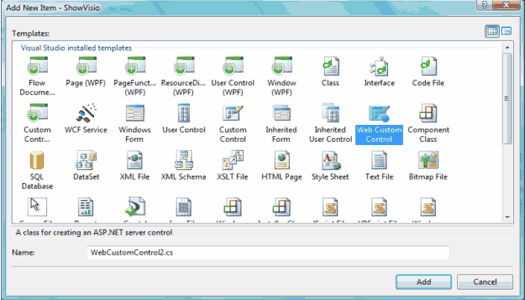
Figure 2: Add New Item Dialog
Code: Show Vision Control
Navigate back to the "ShowVisio.cs" file and, at the top of the file, add in the import statement highlighted below:
using System;
using System.Collections.Generic;
using System.ComponentModel;
using System.Text;
using System.Web;
using System.Web.UI;
using System.Web.UI.WebControls;
using System.Web.UI.Design;
namespace IEWebObjects
{
[ToolboxData("<{0}:ShowVisio runat=server></{0}:ShowVisio>")]
public class ShowVisio : WebControl
{
We are now ready to add the code necessary to make this control functional. First off, we need to create a single private member variable; this variable will be used to contain the path to the Visio diagram file that the user wants to pass to the control. To accomplish this step, create a "Declarations" region and key in the following variable declaration:
#Region "Declarations"
Private mFilePath As String
#End Region
Once the variable is declared, we will need to provide a public property to expose the control property to the control user; in order to accomplish this step, create a "Properties" region and key in the following code:
#region "Properties"
[Category("Source File")]
[Browsable(true)]
[Description("Set path to source file.")]
[Editor(typeof(System.Web.UI.Design.UrlEditor),
typeof(System.Drawing.Design.UITypeEditor))]
public string FilePath
{
get
{
return mFilePath;
}
set
{
if(value == string.Empty)
{
mFilePath = string.Empty;
}
else
{
int tilde = -1;
tilde = value.IndexOf('~');
if(tilde != -1)
{
mFilePath = value.Substring((tilde + 2)).Trim();
}
else
{
mFilePath = value;
}
}
}
} // end FilePath property
#endregion
Note that, in the attributes section, the code specifies an editor and further that the editor specified is defined as the URL Editor. Adding this attribute to the control specifies to the IDE how the property is to be edited; in this instance, when the control user sets the File Path property for the control, the property grid will display a button with an ellipsis in it at the right hand side of the text box. If the user clicks on the button, the IDE will open the URL editor and will permit the user to use that editor to navigate to the SWF file and set the File Path property through that editor's dialog. Properties set in this manner will be persisted within the control user's project.
Notice also that the set side of the property strips the tilde character from the beginning of any file path sent to the property; if the value does not contain a tilde, the property is set to contain the path as it is sent. The control will not work if the tilde is left in place as it will not be able to locate the file.
At this point, the only thing left to do is to define how the control will be rendered. To complete this step, create a "Rendering" region and within this region, override the RenderContents sub with the following code:
#region "Rendering"
protected override void RenderContents(HtmlTextWriter writer)
{
try
{
StringBuilder sb = new StringBuilder();
sb.Append("<object classid=clsid:279D6C9A-652E-4833-BEFC-312CA8887857 id=vviewer ");
sb.Append("codebase=http://download.microsoft.com/download/
4/5/2/452f8090-413f-408f-83c0-edd66db786ee/vviewer.exe Width = " +
Width.Value.ToString() + " Height = " + Height.Value.ToString() + " > ");
sb.Append("<param name=SRC value=" + FilePath.ToString() + "> ");
sb.Append("<param name=HighQualityRender value=1> ");
sb.Append("<param name=BackColor value=#000000> ");
sb.Append("<param name=PageColor value=#000000> ");
sb.Append("<param name=PageVisible value=1> ");
sb.Append("<param name=AlertsEnabled value=1> ");
sb.Append("<param name=ContextMenuEnabled value=1> ");
sb.Append("<param name=GridVisible value=1> ");
sb.Append("<param name=PropertyDialogEnabled value=1> ");
sb.Append("<param name=ScrollbarsVisible value=1> ");
sb.Append("<param name=ToolbarVisible value=1> ");
sb.Append("<param name=CurrentPageIndex value=1> ");
sb.Append("<param name=Zoom value=-1> ");
sb.Append("</object>");
writer.RenderBeginTag(HtmlTextWriterTag.Div);
writer.Write(sb.ToString());
writer.RenderEndTag();
}
catch
{
// with no properties set, this will render "Display Visio Control"
// in a box on the page
writer.RenderBeginTag(HtmlTextWriterTag.Div);
writer.Write("Display Visio Control");
writer.RenderEndTag();
} // end try-catch
} // end RenderContents
#endregion
Within this code there are a few things worth looking at; first, you can see how the embedded object tag is created and it does not take too much imagination to figure out that you can embed any valid object using this same approach. The string builder collects three variables from the control, the File Path is passed to the object's source and the controls height and width are also collected and passed to the object tag. The rest of the parameters are canned in this demonstration but could be replaced with additional properties which could also be set at design time if so desired.
The height and width of the control are set using the height and width properties of the web control; no additional properties were added in order to support setting the height and width. In use, the developer using the control could set the control's height and width property to any fixed or percentage value and when rendered, the control will expand to fill the available size.
Having defined the contents of the object tag, the only detail remaining is to put the control on the rendered page. This is accomplished in the three lines following the definition of the string builder:
writer.RenderBeginTag(HtmlTextWriterTag.Div);
writer.Write(sb.ToString());
writer.RenderEndTag();
In this example, the HTML writer is set up to place an opening Div tag, within the Div, the object defined in the string builder is written to the rendered page, and in the last line, the Div is closed.
The control is now complete. Prior to testing the control, rebuild the project. Once that has been completed and any errors encountered are repaired, it is time to test the control. To test the control, add a new web site project to the web control library project currently open. Once the test web site has been created, set the test project as the start up project by right clicking on the web site solution in the solution explorer and selecting the "Set as Start Up Project" menu option. Next, locate the Default.aspx page in the web site solution, right click on this page and select the "Set as Start Page" menu option.
Open the Default.aspx page for editing. Locate the newly created control in the toolbox (it should be at the top) and drag the "ShowVisio" control onto the page (Figure 3).
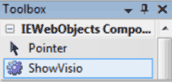
Figure 3: Custom Control in Toolbox
You may now click on the "ShowVisio" control and set its height, width, and file path properties. If you are working with the demo project included with the download, there is a Visio folder with two Visio diagrams included in that folder. You can set the file path property to point to one of these files.
The demo project also includes a hyperlink, you can point the NavigateUrl property to the other Visio diagram. Internet Explorer will open Visio diagrams into a new web page but the web page will contain only the Visio diagram. If you just want to display a plain diagram without controlling the appearance of the web page containing the diagram, then this an easier way to get there. If you want to display the diagram in a formatted page, then the use of the custom control is a better way to go about it.
Build the application and run it; you should now be looking at a Visio diagram displayed within the custom control (Figure 4).
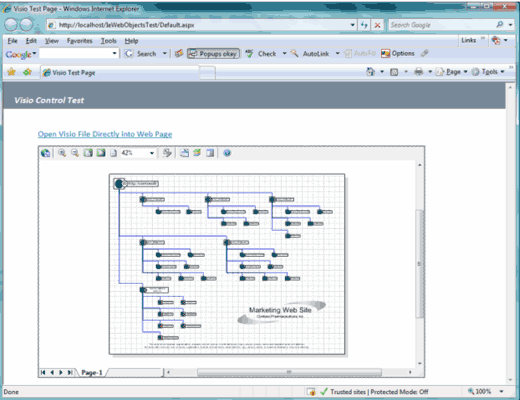
Figure 4: Visio Displayed in the Custom Control
Summary
This example project demonstrated an approach to displaying a Visio diagram within a custom control embedded into a web page. It is possible to navigate directly to a Visio diagram from Internet Explorer and Internet Explorer will attempt to render the diagram in the Visio viewer control if possible. This functionality is not supported in non-Microsoft browsers however, when browsers such as FireFox encounter the diagram, they prompt the user to download the file where it may be viewed locally but any user with Visio installed (in Internet Explorer).
While Internet Explorer can navigate to and display a Visio file; packaging the Visio Viewer control up as a custom control allows the developer using the control the option of embedding the control into a formatted and populated web page.