This article describes a quick and simple approach to applying a spell check function to the rich text box control and bundling both features into a single custom control. Of course there is nothing novel or particularly interesting about performing spell checking upon a selection of text using the Word.DLL, it has been done many times and there is nothing new here with regards to the details of the mechanization I've used other than the fact that it is all contained within a custom control.
My interest in building this control was two-fold; first I wanted the functionality placed into a custom control so that is might more easily be dropped into multiple locations in a form used to collect narrative information from the user, and the second element of interest was to answer the question as to whether or not the control would function on systems equipped with either Word 2003 or Word 2007.
With regards to the two versions of Word; I was able to run the control on systems equipped with either Microsoft Word 2003 or 2007 and on both Vista and XP. It does seem that an application built using the control will at least survive the transition from Microsoft Word 2003 to Microsoft Word 2007.
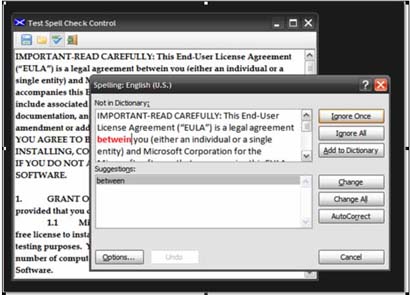
Figure 1: RTB with Spell Check Custom Control in Use
Getting Started:
In order to get started, fire up the Visual Studio 2005 IDE and open the attached solution. The solution consists of a Win Forms project with a single form and a control project containing a single custom control. The Win Forms project main form is used as a test bed for the custom control and the custom control is an extension of the standard windows forms rich text box control. Figure 2 shows the solution explorer for this project, note the addition of the references to Microsoft Office contained in the control project:
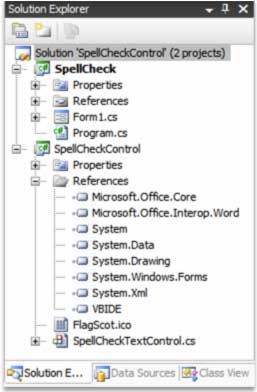
Figure 2: Solution Explorer
The Code: Main Form
The main form of the application serves only as a test project for the Spell Check custom control; the project contains only a single form and that form contains only a toolbar and the custom control. The tool bar contains only the controls necessary to open or save a file from the extended rich text box control, to execute the command to spell check the contents of the rich text box, and to exit the application.
The code contained in the form follows; in imports are in the default configuration with one exception which was the addition of the System.IO library which is used to support opening and closing files. The namespace and class declarations are in the default configuration.
using System;
using System.Collections.Generic;
using System.ComponentModel;
using System.Data;
using System.Drawing;
using System.Text;
using System.Windows.Forms;
using System.IO;
namespace SpellCheck
{
/// <summary>
/// Demo of the use of the spell check custom control
/// </summary>
public partial class Form1 : Form
{
The next section of code is used to declare a string variable used to contain the path to the current file. The constructor follows this variable declaration and it is in the default configuration.
// String pointing the file path of the current file
private string currentFile = string.Empty;
public Form1()
{
InitializeComponent();
}
The next section of code contained in the demo application is the click event handler used to command the custom control to execute the Check Spelling function. This function will launch the Word based spell check function against the contents of the control's rich text box.
// evoke the spell check function
private void tspSpellCheck_Click(object sender, EventArgs e)
{
this.spellCheckTextControl1.CheckSpelling();
this.Refresh();
}
The next section of code in the demo project is used to save the contents of the control into a file. There is nothing unique about how this save method works, it is based upon the use of a SaveFileDialog and relies upon the rich text box control's Save File method if the content is rich text. If the content is not rich text, it will be saved using the alternative method provided.
// save the current file
private void tspSave_Click(object sender, EventArgs e)
{
try
{
SaveFileDialog1.Title = "Save File";
SaveFileDialog1.DefaultExt = "rtf";
SaveFileDialog1.Filter = "Rich Text Files|*.rtf|Text
Files|*.txt|HTML Files|*.htm|All Files|*.*";
SaveFileDialog1.FilterIndex = 1;
if (SaveFileDialog1.ShowDialog() == DialogResult.OK)
{
if (SaveFileDialog1.FileName == "")
{
return;
}
string strExt;
strExt =
System.IO.Path.GetExtension(SaveFileDialog1.FileName);
strExt = strExt.ToUpper();
if (strExt == ".RTF")
{
spellCheckTextControl1.SaveFile
(SaveFileDialog1.FileName,
RichTextBoxStreamType.RichText);
}
else
{
System.IO.StreamWriter txtWriter;
txtWriter = new System.IO.StreamWriter
(SaveFileDialog1.FileName);
txtWriter.Write(spellCheckTextControl1.Text);
txtWriter.Close();
txtWriter = null;
spellCheckTextControl1.SelectionStart = 0;
spellCheckTextControl1.SelectionLength = 0;
}
currentFile = SaveFileDialog1.FileName;
spellCheckTextControl1.Modified = false;
MessageBox.Show(currentFile.ToString() + " saved.", "File
Save");
}
else
{
MessageBox.Show("Save File request cancelled by user.",
"Cancelled");
}
}
catch (Exception ex)
{
MessageBox.Show(ex.Message.ToString(), "Error");
}
}
Following the Save button's click event handler, the piece of code is used to open a file into the rich text box control. This operation is supported through the use of an open file dialog control.
// open a file into the control
private void tspOpen_Click(object sender, EventArgs e)
{
try
{
OpenFileDialog1.Title = "Open File";
OpenFileDialog1.DefaultExt = "rtf";
OpenFileDialog1.Filter = "Rich Text Files|*.rtf|Text
Files|*.txt|HTML Files|*.htm|All Files|*.*";
OpenFileDialog1.FilterIndex = 1;
OpenFileDialog1.FileName = string.Empty;
if (OpenFileDialog1.ShowDialog() == DialogResult.OK)
{
if (OpenFileDialog1.FileName == "")
{
return;
}
string strExt;
strExt =
System.IO.Path.GetExtension(OpenFileDialog1.FileName);
strExt = strExt.ToUpper();
if (strExt == ".RTF")
{
spellCheckTextControl1.LoadFile
(OpenFileDialog1.FileName,
RichTextBoxStreamType.RichText);
}
else
{
System.IO.StreamReader txtReader;
txtReader = new System.IO.StreamReader
(OpenFileDialog1.FileName);
spellCheckTextControl1.Text = txtReader.ReadToEnd();
txtReader.Close();
txtReader = null;
spellCheckTextControl1.SelectionStart = 0;
spellCheckTextControl1.SelectionLength = 0;
}
currentFile = OpenFileDialog1.FileName;
spellCheckTextControl1.Modified = false;
}
else
{
MessageBox.Show("Open File request cancelled by user.",
"Cancelled");
}
}
catch (Exception ex)
{
MessageBox.Show(ex.Message.ToString(), "Error");
}
}
The last bit of code in the demo is used to close the current form and terminate the application.
// exit
private void tspExit_Click(object sender, EventArgs e)
{
this.Dispose();
}
}
}
That wraps up the discussion of the form based demo project.
The Code: Spell Check Control
The Spell Check control is a custom control built to extend the standard Windows Forms Rich Text Box control; the only additions made to the standard control were to add those items necessary to implement the Word DLL spell check method against the rich text box control. The control also exposes a couple of properties used to configure the spell check control and to define part of the spell check dialog available functionality.
If you open the code up and examine the imports, you will note following imports prior to the namespace and class declaration.
using System;
using System.Collections.Generic;
using System.ComponentModel;
using System.Data;
using System.Drawing;
using System.Text;
using System.Windows.Forms;
using Microsoft.Office.Core;
using Microsoft.Office.Interop.Word;
namespace SpellCheckControl
{
public partial class SpellCheckTextControl :
System.Windows.Forms.RichTextBox
{
After the class declaration; the code defines a region containing a collection of member variables used to support setting the control's properties and to configure the arguments passed to the check spelling function exposed by the Word.DLL; note that these variables are declared as objects; this is essential to working with the Word.DLL exposed check spelling argument list where all arguments are passed by reference as objects.
#region Member Variables
private object emptyItem = System.Reflection.Missing.Value;
private object oNothing = null;
private object oTrue = true;
private object oFalse = false;
private object oAlwaysSuggest = true;
private object oIgnoreUpperCase = false;
private bool mAlwaysSuggest = true;
private bool mIgnoreUpperCase = false;
#endregion
The control exposes two public properties, one is used to set the Word.DLL spell check method's Always Suggest option, and the other is used to set its Ignore Upper Case option. In order work effectively in the IDE as design time; the type is set as a Boolean (both properties) but when the Boolean is set, a shadowing object is also set to equal true or false; it is the object and not the Boolean that is actually passed to the Word.DLL check spelling method.
The Word.DLL check spelling method would also permit the user to pass custom dictionaries to it through additional arguments; in this example, I did not expose any properties to include any custom dictionaries however, using the same approach, one could pass in these alternative custom dictionaries.
#region Properties
public bool AlwaysSuggest
{
get
{
return mAlwaysSuggest;
}
set
{
mAlwaysSuggest = value;
if (mAlwaysSuggest == true)
oAlwaysSuggest = true;
else
oAlwaysSuggest = false;
}
}
public bool IgnoreUpperCase
{
get
{
return mIgnoreUpperCase;
}
set
{
mIgnoreUpperCase = value;
if (mIgnoreUpperCase == true)
oIgnoreUpperCase = true;
else
oIgnoreUpperCase = false;
}
}
#endregion
The following code covers the control's default constructor and On Paint method:
#region Constructor and Defaults
public SpellCheckTextControl()
{
InitializeComponent();
}
protected override void OnPaint(PaintEventArgs pe)
{
base.OnPaint(pe);
}
#endregion
The next bit of code is that which is required to perform the actual spell check function based upon the use of the Word.DLL. This section of code is annotated to describe the content.
#region Perform Spell Check
/// <summary>
/// Perform spell check operation on control content.
/// This operation displays the results of the spell
/// check.
///
/// Alternatively, the function could be set to return
/// a string and the results string could be returned
/// to the caller
/// </summary>
public void CheckSpelling()
{
// declare local variables to track error count
// and information
int SpellingErrors = 0;
string ErrorCountMessage = string.Empty;
// create an instance of a word application
Microsoft.Office.Interop.Word.Application WordApp =
new Microsoft.Office.Interop.Word.Application();
// hide the MS Word document during the spellcheck
WordApp.Visible = false;
WordApp.ShowWindowsInTaskbar = false;
// check for zero length content in text area
if (this.Text.Length > 0)
{
// create an instance of a word document
_Document WordDoc = WordApp.Documents.Add(ref emptyItem,
ref emptyItem,
ref emptyItem,
ref oFalse);
// load the content written into the word doc
WordDoc.Words.First.InsertBefore(this.Text);
// collect errors form new temporary document set to contain
// the content of this control
Microsoft.Office.Interop.Word.ProofreadingErrors docErrors =
WordDoc.SpellingErrors;
SpellingErrors = docErrors.Count;
// execute spell check; assumes no custom dictionaries
WordDoc.CheckSpelling(ref oNothing, ref oIgnoreUpperCase, ref
oAlwaysSuggest,ref oNothing, ref oNothing, ref oNothing,
ref oNothing, ref oNothing,
ref oNothing, ref oNothing, ref oNothing, ref oNothing);
// format a string to contain a report of the errors detected
ErrorCountMessage = "Spell check complete; errors detected: "
+ SpellingErrors;
// return corrected text to control's text area
object first = 0;
object last = WordDoc.Characters.Count - 1;
this.Text = WordDoc.Range(ref first, ref last).Text;
}
else
{
// if nothing was typed into the control, abort and inform
// user
ErrorCountMessage = "Unable to spell check an empty text
box.";
}
WordApp.Quit(ref oFalse, ref emptyItem, ref emptyItem);
// return report on errors corrected
// - could either display from the control or change this to
// - return a string which the caller could use as desired.
MessageBox.Show(ErrorCountMessage, "Finished Spelling Check");
}
#endregion
At design time, the control user may set properties in the property grid, or the values may be set in the code.
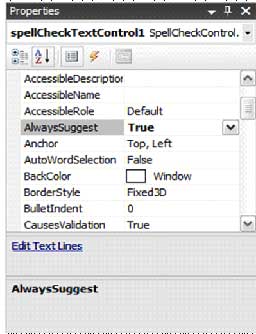
Figure 3: Property for "Always Suggest" Option
Summary
This article described an approach to creating a text input control capable of checking the spelling contained in the text area of the control. The control is an extended version of the rich text box control and relies upon the Word.DLL check spelling function in order to support internal spell checking. The control may be useful if one were capturing free text entries from a user and it was deemed desirable to check the content of those free text entries for misspellings.