SIGN UP MEMBER LOGIN:    
ARTICLE

Prompt for Service Account During Windows Service Installation

Posted by Steve Hall Articles | Visual Studio 2010 October 18, 2007
This article shows how to customize the installation of a windows service in Visual Studio 2005 to prompt for a service account username and password. This process involves passing values from the install screen to a customized installer.
Reader Level:

This article shows how to customize the installation of a windows service in Visual Studio 2005 to prompt for a service account username and password. This process involves combining several separate techniques than can each be used for other purposes (like passing setup screen values to a generic custom action program).


Verify you have a project installer class in your project. If not:


  1. In Solution Explorer, access Design view for the service for which you want to add an installation component.
  2. Click the background of the designer to select the service itself, rather than any of its contents.
  3. With the designer in focus, right-click, and then click Add Installer.
  4. A new class, ProjectInstaller, and two installation components, ServiceProcessInstaller and ServiceInstaller, are added to your project, and property values for the service are copied to the components.


Verify you have a Setup project.


Modify the Setup project.


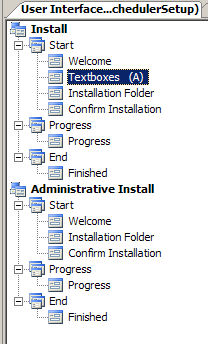
  • Use the User Interface Editor to add a Textboxes (A) dialog box.  You will need to move it up above the Installation folder dialog box.
    1.jpg
     
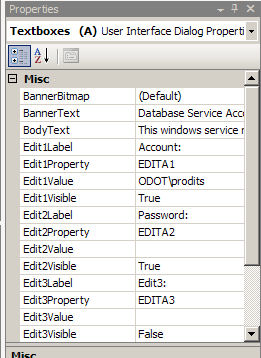
  • Confirm the properties of the Textboxes dialog box. Verify the Edit1Property value is the default EDITA1 and the EditProperty value is the default EDITA2.
    TextboxProperties.jpg
     
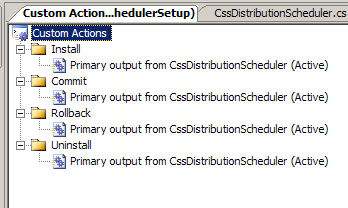
  • Use the Custom Actions Editor to add to the Applications folder the Primary Output.
    CustomActions.jpg
     
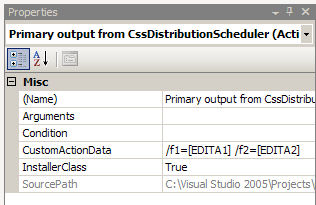
  • Click on the Primary output item under Install and modify the properties. Set the customActionData property to:/f1=[EDITA1] /f2=[EDITA2]
    Data.jpg

Note: This is the restricted format expected by installer classes, you can use your own format for other custom action programs. 


This will pass the value entered into the username textbox as a parameter named "f1" and similarly the password value will be parameter "f2".


Modify the ProjectInstaller.cs


1. Note in the ProjectInstaller.Designer.cs file, the InitializeComponent method shows adding two installers to the Installers collection:

//

// ProjectInstaller

//

this.Installers.AddRange(new System.Configuration.Install.Installer[]
{this.serviceProcessInstaller1, this.serviceInstaller1});


2. Since we need to add the service account info to the ServiceProcessInstaller we need to find it inside the Installers collection first.  Once we have the instance we can assign the service account properties found in Context.Parameters then finish up by running the base.Install method.


3. Add this to the Project.Installer.cs file:INSTALLOVERRIDEpublicoverridevoidInstal System.Collections.IDictionarystateSaver


{

    System.ServiceProcess.ServiceProcessInstaller

    serviceProcessInstaller1=null;

    foreach (object installer in this.Installers)

    try

    {

        serviceProcessInstaller1 = (System.ServiceProcess.ServiceProcessInstaller)
        installer;

    }

    catch (Exception exc)

    {

    }

    if (serviceProcessInstaller1 != null)

    {

        serviceProcessInstaller1.Account =

        System.ServiceProcess.ServiceAccount.User;

        serviceProcessInstaller1.Username = Context.Parameters["f1"];

        serviceProcessInstaller1.Password = Context.Parameters["f2"];

    }

    base.Install(stateSaver);

}

Login to add your contents and source code to this article
share this article :
post comment
 

HI all Is there any way to set the focus on the textbox , in my case the focus in directly on the next button .... {Tabbing order on the textbox } Thanks Venky

Posted by venkat reddy Jan 02, 2009

Hi all,

Is there any way to set the focus on the textbox , in my case the focus in directly on the next button .... {Tabbing order on the textbox }

Thanks
Venky

Posted by venkat reddy Jan 02, 2009

Mister, if I add Textboxes (A) in User Interface of Setup Project, I think is better option than automatic prompt.

If using installutil.exe for install service, I think automatic prompt is better, only option, isn't ?

Thanks.

Posted by alhambraeidos Sep 16, 2008

After deleting and re-creating the setup project and the ProjectInstaller.cs file I am now getting the automatic pop-up window prompt as well.  Thanks!  -Steve

Posted by Steve Hall Nov 06, 2007

These steps works for me:

1) Double click on Service class file from VS.NET 2005 Solution Explorer (to view component designer)

2) Click "Add Installer" (link near properties window)
    (two components are added to the designer: serviceInstaller1 and serviceProcessInstaller1).

3) Set service process installer account type to "User"

4) Into the Setup project go to the Custom Actions section and add primary output of your service project.

Regards,
Andrea.

Posted by Andrea Ferendeles Oct 28, 2007
Become a Sponsor
PREMIUM SPONSORS
  • Finally – a virtual platform that delivers next-generation Windows Server 2008 Hyper-V virtualization technology from a managed hosting partner you can truly depend on. Visit www.maximumasp.com/max for a FREE 30 day trial. Hurry offer ends soon. Climb aboard the MaxV platform and take advantage of High Availability, Intelligent Monitoring, Recurrent Backups, and Scalability – with no hassle or hidden fees. As a managed hosting partner focused solely on Microsoft technologies since 2000, MaximumASP is uniquely qualified to provide the superior support that our business is built on. Unparalleled expertise with Microsoft technologies lead to working directly with Microsoft as first to offer IIS 7 and SQL 2008 betas in a hosted environment; partnering in the Go Live Program for Hyper-V; and product co-launches built on WS 2008 with Hyper-V technology.
    The leading .NET charting control now features PDF, Flash and Silverlight export, visualization of large datasets and more. Deliver true charting functionality to your BI, Scorecard, Presentation or Scientific apps. Download evaluation now.
Team Foundation Server Hosting
Become a Sponsor