

Introduction
This article will help you to change the page color, look, layout and other options on your site, which you have created in SharePoint, using Office 365.
Note: Here, I will be working with the existing site, which I have created with SharePoint on Office 365. Thus, it's better to work with my previous article to make sense of what SharePoint is, creating a site collection, customizing your site collection with the new pages and content.
Links:
- Kickstart to SharePoint and access a free trial.
- Creating a site collection using Office 365 in SharePoint.
- Customize your site collection with new pages and content at SharePoint.
- Creating a new subsite under SharePoint using Office 365.
- Managing your site on SharePoint with Office 365.
- Adding Event Calendar Site Page on SharePoint.
- Complete Customization of Your Site On SharePoint Using Office 365
Follow the steps, given below, now:
Step 1: Go to the Site Settings of the site page, which you have created.
Click Change the look under Look and Feel.
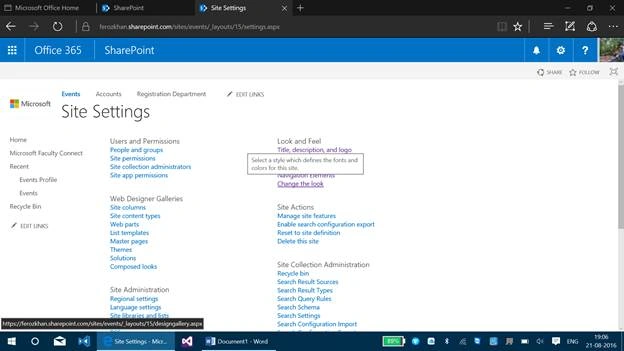
Step 2: Select the template, you require. Here, I will be selecting the Black color template, which is shown below:
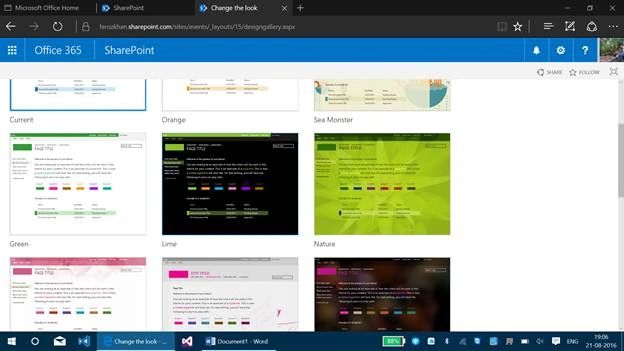
Step 3: This template allows you to add a background image on the template, which has been shown. Thus, you will be getting a pop up Window, where you have to select the image, which will be shown at the background of the template, which you have selected.
Let’s select an image from the local machine, which we have, once after selecting it. Click OK button.
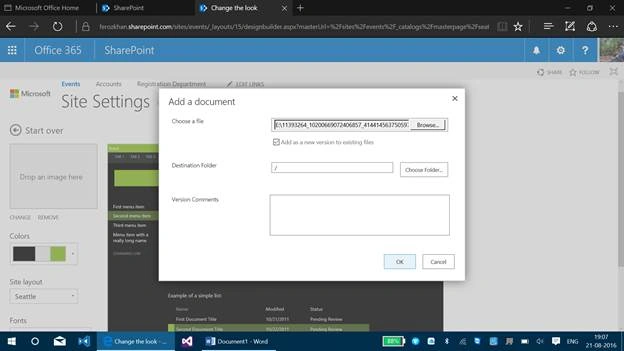
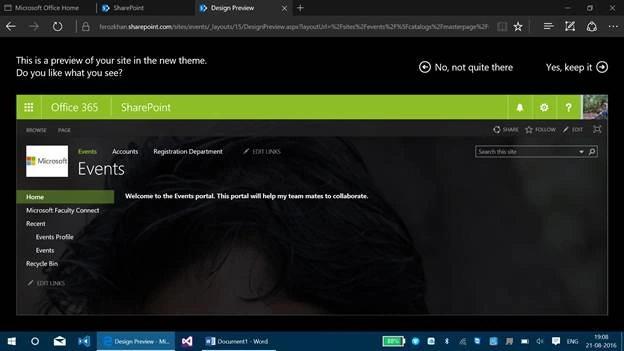
This also holds other options like changing the color, site layout, fonts, etc., When all the customization is done, click Try it out button.
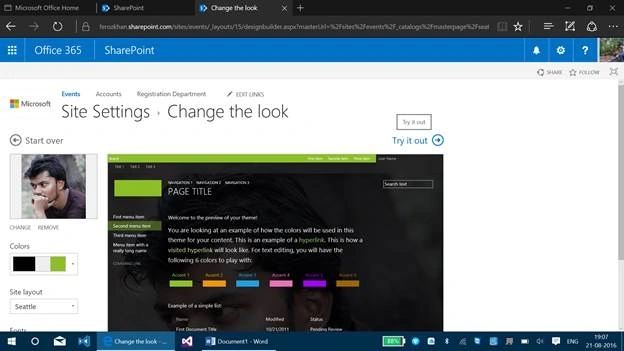
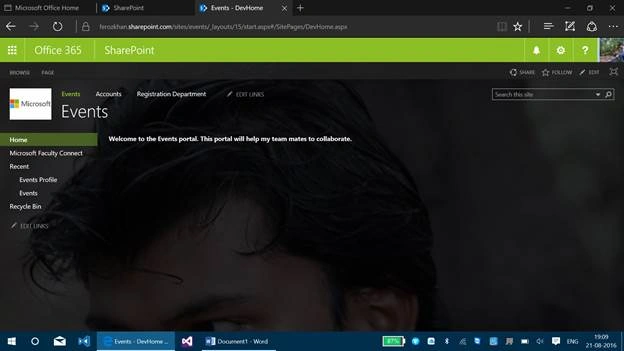
Here, you will be getting the newly added layout for your site, which you already had. You can find the image at the background, which we have selected in our previous steps.
Vignesh ManiPosted Aug 25, 2016, 6:35 AM
Nice
Tarun DPosted Aug 24, 2016, 1:40 AM
Nice one.Thanks for sharing...
Ramesh PalaniappanPosted Aug 24, 2016, 12:47 AM
Good one