

Objective
Selecting an item in a huge dropdown list is often annoying. The purpose of this script is to replace the Dropdown list with an Autocomplete Textbox by using existing dropdown values on the NINTEX Forms as source. Dropdown could be a choice field, a lookup column, or an SQL request control.
Approach
For this demo, I have chosen Lookup dropdown as source. The same process will work for SQL control and choice field as well.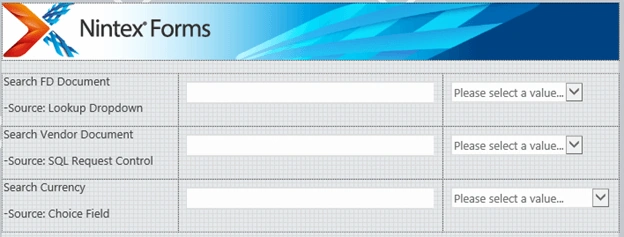
Configuration in the NINTEX forms
Controls
- Add a Textbox and Lookup Control to the NINTEX form.
- Configure Textbox and Lookup Control settings as shown below.
- Go to Advanced Settings of the Control and select "Store Client ID in JavaScript variable" as Yes. Then, configure the values as below.
- For Textbox - provide autocompleteTextbox as the value.
- For Dropdown - provide autocompleteDropDown as the value.
- With this configuration, controls are accessible using JavaScript.
Script Files
- By default, NINTEX included jQuery files, so it is easy and there is no need to refer these files explicitly.
- Here is the script that surrounds the Textbox with autocomplete functionality. Comments in the code explain the purpose.
- Upload this script file to the Site Assets folder.
- // JavaScript source code
- (function ($) {
- //Inputs Dropdown ClientID, Textbox client ID, characters length to perform search
- $.dropdownAutocomplete = function (dropDown1Id, textboxId, SearchTextLength) {
- //Declare Textbox
- var textbox = $("#" + textboxId);
- //Declare Dropdown
- var dropDown1 = $("#" + dropDown1Id.replace("_hid", ""));
- //Enabling textbox with Autocomplete
- textbox.autocomplete({
- //Source can be an Array, String or Function
- //Here we are using function as the source type to fetch the values from the dropdown
- source: function (request, response) {
- autocompleteVals = [];
- dropDown1 = $("#" + dropDown1Id.replace("_hid", ""));
- // Here data will be filtered based on the text coming through the re-quest
- $(dropDown1).children().each(function () {
- if ($(this).text() != "(None)" && $(this).text().toLowerCase().indexOf(request.term.toLowerCase()) >= 0) {
- autocompleteVals.push($(this).text());
- }
- });
- response(autocompleteVals);
- },
- //The minimum number of characters a user must type before a search is per-formed
- minLength: SearchTextLength,
- //Triggered when an item is selected from the menu, now same item will be selected in the dropdown which is a connected field
- select: function (event, ui) {
- var fieldOption = $("#" + dropDown1Id.replace("_hid", "") + " op-tion").filter(function () {
- return $(this).html() == ui.item.value;
- });
- $(fieldOption).attr("selected", true);
- $(dropDown1).change();
- }
- });
- }
- })(NWF$)
Configuration in the NINTEX forms
- Now, refer to the uploaded JS file in the Nintex forms.
- Go to Nintex Form Settings - Advanced - Custom JavaScript Included. Here, provide the url of the autocomplete JS file that is uploaded in the Site Assists lib.
Note - If you have multiple JS files, just press Enter after each file code and paste them.
- On the same page, go to the section Custom JavaScript and pate the below code. This will call the autocomplete function with 3 parameters provided.
- NWF$(document).ready(function() {
- NWF$.dropdownAutocomplete(autocompleteDropDown, autocompleteTextbox, 1);
- });
In Action
Here are the values in the Lookup Dropdown.
Once you start typing the text, you will see the results.
Once you select the item from the result, the corresponding item is selected in the dropdown (which is a connected to the list items).
For other Contorls (SQL Request or Choice filed ), you shall follow the same steps - enable client id and call the function in Custom JavaScript section of Nintex forms.
- Here, we are fetching the list of vendors from the SQL vendor table by using SQL Control field as source.

- Here, we are fetching currencies' values declared in the choice itself.

In real-time, it is not required to show the Dropdown. So, hide the Dropdown control. For this, I always place a hidden panel at the bottom of the form and place the control inside of it with some comments for other developers to understand the purpose.
Hope you find this article informative. Happy coding !!!
Shady SabalaPosted Jan 28, 2023, 7:10 PM
You made my day, thank you sir.
KenpadPosted Jun 23, 2021, 4:53 PM
Hi, how to make this work for a repeating section?
Claudia UrbanskiPosted Jul 1, 2020, 1:32 PM
Could I make this work inside a repeating section? please help
Jen SmithPosted Dec 23, 2019, 7:54 PM
I was having an issue similar to what other were experiencing until I realized there was an small issue with the JavaScript file. The following excerpt: "var fieldOption = $("#" + dropDown1Id.replace("_hid", "") + " op-tion").filter(function () you have a "-" in the word option. Remove the hyphen and that should resolve the issue.
Pandan ArumPosted Feb 27, 2019, 1:43 AM
Thanks a lot for made this article !! help me to solve this problem ^_^
Neha WahiPosted Oct 19, 2018, 10:51 AM
I tried the approach. When we select a value in textbox, it gets selected in the dropdown. But when the item is saved, the value is not persisting in the lookup column. Am I doing anything wrong?
Kris FoxPosted May 7, 2018, 4:56 PM
Thanks for providing this! It has been quite helpful for what I am trying to accomplish. The only issue I am having is having the list lookup drop down automatically change based on what I pick in the text field. Can you provide more information on what the Lookup control settings should be? You said in your post at the top to configure the text box and lookup control as shown below, but you did not provide any screenshots or details. Any additional information on this would be very helpful. Thank you!