

To develop a web application using asp.net for displaying GoogleMaps
Steps:
1. Download ‘GMaps.dll' file, extract the folder.
2. Open VisualStudio.Net -> File -> New Web Site
3. Go to Tool Box -> right click on any tab -> Add New Tab
-> name it as GoogleMapControls -> right click on ‘GoogleMapControls' tab
-> Browse.. ‘GMaps.dll' (GMaps.dll file is provided in gmaps.zip along with the source code)
-> OK.
Now, GMaps controls will appear under ‘GoogleMapControls' tab.
4. Design
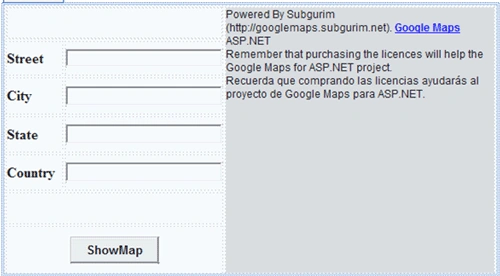
Design the form as above with 5 TextBoxes, 1 Button and 1 GMap control (present under ‘GoogleMapControls' tab).
5. Code
using System;
using System.Configuration;
using Subgurim.Controles;
public partial class _Default : System.Web.UI.Page
{
protected void btnShowMap_Click(object sender, EventArgs e)
{
string fulladdress = string.Format("{0}.{1}.{2}", TextBox1.Text, txtCity.Text, txtCountry.Text);
string skey = ConfigurationManager.AppSettings["googlemaps.subgurim.net"];
GeoCode geocode;
geocode = GMap1.getGeoCodeRequest(fulladdress);
var glatlng=new Subgurim.Controles.GLatLng(geocode.Placemark.coordinates.lat,geocode.Placemark.coordinates.lng);
GMap1.setCenter(glatlng, 16, Subgurim.Controles.GMapType.GTypes.Normal);
var oMarker=new Subgurim.Controles.GMarker(glatlng);
GMap1.addGMarker(oMarker);
}
}
6. Web.config file code:
Inorder to use the Gmaps controls, write the following code under appSettings of web.config file:
<appSettings>
<add key="googlemaps.Subgurim.net" value="YourGoogleMapsAPIKeyHere="/>
</appSettings>
Output:
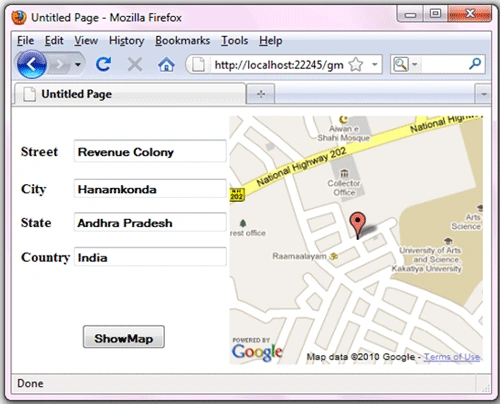
Note:
‘GMaps.dll'is provided in ‘gmaps.zip' along with the source code.
lovepreet aroraPosted Feb 6, 2014, 5:02 AM
please send a link to download gmap ddl
lovepreet aroraPosted Feb 6, 2014, 5:01 AM
Plz tell me what is gmap1?