
Step 1: Upload Images in Silverlight:
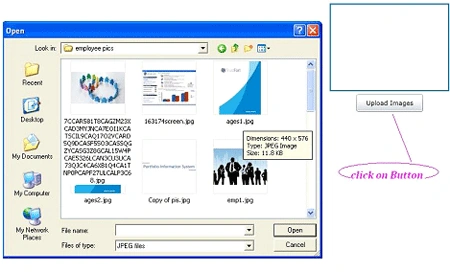
We have one Button named "Upload Image" on the click event of this button we have the following code to upload the image.
private void button1_Click(object sender, RoutedEventArgs e)
{
OpenFileDialog openFileDialog = new OpenFileDialog();
openFileDialog.Filter = "JPEG files|*.jpg";
//openFileDialog.Filter = "Images (*.jpg, *.png, *.bmp)|*.jpg;*.png;*.bmp";
if (openFileDialog.ShowDialog() == true)
{
Stream stream = (Stream)openFileDialog.File.OpenRead();
byte[] bytes = new byte[stream.Length];
stream.Read(bytes, 0, (int)stream.Length);
bi = new BitmapImage();
bi.SetSource(stream);
Myimage.Source = bi;
string fileName = openFileDialog.File.Name;
}
Now we will get one Dialog file by click on uploadimage button as follows:
Step 2: Save Uploaded images in server folder as follow.
Make one service where we have code for saving an image file in a folder in the server.
Make a folder in the server named "Images".
In service.svc.cs we have the following code:
[OperationContract]
public bool Upload(ImageFile image)
{
FileStream fileStream = null;
BinaryWriter writer = null;
string filePath;
try
{
filePath = HttpContext.Current.Server.MapPath(".") + ConfigurationManager.AppSettings["PictureUploadDirectory"] + image.ImageName;
if (image.ImageName != string.Empty)
{
fileStream = File.Open(filePath, FileMode.Create);
writer = new BinaryWriter(fileStream);
writer.Write(image.ImageName);
}
return true;
}
catch (Exception)
{
return false;
}
finally
{
if (fileStream != null)
fileStream.Close();
if (writer != null)
writer.Close();
}
}
In Web.config we have the following setting for the server folder where we saved the images:
<configuration>
<appSettings>
<add key="PictureUploadDirectory" value="/Images/"/>
</appSettings>
Here Images is a folder.
After Succesfully uploading images we will get the following output:
Now we can see the Image folder where uploaded images are saved.
Summary
We can upload and save the images in the server folder in Silverlight.
Nasurudeen YasuPosted Dec 17, 2013, 9:10 AM
I am also facing the same issue when running the project it is returning exception The remote server returned an error: NotFound. kindly help!!
Nagendra KumarPosted Feb 4, 2013, 6:35 AM
I am also facing the same issue when running the project it is returning exception The remote server returned an error: NotFound. kindly help!!
michael cheongeditedPosted Jan 27, 2013, 10:35 AMEdited Jan 27, 2013, 10:35 AM
how to retrieve the image ? why at design view does't see the button = = interesting but complicated
wasama jabeenPosted Aug 1, 2012, 4:25 AM
Hi Priya, When i am running the project it is returning exception The remote server returned an error: NotFound. Please help!
manjeet kumarPosted Jul 22, 2012, 12:47 PM
very helpful article..