
In this tutorial, we are going to learn how to create basic shapes in c# using
OpenGL.
First, we are going to create a new Project and a new Console Application.
It's important that we should have the dynamic libraries in order to use OpenGL
. We are going to add this in our project:
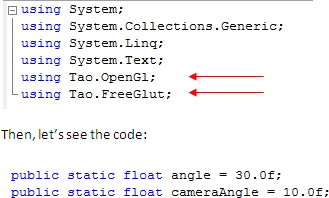
We have two variables that specify an angle and a camera angle, we are going to
use them for the different perspective in our program, and both are float
variables.
We are going to create a method called 'dibuja' in which we'll create our
different shapes and specify color and size.
This sentence is use in order to clean the screen buffer..
Gl.glClear(Gl.GL_COLOR_BUFFER_BIT | Gl.GL_DEPTH_BUFFER_BIT);
The next two sentences are important in OpenGL
Gl.glMatrixMode(Gl.GL_MODELVIEW);
Gl.glLoadIdentity();
Then, we specify the
perspective…
Glu.gluPerspective(45.0,
1.0, 1.0, 500.0);
And the color, as we know, the colors in the computer are handleled like RGB (Red-Green-Blue), and in the sentence thats exactly the value that we are going to specify in the parameters…
Gl.glColor3f(0.5f,
0.9f, 0.9f);
And then we create our shapes, writing the position of each vertice in x, y, and
z.
And this is the complete method:
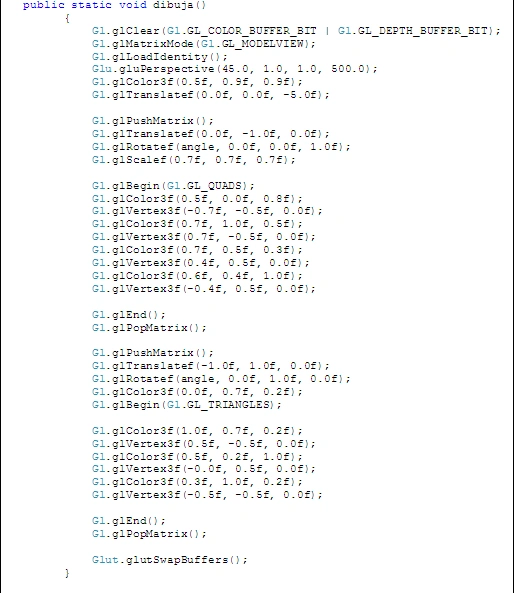
We create our shapes, and in each point of our triangle or our shape, we can
change the color and create different effects of color, this will change
automatically.
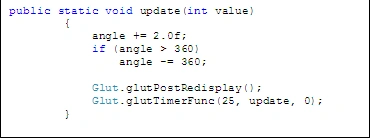
The next method will help us to rotate our shapes, this is only for create an
effect in our project…
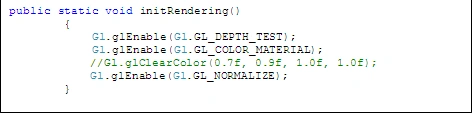
Then, we have the method initRendering, this is only the method in which we'll
enabled and disabled different OpenGL functions.
The comment is our background window color; include the RGB and alpha
parameters.
And our main method.
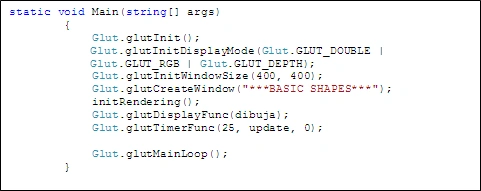
This sentence specify the window's size
Glut.glutInitWindowSize(400, 400);
Then, we have the title of our window Glut.glutCreateWindow("***BASIC
SHAPES***");
Then we call our method initRendering in order to enabled our OpenGL functions
initRendering();
and call the other methods
Glut.glutDisplayFunc(dibuja);
//this will draw our shapes
Glut.glutTimerFunc(25, update, 0); //this will create an effect
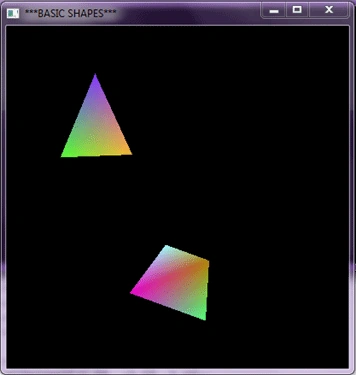
We compile and ready.
We have basic shapes with color and effect in OpenGL and C#.
Kalyan kumar AkshinthalaPosted Jan 12, 2011, 7:58 AM
Hello, can u tell me where we can get the Tao reference. Its not existing in our libraries right?
Mahesh ChandPosted Dec 15, 2010, 9:27 AM
I have moved the article to Graphics category. Thanks for sharing!