
We are going to see in a series of article how
we use Silverlight Charts to visualise data in a exciting way.
In particular we are going to see a Column Series.
Before that lets do some database work.
create
table Scorecard
(
Batsman varchar(50),
Runs int
);
insert
into Scorecard values
('Sachin
Tendulkar',0);
insert
into Scorecard values
('Rahul Dravid',100);
insert
into Scorecard values
('Virendar Sehwaj',10);
Create a Data Model as shown below :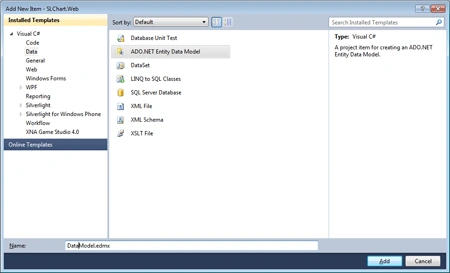
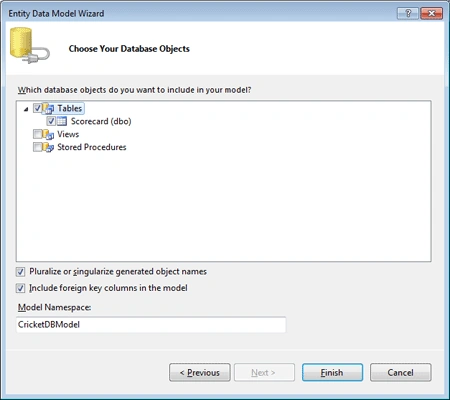
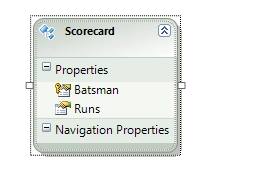
Create a Silverlight enabled service as shown below :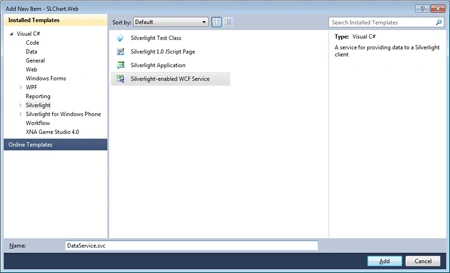
public
class DataService
{
[OperationContract]
public
IEnumerable<Scores> GetScores()
{
CricketDBEntities context =
new
CricketDBEntities();
var query =
from scorecard in context.Scorecards
select new
Scores
{
Batsman = scorecard.Batsman,
Runs = scorecard.Runs
};
return query;
}
// Add more operations here and mark them with
[OperationContract]
}
public
class Scores
{
public string
Batsman { get; set;
}
public int?
Runs { get; set;
}
}
Modify the code of the Chart1.xaml to look as follows :
<Grid
x:Name="LayoutRoot"
Background="White">
<toolkit:Chart
x:Name
="chartControl" >
<toolkit:Chart.Series>
<toolkit:ColumnSeries
x:Name="DynamicSingleSeriesWithAxes"
DependentValueBinding
="{Binding
Runs}"
IndependentValueBinding
="{Binding
Batsman}" />
</toolkit:Chart.Series>
</toolkit:Chart>
</Grid>
Add the Service reference and then modify the code behind of Chart1 as shown
below :
public
partial class
Chart1 :
UserControl
{
public Chart1()
{
InitializeComponent();
//(this .chartControl.Series[ 0 ]). =
users ;
DataServiceClient client =
new
DataServiceClient();
client.GetScoresCompleted += new
EventHandler<GetScoresCompletedEventArgs>(client_GetScoresCompleted);
client.GetScoresAsync();
}
void client_GetScoresCompleted(object
sender, GetScoresCompletedEventArgs e)
{
ColumnSeries series0 = (ColumnSeries)chartControl.Series[0];
series0.ItemsSource = e.Result;
}
}
Lets give this a run :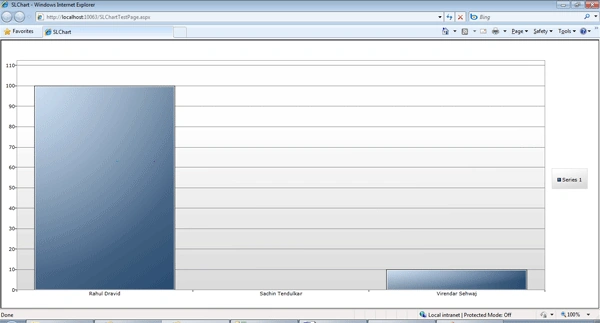
Great. Works..
Wang WenPosted May 12, 2015, 2:46 AM
You can try Vancharts(http://www.vancharts.com/). It's a javascript chart maker.
olakunle oladepoPosted Apr 24, 2012, 8:50 AM
Please kindly assist, I tried adding a service reference to my project but got this error: "there was an error downloading metadata from the address. please verify that you have entered a valid address". how do i solve this?