

In this article we will be seeing how to Start Full Synchronization to import
the user profile in SharePoint 2010.
Once you have Configured Synchronization connections in the User Profile Service
Application you need to run the "Start Full Synchronization" to import the user
profiles. This can be done through UI, programmatically and using powershell
commands. Here we will be starting the Full Synchronization using powershell.
PowerShell script:
#------- Get-SPServiceContext
function
Get-SPServiceContext([Microsoft.SharePoint.Administration.SPServiceApplication]$profileApp)
{
if($profileApp -eq $null)
{
#----- Get first User Profile Service Application
$profileApp = @(Get-SPServiceApplication | ? { $_.TypeName -eq "User
Profile Service Application" })[0]
}
return [Microsoft.SharePoint.SPServiceContext]::GetContext(
$profileApp.ServiceApplicationProxyGroup,
[Microsoft.SharePoint.SPSiteSubscriptionIdentifier]::Default)
}
$serviceContext= Get-SPServiceContext
$configManager = New-Object
Microsoft.Office.Server.UserProfiles.UserProfileConfigManager($serviceContext)
if($configManager.IsSynchronizationRunning() -eq $false)
{
$configManager.StartSynchronization($true)
Write-Host "Started Synchronizing"
}
else
{
Write-Host "Already Synchronizing"
}
#--------- Alternate way
$siteUrl="http://serverName:4695/"
$site= New-Object Microsoft.SharePoint.SPSite($siteUrl)
$serviceContext = [Microsoft.SharePoint.SPServiceContext]::GetContext($site)
$configManager = New-Object
Microsoft.Office.Server.UserProfiles.UserProfileConfigManager($serviceContext)
if($configManager.IsSynchronizationRunning() -eq $false)
{
$configManager.StartSynchronization($true)
Write-Host "Started Synchronizing"
}
else
{
Write-Host "Already Synchronizing"
}
Go the SharePoint Central Administration => Application Management => Manage
Service Applications =>User Profile Service.
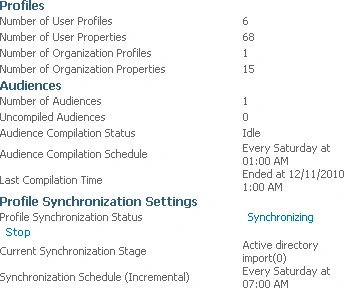
You could see the Profile Synchronization Status has been changed to
Synchronizing.
Gowtham RajamanickamPosted Apr 20, 2015, 3:18 PM
goood