
But, we will have to keep in mind that none of the users (including the site collection administrators) will be able to change the themes.
In this article, we will achieve this by creating a Web Application level feature. When the feature has been activated, we can create a custom permission policy called "Restrict Themes" and add all the authenticated users to this policy. When the feature has been deactivated we will remove the policy.
First let's create a Custom Permission Policy called "Restrict Themes" using Feature Activated Code:
SPSecurity.RunWithElevatedPrivileges(delegate()
{
SPWebApplication webApp = properties.Feature.Parent as SPWebApplication;
SPPolicyRole RestrictThemes;
//we are removing the ApplyStyleSheets permission and ApplyThemeAndBorder permission by passing this
//to Policyroles.
SPBasePermissions RestrictPermissions = SPBasePermissions.ApplyStyleSheets | SPBasePermissions.ApplyThemeAndBorder;
//we are not granting any permissions
SPBasePermissions GrantPermissions = new SPBasePermissions();
RestrictThemes = webApp.PolicyRoles["Restrict Themes"];
if (RestrictThemes == null)
{
RestrictThemes = webApp.PolicyRoles.Add("Restrict Themes", "Restricts themes to be modified by anybody",
GrantPermissions,
RestrictPermissions);
webApp.Update();
}
SPPolicy policy = webApp.Policies.Add("NT Authority\\Authenticated users", "All Authenticated Users");
policy.PolicyRoleBindings.Add(RestrictThemes);
webApp.Update();
});
- In the above code we take the web application object using properties parameter of the FeatureActivated method.
- Then create a base permission called RestrictPermissions and assigning ApplyStyleSheets and AppythemeAndBorder
- Next, create an empty Permission called GrantPermissions
- Then try to retrieve the "Restrict Themes" and if it is null, create the "Permission Policy" by calling the add method of PolicyRoles. For this method, pass the GrantPermissions and RestrictPermissions. The add method takes four parameters name, description, allow permissions and deny permissions. For the deny permissions, pass the restrict permissions that's been created.
- The "Permission Policy" once created will look like this in UI.
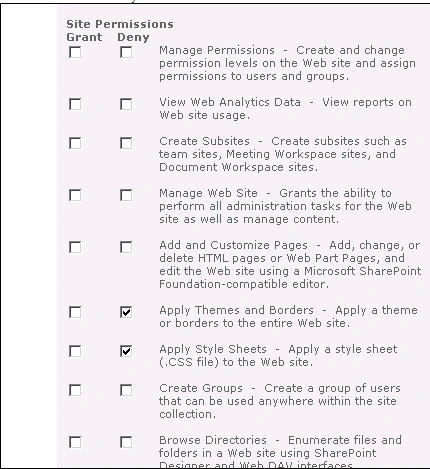
- This will make sure that the users who are added to this policy at the Web Application level will not be able to modify the themes
- Next step in the code, add the authenticated users to this policy
- We cannot directly add users to this policy, rather, we should add the bindings for the policy by calling PolicyBindings.Add method and passing the Restrict Policy as parameter
- Finally, call the Update() method for the web application to make the changes
- After we deploy and activate the feature, all authenticated users would have been added to this Policy, meaning, nobody in the site should be able to modify themes
- The deactivate method will simply remove the Policy
SPSecurity.RunWithElevatedPrivileges(delegate()
{
SPWebApplication webApp = properties.Feature.Parent as SPWebApplication;
SPPolicyRole RestrictThemes;
RestrictThemes = webApp.PolicyRoles["Restrict Themes"];
if (RestrictThemes != null)
{
webApp.PolicyRoles.Delete("Restrict Themes");
webApp.Update();
}
});
This approach might be useful; if we want to make sure that for a particular web application none of the users should modify the themes and should utilize only the corporate themes that have been defined.
Join the conversation! Your thoughts help the community grow.