

Introduction
In this article, we will create drill-down reports in SSRS.
Contents
- Hour 1: What is SSRS and determine whether it is installed
- Hour 2: Report using wizard
- Hour 3: First SSRS report
- Hour 4: Report with parameter
- Hour 5: Custom template
- Hour 6: Drill down report
- Hour 7: Sub report
- Hour 8: Report with style
- Hour 9: Report with chart
- Hour 10: Report deployment
- Hour 11: RDL file to ASP.Net
Drill-Down SSRS Report
Step 1
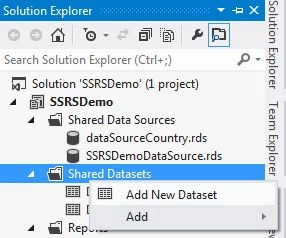
To add the dataset, right-click on "Shared Datasets" and click on "Add New Dataset".
Step 2
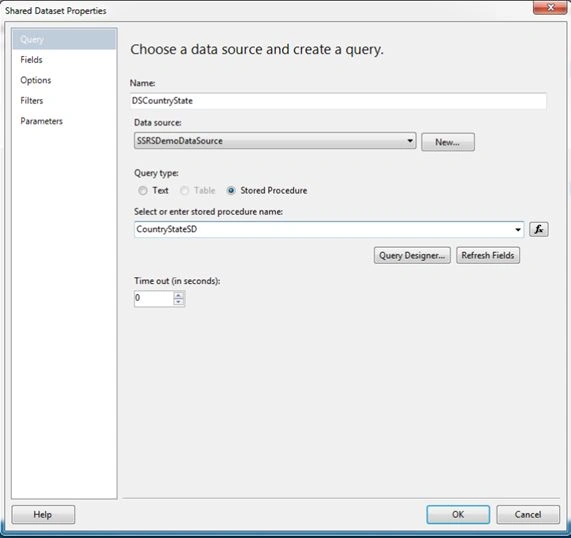
- Provide an appropriate dataset name.
- Select the data source.
- Select the "Stored Procedure" radio button and provide a Stored Procedure name.
Step 3
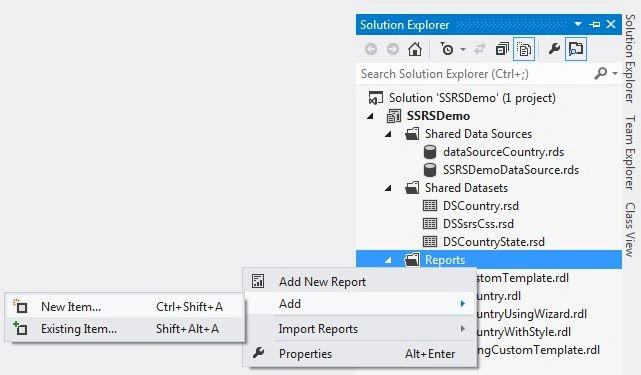
To add the report, right-click on "Reports", select "Add" and click on "New Item".
Step 4
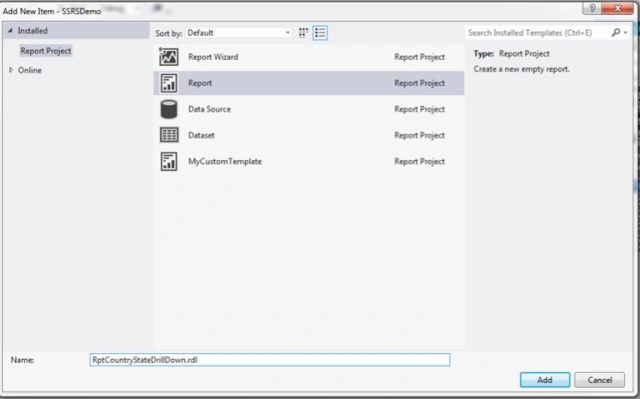
Select "Report" and provide the report a name.
Step 5
To add the data source in report data, right-click on "Data Sources" and click on "Add Data Source".
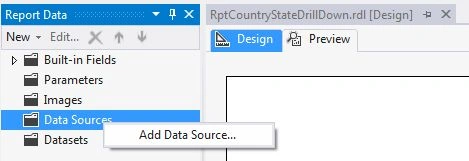
Step 6
Provide the data source a name and select shared data source reference.
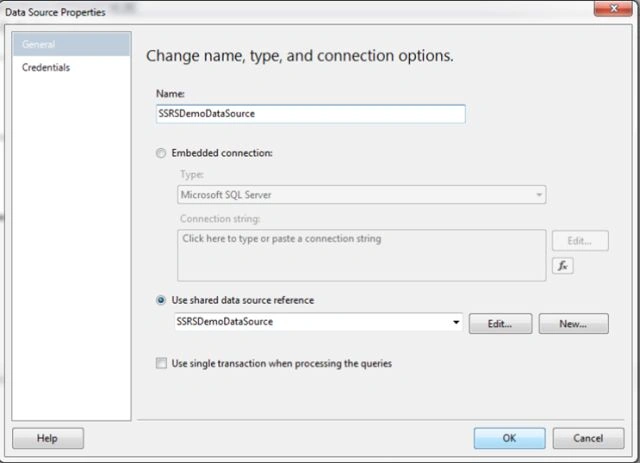
Step 7
To add a dataset to the report data, right-click on "Datasets" and click on "Add Dataset".
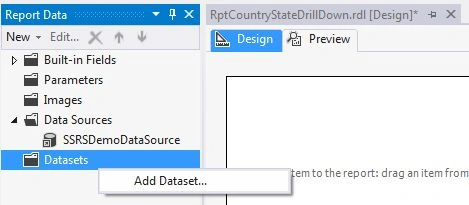
Step 8
Provide the dataset a name and select shared dataset.
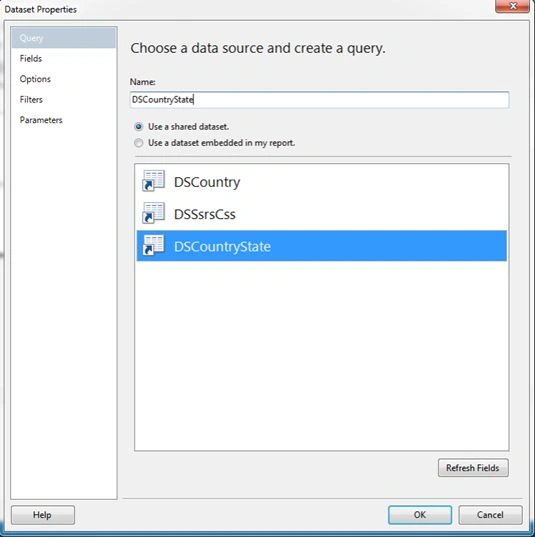
Step 9
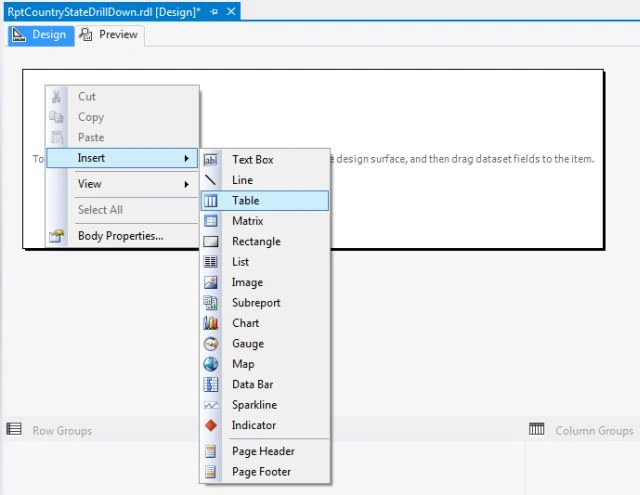
Right-click on the design surface then select "Insert" and click on "Table".
Step 10
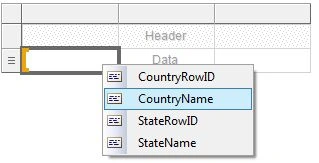
Set "Country Name" as the column header and map the "CountryName" field for that column.
Step 11
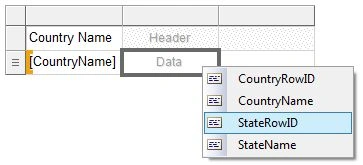
In the same way, set "State Row ID" as the column header and map the "StateRowID" field for that column.
Step 12
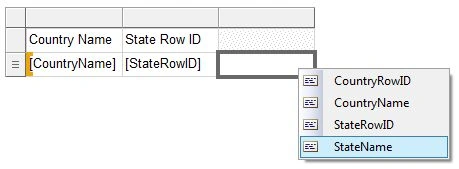
Set "State Name" as the column header and map the "StateName" field for that column.
Step 13
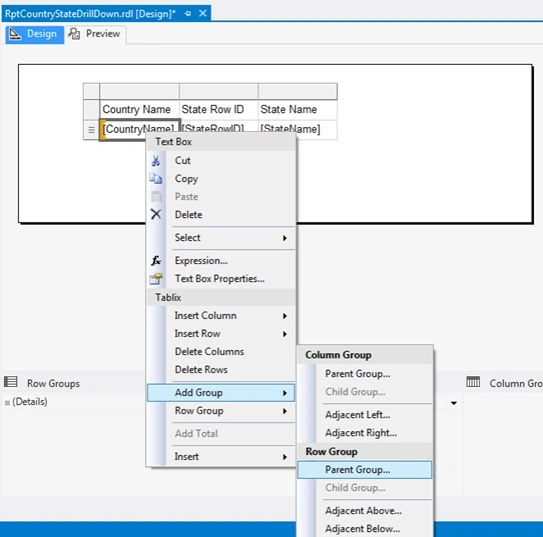
- Now we need to create a parent, since we want to display state names by country name. Here the country will be the parent.
- Right-click on "CountryName", select "Add Group" and click on "Parent Group".
Step 14
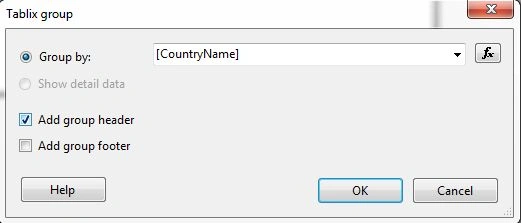
Select the field that we want to make the parent, CountryName.
Step 15
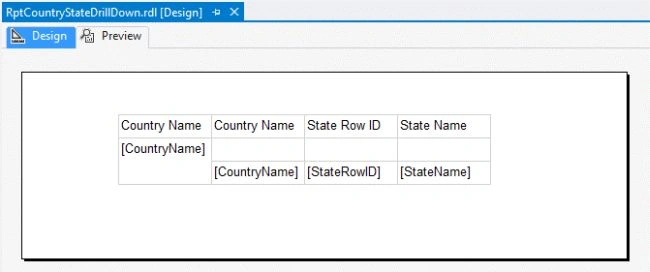
Now our report design is ready, the first column looks as in a parent and the rest their children.
Step 16
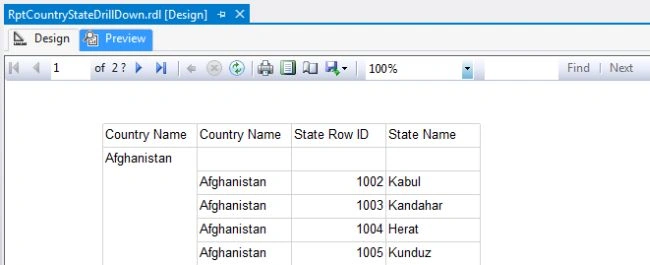
- Click on the "Preview" tab and we can see the country-wise list of states.
- We need to change two things in the current report.
- States should not be pre-loaded.
- Country name should not be repeated with each row.
Step 17
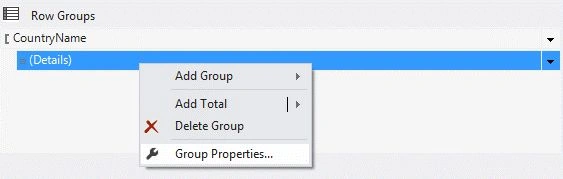
In the "Row Groups" window, right-click on "(Details)" under "CountryName" and click on "Group Properties".
Step 18
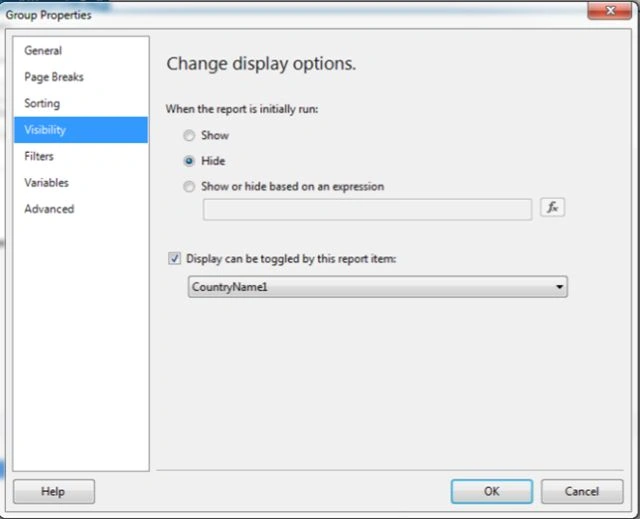
- Select "Visibility" in Group Properties.
- Select the "Hide" radio button, in other words hide this column when the report is initially run.
- Check the "Display can be toggled by this report item:" check box and select the field.
Step 19
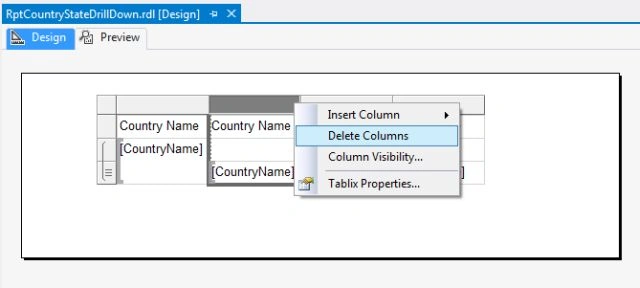
Select the country name column, right-click on it and click on "Delete Columns" so that the report has only one column with Country Name.
Step 20
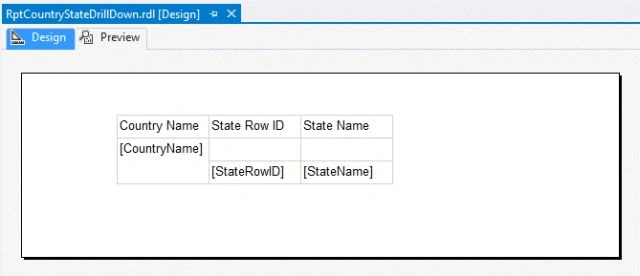
Our design is ready now.
Step 21
Click on the "Preview" tab and you have the first look of the report. It shows only the country list with a plus "+" sign.
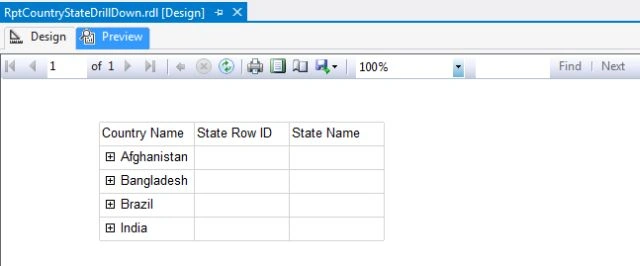
Step 22
To see the list of states, click on that plus symbol and we can see the list of states of that specific country.
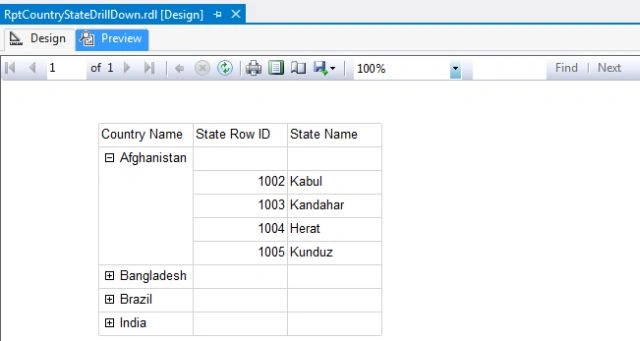
Tom MohanPosted Mar 1, 2015, 5:48 AM
Good effort
Sibeesh VenuPosted Feb 27, 2015, 3:26 AM
Nice one!!!
Elizabeth FrantzPosted Feb 26, 2015, 12:19 PM
great share... thanks a lot http://www.directoriobee.com/
Vithal WadjePosted Feb 26, 2015, 11:23 AM
nice article keep it up
Krishna KumarPosted Feb 26, 2015, 8:43 AM
Good article. Can we create drill down report without '+' and '-' signs?
Rahul Kumar SaxenaPosted Feb 26, 2015, 7:32 AM
Good Show...