
Value Converters
The first thing we should ask is; what is Value Converter(s)?
Well, to say it in simple words it is a Converter that converts value based on input as Source and provides output as Target.
Hope the following figure make things easier to understand:
As you can see from the above image we have both way arrows in between Source and Target. That means: the value converter not only designed to take input from the target and modify the source, it also works when source data is updated on target. As you are familiar with two way bindings in WPF.
We will straight away create a WPF Application and create simple converters to understand it.
Creating WPF Application
Fire up Visual Studio 2008 and Create a WPF Application, name it as ConvertersInWPF.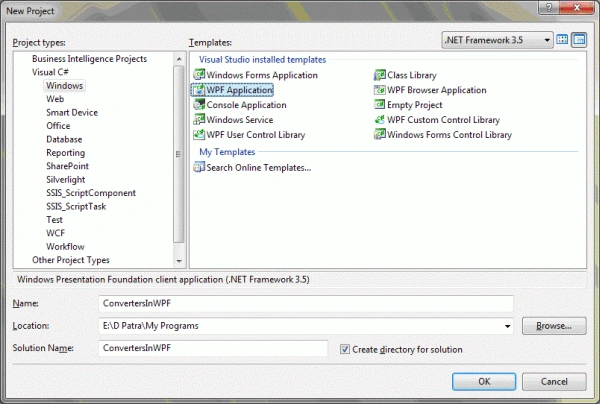
Now let's think what simple converter we can use!
Let's say we will create one or more Converters. So we will keep inside a folder: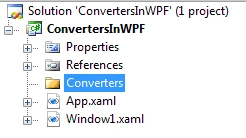
Now add a class to the Converter Folder, name it as StatusToColor.cs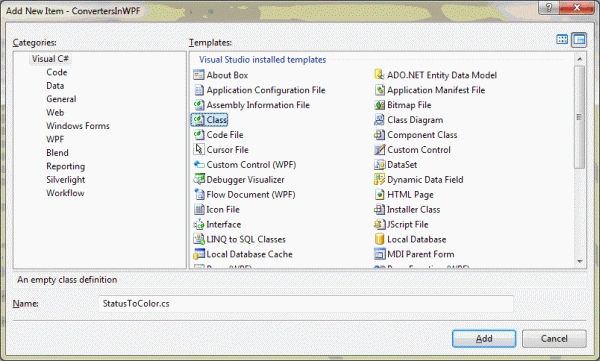
Here's the idea, we will have a list of Requests and we will display the status of the request in colors.
Let's have the following entity class that represent Request structure.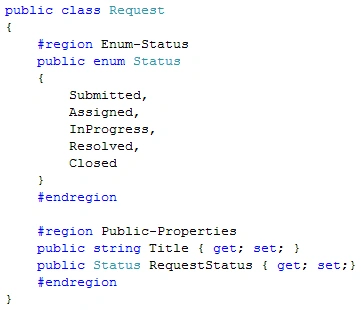
As you see in above code display we have an Enum as Status and we have 5 values inside of it; such as: Submitted, Assigned, InProgress, Resolved, and Closed.
Now based on above information we will modify our StatusToColor.cs
Implement IValueConverter in the above class.
As the namespace is not referred, we have to type it upto end and after resolving you would see the following namespace to be used.
Now we have to implement the methods in this Interface. So resolve the interface again.
Select the Implement interface option: the following methods would be defined as follows: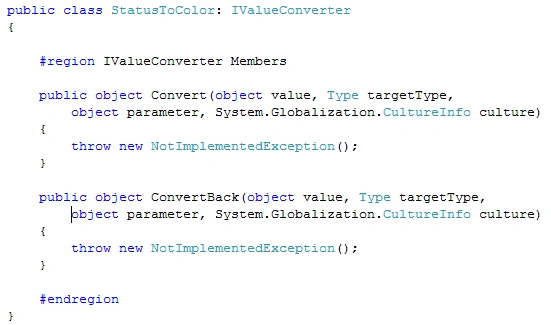
As we discussed in the beginning that the Source and Target can convert each other so that's why we have two methods defined. Convert would do conversion from Source -> Target and ConvertBack would do conversion from Target -> Source.
For the time being we will proceed with Convert method.
First we will define the Enum here again.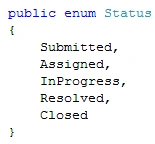
We can use the same name but for understanding I am giving a different name.
Remove the throw new Exception(); and replace with following code.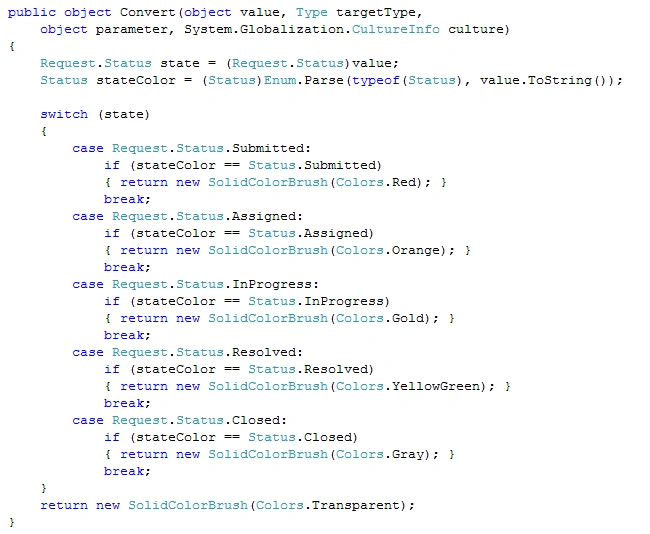
The above code display for converting and returning is a very simple logic to convert.
Now for user's knowledge about the colr use we would put the colors with some information.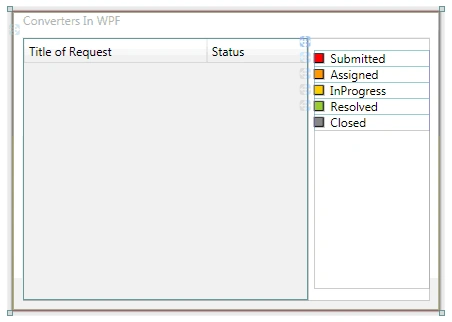
Now we have bind the converter in the XAML, for that first thing we have to do is to use the namespace.
Now we have customized the DataGrid, to have a TextBoxColumn and a TemplateColumn to display the Status as defined Color.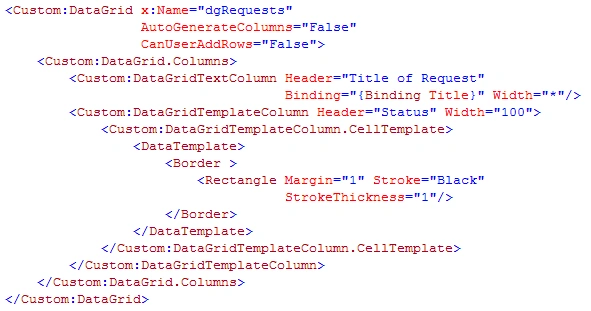
Now for the Rectangle in TemplateColumn we will fill using the Converter:
We are good to go, and run the application. But before that let's have some sample data to display.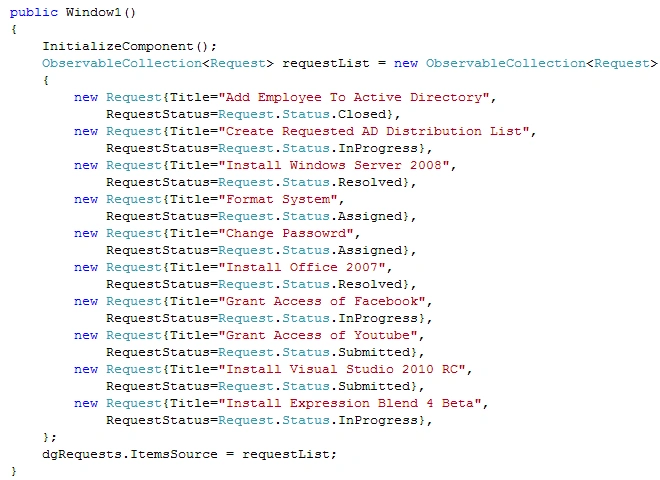
You would see the colors are reflected as per the data given.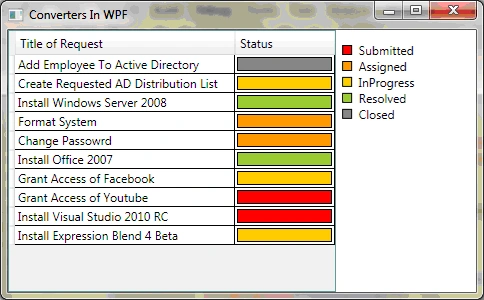
Hope this article helps.

Value Converter In WPF - Part I
Join the conversation! Your thoughts help the community grow.
Sign in to leave a comment
It is the same account you read, post and publish with — and you will come straight back to this page.
Gowtham RajamanickamPosted Apr 18, 2016, 2:11 AM
good one..
Tolga KayhanPosted Jan 3, 2013, 6:12 PM
Thank you, Very nice
AdminPosted Oct 24, 2012, 1:42 AM
HI, If you have a basic knowledge of the WPF then its a very good for you yo understand the Ivalue converter Its a to easy to implement here is the link for the same http://wpftutorial.co.in/Knowledge/WPFIvalueConverter.aspx
Michele AtkinsonPosted Aug 6, 2010, 10:38 AM
<meta http-equiv="Content-Type" content="text/html; charset=utf-8"><meta name="ProgId" content="Word.Document"><meta name="Generator" content="Microsoft Word 12"><meta name="Originator" content="Microsoft Word 12">Hi, I have defined the converter, associated it with the binding as a static resource, and defined the static resource in the user control dictionary. But I am still getting this error: <link rel="File-List" href="file:///C:%5CUsers%5CMichele%5CAppData%5CLocal%5CTemp%5Cmsohtmlclip1%5C01%5Cclip_filelist.xml"><link rel="themeData" href="file:///C:%5CUsers%5CMichele%5CAppData%5CLocal%5CTemp%5Cmsohtmlclip1%5C01%5Cclip_themedata.thmx"><link rel="colorSchemeMapping" href="file:///C:%5CUsers%5CMichele%5CAppData%5CLocal%5CTemp%5Cmsohtmlclip1%5C01%5Cclip_colorschememapping.xml"><!--[if gte mso 9]><xml> <w:WordDocument> <w:View>Normal</w:View> <w:Zoom>0</w:Zoom> <w:TrackMoves/> <w:TrackFormatting/> <w:PunctuationKerning/> <w:ValidateAgainstSchemas/> <w:SaveIfXMLInvalid>false</w:SaveIfXMLInvalid> <w:IgnoreMixedContent>false</w:IgnoreMixedContent> <w:AlwaysShowPlaceholderText>false</w:AlwaysShowPlaceholderText> <w:DoNotPromoteQF/> <w:LidThemeOther>EN-US</w:LidThemeOther> <w:LidThemeAsian>X-NONE</w:LidThemeAsian> <w:LidThemeComplexScript>X-NONE</w:LidThemeComplexScript> <w:Compatibility> <w:BreakWrappedTables/> <w:SnapToGridInCell/> <w:WrapTextWithPunct/> <w:UseAsianBreakRules/> <w:DontGrowAutofit/> <w:SplitPgBreakAndParaMark/> <w:DontVertAlignCellWithSp/> <w:DontBreakConstrainedForcedTables/> <w:DontVertAlignInTxbx/> <w:Word11KerningPairs/> <w:CachedColBalance/> </w:Compatibility> <w:DoNotOptimizeForBrowser/> <m:mathPr> <m:mathFont m:val="Cambria Math"/> <m:brkBin m:val="before"/> <m:brkBinSub m:val="--"/> <m:smallFrac m:val="off"/> <m:dispDef/> <m:lMargin m:val="0"/> <m:rMargin m:val="0"/> <m:defJc m:val="centerGroup"/> <m:wrapIndent m:val="1440"/> <m:intLim m:val="subSup"/> <m:naryLim m:val="undOvr"/> </m:mathPr></w:WordDocument> </xml><![endif]--><!--[if gte mso 9]><xml> <w:LatentStyles DefLockedState="false" DefUnhideWhenUsed="true" DefSemiHidden="true" DefQFormat="false" DefPriority="99" LatentStyleCount="267"> <w:LsdException Locked="false" Priority="0" SemiHidden="false" UnhideWhenUsed="false" QFormat="true" Name="Normal"/> <w:LsdException Locked="false" Priority="9" SemiHidden="false" UnhideWhenUsed="false" QFormat="true" Name="heading 1"/> <w:LsdException Locked="false" Priority="9" QFormat="true" Name="heading 2"/> <w:LsdException Locked="false" Priority="9" QFormat="true" Name="heading 3"/> <w:LsdException Locked="false" Priority="9" QFormat="true" Name="heading 4"/> <w:LsdException Locked="false" Priority="9" QFormat="true" Name="heading 5"/> <w:LsdException Locked="false" Priority="9" QFormat="true" Name="heading 6"/> <w:LsdException Locked="false" Priority="9" QFormat="true" Name="heading 7"/> <w:LsdException Locked="false" Priority="9" QFormat="true" Name="heading 8"/> <w:LsdException Locked="false" Priority="9" QFormat="true" Name="heading 9"/> <w:LsdException Locked="false" Priority="39" Name="toc 1"/> <w:LsdException Locked="false" Priority="39" Name="toc 2"/> <w:LsdException Locked="false" Priority="39" Name="toc 3"/> <w:LsdException Locked="false" Priority="39" Name="toc 4"/> <w:LsdException Locked="false" Priority="39" Name="toc 5"/> <w:LsdException Locked="false" Priority="39" Name="toc 6"/> <w:LsdException Locked="false" Priority="39" Name="toc 7"/> <w:LsdException Locked="false" Priority="39" Name="toc 8"/> <w:LsdException Locked="false" Priority="39" Name="toc 9"/> <w:LsdException Locked="false" Priority="35" QFormat="true" Name="caption"/> <w:LsdException Locked="false" Priority="10" SemiHidden="false" UnhideWhenUsed="false" QFormat="true" Name="Title"/> <w:LsdException Locked="false" Priority="1" Name="Default Paragraph Font"/> <w:LsdException Locked="false" Priority="11" SemiHidden="false" UnhideWhenUsed="false" QFormat="true" Name="Subtitle"/> <w:LsdException Locked="false" Priority="22" SemiHidden="false" UnhideWhenUsed="false" QFormat="true" Name="Strong"/> <w:LsdException Locked="false" Priority="20" SemiHidden="false" UnhideWhenUsed="false" QFormat="true" Name="Emphasis"/> <w:LsdException Locked="false" Priority="59" SemiHidden="false" UnhideWhenUsed="false" Name="Table Grid"/> <w:LsdException Locked="false" UnhideWhenUsed="false" Name="Placeholder Text"/> <w:LsdException Locked="false" Priority="1" SemiHidden="false" UnhideWhenUsed="false" QFormat="true" Name="No Spacing"/> <w:LsdException Locked="false" Priority="60" SemiHidden="false" UnhideWhenUsed="false" Name="Light Shading"/> <w:LsdException Locked="false" Priority="61" SemiHidden="false" UnhideWhenUsed="false" Name="Light List"/> <w:LsdException Locked="false" Priority="62" SemiHidden="false" UnhideWhenUsed="false" Name="Light Grid"/> <w:LsdException Locked="false" Priority="63" SemiHidden="false" UnhideWhenUsed="false" Name="Medium Shading 1"/> <w:LsdException Locked="false" Priority="64" SemiHidden="false" UnhideWhenUsed="false" Name="Medium Shading 2"/> <w:LsdException Locked="false" Priority="65" SemiHidden="false" UnhideWhenUsed="false" Name="Medium List 1"/> <w:LsdException Locked="false" Priority="66" SemiHidden="false" UnhideWhenUsed="false" Name="Medium List 2"/> <w:LsdException Locked="false" Priority="67" SemiHidden="false" UnhideWhenUsed="false" Name="Medium Grid 1"/> <w:LsdException Locked="false" Priority="68" SemiHidden="false" UnhideWhenUsed="false" Name="Medium Grid 2"/> <w:LsdException Locked="false" Priority="69" SemiHidden="false" UnhideWhenUsed="false" Name="Medium Grid 3"/> <w:LsdException Locked="false" Priority="70" SemiHidden="false" UnhideWhenUsed="false" Name="Dark List"/> <w:LsdException Locked="false" Priority="71" SemiHidden="false" UnhideWhenUsed="false" Name="Colorful Shading"/> <w:LsdException Locked="false" Priority="72" SemiHidden="false" UnhideWhenUsed="false" Name="Colorful List"/> <w:LsdException Locked="false" Priority="73" SemiHidden="false" UnhideWhenUsed="false" Name="Colorful Grid"/> <w:LsdException Locked="false" Priority="60" SemiHidden="false" UnhideWhenUsed="false" Name="Light Shading Accent 1"/> <w:LsdException Locked="false" Priority="61" SemiHidden="false" UnhideWhenUsed="false" Name="Light List Accent 1"/> <w:LsdException Locked="false" Priority="62" SemiHidden="false" UnhideWhenUsed="false" Name="Light Grid Accent 1"/> <w:LsdException Locked="false" Priority="63" SemiHidden="false" UnhideWhenUsed="false" Name="Medium Shading 1 Accent 1"/> <w:LsdException Locked="false" Priority="64" SemiHidden="false" UnhideWhenUsed="false" Name="Medium Shading 2 Accent 1"/> <w:LsdException Locked="false" Priority="65" SemiHidden="false" UnhideWhenUsed="false" Name="Medium List 1 Accent 1"/> <w:LsdException Locked="false" UnhideWhenUsed="false" Name="Revision"/> <w:LsdException Locked="false" Priority="34" SemiHidden="false" UnhideWhenUsed="false" QFormat="true" Name="List Paragraph"/> <w:LsdException Locked="false" Priority="29" SemiHidden="false" UnhideWhenUsed="false" QFormat="true" Name="Quote"/> <w:LsdException Locked="false" Priority="30" SemiHidden="false" UnhideWhenUsed="false" QFormat="true" Name="Intense Quote"/> <w:LsdException Locked="false" Priority="66" SemiHidden="false" UnhideWhenUsed="false" Name="Medium List 2 Accent 1"/> <w:LsdException Locked="false" Priority="67" SemiHidden="false" UnhideWhenUsed="false" Name="Medium Grid 1 Accent 1"/> <w:LsdException Locked="false" Priority="68" SemiHidden="false" UnhideWhenUsed="false" Name="Medium Grid 2 Accent 1"/> <w:LsdException Locked="false" Priority="69" SemiHidden="false" UnhideWhenUsed="false" Name="Medium Grid 3 Accent 1"/> <w:LsdException Locked="false" Priority="70" SemiHidden="false" UnhideWhenUsed="false" Name="Dark List Accent 1"/> <w:LsdException Locked="false" Priority="71" SemiHidden="false" UnhideWhenUsed="false" Name="Colorful Shading Accent 1"/> <w:LsdException Locked="false" Priority="72" SemiHidden="false" UnhideWhenUsed="false" Name="Colorful List Accent 1"/> <w:LsdException Locked="false" Priority="73" SemiHidden="false" UnhideWhenUsed="false" Name="Colorful Grid Accent 1"/> <w:LsdException Locked="false" Priority="60" SemiHidden="false" UnhideWhenUsed="false" Name="Light Shading Accent 2"/> <w:LsdException Locked="false" Priority="61" SemiHidden="false" UnhideWhenUsed="false" Name="Light List Accent 2"/> <w:LsdException Locked="false" Priority="62" SemiHidden="false" UnhideWhenUsed="false" Name="Light Grid Accent 2"/> <w:LsdException Locked="false" Priority="63" SemiHidden="false" UnhideWhenUsed="false" Name="Medium Shading 1 Accent 2"/> <w:LsdException Locked="false" Priority="64" SemiHidden="false" UnhideWhenUsed="false" Name="Medium Shading 2 Accent 2"/> <w:LsdException Locked="false" Priority="65" SemiHidden="false" UnhideWhenUsed="false" Name="Medium List 1 Accent 2"/> <w:LsdException Locked="false" Priority="66" SemiHidden="false" UnhideWhenUsed="false" Name="Medium List 2 Accent 2"/> <w:LsdException Locked="false" Priority="67" SemiHidden="false" UnhideWhenUsed="false" Name="Medium Grid 1 Accent 2"/> <w:LsdException Locked="false" Priority="68" SemiHidden="false" UnhideWhenUsed="false" Name="Medium Grid 2 Accent 2"/> <w:LsdException Locked="false" Priority="69" SemiHidden="false" UnhideWhenUsed="false" Name="Medium Grid 3 Accent 2"/> <w:LsdException Locked="false" Priority="70" SemiHidden="false" UnhideWhenUsed="false" Name="Dark List Accent 2"/> <w:LsdException Locked="false" Priority="71" SemiHidden="false" UnhideWhenUsed="false" Name="Colorful Shading Accent 2"/> <w:LsdException Locked="false" Priority="72" SemiHidden="false" UnhideWhenUsed="false" Name="Colorful List Accent 2"/> <w:LsdException Locked="false" Priority="73" SemiHidden="false" UnhideWhenUsed="false" Name="Colorful Grid Accent 2"/> <w:LsdException Locked="false" Priority="60" SemiHidden="false" UnhideWhenUsed="false" Name="Light Shading Accent 3"/> <w:LsdException Locked="false" Priority="61" SemiHidden="false" UnhideWhenUsed="false" Name="Light List Accent 3"/> <w:LsdException Locked="false" Priority="62" SemiHidden="false" UnhideWhenUsed="false" Name="Light Grid Accent 3"/> <w:LsdException Locked="false" Priority="63" SemiHidden="false" UnhideWhenUsed="false" Name="Medium Shading 1 Accent 3"/> <w:LsdException Locked="false" Priority="64" SemiHidden="false" UnhideWhenUsed="false" Name="Medium Shading 2 Accent 3"/> <w:LsdException Locked="false" Priority="65" SemiHidden="false" UnhideWhenUsed="false" Name="Medium List 1 Accent 3"/> <w:LsdException Locked="false" Priority="66" SemiHidden="false" UnhideWhenUsed="false" Name="Medium List 2 Accent 3"/> <w:LsdException Locked="false" Priority="67" SemiHidden="false" UnhideWhenUsed="false" Name="Medium Grid 1 Accent 3"/> <w:LsdException Locked="false" Priority="68" SemiHidden="false" UnhideWhenUsed="false" Name="Medium Grid 2 Accent 3"/> <w:LsdException Locked="false" Priority="69" SemiHidden="false" UnhideWhenUsed="false" Name="Medium Grid 3 Accent 3"/> <w:LsdException Locked="false" Priority="70" SemiHidden="false" UnhideWhenUsed="false" Name="Dark List Accent 3"/> <w:LsdException Locked="false" Priority="71" SemiHidden="false" UnhideWhenUsed="false" Name="Colorful Shading Accent 3"/> <w:LsdException Locked="false" Priority="72" SemiHidden="false" UnhideWhenUsed="false" Name="Colorful List Accent 3"/> <w:LsdException Locked="false" Priority="73" SemiHidden="false" UnhideWhenUsed="false" Name="Colorful Grid Accent 3"/> <w:LsdException Locked="false" Priority="60" SemiHidden="false" UnhideWhenUsed="false" Name="Light Shading Accent 4"/> <w:LsdException Locked="false" Priority="61" SemiHidden="false" UnhideWhenUsed="false" Name="Light List Accent 4"/> <w:LsdException Locked="false" Priority="62" SemiHidden="false" UnhideWhenUsed="false" Name="Light Grid Accent 4"/> <w:LsdException Locked="false" Priority="63" SemiHidden="false" UnhideWhenUsed="false" Name="Medium Shading 1 Accent 4"/> <w:LsdException Locked="false" Priority="64" SemiHidden="false" UnhideWhenUsed="false" Name="Medium Shading 2 Accent 4"/> <w:LsdException Locked="false" Priority="65" SemiHidden="false" UnhideWhenUsed="false" Name="Medium List 1 Accent 4"/> <w:LsdException Locked="false" Priority="66" SemiHidden="false" UnhideWhenUsed="false" Name="Medium List 2 Accent 4"/> <w:LsdException Locked="false" Priority="67" SemiHidden="false" UnhideWhenUsed="false" Name="Medium Grid 1 Accent 4"/> <w:LsdException Locked="false" Priority="68" SemiHidden="false" UnhideWhenUsed="false" Name="Medium Grid 2 Accent 4"/> <w:LsdException Locked="false" Priority="69" SemiHidden="false" UnhideWhenUsed="false" Name="Medium Grid 3 Accent 4"/> <w:LsdException Locked="false" Priority="70" SemiHidden="false" UnhideWhenUsed="false" Name="Dark List Accent 4"/> <w:LsdException Locked="false" Priority="71" SemiHidden="false" UnhideWhenUsed="false" Name="Colorful Shading Accent 4"/> <w:LsdException Locked="false" Priority="72" SemiHidden="false" UnhideWhenUsed="false" Name="Colorful List Accent 4"/> <w:LsdException Locked="false" Priority="73" SemiHidden="false" UnhideWhenUsed="false" Name="Colorful Grid Accent 4"/> <w:LsdException Locked="false" Priority="60" SemiHidden="false" UnhideWhenUsed="false" Name="Light Shading Accent 5"/> <w:LsdException Locked="false" Priority="61" SemiHidden="false" UnhideWhenUsed="false" Name="Light List Accent 5"/> <w:LsdException Locked="false" Priority="62" SemiHidden="false" UnhideWhenUsed="false" Name="Light Grid Accent 5"/> <w:LsdException Locked="false" Priority="63" SemiHidden="false" UnhideWhenUsed="false" Name="Medium Shading 1 Accent 5"/> <w:LsdException Locked="false" Priority="64" SemiHidden="false" UnhideWhenUsed="false" Name="Medium Shading 2 Accent 5"/> <w:LsdException Locked="false" Priority="65" SemiHidden="false" UnhideWhenUsed="false" Name="Medium List 1 Accent 5"/> <w:LsdException Locked="false" Priority="66" SemiHidden="false" UnhideWhenUsed="false" Name="Medium List 2 Accent 5"/> <w:LsdException Locked="false" Priority="67" SemiHidden="false" UnhideWhenUsed="false" Name="Medium Grid 1 Accent 5"/> <w:LsdException Locked="false" Priority="68" SemiHidden="false" UnhideWhenUsed="false" Name="Medium Grid 2 Accent 5"/> <w:LsdException Locked="false" Priority="69" SemiHidden="false" UnhideWhenUsed="false" Name="Medium Grid 3 Accent 5"/> <w:LsdException Locked="false" Priority="70" SemiHidden="false" UnhideWhenUsed="false" Name="Dark List Accent 5"/> <w:LsdException Locked="false" Priority="71" SemiHidden="false" UnhideWhenUsed="false" Name="Colorful Shading Accent 5"/> <w:LsdException Locked="false" Priority="72" SemiHidden="false" UnhideWhenUsed="false" Name="Colorful List Accent 5"/> <w:LsdException Locked="false" Priority="73" SemiHidden="false" UnhideWhenUsed="false" Name="Colorful Grid Accent 5"/> <w:LsdException Locked="false" Priority="60" SemiHidden="false" UnhideWhenUsed="false" Name="Light Shading Accent 6"/> <w:LsdException Locked="false" Priority="61" SemiHidden="false" UnhideWhenUsed="false" Name="Light List Accent 6"/> <w:LsdException Locked="false" Priority="62" SemiHidden="false" UnhideWhenUsed="false" Name="Light Grid Accent 6"/> <w:LsdException Locked="false" Priority="63" SemiHidden="false" UnhideWhenUsed="false" Name="Medium Shading 1 Accent 6"/> <w:LsdException Locked="false" Priority="64" SemiHidden="false" UnhideWhenUsed="false" Name="Medium Shading 2 Accent 6"/> <w:LsdException Locked="false" Priority="65" SemiHidden="false" UnhideWhenUsed="false" Name="Medium List 1 Accent 6"/> <w:LsdException Locked="false" Priority="66" SemiHidden="false" UnhideWhenUsed="false" Name="Medium List 2 Accent 6"/> <w:LsdException Locked="false" Priority="67" SemiHidden="false" UnhideWhenUsed="false" Name="Medium Grid 1 Accent 6"/> <w:LsdException Locked="false" Priority="68" SemiHidden="false" UnhideWhenUsed="false" Name="Medium Grid 2 Accent 6"/> <w:LsdException Locked="false" Priority="69" SemiHidden="false" UnhideWhenUsed="false" Name="Medium Grid 3 Accent 6"/> <w:LsdException Locked="false" Priority="70" SemiHidden="false" UnhideWhenUsed="false" Name="Dark List Accent 6"/> <w:LsdException Locked="false" Priority="71" SemiHidden="false" UnhideWhenUsed="false" Name="Colorful Shading Accent 6"/> <w:LsdException Locked="false" Priority="72" SemiHidden="false" UnhideWhenUsed="false" Name="Colorful List Accent 6"/> <w:LsdException Locked="false" Priority="73" SemiHidden="false" UnhideWhenUsed="false" Name="Colorful Grid Accent 6"/> <w:LsdException Locked="false" Priority="19" SemiHidden="false" UnhideWhenUsed="false" QFormat="true" Name="Subtle Emphasis"/> <w:LsdException Locked="false" Priority="21" SemiHidden="false" UnhideWhenUsed="false" QFormat="true" Name="Intense Emphasis"/> <w:LsdException Locked="false" Priority="31" SemiHidden="false" UnhideWhenUsed="false" QFormat="true" Name="Subtle Reference"/> <w:LsdException Locked="false" Priority="32" SemiHidden="false" UnhideWhenUsed="false" QFormat="true" Name="Intense Reference"/> <w:LsdException Locked="false" Priority="33" SemiHidden="false" UnhideWhenUsed="false" QFormat="true" Name="Book Title"/> <w:LsdException Locked="false" Priority="37" Name="Bibliography"/> <w:LsdException Locked="false" Priority="39" QFormat="true" Name="TOC Heading"/> </w:LatentStyles> </xml><![endif]--><!--[if gte mso 10]> <![endif]-->Additional information: Cannot add content of type 'System.Windows.Markup.StaticExtension' to an object of type 'System.Windows.ResourceDictionary'. Here is the namespace, the static resource and the binding attribute: xmlns:converter="clr-namespace:GanttChart.Converters" <x:Static x:Key="DateTimeToTimeSpanString" Member="converter:DateTimeToTimeSpanString"/> <TextBox Text="{Binding Finish, Converter={StaticResource DateTimeToTimeSpanString}}" FontSize="10" Background="Black" Foreground="WhiteSmoke" BorderBrush="Black"/> Any ideas?