

Introduction
SharePoint 2007 provided the capability to add custom ASMX web services. Web Services could be deployed to the LAYOUTS folder, or could be deployed to the ISAPI folder and supported accessing site settings and list data under the SharePoint user context. Since SharePoint 2007 was built on the ASP.NET 2.0 model, it did not natively support web service enhancements that were introduced with Windows Communication Foundation (WCF) in .NET Framework 3.0 and 3.5 or the additional WCF-based service frameworks like ADO.NET Data Services (now WCF Data Services).
For those familiar with writing custom ASMX services for 2007, there were some pitfalls. Since SharePoint requires dynamic service endpoints (the ability to call the web service using any site-relative virtual path under the /_vti_bin/ folder), you had to hand-tool your WSDL files to dynamic service locations. This had to be done every time your changed your web-service signature. Not terribly complicated, but certainly tedious.
The good news is that SharePoint 2010 is based upon ASP.NET 3.5 and now supports WCF custom services including SOAP, REST, and WCF Data Services. The even better news is that is makes it easy to deploy custom WCF services with dynamic endpoints by supporting a number of custom Service Host Factory implementations that can auto-generate. This means it is not necessary to modify the SharePoint web.config to deploy your service endpoint configurations.
In this article, I will walkthrough and highlight the important aspects of the SharePoint 2010 support for custom WCF services.
Steps for Implementation of WCF in SharePoint 2010
Step 1: Create Empty SharePoint project.
Run Visual Studio 2010 as an administrator.
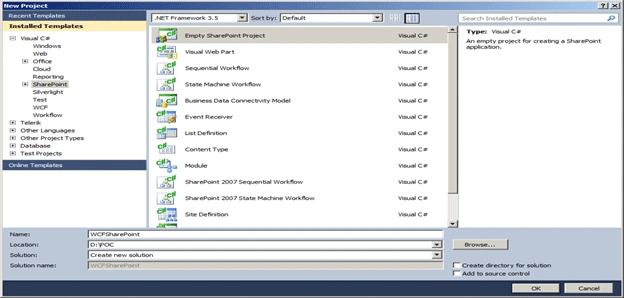
Create New Empty SharePoint project.
Visual Studio 2010 now includes templates for developing just about every type of SharePoint customization including Web Parts, List Handlers, custom Site Definitions, List Templates, etc. It does not include a template for a SharePoint Web Service, so we will want to start with the Empty SharePoint Project template. The will automatically create a project that includes references to the core Microsoft.SharePoint assembly, and includes special capabilities for defining Features, and automatically packaging and deploying your solution as a WSP.
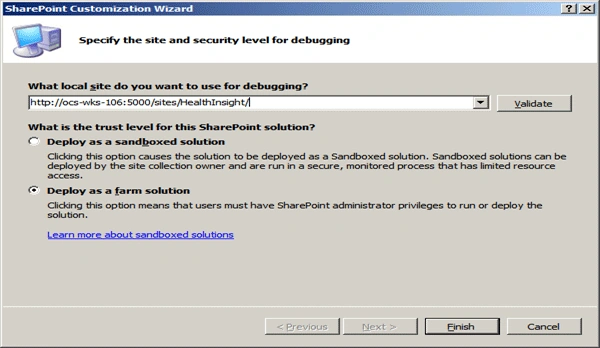
Select Deploy as a farm solution and click on finish
Step 2: Mapping of ISAPI folder and Creating Structure of services
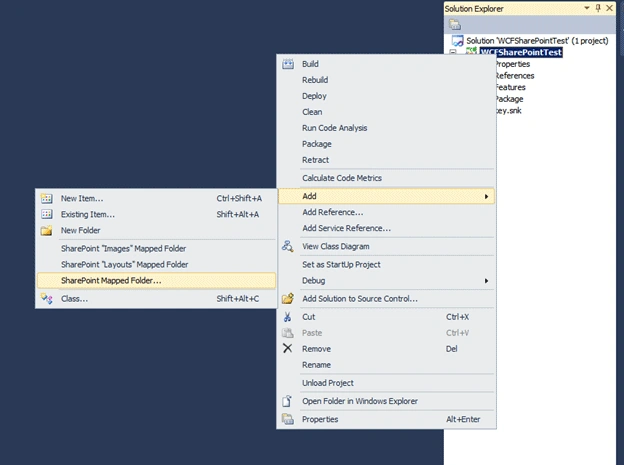
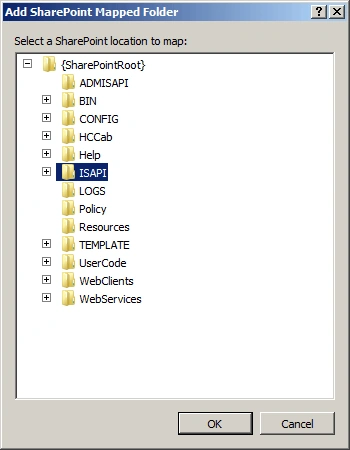
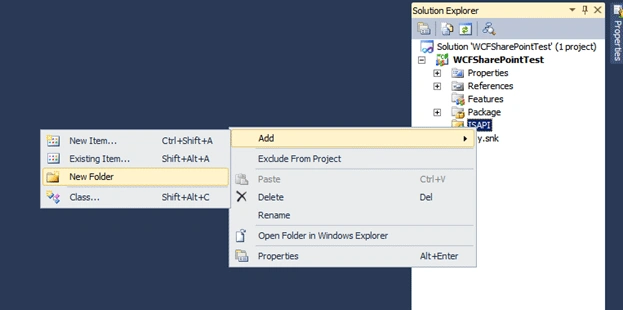
Map the ISAP folder into the project as shown below.
Step 3: Adding references
To support a custom WCF we need to perform a few additional steps:
- Add a reference to the Microsoft.SharePoint.Client.ServerRuntime assembly. This assembly contains the Service Host Factory classes, as well as some attributes we need later on.
- Add a SharePoint Mapped Folder to the ISAPI folder, and create an empty text file with the .SVC extension. Note that it is always a good practice to create a sub-folder when deploying your custom code to the SharePoint file system. It helps keep you custom code separate from the original installed files.

Step 4: Adding ".svc" and "Web.config" file
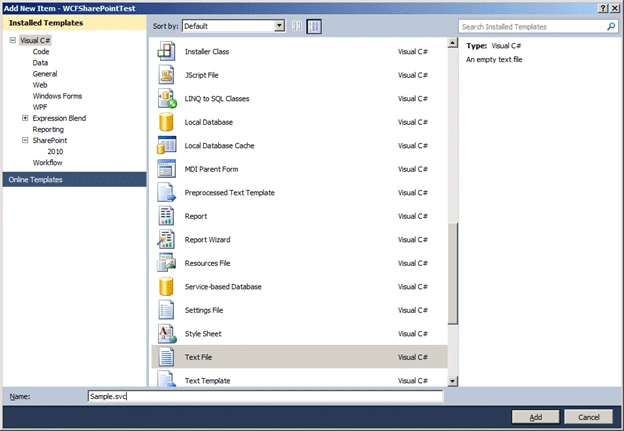
Select text file template and add Sample.svc file into the directory structure of ISAPI
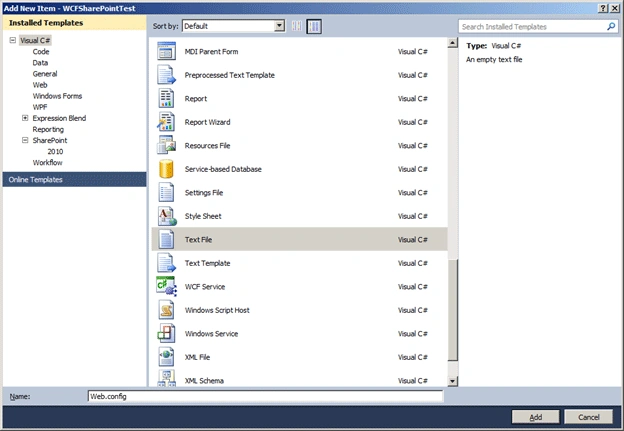
Similarly select the text file template and add Web.config file into the directory structure.
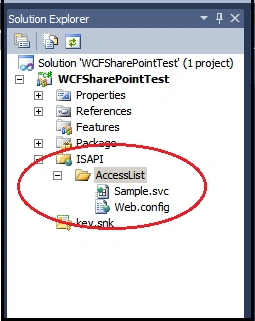
Step 5: Adding Service contracts
The next step is to add the WCF service contract and implementation. For my sample, I have written a very simple service that returns the Url of the current SharePoint context. This is a good way to verify that the service endpoints generated for us by SharePoint are dynamic.
The important thing to note here are the attributes required on the implementation class. These attributes allow SharePoint to automatically support metadata exchange endpoints, and is the secret sauce that allows us to develop custom WCF services without having to deploy endpoint configuration to the SharePoint web.config.
- using System;
- using System.ServiceModel;
- using System.ServiceModel.Activation;
- using Microsoft.SharePoint;
- using System.Collections;
- using Microsoft.SharePoint.Client.Services;
- using System.Runtime.Serialization;
- namespace WCFSharePoint {
- //add service contract here
- //add class implementation here
- //add datacontract here
- }
- [ServiceContract]
- public interface ISampleService {
- [OperationContract]
- System.Collections.Generic.List < MyCityClass > GetCityList();
- }
- [ServiceContract]
- public interface ISampleService {
- [OperationContract]
- System.Collections.Generic.List < MyCityClass > GetCityList();
- }
- [BasicHttpBindingServiceMetadataExchangeEndpointAttribute]
- [AspNetCompatibilityRequirementsAttribute(RequirementsMode = AspNetCompatibilityRequirementsMode.Required)]
- public class SampleService: ISampleService {
- SPWeb oWeb;
- SPList oList;
- public System.Collections.Generic.List < MyCityClass > GetCityList() {
- try {
- System.Collections.Generic.List < MyCityClass > retList = new System.Collections.Generic.List < MyCityClass > ();
- SPSecurity.RunWithElevatedPrivileges(delegate() {
- using(SPSite oSite = new SPSite("http://ocs-wks-106:5000/sites/HealthInsight")) {
- using(SPWeb oWeb = oSite.OpenWeb()) {
- oList = oWeb.Lists["CityList"];
- SPListItemCollection collListItems = oList.Items;
- foreach(SPListItem oListItem in collListItems) {
- if (oListItem["CityName"] != null && oListItem["ID"] != null) {
- MyCityClass tempClass = new MyCityClass();
- tempClass.ID = Convert.ToInt32(oListItem["ID"]);
- tempClass.CityName = Convert.ToString(oListItem["CityName"]);
- retList.Add(tempClass);
- }
- }
- }
- }
- });
- return retList;
- } catch (Exception ex) {
- throw new Exception(ex.Message);
- }
- }
- }
Step 6: Configure service host definition.
IIS-hosted WCF services are registered using a special content file (.svc files) that contain a processing instruction that allows the WCF infrastructure to activate the service to respond to incoming messages. The primary attribute in the ServiceHost processing instruction is the Service attribute that defines the type name and assembly or code-behind reference for the service.
The Microsoft.SharePoint.Client.ServerRuntime supports a number of service host factory classes depending on whether you are implementing SOAP, REST or WCF Data Services:
- SOAP = MultipleBaseAddressBasicHttpBindingServiceHostFactory
- REST = MultipleBaseAddressWebServiceHostFactory
- Data Service = MultipleBaseAddressDataServiceHostFactory
SharePoint custom WCF services need to utilize one of these factories to dynamically generate the service endpoint during execution. In my sample, below I have selected the service factory for a SOAP web service.
The important element of defining your service host is to include the Factory attribute and select the appropriate service host factory class for your implementation.
- <%@ ServiceHost Debug="true" Language="C#" CodeBehind="MyContractClass.cs"
- Service="WCFSharePoint.SampleService,WCFSharePoint,Version=1.0.0.0,Culture=neutral,PublicKeyToken=6c66e01558558943"%>

To get all above attributes use SN.EXE utitlity.
Version, PublicKeyToken, and Assembly type name
Step 7: Updating web.config file
- <?xml version="1.0"?>
- <configuration>
- <system.serviceModel>
- <services>
- <service behaviorConfiguration="WCFSharePoint.CustomServiceBehaviour"
- name="WCFSharePoint.SampleService">
- <endpoint address=""
- binding="basicHttpBinding"
- contract="WCFSharePoint.ISampleService" >
- <identity>
- <dns value="localhost" />
- </identity>
- </endpoint>
- <endpoint address="mex" binding="mexHttpBinding" contract="IMetadataExchange" />
- <host>
- <baseAddresses>
- <add baseAddress="http://ocs-wks-106:5000/sites/HealthInsight"></add>
- </baseAddresses>
- </host>
- </service>
- </services>
- <behaviors>
- <serviceBehaviors>
- <behavior name="WCFSharePoint.CustomServiceBehaviour">
- <!-- To avoid disclosing metadata information, set the value below to false and remove the metadata endpoint above before deployment -->
- <serviceMetadata httpGetEnabled="true"/>
- <!-- To receive exception details in faults for debugging purposes, set the value below to true. Set to false before deployment to avoid
- disclosing exception information -->
- <serviceDebug includeExceptionDetailInFaults="false"/>
- </behavior>
- </serviceBehaviors>
- </behaviors>
- </system.serviceModel>
- </configuration>
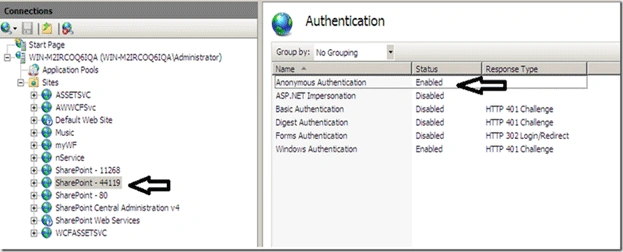
Step 8: Checking anonymous authentication to the SharePoint site
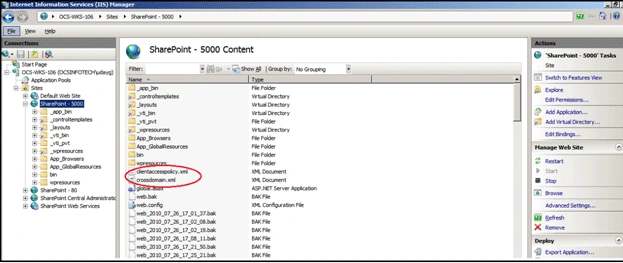
Step 9: Adding ClientAccessPolicy.xml and crossdomain.xml
Step 10: Build, Deploy, and Test Your Service
One of the benefits of the new SharePoint 2010 templates in Visual Studio 2010 is that they now support automatically packaging and deploying your solution as a WSP.
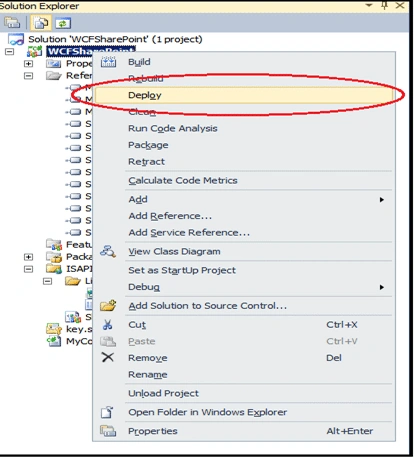
When you are ready to test your custom service, right-click on the project node, then select Deploy from the menu. Your assembly will be automatically deployed to the GAC, and your .SVC file will be deployed to the SharePoint ISAPI folder. When it comes time to deploy to production, you can just pass your WSP file to your SharePoint Administrator and he can easily add your solution to the SharePoint farm.
One of the easiest ways to quickly test if your service is working is to access the service from a browser and verify that it is correctly generating the WSDL for our service (if you are deploying a SOAP service).
Open your browser and browse to:
http://yoursite/_vti...<service>.svc
You need to be sure to include the /MEX at the end since the service being deployed is using a Metadata Exchange Endpoint.
References
vallabhaneni jaipalPosted Sep 3, 2013, 12:16 AM
do we need to implement specific setting in case of HTTPS. "BasicHttpBindingServiceMetadataExchangeEndpointAttribute"
Henry ZhuPosted Sep 21, 2012, 2:45 AM
Thanks, could you elaborate the Step 9: Adding ClientAccessPolicy.xml and crossdomain.xml? thanks in advance
Mahesh ChandPosted Aug 18, 2010, 12:01 PM
Great job Uday. I just started working with Sharepoint 2010 and found your article helpful. Keep up the good work. Cheers!