
SIGN UP MEMBER LOGIN:    
ARTICLE

How to create User Control in ASP.Net

Posted by Lion Articles | ASP.NET Controls in C# March 04, 2010
In this article we will see how to create User Control in ASP.Net.
Reader Level:
Download Files:
 

User control is powerful functionality of ASP.NET. With the help of the user control you can reuse the Design as well as code in the application. Developing User control is similar to developing form in ASP.NET. User control is created in markup file with .ascx extension.

We create two user control one for collect the user information and second for Display the user information.

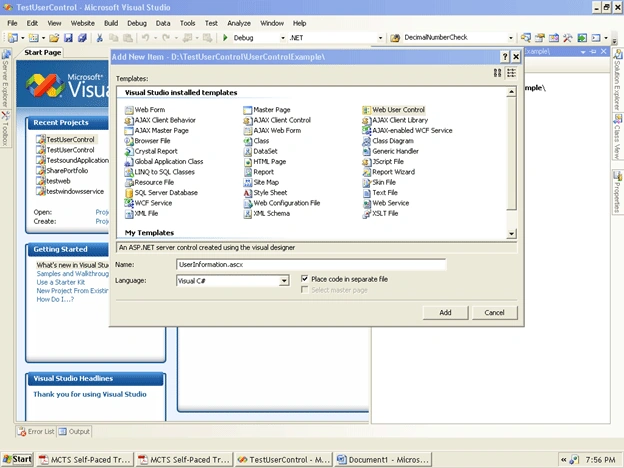
Step 1:  Add the Web user control in your form with the name UserInformation.ascx and UserInformationGrid.ascx.

1.gif

Step 2:  Add the code in Userinformation.ascx

<%@ Control Language="C#" AutoEventWireup="true" CodeFile="UserInformation.ascx.cs" Inherits="UserControl_UserInformation" %>

<table align="center">
    <tr>
        <td colspan="2">
            <asp:Label ID="lblusername" runat="server" ForeColor="Red"></asp:Label>
        </td>
    </tr>
    <tr>
        <td>
            UserName:
        </td>
        <td>
            <asp:TextBox ID="txtusername" runat="server"></asp:TextBox><asp:RequiredFieldValidator
                ID="RequiredFieldValidator1" runat="server"
                ControlToValidate="txtusername">*</asp:RequiredFieldValidator>
        </td>
    </tr>
    <tr>
        <td>
            &nbsp;
        </td>
        <td>
            <asp:Button ID="btnSaveName" runat="server" Text="Save"
                OnClick="btnSaveName_Click" style="height: 26px" />
        </td>
    </tr>
</table>

In Userinformation.ascx.cs file add the code like this.

using System;
using System.Collections;
using System.Configuration;
using System.Data;
using System.Web;
using System.Web.Security;
using System.Web.UI;
using System.Web.UI.HtmlControls;
using System.Web.UI.WebControls;
using System.Web.UI.WebControls.WebParts;
using System.Linq;

public partial class UserControl_UserInformation : System.Web.UI.UserControl
{
    protected void Page_Load(object sender, EventArgs e)
    {
        if (!IsPostBack)
        {
        }
    }
    protected void btnSaveName_Click(object sender, EventArgs e)
    {       
        InsertData();
        Response.Redirect("~/Default.aspx");
    
    private void InsertData()
    {
        Userinfo info = new Userinfo();
        info.UserName = txtusername.Text.Trim();
        using (UserInformationDataContext db = new UserInformationDataContext())
        {
            try
            {
                db.Userinfos.InsertOnSubmit(info);
                db.SubmitChanges();
            }
            catch (Exception ex)
            {
                Response.Write("Error:" + ex.Message);
            }
        }
    }
}

Step 3:   Add the code in UserInformationGrid.ascx.

<%@ Control Language="C#" AutoEventWireup="true" CodeFile="UserInformationGrid.ascx.cs" Inherits="UserControl_UserInformationGrid" %>

<asp:GridView ID="GridView1" runat="server" AllowPaging="True"
    AutoGenerateColumns="False">
    <Columns>
        <asp:BoundField DataField="ID" HeaderText="ID" />
        <asp:BoundField DataField="UserName" HeaderText="UserName" />
    </Columns>
</asp:GridView>

UserInformationGrid.ascx.cs add

using System;
using System.Collections;
using System.Configuration;
using System.Data;
using System.Web;
using System.Web.Security;
using System.Web.UI;
using System.Web.UI.HtmlControls;
using System.Web.UI.WebControls;
using System.Web.UI.WebControls.WebParts;
using System.Linq; 

public partial class UserControl_UserInformationGrid : System.Web.UI.UserControl
{
    protected void Page_Load(object sender, EventArgs e)
    {
        if(!IsPostBack)
        {
            using(UserInformationDataContext db = new UserInformationDataContext())
            {
                var info = from p in db.Userinfos
                           select new {
                               p.ID,
                               p.UserName               
                           }; 
                if (info != null)
                {
                    GridView1.DataSource = info;
                    GridView1.DataBind();
                }
            }
        }
    }
}

Step 4: To add the user control in your page you must add tag

<%@ Register%> . it contain src,TagName,TagPrefix

Your code in the your aspx file like this.

<%@ Page Language="C#" AutoEventWireup="true"  CodeFile="Default.aspx.cs" Inherits="_Default" %>
<%@ Register src="~/UserControl/UserInformation.ascx" TagName="UserInformation" TagPrefix="UserInformation" %>
<%@ Register src="UserControl/UserInformationGrid.ascx" tagname="UserInformationGrid" tagprefix="uc1" %>
<!DOCTYPE html PUBLIC "-//W3C//DTD XHTML 1.0 Transitional//EN" "http://www.w3.org/TR/xhtml1/DTD/xhtml1-transitional.dtd">
<html xmlns="http://www.w3.org/1999/xhtml">
<head runat="server">
    <title>Untitled Page</title>
</head>
<body>
    <form id="form1" runat="server">
    <div>
        <table>
            <tr>
                <td valign="top"> 
                <UserInformation:UserInformation id="UserInformation" runat="server"/>                                     
                </td>
                <td>
                    <uc1:UserInformationGrid ID="UserInformationGrid1" runat="server" />
                </td>
            </tr>
            <tr>
                <td>
                    <asp:PlaceHolder ID="_placeHoldaer" runat="server"></asp:PlaceHolder>
                </td>
            </tr>
        </table>
    </div>
    </form>
</body>
</html>

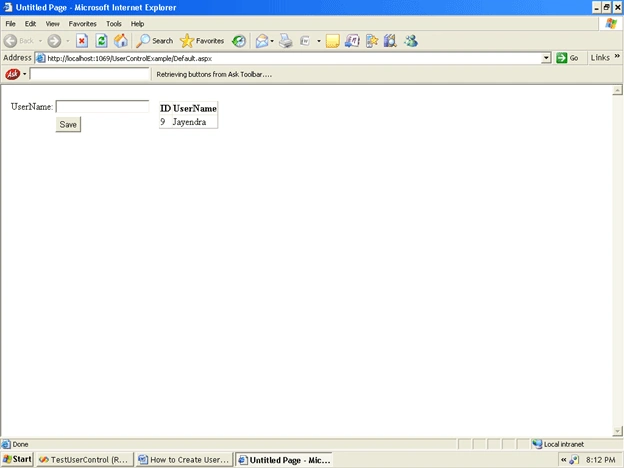
Step 5: Build the application and run the project.

2.gif

Conclusion:

In this article we have seen how to create user control and how to use it in our web forms.

erver'>
Login to add your contents and source code to this article
share this article :
post comment
 

Hi sir can we make .ddl file of that user control so that we can use anywhere and any application. If it is possible then what is the process.kindly inform me. thanx praveen pra.sep01@gmail.com

Posted by Praveen Sinha Feb 08, 2012

Thank You Sir

Posted by Ramu Kondaru Aug 06, 2011
Become a Sponsor
PREMIUM SPONSORS
  • Finally – a virtual platform that delivers next-generation Windows Server 2008 Hyper-V virtualization technology from a managed hosting partner you can truly depend on. Visit www.maximumasp.com/max for a FREE 30 day trial. Hurry offer ends soon. Climb aboard the MaxV platform and take advantage of High Availability, Intelligent Monitoring, Recurrent Backups, and Scalability – with no hassle or hidden fees. As a managed hosting partner focused solely on Microsoft technologies since 2000, MaximumASP is uniquely qualified to provide the superior support that our business is built on. Unparalleled expertise with Microsoft technologies lead to working directly with Microsoft as first to offer IIS 7 and SQL 2008 betas in a hosted environment; partnering in the Go Live Program for Hyper-V; and product co-launches built on WS 2008 with Hyper-V technology.
    ceTE software specializes in components for dynamic PDF generation and manipulation. The DynamicPDF™ product line allows you to dynamically generate PDF documents, merge PDF documents and new content to existing PDF documents from within your applications. Visit DynamicPDF here
Become a Sponsor