

In WPF, the Menu and the MenuItem classes represent a menu and a menu item respectively. A Menu is a collection of menu items with a command associated with each menu item. A menu item may have children menu items called submenus. This article discusses how to work with menus in WPF applications using XAML and C#.
Creating a WPF Menu at Design Time
The Menu element in XAML creates a menu control.
The Name property defines the name of the menu and Height and Width represents the height and width of a menu control.
- <Menu Name="menu1" Height="22" Width="200" />
To position a menu control in a Window, the Margin, HorizontalAlignment and VerticalAlignment properties may be used. The following code sets horizontal, vertical alignments, margin, and background color of a menu control.
- <Menu Height="22" Name="menu1" Width="200" Margin="10, 10, 5, 5" HorizontalAlignment="Left" VerticalAlignment="Top" Background="Chocolate">
- </Menu>
Setting WPF Menu Control Properties
There are three ways to set menu control properties. You may use the Properties windows, set properties in XAML manually, or set properties at run-time using WPF code.
If you right click on the menu control and select Properties menu item, you will see the Properties window same as Figure 1.
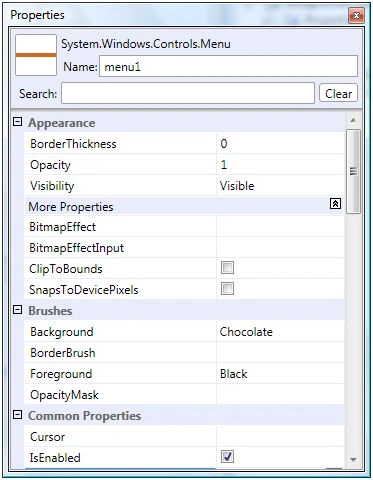
Figure 1. Properties Window
As you can see from Figure 1, you can set all properties of a Menu control through this Window such as border thickness, opacity, bitmap effects, background and foreground colors, alignments, width and height, layouts, and fonts.
Once you set properties in the Properties window, the respective XAML code is written in the XAML file by the designer. For example, I set BorderThickness to 2, BitmapEffect to DropShadowEffect, and Background to Blue as shown in Figure 2.
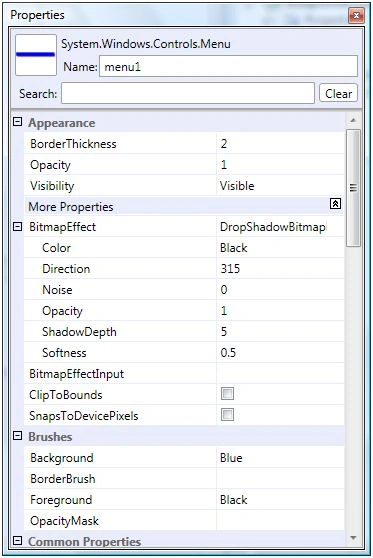
Figure 2. Setting a Menu Control Properties
If you look at the XAML file now, you will see Menu code like below where you can see BorderThickness is set to 2, Background is set to Blue, and Menu.BitmapEffect element is added within the Menu element.
- <Menu Height="22" Name="menu1" Width="200" Margin="10, 10, 5, 5" HorizontalAlignment="Left" VerticalAlignment="Top" Background="Blue" BorderThickness="2">
- <Menu.BitmapEffect>
- <DropShadowBitmapEffect />
- </Menu.BitmapEffect>
- </Menu>
Now, the menu looks like Figure 3.

Figure 3. Menu with blue background and drop shadow effect
Adding WPF Menu Items
Now let's add menu items and sub menus to the menu control. The MenuItem element adds a menu item to the menu control. The following code shows the initial syntax of the MenuItem element. The Header attribute is the name of the MenuItem.
- <MenuItem Header="Menu Item Name " />
A MenuItem can have other MenuItem elements within it as child/sub menus and can go up to several levels. The following code adds three children menu items to first menu item.
- <MenuItem Header="_File">
- <MenuItem Header="_Open" IsCheckable="true" />
- <MenuItem Header="_Close" IsCheckable="true" />
- <MenuItem Header="_Save" IsCheckable="true" />
- </MenuItem>
The output looks like Figure 4.
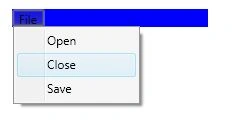
Figure 4. A menu with menu items
A separate is used to separate categories of menu items. We can add a separator to a menu control by using <Separator /> element.
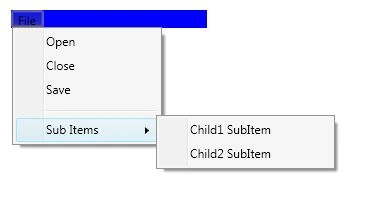
We can also add sub menus and sub menu items using the MenuItem element within parent a MenuItem element. The following code adds a separator and sub menus and sub menu items to the menu.
- <Separator />
- <MenuItem Header="Sub Items">
- <MenuItem Header="Child1 SubItem" IsCheckable="true" />
- <MenuItem Header="Child2 SubItem" IsCheckable="true">
- <MenuItem Header="GrandChild2 SubItem" IsCheckable="true" />
- </MenuItem>
- </MenuItem>
Now, our new output looks like Figure 5.
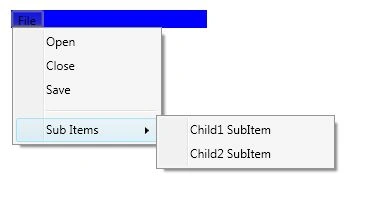
Figure 5. A menu with menu items
Adding Tooltips to a WPF Menu
The MenuItem.ToolTip element adds a tooltip to a menu item. The following code adds a tooltip to the Open menu item.
- <MenuItem Header="_Open" IsCheckable="true">
- <MenuItem.ToolTip>
- <ToolTip> Open a file. </ToolTip>
- </MenuItem.ToolTip>
- </MenuItem>
The output with the tooltip looks like Figure 6.
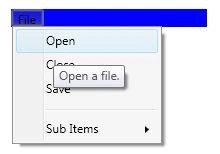
Figure 6.A menu with a tooltip
Adding a CheckBox to a Menu Item
By setting IsCheckable property of a MenuItem to true makes a menu item a CheckBox in front of the header text.
- <MenuItem IsCheckable="true">
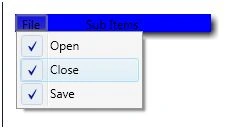
Figure 7
Adding a Keyboard Shortcut to a Menu Item
InputGestureText property is used to add keyboard shortcut to the menu item. The following code adds CTRL+O to a menu item.
- <MenuItem IsCheckable="true" Header="_Open" InputGestureText="Ctrl+O">
You can also add ALT support to a menu item by adding underscore (_) before a character and ALT+character will work. For example, in the previous line of code, _Open menu item can be executed using ALT+O.
Adding an Event Trigger to a MenuItem
The Click event is used to add the menu item click event handler. The following code adds a click event handler for a menu item.
- <MenuItem IsCheckable="true" Header="_Open" Click="MenuItem_Click">
The event handler is defined like following in the code behind. I added a message box when the menu item is clicked.
- privatevoid MenuItem_Click(object sender, RoutedEventArgs e)
- {
- MessageBox.Show("Menu item clicked");
- }
Creating a WPF Menu Control at Run-time
The following code creates a menu and adds menu items dynamically.
- Menu mainMenu = newMenu();
- mainMenu.Background = Brushes.LightGreen;
- mainMenu.Height = 300;
- mainMenu.Width = 200;
- MenuItem item1 = newMenuItem();
- item1.Width = 50;
- item1.Header = "First";
- mainMenu.Items.Add(item1);
- MenuItem item2 = newMenuItem();
- item2.Width = 50;
- item2.Header = "Two";
- item1.Items.Add(item2);
- MenuItem item3 = newMenuItem();
- item3.Width = 50;
- item3.Header = "Third";
- item1.Items.Add(item3);
Listing 1
Added on 9/27/2011
Change WPF Menu Brackground
How about creating a nice gradient background of menu as in Figure 8.

Figure 8
All we need is to set the Background of the Menu item to LinearGradientBrush.
- <Menu.Background>
- <LinearGradientBrush EndPoint="0,1" StartPoint="0,0">
- <GradientStop Color="#FF3A60AD" Offset="0.528" />
- <GradientStop Color="#FF6A85D8" Offset="0.01" />
- <GradientStop Color="#FF3464C4" Offset="1" />
- <GradientStop Color="#FF202E7E" Offset="1" />
- </LinearGradientBrush>
- </Menu.Background>
How to Add multiple menu items horizontally to a WPF Menu
Let's say you need to add menu items horizontally, not vertically. All you need to do is, create your Menu width so all items will fit. And you can set layout of the Grid.
See code Listing 2.
- <Grid x:Name="LayoutRoot">
- <Grid.RowDefinitions>
- <RowDefinition Height="Auto" />
- <RowDefinition Height="*" />
- </Grid.RowDefinitions>
- <Menu Height="38" Name="menu1" Margin="10,10,344,0" VerticalAlignment="Top" BorderThickness="2" Foreground="White" FontSize="16" FontWeight="Bold">
- <Menu.Background>
- <LinearGradientBrush EndPoint="0,1" StartPoint="0,0">
- <GradientStop Color="#FF3A60AD" Offset="0.528" />
- <GradientStop Color="#FF6A85D8" Offset="0.01" />
- <GradientStop Color="#FF3464C4" Offset="1" />
- <GradientStop Color="#FF202E7E" Offset="1" />
- </LinearGradientBrush>
- </Menu.Background>
- <Menu.BitmapEffect>
- <DropShadowBitmapEffect />
- </Menu.BitmapEffect>
- <MenuItem Header="Tools" IsCheckable="true">
- <MenuItem.Icon>
- <Image Source="Tools.png" Width="20" Height="20" />
- </MenuItem.Icon>
- </MenuItem>
- <MenuItem Header="Settings" IsCheckable="true" Foreground="Orange" FontSize="16">
- <MenuItem.Icon>
- <Image Source="Settings.png" Width="20" Height="20" />
- </MenuItem.Icon>
- </MenuItem>
- <MenuItem Header="Security" IsCheckable="true" Foreground="White" FontSize="16">
- <MenuItem.Icon>
- <Image Source="Security.png" Width="20" Height="20" />
- </MenuItem.Icon>
- </MenuItem>
- <MenuItem Header="Database" IsCheckable="true" Foreground="LightGreen" FontSize="16">
- <MenuItem.Icon>
- <Image Source="Database.png" Width="20" Height="20" />
- </MenuItem.Icon>
- <MenuItem.Background>
- <ImageBrush ImageSource="Database.png" Stretch="Fill" />
- </MenuItem.Background>
- </MenuItem>
- </Menu>
- </Grid>
Set WPF Menu Item Background to an Image
One of the readers how to set the MenuItem background to an Image.
We can do this by setting the Background property of the MenuItem to an ImageBrush. The ImageBrush takes ImageSource as the full path of an image and we can also set the Stretch property to Fill.
- <MenuItem Header="Database" IsCheckable="true" Foreground="LightGreen" FontSize="16">
- <MenuItem.Icon>
- <Image Source="Database.png" Width="20" Height="20" />
- </MenuItem.Icon>
- <MenuItem.Background>
- <ImageBrush ImageSource="Database.png" Stretch="Fill" />
- </MenuItem.Background>
- </MenuItem>
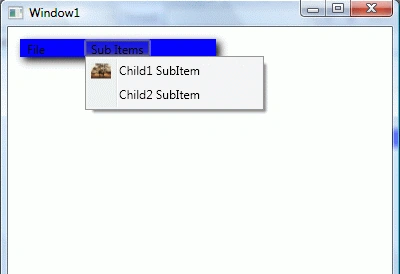
How to add an Image to a WPF Menu Item.
This code adds an icon image in front of the menu item header text.
- <MenuItem Header="Child1 SubItem" IsCheckable="true">
- <MenuItem.Icon>
- <Image Source="Tree.jpg" Width="20" Height="20" />
- </MenuItem.Icon>
- </MenuItem>
The output looks like this,
Summary
In this article, I discussed how we can use Menu and MenuItem controls to create menus in a WPF application.We also saw how we can set menu properties, add menu items at design-time as well as at run-time and add menu item event handlers.
Manuel MangualPosted Jun 26, 2020, 10:46 AM
Any idea on how to go about changing the background color in the icon area? and also, how do I change that vertical line separator that exists between the icon space and the header text?
Joel CapellanPosted Mar 11, 2020, 9:28 AM
Hi there. Novice to C#. May ask what could be the problem if I get "Value does not fall within the expected range." error message in the line <Image Source="Tree.jpg" />? Thanks in advanced for any answers.
Mansur DamatePosted Aug 7, 2019, 5:25 AM
How to Create Figure 1 property window.
Rushi MehtaPosted Sep 20, 2018, 11:37 PM
Nice Article Explain in very simple language...!
SubashPosted Feb 16, 2017, 8:03 PM
Mr.mukesh is right veryeasy for beginners
NehaPosted Jan 17, 2017, 4:58 AM
Nice Article.........................
Saineshwar BageriPosted Sep 20, 2014, 11:49 PM
Nice article sir
Vithal WadjePosted Sep 19, 2014, 3:29 PM
super
Manju lata YadavPosted Sep 19, 2014, 10:01 AM
Short and simple
Mukesh Kumar TiwariPosted Sep 14, 2013, 4:12 AM
Very good for beginners like me...Good example mahesh sir, Thanks.....
Mahesh ChandPosted Dec 14, 2012, 12:41 PM
Is your original menu item has an image or just text? On Mouseover event of menu, you will have to change the MenuItem that will display an image. You will need to create this dynamically OR you can also show/hide menu items. Both menu items will execute the same menu click event handler.
Nnn PppPosted Apr 30, 2012, 5:20 AM
How to Set Menu Item Mouseover Background to an Image? Please help.
hai nguyeneditedPosted Feb 28, 2012, 11:16 PMEdited Feb 28, 2012, 11:17 PM
Normal in C#, we can take an image from debug folder of project. Example: string link = Application.StartupPath + @"\database.png". In wpf, what do I have to do? Thanks.
Ivan MouraPosted Sep 14, 2011, 12:11 PM
If i want implement a menu with a shortcut key combination, (i.e. ctrl + s)?
Wayne LeiserPosted Nov 19, 2010, 2:56 PM
Thank you for your quick response. Yes 2010 will not allow you to utilize "true". In fact, when I attempt to it gives me errors in the XAML code. I must utilize "True". I will finish your article later. You have really helped me out. The book I am reading talks about Windows Forms and not WPF so I am attempting to convert what I am reading all over to WPF on the fly. I read the ALT tags with an _ once before I think in the book I am reading now but it didn't click. Thanks for the reminder. You may want to put that in to the article so other people like me don't think it is a requirement to have it in there. I would also let them know that you can do this if you want: <MenuItems name="Fa_vorites"></MenuItems> Then the v will be the ALT key. That was awesome when I saw that. Thanks again.
Wayne LeisereditedPosted Nov 19, 2010, 12:51 PMEdited Nov 19, 2010, 2:05 PM
Mahesh, I posted above where the "true" is at and why that is supposed to be "True" and not "true". I have some other questions however. 1. Is there a reason for using the _Open, _File, _, etc etc instead of using Open, File, etc etc without the underscore? 2. Is there a specific reason for having the Open, File and Save set to IsCheckable or was this just utilized as an example that you could do this if you wanted to? Note: None of the pictures are showing up for me now. Figures 1 - 7 are not showing up whilst the Article Extension does show up. I tried to right click and show image to no avail.
Wayne LeisereditedPosted Nov 19, 2010, 12:50 AMEdited Nov 19, 2010, 12:08 PM
This was exactly what I was looking for to add menus in WPF instead of WAF. Thank You. However, I found a typo: "We can also ass sub menus" is supposed to be "We can also add sub menus". Since C# is case sensitive should the following line: (IsCheckable="true") be (IsCheckable="True") The following is where you can find the IsCheckable="true". This should be IsCheckable="True". This is because C# is case sensitive. If you search your article for IsCheckable then you should come to each one that = "true". Simply change it to "True" to be correct. A MenuItem can have other MenuItem tags within it as child/sub menus and can go up to several levels. The following code adds three children menu items to first menu item. <MenuItem Header="_File"> <?xml:namespace prefix = o ns = "urn:schemas-microsoft-com:office:office" /><o:p></o:p> <MenuItem Header="_Open" IsCheckable="true"/><o:p></o:p> <MenuItem Header="_Close" IsCheckable="true"/><o:p></o:p> <MenuItem Header="_Save" IsCheckable="true"/> </MenuItem> <o:p></o:p> The output looks like Figure 4. AND By setting IsCheckable property of a MenuItem to true makes a menu item to a CheckBox in front of the header text. <MenuItem IsCheckable="true">
dong boPosted Mar 31, 2010, 2:34 AM
A good article for beginner.thanks a lot .
rutvij pandyaPosted Nov 6, 2008, 7:41 AM
hi .. your article is very nice. it contains lot many things about menu settings. My question is : how can we put an image as a background of menuitem? I tried through MenuItemTemplate but didn't get exact thing...