

Introduction
A graphics path is a set of connected lines, curves, and other simple graphics objects, including rectangles, ellipses, and text. A path works as a single graphics object, so an effect applied to the graphics path will be applied to all the components of the path. For example, if a graphics path contains a line, a rectangle, and an ellipse and we draw the path using a red stroke, all three components (line, rectangle, and ellipse) of the graphics path will be drawn with the red stroke.
The Path object represents a path shape and draws a path. The Path object draws both closed and open paths. A closed path is a shape that has the same start and end points and an open path is a shape that has different start and end points.
The Fill property fills the interior of an ellipse. The Stroke property sets the color and StrokeThickness represents the width of the outer line of an ellipse.
The Data property of the Path object defines a shape or a collection of shapes in form of Geometry.
The following code snippet creates an arc shape using a path.
- <Path Stroke="Black" StrokeThickness="4" Data="M 80,200 A 100,50 45 1 0 100,50" />
The output looks like Figure 8.

Before I discuss paths any further, we need to understand the Geometry class, its members, and its related classes.
Understanding Geometry
The Geometry class that defines the geometry of a shape plays a vital role in creating paths. This class cannot be used directly but used in the forms of its derived classes LineGeometry, RectangleGeometry, EllipseGeometry, GroupGeometry, PathGeometry, CombinedGeometry, and StreamGeometry. These geometry objects can be used for clipping, hit-testing, and rendering complex shapes.
The LineGeometry class represents the geometry of a line. The StartPoint and EndPoint properties of the LineGeometry class define the start and end points of a line. The following code snippet creates geometry of a line.
- <LineGeometry StartPoint="20,50" EndPoint="200,50" />
The RectangleGeometry class represents the geometry of a rectangle. The Rect property of the RectangleGeomerty defines the starting points, width, and height of a rectangle. The following code snippet creates geometry of a rectangle.
- <RectangleGeometry Rect="80,167 150 30"/>
The EllipseGeometry class represents the geometry of an ellipse. The Center property of the EllipseGeomerty defines the center of an ellipse. The RadiusX and RadiusY define the width and height of an ellipse. The following code snippet creates geometry of an ellipse.
- <EllipseGeometry Center="80,150" RadiusX="50" RadiusY="50" />
The GeometryGroup is creates a composite geometry that is a combination of multiple Geometry objects.
The code listed in Listing 8 creates a GeometryGroup with three geometry shapes – a line, an ellipse, and a rectangle and sets the Data property of a path.
- <Path Stroke="Black" StrokeThickness="3" Fill="Blue">
- <Path.Data>
- <GeometryGroup>
- <LineGeometry StartPoint="20,200" EndPoint="300,200" />
- <EllipseGeometry Center="80,150" RadiusX="50" RadiusY="50" />
- <RectangleGeometry Rect="80,167 150 30" />
- </GeometryGroup>
- </Path.Data>
- </Path>
Listing 8
The output of Listing 8 looks like Figure 9.
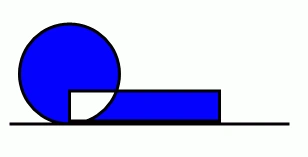
Figure 9. A composite shape
The FillRule property of the GeometryGroup class specifies how the intersecting areas of geometry objects in a GeometryGroup are combined. It has two values – EvenOdd and NonZero. The default value of the FillRule is EvenOdd. In this case, the intersecting area of two shapes is not filled. In case of NonZero, the interesting area of two shapes is filled. By setting the FillRule to NonZero generates Figure 10.
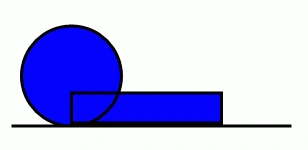
The code listed in Listing 9 creates Figure 9 dynamically. As you can see from Listing 9, we create a LineGeometry, an EllipseGeometry, and a RectangleGeometry and then we create a GroupGeometry and add all three geometries to the GroupGeometry. After that, we simply set the Data property of Path to the GroupGeometry.
- ///<summary>
- /// Creates a blue path with black stroke
- ///</summary>
- publicvoid CreateAPath() {
- // Create a blue and a black Brush
- SolidColorBrush blueBrush = newSolidColorBrush();
- blueBrush.Color = Colors.Blue;
- SolidColorBrush blackBrush = newSolidColorBrush();
- blackBrush.Color = Colors.Black;
- // Create a Path with black brush and blue fill
- Path bluePath = newPath();
- bluePath.Stroke = blackBrush;
- bluePath.StrokeThickness = 3;
- bluePath.Fill = blueBrush;
- // Create a line geometry
- LineGeometry blackLineGeometry = newLineGeometry();
- blackLineGeometry.StartPoint = newPoint(20, 200);
- blackLineGeometry.EndPoint = newPoint(300, 200);
- // Create an ellipse geometry
- EllipseGeometry blackEllipseGeometry = newEllipseGeometry();
- blackEllipseGeometry.Center = newPoint(80, 150);
- blackEllipseGeometry.RadiusX = 50;
- blackEllipseGeometry.RadiusY = 50;
- // Create a rectangle geometry
- RectangleGeometry blackRectGeometry = newRectangleGeometry();
- Rect rct = newRect();
- rct.X = 80;
- rct.Y = 167;
- rct.Width = 150;
- rct.Height = 30;
- blackRectGeometry.Rect = rct;
- // Add all the geometries to a GeometryGroup.
- GeometryGroup blueGeometryGroup = newGeometryGroup();
- blueGeometryGroup.Children.Add(blackLineGeometry);
- blueGeometryGroup.Children.Add(blackEllipseGeometry);
- blueGeometryGroup.Children.Add(blackRectGeometry);
- // Set Path.Data
- bluePath.Data = blueGeometryGroup;
- LayoutRoot.Children.Add(bluePath);
- }
Listing 9
If we need to generate a single geometry, we do not need to use a GeometryGroup. We can simply set a geometry as the Data of the Path. The following code snippet sets an EllipseGeometry as the Data property of a Path.
- <Path Stroke="Black" StrokeThickness="3" Fill="Blue">
- <Path.Data>
- <EllipseGeometry Center="80,150" RadiusX="50" RadiusY="50" />
- </Path.Data>
- </Path>
gaurav raiPosted May 12, 2018, 5:58 AM
I have pointscollection ,how do i fill inside that path in 3D...?
sures ctPosted Aug 8, 2017, 5:31 AM
Nice article..c-sharpcorner is a very good platform to learn the concepts...thanks
Hanumant SinghPosted Jan 12, 2016, 3:40 AM
r u know how to add a text in a path or not
Johann MogensenPosted Aug 8, 2014, 5:58 AM
Hello, I know this is an old post, but I have troubles when I insert geometries into a geometrygroup it shows nothing. This, I think, is because the bounds are 0, but I cannot see you changing these? Am I missing something?