Printing is one of the most required features in a business application. Silverlight comes with a print API that can be used to print a Silverlight page, a Silverlight control and any part of a Silverlight user interface.
In this application, I am going to show how to make a printout of our UI in Silverlight. This is my XAML code which will create my UI to print. Here I have a print button that when clicked, a print dialog box appears.
We can also take the print of a part of our UI by passing the Id of that area like Grid/Canvas etc.
args.PageVisual = LayoutRoot; //Id of control to print
<UserControl x:Class="PrintInSilverlight.MainPage"
xmlns="http://schemas.microsoft.com/winfx/2006/xaml/presentation"
xmlns:x="http://schemas.microsoft.com/winfx/2006/xaml"
xmlns:d="http://schemas.microsoft.com/expression/blend/2008"
xmlns:mc="http://schemas.openxmlformats.org/markup-compatibility/2006"
mc:Ignorable="d"
d:DesignHeight="300" d:DesignWidth="400" Width="400" Height="300" xmlns:sdk="http://schemas.microsoft.com/winfx/2006/xaml/presentation/sdk">
<Grid x:Name="LayoutRoot" Background="White">
<Button Content="Submit" Height="23" HorizontalAlignment="Left" Margin="110,141,0,0" Name="button1" VerticalAlignment="Top" Width="75" />
<TextBox Height="23" HorizontalAlignment="Right" Margin="0,57,170,0" Name="textBox1" VerticalAlignment="Top" Width="120" />
<TextBlock Height="23" HorizontalAlignment="Left" Margin="29,57,0,0" Name="textBlock1" Text="Name" VerticalAlignment="Top" />
<TextBlock Height="23" HorizontalAlignment="Left" Margin="29,103,0,0" Name="textBlock2" Text="Address" VerticalAlignment="Top" />
<TextBox Height="23" HorizontalAlignment="Left" Margin="110,103,0,0" Name="textBox2" VerticalAlignment="Top" Width="120" />
<Button Content="Print" Height="23" HorizontalAlignment="Left" Margin="301,12,0,0" Name="button2" VerticalAlignment="Top" Width="75" Click="button2_Click" />
</Grid>
</UserControl>
This is .cs code
using System;
using System.Collections.Generic;
using System.Linq;
using System.Net;
using System.Windows;
using System.Windows.Controls;
using System.Windows.Documents;
using System.Windows.Input;
using System.Windows.Media;
using System.Windows.Media.Animation;
using System.Windows.Shapes;
using System.Windows.Printing;
namespace PrintInSilverlight
{
public partial class MainPage : UserControl
{
public MainPage()
{
InitializeComponent();
}
private void button2_Click(object sender, RoutedEventArgs e)
{
// create an instance of PrintDocument
PrintDocument document = new PrintDocument();
// tell the API what to print
document.PrintPage += (s, args) =>
{
args.PageVisual = LayoutRoot;
};
document.Print("Print In Silverlight");
}
}
}
When you run application UI will look like this.
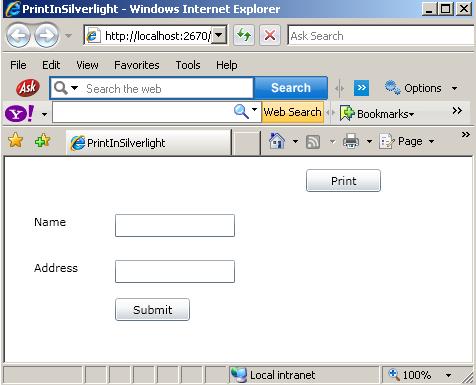
Image 1.
When we click on print button.
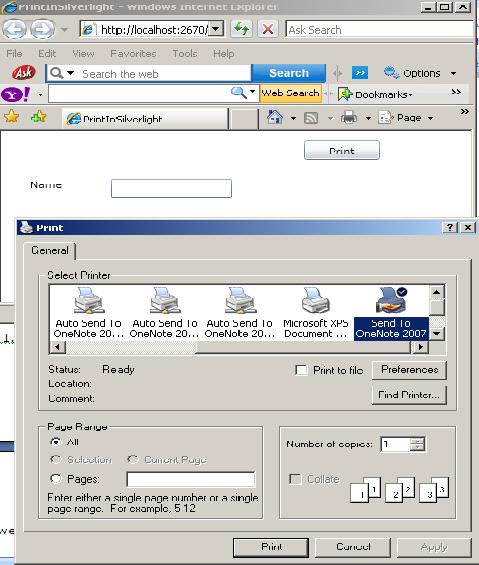
Image 2.
Here are some more printing related articles.
Printing in Silverlight 4