Before reading this document, I suggest you read the following two articles
In this article, I will discuss how to use delegates and events. I will start with following figure
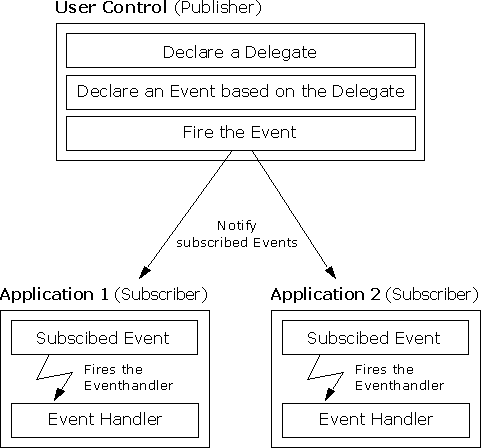
Generally if we create a usercontrol, we create an event and subscribe to the event in our aspx page. To simplify, I will create one page that consists of two usercontrols. One usercontrol consists of a list of categories and a button. Another usercontrol consists of a gridview to show the list of products related to selected category. We can do this in one page but to make you understand, I took this simple example and segregated it into two usercontrols.
I prefer to use dbml class for data access which will generate all the entities from database quickly. So I took Northwind database and Categories/Products table.
What we want to deliver is, user selects category from dropdownlist and click the button and it will show the list of products under the category in gridview. The important point is how we wire up these two usercontrols and make them communicate between each other.
Let's create first usercontrol.
The ascx code would be very simple like following
<table>
<tr>
<td align="left">Select Category </td>
<td align="left">
<asp:DropDownList ID="ddlCategory" runat="server" AppendDataBoundItems="True">
<asp:ListItem Value="-1">Select</asp:ListItem>
</asp:DropDownList>
</td>
<td align="right"><asp:Button ID="btnShow" runat="server" Text="Show Products" onclick="btnShow_Click" /></td>
</tr>
</table>
Come to code-behind for this.
First we will create one property that will get/set the list of categories.
// Property to hold all the list of Categories
public IList<Category> ListOfCategory { get; set; }
Then we set the Category dropdownlist with this property on Page_Load event.
protected void Page_Load(object sender, EventArgs e)
{
try
{
if (!IsPostBack)
{
this.ddlCategory.DataSource = ListOfCategory;
this.ddlCategory.DataTextField = "CategoryName";
this.ddlCategory.DataValueField = "CategoryID";
this.ddlCategory.DataBind();
}
}
catch (Exception exc)
{
Response.Write(exc.Message);
}
}
As in the code, if we set the ListOfCategory property and call the Page_Load method, the dropdownlist box will be filled with a list of categories.
Now the button click event. We will write one delegate, an event of type delegate and publish this event on the button_click event. This will cause to bind any method outside of this usercontrol but the prerequisite is to maintain the same method signature like defined delegate. Also before writing delegate, we will write a custom EventArgs class which will hold the selected category.
public class SelectedCategoryEventArgs:EventArgs
{
public int SelectedCategory { get; set; }
public SelectedCategoryEventArgs(int selectedCategory)
{
SelectedCategory = selectedCategory;
}
}
Next, we declare the delegate and an event of defined delegate type
public delegate void _delegateShowProducts(object sender,SelectedCategoryEventArgs e);
public event _delegateShowProducts OnShowProducts;
After that, we publish this event on button_click event
protected void btnShow_Click(object sender, EventArgs e)
{
try
{
OnShowProducts(this, new SelectedCategoryEventArgs(Convert.ToInt16(this.ddlCategory.SelectedValue)));
}
catch (Exception exc)
{
Response.Write(exc.Message);
}
}
That's it. We have completed the implementation of the first usercontrol.
Now, we will create the second usercontrol consisting of a gridview only, which will show the list of products based on selected category.
The ascx code would be very simple like
<asp:GridView ID="grdProducts" runat="server">
</asp:GridView>
The code-behind will contain one property which helps to get/set the list of products.
public IList<Product> ListOfProducts { get; set; }
Next, we will define one method which will bind the ListOfProducts property with the gridview.
public void ShowProducts()
{
try
{
this.grdProducts.DataSource = ListOfProducts;
this.grdProducts.DataBind();
}
catch (Exception exc)
{
Response.Write(exc.Message);
}
}
That's it. We have completed the implementation of the second usercontrol.
Next task is to put these two usercontrols in an aspx page. So the aspx code looks like
<body>
<form id="form1" runat="server">
<div>
<uc1:ucCategorySelection ID="ucCategorySelection1" runat="server" />
</div>
<hr />
<div>
<uc2:ucShowProducts ID="ucShowProducts1" runat="server" />
</div>
</form>
</body>
After that, we need to wire up two usercontrols. We will subscribe to the event defined in button_click event of the first usercontrol with a method defined in second usercontrol using following code
ucCategorySelection1.OnShowProducts+=new UserControls.ucCategorySelection._delegateShowProducts(ucCategorySelection1_OnShowProducts);
Remember to put this delegate declaration in the page_load event so that everytime it will subscribe with the method.
The method that is called by eventhandler, would contain following code
public void ucCategorySelection1_OnShowProducts(object sender,SelectedCategoryEventArgs e)
{
try
{
using (NorthwindDataContext _context = new NorthwindDataContext())
{
var query = from _product in _context.Products
where _product.CategoryID == e.SelectedCategory
select _product;
IList<Product> _products = query.ToList<Product>();
ucShowProducts1.ListOfProducts = _products;
ucShowProducts1.ShowProducts();
}
}
catch (Exception exc)
{
Response.Write(exc.Message);
}
}
In the above code, we are getting the selected category from SelectedCategoryEventArgs class and pass this categoryID in LINQ to SQL query to get the list of products. Then we set the ListOfProducts property to set the list of products and call the ShowProducts methods which will bind the gridview.
Next task is to set the list of category. We will use following code
protected void Page_Load(object sender, EventArgs e)
{
if (!IsPostBack)
{
using (NorthwindDataContext _context = new NorthwindDataContext())
{
var query = from _category in _context.Categories
select _category;
IList<Category> _categories = query.ToList<Category>();
ucCategorySelection1.ListOfCategory = _categories;
}
}
}
The above code will bring list of categories and set it through ListOfCategory property.
That's it. We are done. In summary, we are getting list of categories which we set through a property. Now at first usercontrol's page_load event, the category dropdownlist populates.
Then when we click on button, an eventhandler associated with the event will fire, which brings the list of products and bind the product list with gridview.
In the above example, you never find any dependency in the code. In order to run the example, you need to have SQL Server Northwind database in your machine and update the web.config with your connectionstring.
<connectionStrings>
<add name="NorthwindConnectionString" connectionString="Data Source=.\sqlexpress;Initial Catalog=Northwind;Integrated Security=True"
providerName="System.Data.SqlClient" />
</connectionStrings>