
Introduction
Prerequisites
“Gdevelop” Software Environment version 4.0 (Free).
Exercise 1

After condition choose platform and click on->Native platform
Click->Open Empty Project, Create a new empty project.

New Scene
Open default conditions.
Scene->Insert Object
Events->Construct event conditions.

We need to go to the left side project manager.
See New Scene conditions->Right click. After that a window will appear; change background color->after that click Ok.

See that given template background is applied:

Exercise 3
Open scene condition, Right click on->window stage.
Dialog box will appear and then, select-> insert new object.

Click on->insert object.

Open object type window, Select->3D box object. After Click->Ok,
Project preview on the below template:

Again, you right click on->Window Stage, Select-> Inserting a new object

Dialog box will open by Default, Select->Sprite.
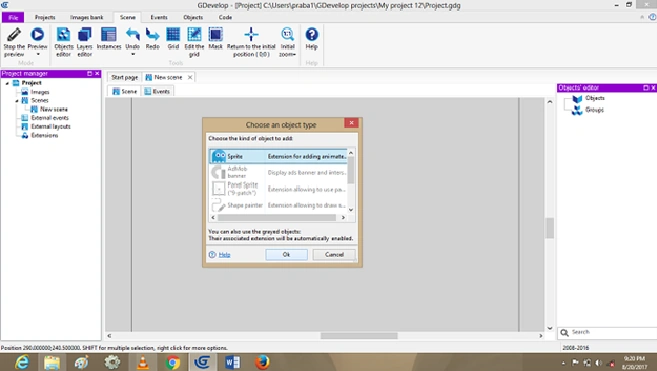
Click on->Sprite object, Default open dialog box, Edit player object, images to add in the Scene Layer.

Right Click on->Player object, windows will appear and then you'll see the editor.

Exercise 5 - Adding Behaviors
Right Click on->3D box container, Select->Add a Behavior object.
Dialog box will appear, Choose Behavior Select->Platform. After Click on->Ok


Again, Right Click on->Player object, Select Behavior->Platform Character. And then Click on->Ok….

The Output can be displayed.
Finally, your project can run, Click on->Preview create a 3D box container


Summary
I hope you understood how to build a 3D box Container in Gdevelop Software. Thanks for Reading…….
Hadshana KamalanathanPosted Jul 22, 2018, 4:15 AM
Good one...