

This blog will help you to identify why documents are opening in the Read-Only mode in a particular library from the SharePoint Application.
We have all come across this kind of issue once or twice; i.e., whenever a user is trying to open a document from the library, it opens in read-only mode.
Whenever this kind of issue occurs, the first symptom would be that it will prompt for the login when the user tries to open the document in a client application and then, it will open the file in read-only mode. So, the easiest way to find whether a document library is converted into the read-only mode is to try and sync that library with your local machine via OneDrive for Business.
In my case, I have reproduced the read-only issue in my demo library and all documents are opening in read-only mode. So, I am going to find whether my document library is changed into the Read-only mode or not.
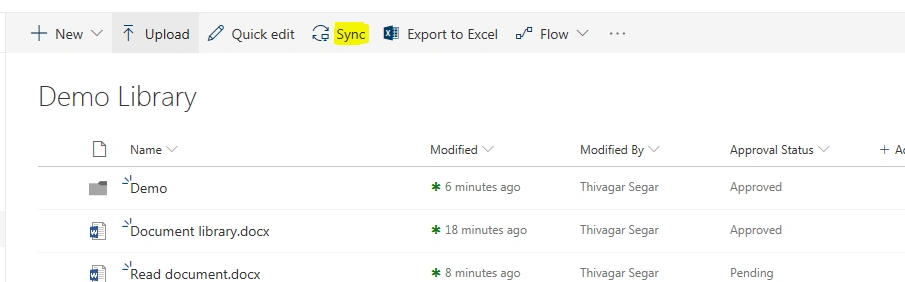
I am just clicking the sync option to enable the synchronization with SharePoint library to my local system.
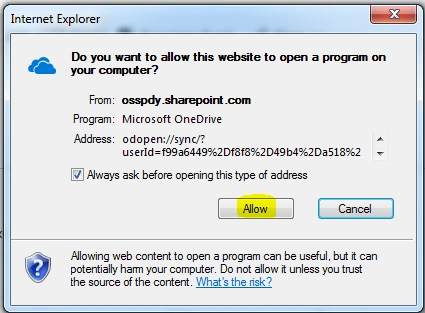
It will prompt you to get access to your local system; just click "Allow".
In the below picture, you can see the highlighted text. “The site is read-only. You can’t make any changes to file or folder on this site”. Once you identify this message, you can cancel the synchronization.
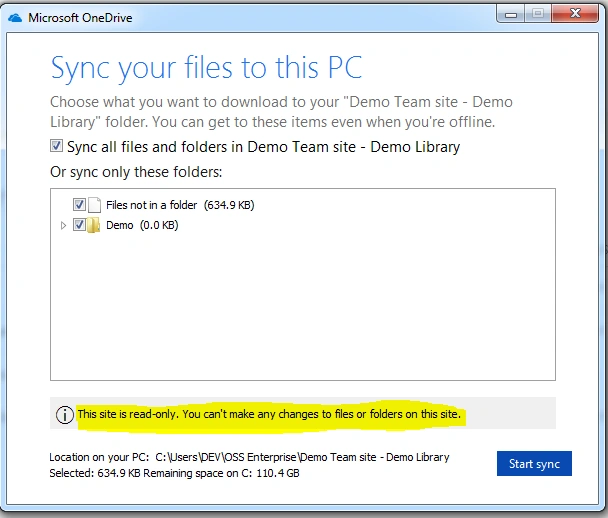
This means my library is converted in read-only mode.
Here are some possibilities for this occurrence.
- The user may create some extra columns where the content type is associated with a document library.
- User may upload the documents in a bulk way like drag and drop, so the required columns may not be filled.
- Some workflow may cause this problem.
These are the issues I have faced in my past. If your issue is not related to this, then you can get some more ideas on the internet.
Join the conversation! Your thoughts help the community grow.