
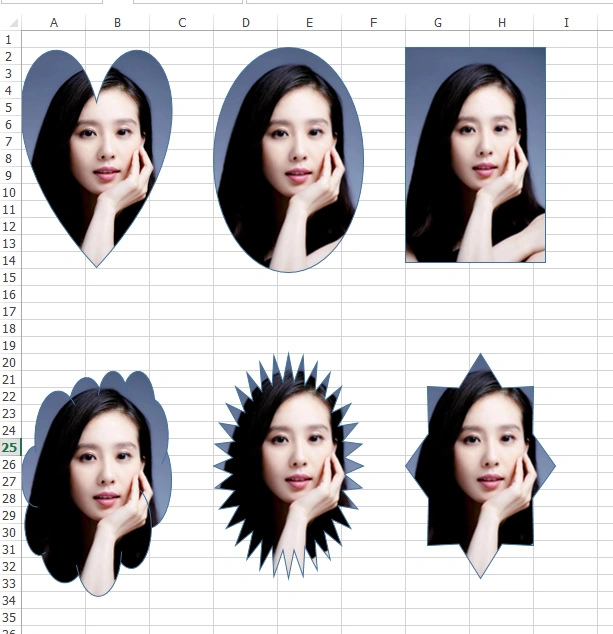
In this article, I will show you how to display images with irregular shapes, such as a love heart outline, eclipse outline, and a cloud outline etc. I just want to show others that our software developers are a very romantic bunch. I toyed with the idea of leaving this post to coincide with Valentines’ Day but I decided that publishing it now would give people a whole one and half months to work on some new and interesting variations upon this theme.
Drawing a custom shape ImageView is quite simple using Spire.XLS. Before we start drawing the ImageView, we only need to add Spire.Xls.dll as the reference to our application. Firstly, we need to create an MS Excel workbook object and get the first worksheet. There are the three worksheets by default.
- Workbook workbook = new Workbook();
- Worksheet sheet = workbook.Worksheets[0];
- //Add a heart shape
- IPrstGeomShape heart = sheet.PrstGeomShapes.AddPrstGeomShape(2, 1, 150, 220, PrstGeomShapeType.Heart);
- //Fill the heart with picture
- heart.Fill.CustomPicture(Image.FromFile("pic.jpg"),"pic.jpg");
- heart.Fill.FillType = ShapeFillType.Picture;

After adding the shapes, save the document to the file.
- workbook.SaveToFile("Addheart.xlsx", ExcelVersion.Version2013);
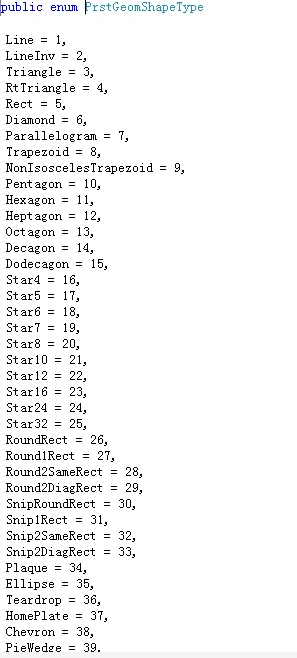
- using System.Drawing;
- using Spire.Xls;
- using Spire.Xls.Core;
- Workbook workbook = new Workbook();
- Worksheet sheet = workbook.Worksheets[0];
- //Add a heart shape
- IPrstGeomShape heart = sheet.PrstGeomShapes.AddPrstGeomShape(2, 1, 150, 220, PrstGeomShapeType.Heart);
- //Fill the heart with picture
- heart.Fill.CustomPicture(Image.FromFile("pic.jpg"),"pic.jpg");
- heart.Fill.FillType = ShapeFillType.Picture;
- //Add an ellipse shape
- IPrstGeomShape ellipse= sheet.PrstGeomShapes.AddPrstGeomShape(2, 4, 150, 225, PrstGeomShapeType.Ellipse);
- ellipse.Fill.CustomPicture(Image.FromFile("pic.jpg"), "pic.jpg");
- ellipse.Fill.FillType = ShapeFillType.Picture;
- //Add a rectangle shape
- IPrstGeomShape rec = sheet.PrstGeomShapes.AddPrstGeomShape(2, 7, 140, 215, PrstGeomShapeType.Rect);
- rec.Fill.CustomPicture(Image.FromFile("pic.jpg"), "pic.jpg");
- rec.Fill.FillType = ShapeFillType.Picture;
- //Add a cloud shape
- IPrstGeomShape cloud = sheet.PrstGeomShapes.AddPrstGeomShape(21, 1, 150, 225, PrstGeomShapeType.Cloud);
- cloud.Fill.CustomPicture(Image.FromFile("pic.jpg"), "pic.jpg");
- cloud.Fill.FillType = ShapeFillType.Picture;
- //Add a star shape
- IPrstGeomShape star = sheet.PrstGeomShapes.AddPrstGeomShape(20, 4, 150,225, PrstGeomShapeType.Star32);
- star.Fill.CustomPicture(Image.FromFile("pic.jpg"), "pic.jpg");
- star.Fill.FillType = ShapeFillType.Picture;
- //Add a star shape
- IPrstGeomShape star8 = sheet.PrstGeomShapes.AddPrstGeomShape(20, 7, 150, 225, PrstGeomShapeType.Star8);
- star8.Fill.CustomPicture(Image.FromFile("pic.jpg"), "pic.jpg");
- star8.Fill.FillType = ShapeFillType.Picture;
- //Save the file
- workbook.SaveToFile("AddShapes.xlsx", ExcelVersion.Version2013);
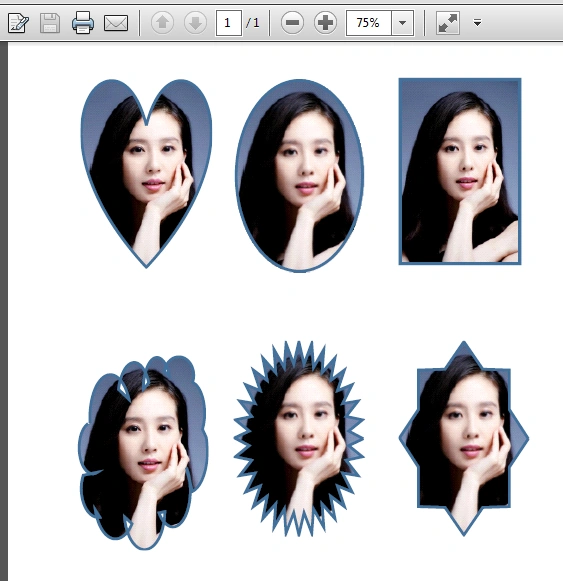
When we want to show these ImageViews to others, the PDF format is much better. It can’t be changed easily and now, I will show you how to save the Excel to PDF.
- //load the sample document
- Workbook workbook = new Workbook();
- workbook.LoadFromFile("Addshapes.xlsx", ExcelVersion.Version2013);
- //Save the file
- workbook.SaveToFile("ExcelToPDF.pdf", FileFormat.PDF);
Join the conversation! Your thoughts help the community grow.