

Introduction
SharePoint Online Modern pages have header image banners in all modern pages, (i.e., Communication or Team Sites.) The header image banner needs a background image or text, takes up almost 40% of the page, and furthermore, we can’t remove this section using UI.
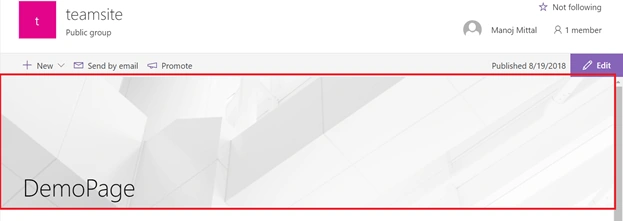
If you want to turn this section ON or OFF, it is possible using PnP PowerShell command. Basically, it allows us to change the page layout from Article to Home. The homepage layout doesn’t have a header image banner section.
Remove the Header Image Banner Section
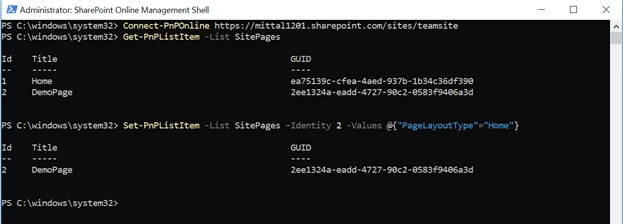
Open SharePoint Online Management Shell and run the below command in sequence.
- # Connect to the site
- Connect-PnPOnline https://mittal1201.sharepoint.com/sites/teamsite
- # List all pages, and find the id of the modern page
- Get-PnPListItem -List SitePages
- # Change layout from "Article" to "Home" to remove top banner
- Set-PnPListItem -List SitePages –Identity <id> -Values @{"PageLayoutType"="Home"}
If an issue occured with Connect to the Site using PnP Command, you can use "-UseWebLogin" parameter. It will prompt via browser to validate and connect with SPO.
Screenshot for your reference.
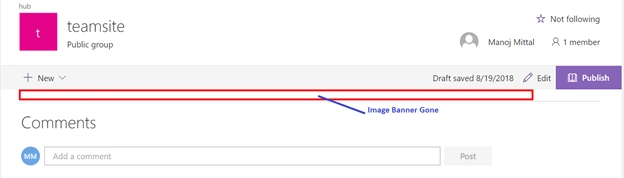
After executing this command, refresh the page. You will not find the header image banner.
Happy Coding.
Raju PrajapatiPosted Feb 16, 2020, 9:20 AM
It's Great!
Christine SestiPosted Dec 15, 2019, 5:15 AM
This works great!! One thing to ask... For the connection to PnPOnline, can you update the connection string to read "Connect-PnPOnline -Url https://URL -UseWebLogin" Had issues connecting until I found this article: https://github.com/SharePoint/PnP-PowerShell/issues/1126
Vikash KumarPosted May 14, 2019, 2:40 PM
Hello, Thanks for the solution. I am facing a strange issue after I convert a page from article to home. The page displays as expected in desktop browsers. However in the sharepoint app, all the pages display the contents of original homepage. Is there any fix? Thanks