

Introduction
Startup Menu
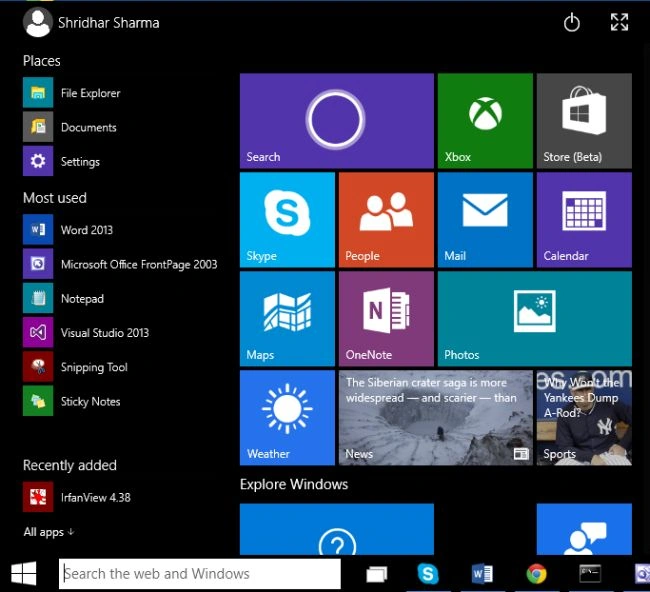
Command Prompt
As was said about the incarnation of the Command Prompt, we can enable keyboard shortcuts. When I install Windows 10, the keyboard shortcuts were enabled by default. If not, we can enable control of key shortcuts in Windows 10.
Let's play with shortcuts in the Command Prompt. The following are the new shortcuts.
-
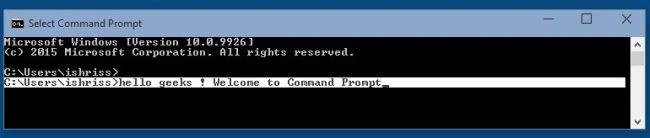
Cntrl + AAll text of the current line will be selected, if we are applying this shortcut in an empty line it will select all the texts on the Command Prompt.
-
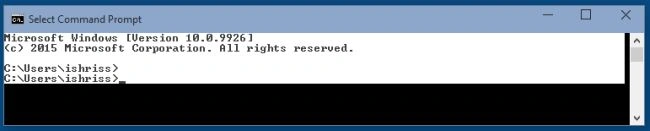
Cntrl + CAs we know, this shortcut will copy the selected text.
-
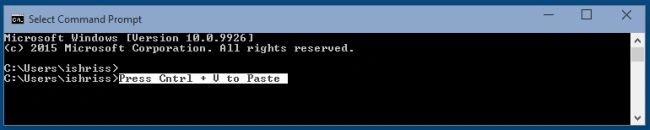
Cntrl + VPaste the copied text at the cursor.
-
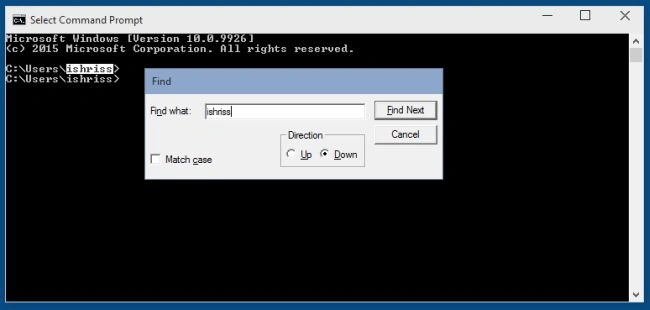
Cntrl + FWe can also apply Cntrl + F to open a find dialog in the Command Prompt's output screen.
-
Cntrl +Shift + Left/Right
We can move the cursor one word to the left/right by selecting that word.
The following are some of the other shortcuts we can play with are
-
Shift + Home/End
-
Shift + Left/Right/Up/Down
-
Shift + PageUp/Page Down
-
Cntrl + Page Up/ Page Down
-
Alt + F4
Windows Snapping
-
Windows Key + Left
-
Windows Key + Right
-
Windows Key + Up
-
Windows Key + Down
The first two shortcuts are quite familiar to us, but how these two are quite new is, they work with the 2 x 2 snapping feature.
We can snap windows to the top-left quadrant of the screen by combining the preceding shortcuts.
Windows Key + Left and then Windows Key Up will snap to the corner.
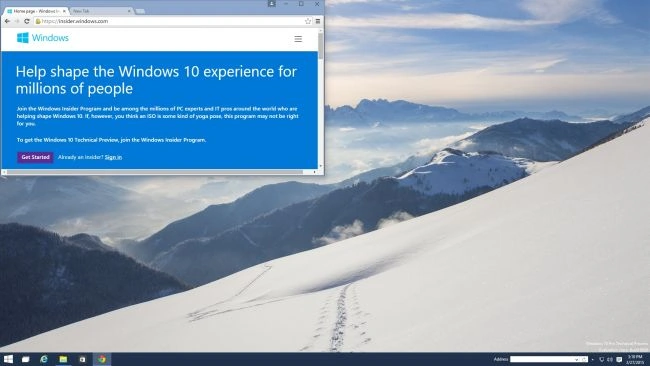 Similarly, we can snap the current window to top right, bottom left and bottom left of the screen using:
-
Windows Key + Right and then Windows Key Up
-
Windows Key + left and then Windows Key Down
-
Windows Key + Right and then Windows Key Down
Task View/Windows Management Keyboard Shortcuts
-
Windows Key + Tab + Release the keys
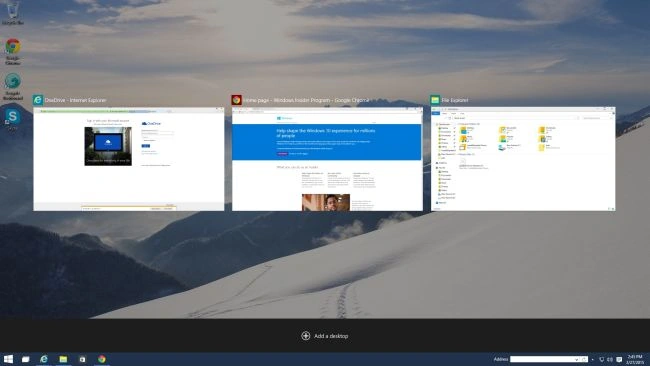 It quickly shows us the new Task View interface, listing the tasks of the current virtual desktop. You can switch between task lists using Alt + Tab, which is familiar to us from the previous Windows.
Virtual Desktops
-
Windows Key + Contrl + DWe will create a new virtual desktop and switch over to it.
-
Windows Key + Cntrl + F4This shortcut will close the current virtual desktop.
-
Windows Key + Cntrl + Left/RightIt will switch to the virtual desktop that may be on the left/right.
Closure
So is that too much fun? Isn't it? Well, at least I am enjoying it very much while playing with these new shortcuts and experiences, especially in the Command Prompt section and I am very sure that all of you will also enjoy them.
Since Windows 10 is still developing, Windows welcomes our feedback to make Windows even better by giving feedback as questions or suggestions to Microsoft using the Windows Feedback App. To use Windows Feedback we must be registered with the Windows Insider Preview Program.
Thanking you for reading this article.
Summary
In this article, we learned about New Keyboard Shortcuts in Windows 10.
Onkar SharmaPosted Nov 20, 2019, 12:35 PM
Useful Information...
SubashPosted Jul 21, 2016, 12:29 AM
Very good information
Shridhar SharmaPosted Mar 3, 2015, 2:52 AM
thanks Pros Rahul Saxena and Tom Mohan.
Rahul Kumar SaxenaPosted Mar 3, 2015, 12:11 AM
Very Useful Enjoy W10...
Tom MohanPosted Mar 3, 2015, 12:10 AM
useful ...
Mahesh ChandPosted Mar 2, 2015, 10:35 PM
Good one.