

Introduction
Windows Azure Mobile Service is a tool that can integrated with the Windows Azure cloud. This tool will help you to connect a cloud backend to your Windows 8 application. The goal of the Windows Azure Mobile Service is to make Windows Azure the obvious choice for the Windows 8 Metro style application developer. Currently we can only use the Windows Azure Mobile Service in Metro style applications but in the near future the mobile service can also work with iOS, Android and Windows Phone.
Using the Windows Azure Mobile Service, a developer can easily store structured data in the cloud that can be used for both the device and the user, to easily authenticate a user and easily communicate with the WNS (Windows notification Service) for sending Push Notification. (Toast, Badge and Tile.)
Getting Started with Windows Azure Mobile Service
As I already mentioned the Windows Azure mobile service is a new tool that can be integrated with Windows Azure. So if we want to use the Windows Azure Mobile Service then we need to create an account in Windows Azure. Click here to sign up for a 90 days free-trial. Once you are signed-up, click the "preview features" section under the "account" tab of the http://www.windowsazure.com/en-us/ website and enable your account to support the "Mobile Services" preview. Instructions on how to enable this can be found here.
- Create mobile service application.
- Quick Start page
- Dashboard
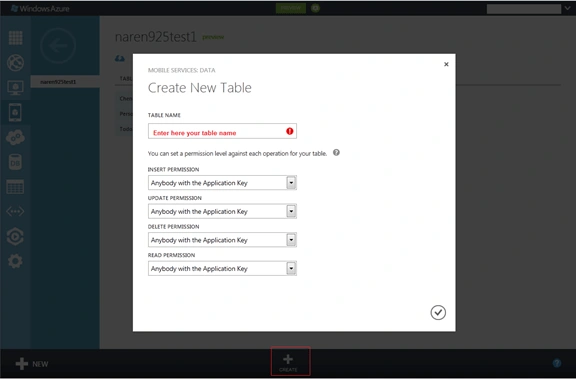
- Create data table in mobile service application.
- How to script work in portal
- Insert
- Update
- Read
- Delete
- How to set permission to work in the portal
- Every one
- Anybody with the application key
- Only Authenticated Users
- Only Scripts and Admins
- How to script work in portal
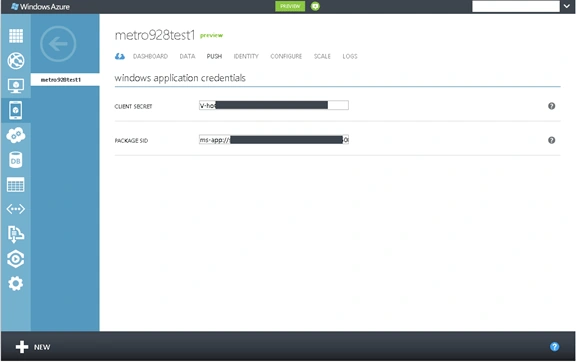
- Push Notification
- Connect with Live SDK
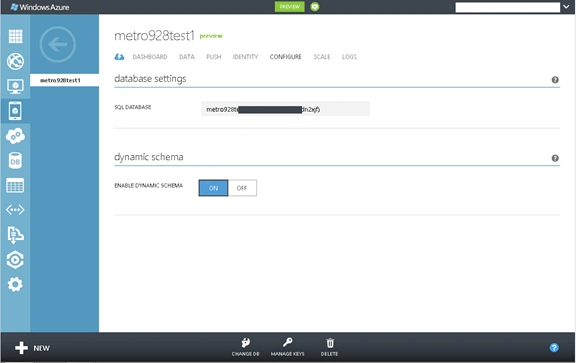
- Configuration of mobile service
-
Change DB
-
Dynamic Schema
-
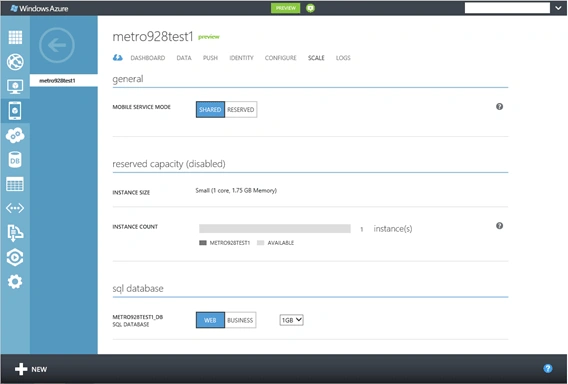
- Scale
- Logs
1. Create mobile service application
Creating a mobile service in Windows Azure is quite easy. Log into Windows Azure with your credentials and click on the "+New" Button from the bottom-left corner. Look at the following image: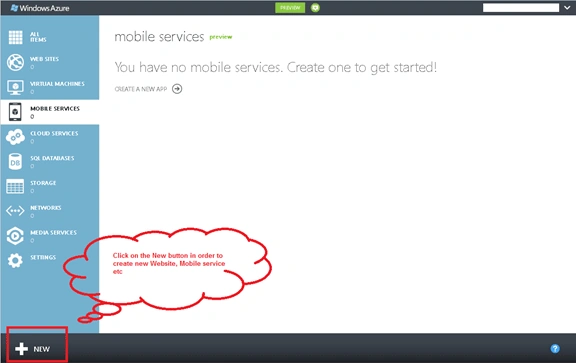
Select "Compute --> Mobile Service" and then click on Create. 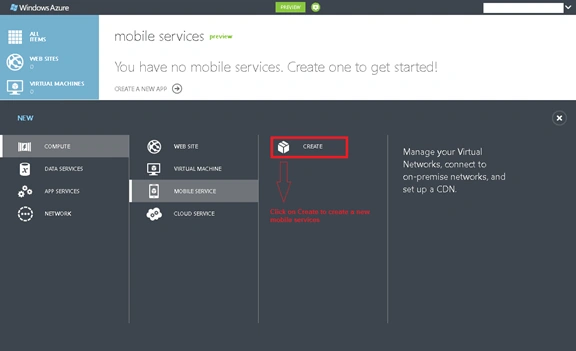
The portal will popup a dialog box and ask you to enter a valid application name. 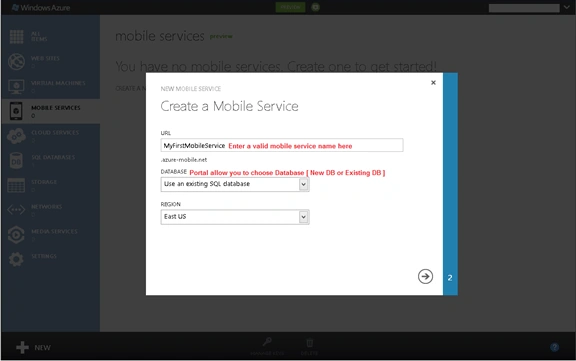
The Azure portal asks the user to choose the database, either a new database or an existing database.
New Database
The "New Database" option allows the user to create a new database in a new server or in an existing server. To create a database use the following steps:
Step 1: Click on the New button and create a mobile service
Step 2: Enter a valid name and select "Create a new SQL database" from the database
Step 3: Move to the next step by clicking on the next icon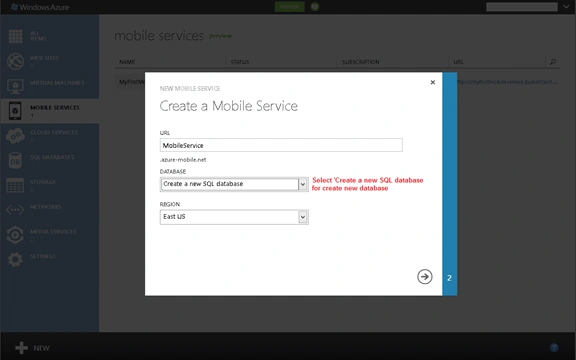
Step 4: Enter a valid database name into the Name textbox.
Step 5: Select "New SQL Database Server" for creating a new server and store your new database in it.
Step 6: Enter the required value and move to the next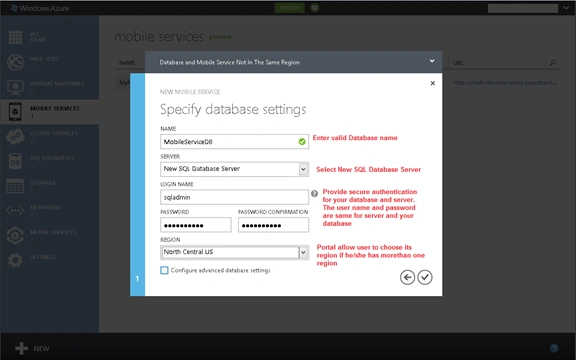
The user can also set a database size by clicking on the "Configure advanced database settings" checkbox. Once the user has checked this check box the portal will add one more page and wait for the user to move to the next.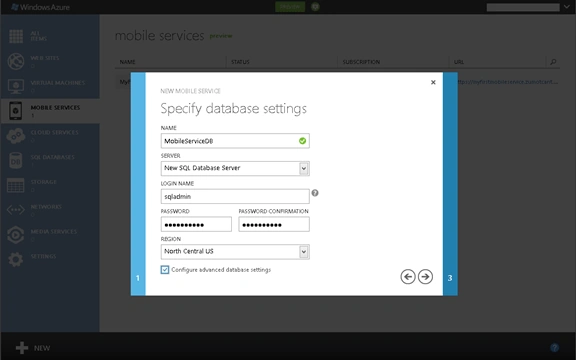
Click on the next icon and set the database size according to the user application. Look at the following image: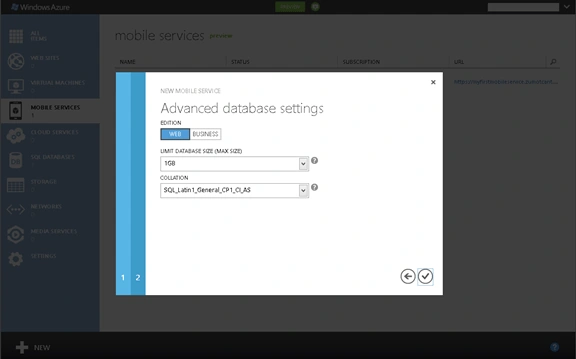
A Web related application can select web edition and a business related application can select business edition but that is not mandatory.
If everything is working perfectly then the Azure portal will create a brand new mobile service within 30 seconds. Look at the following image: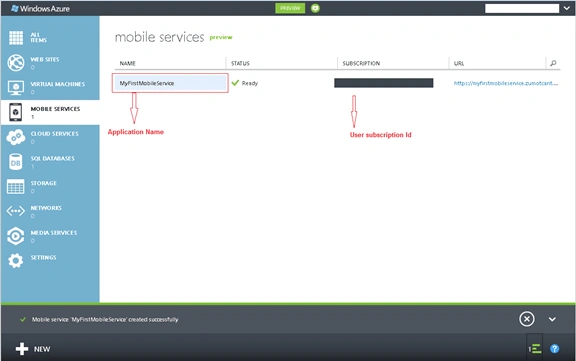
Existing Database
The user can also use an existing database in its mobile service application. Use the following steps to create a mobile service application with an existing database.
Step 1: Click on the New button and create a mobile service
Step 2: Enter a valid name and select "Use an existing SQL database" from the database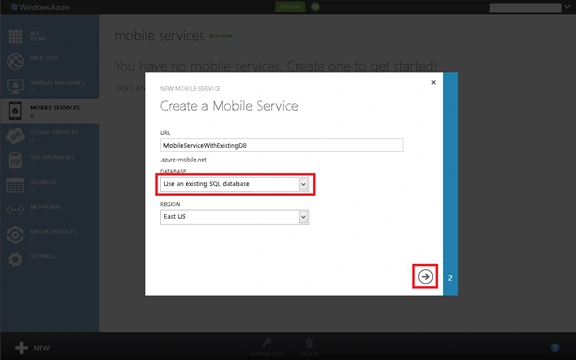
Step 3: Move to the next step by clicking on the next icon.
Step 4: Select an existing database name from the database combo box and enter the database credentials.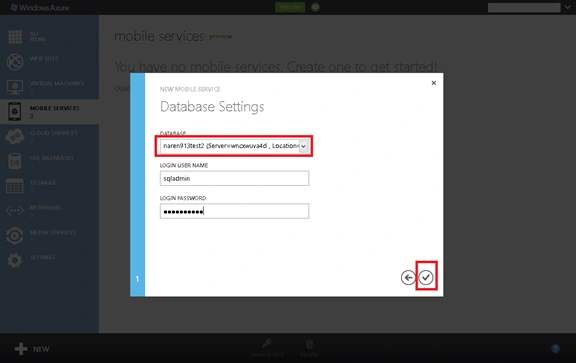
Step 5: Press ok to create the application.
If everything is working perfectly then the Azure portal will create a brand new mobile service within 30 seconds. Look at the following image: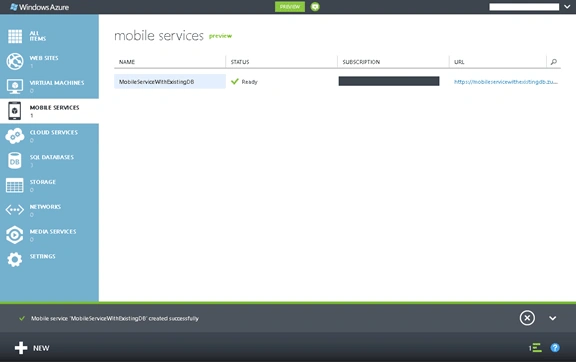
2. Quick Start Page
A Quick start page provides the facility to integrate your mobile service application with the new Window 8 apps or use an existing Windows 8 app to connect your mobile service. Use the following steps for that.
Step 1: Click on Mobile service from the Azure portal and then click on the mobile application that you just created.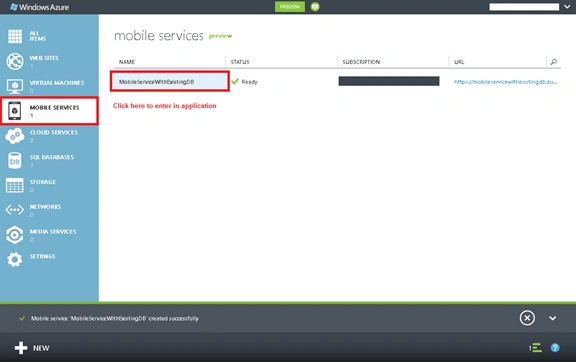
Step 2: Click on the Quick startup page if it is not opened by default; see: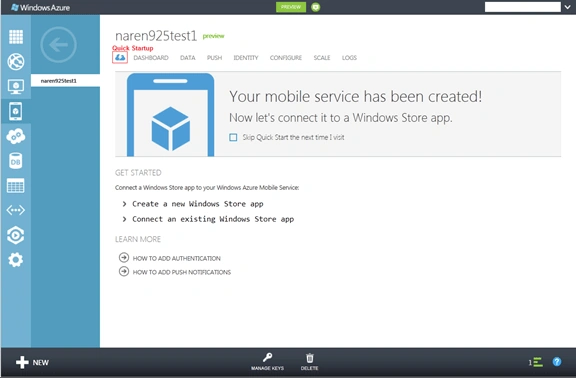
The Quick startup page provides a way to connect your mobile service with the Windows 8 application within 3 minutes. The Quick start page helps users to download a sample Windows 8 project or use a newly created mobile service in the existing project. Use the following steps for that.
1. Click on the "Create a new Windows store app" link and read all the information carefully
Get the Tools: The user can set up a machine environment by downloading VS and the Mobile service SDK.
Create a table: Create a TodoItem table for a C#/JS project by clicking the "Create TodoItem table" button.
Download and run your app: Download a C#/JS project and test your mobile service.
2. Click on the "Connect an existing Windows Store app" and read all the info carefully. This operation assumes you already have a Metro style application.
Get the tools: Setup mobile service SDK
Connect your app: select the programing language and copy the code which is shown by the portal in a Gray Square
Store data in your mobile service: This is an optional step if you don't have any other table then you can create an item table and copy and paste code in your project.
The Quick start page also provides a help link to know about the Authentication and Push notification. I will explain both Authentication and Push notification later in this article.
3. Dashboard
The Dashboard page is designed to show the mobile service details in three formats.
Graph: A graph will show the users data in a graphical format. The user can see their data by hour, day and week.
Gowtham RajamanickamPosted Apr 20, 2015, 3:24 PM
good one...
Manish SharmaPosted Oct 19, 2012, 7:33 AM
thanks anil...
anil babuPosted Oct 16, 2012, 1:47 AM
Nice article........ Thnks lot
Manish SharmaPosted Oct 15, 2012, 11:33 AM
nice article..thanks for this ...
Varesh TuliPosted Oct 3, 2012, 6:00 AM
Nice article, help a lot...
Swati AgarwalPosted Oct 2, 2012, 11:54 PM
Very nice explanation......... Thanx for posting