
Introduction
This article explains how you can simply configure Google's SMTP server settings into whatever script or program you wish to use. All you need to have is a Gmail account. Not only Gmail, but the user can use this service for different domains. All the user needs to have is an account with that server and needs to pass values according to that server. Please find the executable downloadable project.
Modules
- Create a Windows Forms Application using Visual Studio.
- Create User Interface.
- Add necessary code to finish the development.
Technologies Used
- Windows forms application
- C# v5
References
IDE
- Visual Studio 2013
Module 1: Create a Windows Forms Application using Visual Studio
Design
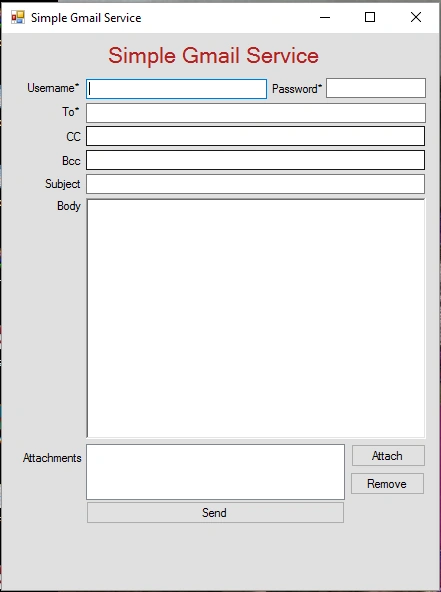
Module 2: Create User Interface
- Add a new Form to the project.
- Drag and drop necessary fields to the form from "Toolbox".
- Change the necessary properties(name, id, etc.,) required for the fields.
Module 3: Add necessary code to finish the development
- This project uses C# for development.
- Add necessary methods required to complete the development.
Using the code
- /// <summary>
- /// This method is used to attach any files/images/etc.. to the email
- /// </summary>
- /// <param name="sender">sender</param>
- /// <param name="e">e</param>
- private void btnAttach_Click(object sender, EventArgs e)
- {
- OpenFileDialog openDialogue = new OpenFileDialog();
- if (openDialogue.ShowDialog() == DialogResult.OK)
- {
- attachmentsListBox.Items.Add(openDialogue.FileName);
- }
- }
- /// <summary>
- /// This method is used to remove selected items from the attachments
- /// </summary>
- /// <param name="sender">sender</param>
- /// <param name="e">e</param>
- private void btnRemove_Click(object sender, EventArgs e)
- {
- var item = attachmentsListBox.SelectedItem;
- attachmentsListBox.Items.Remove(item);
- }
- /// <summary>
- /// This method is used to authenticate and send email. It throws exception if the
- /// information passed is wrong and the error can be seen on label3
- /// </summary>
- /// <param name="sender">sender</param>
- /// <param name="e">e</param>
- private void btnSend_Click(object sender, EventArgs e)
- {
- try
- {
- if (ValidateForm())
- {
- label3.Text = "";
- MailMessage mailMessage = new MailMessage(username.Text, toTextBox.Text);
- mailMessage.Subject = subjectTextBox.Text;
- mailMessage.Body = bodyTextArea.Text;
- AddItems(ccTextBox.Text, mailMessage, "CC");
- AddItems(bccTextBox.Text, mailMessage, "BCC");
- for (int i = 0; i < attachmentsListBox.Items.Count; i++)
- {
- mailMessage.Attachments.Add(new Attachment(attachmentsListBox.Items[i].ToString()));
- }
- SmtpClient smtpClient = new SmtpClient("smtp.gmail.com", 587);
- smtpClient.Credentials = new System.Net.NetworkCredential(username.Text, password.Text);
- smtpClient.EnableSsl = true;
- mailMessage.DeliveryNotificationOptions = DeliveryNotificationOptions.OnFailure;
- smtpClient.Send(mailMessage);
- }
- } catch (Exception ex)
- {
- label3.Text = ex.Message;
- }
- }
- /// <summary>
- /// This method is used to add emails to "CC" and "Bcc" if any
- /// </summary>
- /// <param name="emailString">emailstring</param>
- /// <param name="mailMessage">mailMessage</param>
- /// <param name="type">type</param>
- private void AddItems(string emailString, MailMessage mailMessage, string type)
- {
- if (!string.IsNullOrEmpty(emailString))
- {
- ArrayList emailList = new ArrayList();
- String[] emails = emailString.Split(',');
- if (type == "CC")
- {
- for (int i = 0; i < emails.Length; i++)
- mailMessage.CC.Add(new MailAddress(emails[i]));
- } else if (type == "BCC")
- {
- for (int i = 0; i < emails.Length; i++)
- mailMessage.Bcc.Add(new MailAddress(emails[i]));
- }
- }
- }
- /// <summary>
- /// This method is used to check if all the mandatory fields are entered.
- /// It returns true if all the fields are entered else returns false.
- /// </summary>
- /// <returns>bool</returns>
- private bool ValidateForm()
- {
- if (string.IsNullOrEmpty(username.Text) || string.IsNullOrEmpty(password.Text) || string.IsNullOrEmpty(toTextBox.Text))
- {
- label3.Text = "* fields are mandatory";
- return false;
- }
- return true;
- } //
Note:
- The user can download the project and use it as a desktop application. All the user needs to do is download the project, compile it, and create a shortcut using .exe from bin -> debug->WindowsFormsApplication1.exe.
- Sometimes it may not work because it needs user permission to turn on access. The user can turn on by visiting here.
Below is the screenshot of how the error looks:
Below is the screenshot of how it looks. The user can turn on by selecting Turn on radio button,
Read more articles on Windows Forms:
Humayun Kabir MamunPosted Feb 21, 2016, 11:10 PM
Nice...
Santhakumar MunuswamyPosted Feb 16, 2016, 2:52 PM
Thanks for nice work