

Introduction
Why another Tool Strip or Status Strip?
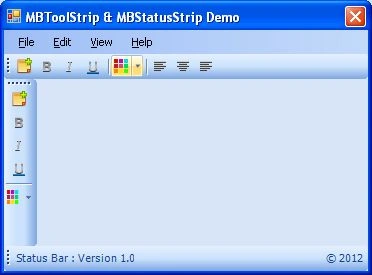
The standard ToolStrip/StatusStrip is too limited in functionality and I couldn't find a custom control written that did all that I wanted. This is a User Control with Microsoft Office 2007 Visual Style. It is simple to use, just drop it on the form, and use it like the normal ToolStrip or StatusStrip Control.
Background
MBToolStrip/MBStatusStrip is a ToolStrip/StatusStrip which inherits all the properties of a simple ToolStrip and StatusStrip control. I added Microsoft Office 2007 like Visuals in MBMenuStrip/MBToolStrip. The language used is VB.NET. There are so many classes which provides the same functionality, but for that we have to write a minimum two lines of code to add that rendered class to our application. MBToolStrip/MBStatusStrip is the MenuStrip which already contains the MBMenuRenderer Class. You just add the reference of MBToolStrip.Dll and use it by Dragging and Dropping in your application.
Code
The concept for this Tool Strip came from the Microsoft Office 2007 Tool Strip and Status Strip. I organized methods of MBMenuRenderer into layers like this:
Following are the methods which are responsible for rendering a simple Tool Strip and Status Strip like Microsoft Office.
This method Render Background of MBToolStrip/MBStatusStrip item:
Private Sub RenderToolButtonBackground(ByVal g As Graphics, ByVal button As ToolStripButton, ByVal toolstrip As ToolStrip)
If (button.Enabled) Then
If (button.Checked) Then
If (button.Pressed) Then
DrawGradientToolItem(g, button, _itemToolItemPressedColors)
ElseIf (button.Selected) Then
DrawGradientToolItem(g, button, _itemToolItemCheckPressColors)
Else
DrawGradientToolItem(g, button, _itemToolItemCheckedColors)
End If
Else
If (button.Pressed) Then
DrawGradientToolItem(g, button, _itemToolItemPressedColors)
ElseIf (button.Selected) Then
DrawGradientToolItem(g, button, _itemToolItemSelectedColors)
End If
End If
Else
If (button.Selected) Then
Dim mousePos As Point = toolstrip.PointToClient(Control.MousePosition)
If (Not button.Bounds.Contains(mousePos)) Then DrawGradientToolItem(g, button, _itemDisabledColors)
End If
End If
End Sub
Santhakumar MunuswamyPosted Apr 14, 2015, 12:32 PM
thanks for nice one