

Introduction
Why another Scroll Bar? The standard ScrollBar is too limited in functionality
and I couldn't find a custom control written that did all that I wanted. This is
a User Control with Microsoft Office 2007 Visual Style. It is simple to use;
just drop it on the form, and use it like the normal ScrollBar.
Background
MBScrollBar is a ContextMenuStrip which inherits all the properties of a simple
Scroll Bar control. I added Microsoft Office 2007 like Visuals in MBScrollBar,
also it supports the mouse wheel. The language used is VB.NET. There are so many
classes which provide same functionality, but for that we have to write a
minimum of two lines of code to add that renderer class to our application.
MBScrollBar is the Scroll Bar which already contains the MBScrollBarRenderer
Class; you just add the reference of MBScrollBar.Dll then use it by Dragging and
Dropping. Here is a MBScrollBar demo:
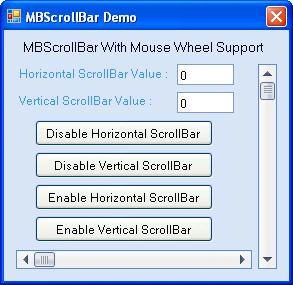
MBScrollBar Control

Code
The
concept for this Scroll Bar came from the Microsoft Office 2007 Scroll Bar. I
organized the methods of MBScrollBar into layers. The following methods are
responsible for rendering a simple Scroll Bar like Microsoft Office.
This is the Render Background method of a MBScrollBar item.
''' <summary>
'''
Draw Background for MBScrollBar
'''
</summary>
'''
<param name="g">graphics As Graphics</param>
'''
<param name="rect">Rect As Rectangle</param>
'''
<param name="orientation">Orientation As MBScrollBarOrientation</param>
Public Shared Sub DrawBackground(ByVal g As Graphics, ByVal rect As Rectangle, ByValorientation As MBScrollBarOrientation)
If (g Is Nothing) Then
Throw New ArgumentNullException("g")
End If
If (rect.IsEmpty Or g.IsVisibleClipEmpty Or Not g.VisibleClipBounds.IntersectsWith(rect)) Then
Return
End If
If (orientation
= MBScrollBarOrientation.Vertical) Then
DrawBackgroundVertical(g, rect)
Else
DrawBackgroundHorizontal(g, rect)
End If
End Sub
This is
the Render Arrow Button method of a MBScrollBar Item.
''' <summary>
''' Draw Arrow Button For MBScrollBar
''' </summary>
''' <param name="g">graphics As Graphics</param>
''' <param name="rect">Rect As Rectangle</param>
''' <param name="state">State As MBScrollBarState</param>
''' <param name="arrowUp">ArrowUp As Boolean</param>
''' <param name="orientation">Orientation As MBScrollBarOrientation</param>
Public Shared Sub DrawArrowButton(ByVal g As Graphics, ByVal rect As Rectangle, ByVal state AsMBScrollBarArrowButtonState, ByVal arrowUp As Boolean, ByVal orientation AsMBScrollBarOrientation)
If g Is Nothing Then
Throw New ArgumentNullException("g")
End If
If rect.IsEmpty Or g.IsVisibleClipEmpty Or (Not g.VisibleClipBounds.IntersectsWith(rect)) Then
Return
End If
If orientation
= MBScrollBarOrientation.Vertical Then
DrawArrowButtonVertical(g, rect, state, arrowUp)
Else
DrawArrowButtonHorizontal(g, rect, state, arrowUp)
End If
End Sub
This
method handles the painting of a MBScrollBar.
''' <summary>
''' Handles MBScrollBar Mouse Wheel
''' </summary>
Protected Overrides Sub OnMouseWheel(ByVal e As System.Windows.Forms.MouseEventArgs)
MyBase.OnMouseWheel(e)
If (Me._Value
< Me.Minimum Or Me._Value
> Me.Maximum) Then
Return
Else
If e.Delta
> 0 Then
Me._Value
= Me._Value
- 1
Else
Me._Value
= Me._Value
+ 1
End If
If Me._Value
> 100 Then Me._Value
= 100
If Me._Value
< 0 Then Me._Value
= 0
End If
Me.ChangeThumbPosition(Me.GetThumbPosition())
Me.Refresh()
End Sub
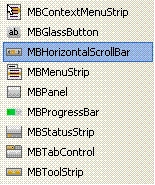
Using the
Code
It is very easy
to use a MBScrollBar in your application. Just add the reference of the provided
DLL to your application and just drag and drop.
History
MBScrollBar Version 1.0.
Arjun PanwarPosted Apr 8, 2012, 11:50 PM
Really very great article...