

Introduction
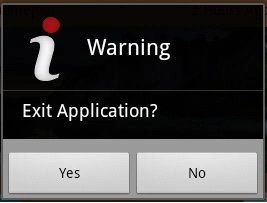
Before you start, create an Android project successfully (Alt+Shifty+N).
Step 2
In this demonstration, we will not make any changes to the XML layout file. Since we are trying to show an Alert Box while the Activity renders.
So, for this, we will put our code in the MainActivity.java file.
First, we will assign all the values of the AlertBox.Builder class.
So, we start by adding the following packages:
- import android.app.AlertDialog;
- import android.app.AlertDialog.Builder;
Next on onCreate state, we will add an AlertDialog.Builder instance and assign their values.
- // Instance of Alert Dialog
- AlertDialog.Builder builder=new Builder(MainActivity.this);
- builder.setMessage("WOW! I have created a DialogBox :)")
- .setCancelable(false)
- .setPositiveButton("Yes", new DialogInterface.OnClickListener() {
- @Override
- public void onClick(DialogInterface arg0, int arg1) {
- finish(); // Close The Activity
- }
- })
- .setNegativeButton("No", new DialogInterface.OnClickListener() {
- @Override
- public void onClick(DialogInterface dialog, int which) {
- dialog.cancel(); // Cancel the Event and back to Activity
- }
- });
Explanation
First, we have created the instance of AlertBox.Builder then the current context as a single parameter, in other words, MainActivity.
Then, the setMessage() method accepts the string content that we want to see in the Body of the Alert Box.
Along with this, we add an isCancelable() method to false.
Finally, we add two buttons as positive (Yes) and negative (No).
Where the Positive Button will close the application (specifically, the Main Activity) and the Negative Button will remain in the same Activity.
Hence, in Positive onClick() we have used the life-cycle's method finish() that will close the app and in a negative onClick() we have used the dialog.Cancel().
The final code will be:
- package com.greensyntax.alertbox;
- import android.support.v7.app.ActionBarActivity;
- import android.support.v7.app.ActionBar;
- import android.support.v4.app.Fragment;
- import android.app.AlertDialog;
- import android.app.AlertDialog.Builder;
- import android.content.DialogInterface;
- import android.os.Bundle;
- import android.view.LayoutInflater;
- import android.view.View;
- import android.view.ViewGroup;
- import android.os.Build;
- public class MainActivity extends ActionBarActivity {
- @Override
- protected void onCreate(Bundle savedInstanceState) {
- super.onCreate(savedInstanceState);
- setContentView(R.layout.activity_main);
- // Instance of Alert Dialog
- AlertDialog.Builder builder=new Builder(MainActivity.this);
- builder.setMessage("WOW! I have created a DialogBox :)")
- .setCancelable(false)
- .setPositiveButton("Yes", new DialogInterface.OnClickListener() {
- @Override
- public void onClick(DialogInterface arg0, int arg1) {
- finish(); // Close The Activity
- }
- })
- .setNegativeButton("No", new DialogInterface.OnClickListener() {
- @Override
- public void onClick(DialogInterface dialog, int which) {
- dialog.cancel(); // Cancel the Event and back to Activity
- }
- });
- // Till now, we have builded a Alert Box
- // Show()
- AlertDialog alert =builder.create();
- alert.setTitle("C# Corner");
- alert.show();
- }
- }
Finally, we have set the title using setTitle() and called the show() method.
Now, when you render this app in the Emulator then it will be like:
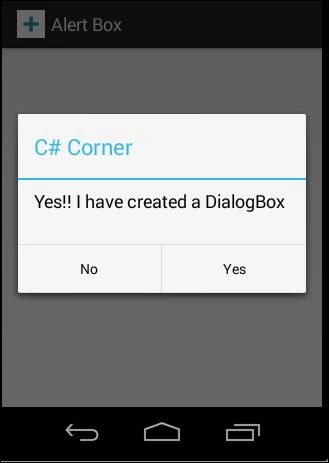 If you experience any problem when doing it then try to solve it by Quick Fix (Ctrl+1 ). Though, if it doesn't solve yours then go for the enclosed project file.
Gowtham RajamanickamPosted Apr 12, 2016, 1:18 AM
Good One, Thanks for sharing
Manisha GuptaPosted Aug 5, 2014, 11:35 PM
its awesome
Mohammad MirshahiPosted Jul 29, 2014, 2:32 PM
nice ...