

Introduction
Structure of Demo
Procedure
Step 1
Start a new Blank App project from Windows Store. And add an extra XAML page in Solution Explorer.
Step 2
Before trying anything new add Windows.Storage and Windows.UI.Popups. Since we will use their class in this app.
Try to design something like this.
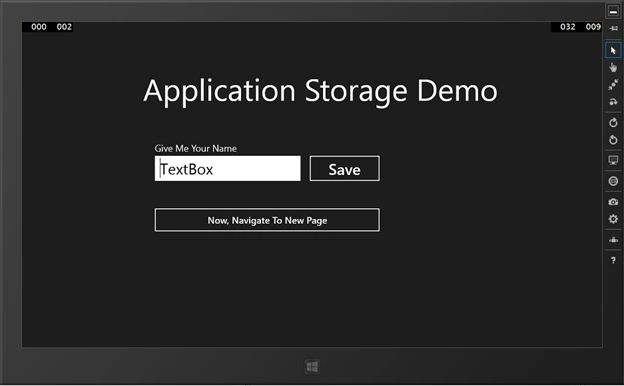
- // Text File Name
- const string fileName="TestWindows8App.txt";
- StorageFolder myFolder=null;
- StorageFile myFile=null;
- private async void Button_Click_1(object sender, RoutedEventArgs e)
- {
- //Save Button
- myFolder = ApplicationData.Current.RoamingFolder;
- myFile=await myFolder.CreateFileAsync(fileName,CreationCollisionOption.ReplaceExisting);
- await FileIO.WriteTextAsync(myFile,"Hello Mr. "+myTextBox.Text.ToString());
- //Popup Message
- var messageBox = new MessageDialog("Successfully Saved to "+fileName+" :) ");
- await messageBox.ShowAsync();
- }
Many of those lines are easily understood if you have keen eyes. Though, I will explain.
- private void Button_Click(object sender, RoutedEventArgs e)
- {
- //navigate to New Page
- this.Frame.Navigate(typeof(NewPage));
- }
Here, NewPage is the name of my XAML page (in other words NewPage.xaml).
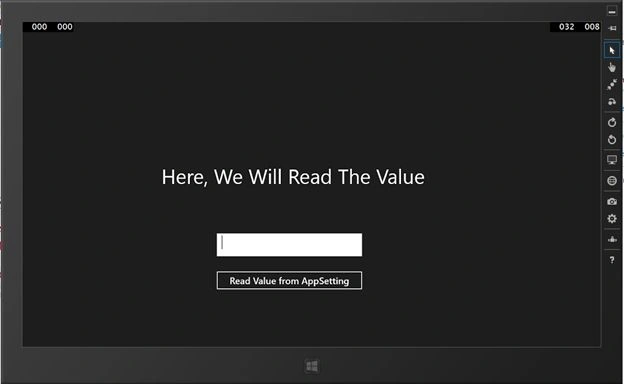
- const string fileName = "TestWindows8App.txt";
- StorageFile stoFile;
- StorageFolder stofolder=null;
- private async void Button_Click(object sender, RoutedEventArgs e)
- {
- //Here, I will Read from Roaming Folder
- stofolder = ApplicationData.Current.RoamingFolder; // Get The Roaming Directory
- stoFile =await stofolder.GetFileAsync(fileName); // Try to get the exact file
- string tempRead =await FileIO.ReadTextAsync(stoFile); // Read from thab file
- myReadTextBox.Text = tempRead.ToString(); //Put in TextBox
- }
Most of the lines are similar to the previous one, except the ReadTexAsync() method.
After a successful read operation, it will be assigned to the myReadTextBox.
The outcome will be.
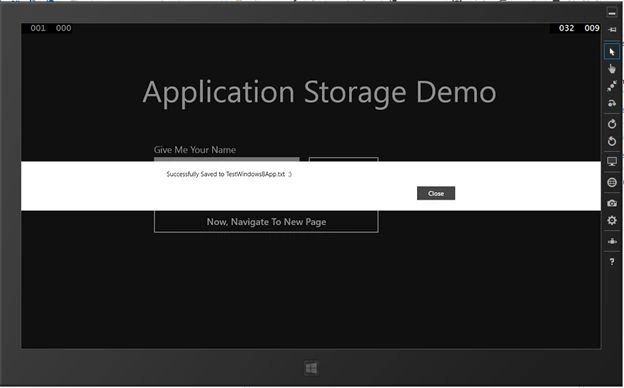
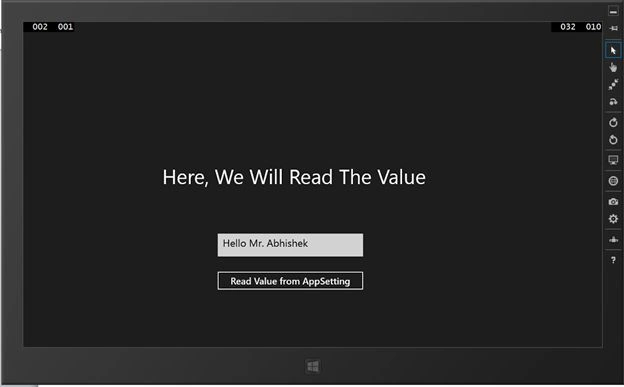
Join the conversation! Your thoughts help the community grow.