

While working on a project there was a requirement for creating a Multiselect DropDownList that will have the following features:
- Auto complete filter.
- Control may be single select or Multiselect based on user demands.
- Select All option should be there in case of Multiselect DropDownList.
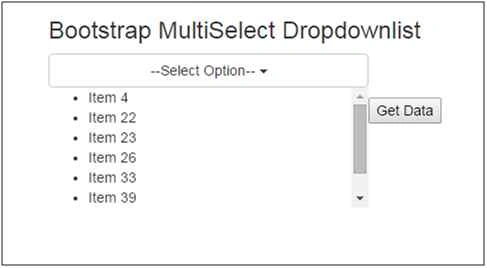
- Selected options list should be displayed below the DropDownList in list mode.
The following snapshot gives you an idea about the same.
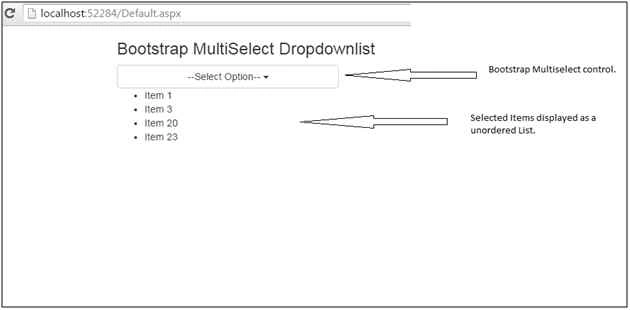
By default ASP.NET do not have such type of control. But anyways ASP.NET has provided us with a way that you can create your own custom web user control by combining multiple other controls such as web server, html controls, etc. Well for implementing this control I’d made use of bootstrap multiselect control because looking at the requirement bootstrap multiselect fits the best.
Bootstrap multiselect control comes with a lot of configuration option through which user can customize its default behavior and look & feel. For configuring these options inside our user control we’ve made use of properties which returns or sets values stored inside the hidden fields.
Let’s get into the code now.
I’m using VS2013 for creating ASP.NET web application. I’m naming my project as DummyWebApp. Inside my solution I’m creating a new folder with the name User Control and within this folder I’m adding a new component named “Web User Control”. I’ve named my web user control as “AutoCompleteDdl”.
The following is the AutoCompleteDdl.aspx code.
- <%@ Control Language="C#" AutoEventWireup="true" CodeFile="AutoCompleteDdl.ascx.cs" Inherits="UserControl_AutoCompleteDdl" %>
- <div style="width: 380px;" id="divAutoComplete" runat="server">
- <asp:HiddenField ID="hdnButtonWidth" runat="server" Value="320px" />
- <asp:HiddenField ID="hdnNonSelectedText" runat="server" Value="--Select--" />
- <asp:HiddenField ID="hdnIncludeSelectAllOption" runat="server" Value="false" />
- <asp:HiddenField ID="hdnSelectAllText" runat="server" Value="All" />
- <asp:HiddenField ID="hdnEnableFiltering" runat="server" Value="False" />
- <asp:HiddenField ID="hdnEnableFilteringIgnoreCase" runat="server" Value="False" />
- <asp:HiddenField ID="hdnDisableIfEmpty" runat="server" Value="False" />
- <asp:HiddenField ID="hdnMaxHeight" runat="server" Value="200" />
- <asp:HiddenField ID="hdnFilterPlaceholder" runat="server" Value="Search for something..." />
- <asp:HiddenField ID="hdnAllSelectedText" runat="server" Value="No option left..." />
- <asp:HiddenField ID="hdnText" runat="server" />
- <asp:HiddenField ID="hdnValue" runat="server" />
- <asp:ListBox ID="ddlAutoCompleteSelect" runat="server" Style="width: 350px;"
- SelectionMode="Multiple">
- </asp:ListBox>
- <p>
- <asp:Label ID="lblSelectedItems" runat="server" Style="word-wrap: break-word; height: 120px;
- float: left; overflow-y: auto;"></asp:Label>
- </p>
- </div>
The following is the code for AutoCompleteDdl.aspx.cs file.
- using System;
- using System.Collections.Generic;
- using System.Linq;
- using System.Web;
- using System.Web.UI;
- using System.Web.UI.WebControls;
- public partial class UserControl_AutoCompleteDdl : System.Web.UI.UserControl
- {
- #region Variable Declaration
- private string _text;
- private string _value;
- private List<SelectModel> _dataSource;
- private ListSelectionMode _selectionMode;
- private const string _dataTextField = "Text";
- private const string _dataValueField = "Value";
- #endregion
- #region Properties
- /// <summary>
- /// Set the placeholder for the DropDownlist.
- /// </summary>
- public string NonSelectedText
- {
- get { return hdnNonSelectedText.Value; }
- set { hdnNonSelectedText.Value = value; }
- }
- /// <summary>
- /// Get Or Set the value whether select all option should be there or not.
- /// </summary>
- public bool IncludeSelectAllOption
- {
- get { return Convert.ToBoolean(hdnIncludeSelectAllOption.Value); }
- set { hdnIncludeSelectAllOption.Value = Convert.ToString(value); }
- }
- public bool EnableFiltering
- {
- get { return Convert.ToBoolean(hdnEnableFiltering.Value); }
- set { hdnEnableFiltering.Value = Convert.ToString(value); }
- }
- /// <summary>
- /// Configure the Type of DropDownlist it is. For e.g. whether single select or multi select.
- /// </summary>
- public ListSelectionMode SelectionMode
- {
- get { return _selectionMode; }
- set
- {
- _selectionMode = value;
- if (value == ListSelectionMode.Single)
- {
- ddlAutoCompleteSelect.SelectionMode = ListSelectionMode.Single;
- }
- else
- {
- ddlAutoCompleteSelect.SelectionMode = ListSelectionMode.Multiple;
- }
- }
- }
- /// <summary>
- /// Set the Width of the Combo
- /// </summary>
- public string ButtonWidth
- {
- get { return hdnButtonWidth.Value; }
- set
- {
- hdnButtonWidth.Value = value;
- lblSelectedItems.Style.Add("width", hdnButtonWidth.Value);
- }
- }
- /// <summary>
- /// To set text search enabled
- /// </summary>
- public bool Enabled
- {
- get { return ddlAutoCompleteSelect.Enabled; }
- set { ddlAutoCompleteSelect.Enabled = value; }
- }
- /// <summary>
- /// To set Data Source for Control
- /// </summary>
- public List<SelectModel> DataSource
- {
- set
- {
- _dataSource = value;
- ddlAutoCompleteSelect.DataSource = value;
- ddlAutoCompleteSelect.DataBind();
- }
- }
- /// <summary>
- /// To set Text field
- /// </summary>
- public string DataTextField
- {
- get { return ddlAutoCompleteSelect.DataTextField; }
- set { ddlAutoCompleteSelect.DataTextField = _dataTextField; }
- }
- /// <summary>
- /// To set Value field
- /// </summary>
- public string DataValueField
- {
- get { return ddlAutoCompleteSelect.DataValueField; }
- set { ddlAutoCompleteSelect.DataValueField = _dataValueField; }
- }
- /// <summary>
- /// Get the value of the Selected Items from the dropdownlist.
- /// </summary>
- public string Value
- {
- get
- {
- string strValue = string.Empty;
- return hdnValue.Value;
- }
- }
- /// <summary>
- /// Get the text of the Selected Items from the dropdownlist.
- /// </summary>
- public string Text
- {
- get
- {
- string strText = string.Empty;
- return hdnText.Value;
- }
- }
- public bool DisableIfEmpty
- {
- get { return Convert.ToBoolean(hdnDisableIfEmpty.Value); }
- set { hdnDisableIfEmpty.Value = Convert.ToString(value); }
- }
- public int MaxHeight
- {
- get { return Convert.ToInt32(hdnMaxHeight.Value); }
- set { hdnMaxHeight.Value = Convert.ToString(value); }
- }
- public string SelectAllText
- {
- get { return hdnSelectAllText.Value; }
- set { hdnSelectAllText.Value = value; }
- }
- public bool EnableFilteringIgnoreCase
- {
- get { return Convert.ToBoolean(hdnEnableFilteringIgnoreCase.Value); }
- set { hdnEnableFilteringIgnoreCase.Value = Convert.ToString(value); }
- }
- public string FilterPlaceholder
- {
- get { return hdnFilterPlaceholder.Value; }
- set { hdnFilterPlaceholder.Value = value; }
- }
- #endregion
- protected void Page_Load(object sender, EventArgs e)
- {
- try
- {
- if (!(string.IsNullOrEmpty(hdnText.Value) && string.IsNullOrEmpty(hdnValue.Value)))
- {
- var selectedItemsText = hdnText.Value.Split(new char[] { ',' }, StringSplitOptions.RemoveEmptyEntries);
- var selectedItemsValue = hdnValue.Value.Split(new char[] { ',' }, StringSplitOptions.RemoveEmptyEntries);
- foreach (ListItem item in ddlAutoCompleteSelect.Items)
- {
- if ((selectedItemsText.Contains(item.Text) && selectedItemsValue.Contains(item.Value)))
- {
- //selecting the item at server side.
- item.Selected = true;
- }
- }
- }
- }
- catch (Exception ex)
- {
- throw ex;
- }
- }
- protected void Page_PreRender(object sender, System.EventArgs e)
- {
- try
- {
- //Registering the scripts file used by the user control. Alternatively you can also set these files inside your master page or the web page on which you are going to use it.
- ScriptManager.RegisterClientScriptInclude(this, this.GetType(), "bootStrapJs", ResolveUrl("~/Scripts/bootstrap.min.js"));
- ScriptManager.RegisterClientScriptInclude(this, this.GetType(), "bootStrapMultiSelectJs", ResolveUrl("~/Scripts/bootstrap-multiselect.js"));
- ScriptManager.RegisterClientScriptInclude(this, this.GetType(), "autoCompleteDdlJs", ResolveUrl("~/Scripts/app/AutoCompleteDdl.js"));
- }
- catch (Exception ex)
- {
- throw ex;
- }
- }
- }
AutoCompleteDdl.js
- //Controls
- var labelId = '';
- var hdnTextId = '';
- var hdnValueId = '';
- var ddlCntrl = '';
- //Property Values Controls
- var hdnButtonWidth = '';
- var hdnNonSelectedText = '';
- var hdnIncludeSelectAllOption = '';
- var hdnSelectAllText = '';
- var hdnEnableFiltering = '';
- var hdnEnableFilteringIgnoreCase = '';
- var hdnDisableIfEmpty = '';
- var hdnMaxHeight = '';
- var hdnFilterPlaceholder = '';
- var hdnAllSelectedText = '';
- //Helper variables
- var selectedItemsText = '';
- var selectedItemsValue = '';
- //This function is used for converting C# boolean values to
- //Javascript boolean Values.
- function convertToBoolean(value) {
- return (value === "true");
- }
- //Writing function inside the pageLoad function is for rebinding the events after partial postback.
- function pageLoad() {
- $(document).ready(function () {
- //Iterating over the no of select element whose Id contains value of "ddlAutoCompleteSelect". This iteration is necessary because on a single page the user control might can be used on
- //single times or multiple times. For e.g. if the user contorl is placed inside a gridview row, or if the user control is used on some kind of registration forms.
- $("select[id*='ddlAutoCompleteSelect']").each(function () {
- ddlCntrl = $(this);
- divUCParent = $(ddlCntrl).parent();
- //retrieving the Id's of the controls/elements
- labelId = ddlCntrl.attr("id").replace("ddlAutoCompleteSelect", "lblSelectedItems");
- hdnTextId = ddlCntrl.attr("id").replace("ddlAutoCompleteSelect", "hdnText");
- hdnValueId = ddlCntrl.attr("id").replace("ddlAutoCompleteSelect", "hdnValue");
- //retrieving the values of the hidden fields/ property values
- hdnButtonWidth = $("#" + ddlCntrl.attr("id").replace("ddlAutoCompleteSelect", "hdnButtonWidth")).val();
- hdnNonSelectedText = $("#" + ddlCntrl.attr("id").replace("ddlAutoCompleteSelect", "hdnNonSelectedText")).val();
- hdnIncludeSelectAllOption = convertToBoolean($("#" + ddlCntrl.attr("id").replace("ddlAutoCompleteSelect", "hdnIncludeSelectAllOption")).val().toString().toLowerCase());
- hdnSelectAllText = $("#" + ddlCntrl.attr("id").replace("ddlAutoCompleteSelect", "hdnSelectAllText")).val();
- hdnEnableFiltering = convertToBoolean($("#" + ddlCntrl.attr("id").replace("ddlAutoCompleteSelect", "hdnEnableFiltering")).val().toString().toLowerCase());
- hdnEnableFilteringIgnoreCase = convertToBoolean($("#" + ddlCntrl.attr("id").replace("ddlAutoCompleteSelect", "hdnEnableFilteringIgnoreCase")).val().toString().toLowerCase());
- hdnDisableIfEmpty = convertToBoolean($("#" + ddlCntrl.attr("id").replace("ddlAutoCompleteSelect", "hdnDisableIfEmpty")).val().toString().toLowerCase());
- hdnMaxHeight = $("#" + ddlCntrl.attr("id").replace("ddlAutoCompleteSelect", "hdnMaxHeight")).val();
- hdnFilterPlaceholder = $("#" + ddlCntrl.attr("id").replace("ddlAutoCompleteSelect", "hdnFilterPlaceholder")).val();
- hdnAllSelectedText = $("#" + ddlCntrl.attr("id").replace("ddlAutoCompleteSelect", "hdnAllSelectedText")).val();
- selectedItemsText = $("#" + hdnTextId).val();
- selectedItemsValue = $("#" + hdnValueId).val();
- //configuring the bootstrap multiselect with the custom specification which user has set through the properties.
- $(this).multiselect({
- buttonWidth: hdnButtonWidth,
- includeSelectAllOption: hdnIncludeSelectAllOption,
- enableFiltering: hdnEnableFiltering,
- enableCaseInsensitiveFiltering: hdnEnableFilteringIgnoreCase,
- selectAllText: hdnSelectAllText,
- nonSelectedText: hdnNonSelectedText,
- disableIfEmpty: hdnDisableIfEmpty,
- maxHeight: hdnMaxHeight,
- filterPlaceholder: hdnFilterPlaceholder,
- allSelectedText: hdnAllSelectedText,
- buttonText: function (options, select) {
- if (options.length === 0) {
- return this.nonSelectedText;
- }
- else if (this.allSelectedText && options.length == $('option', $(select)).length) {
- if (this.selectAllNumber) {
- return this.allSelectedText + ' (' + options.length + ')';
- }
- else {
- return this.allSelectedText;
- }
- }
- else {
- var selected = '';
- options.each(function () {
- var label = ($(this).attr('label') !== undefined) ? $(this).attr('label') : $(this).text();
- //forming a list.
- selected += "<li>" + label + "</li>";
- });
- return selected;
- }
- },
- onChange: function (option, checked, select) {
- var options = this.getSelected();
- // resetting the updateButtonText event values
- if (this.options.enableHTML) {
- $('.multiselect .multiselect-selected-text', this.$container).html(hdnNonSelectedText);
- }
- else {
- $('.multiselect .multiselect-selected-text', this.$container).text(hdnNonSelectedText);
- }
- $('.multiselect', this.$container).attr('title', hdnNonSelectedText);
- //setting the Label data by forming a unordered list.
- $("#" + labelId).html("<ul>" + this.options.buttonText(options, this.$select) + "</ul>");
- //resetting the variable values to ''
- selectedItemsText = '';
- selectedItemsValue = '';
- //iterating over the selected options and appending it to the variables
- $.each(options, function (index, option) {
- selectedItemsText += option.text + ",";
- selectedItemsValue += option.value + ",";
- });
- selectedItemsText = selectedItemsText.substring(0, selectedItemsText.lastIndexOf(","));
- selectedItemsValue = selectedItemsValue.substring(0, selectedItemsValue.lastIndexOf(","));
- //finally storing the value to the respective hidden fields.
- $("#" + hdnTextId).val(selectedItemsText);
- $("#" + hdnValueId).val(selectedItemsValue);
- }
- });
- });
- //incase of post back get the data from the hiddenField hdnText and hdnValues for restoring it back to the userControl selected values.
- if (selectedItemsText != '' && selectedItemsValue != '') {
- var selectedTextsArr = selectedItemsText.split(",");
- var selectedValuesArr = selectedItemsValue.split(",");
- $("#" + divUCParent.attr("id")).children(".btn-group").find("ul.multiselect-container li").each(function () {
- var currentLI = $(this);
- var anchorElement = $(this).find("a");
- if (anchorElement != undefined && anchorElement.length != 0) {
- var checkBox = $(anchorElement).children("label[class='checkbox']").children("input[type='checkbox']");
- var checkBoxValue = $(checkBox).val();
- if ($.inArray(checkBoxValue, selectedValuesArr) > -1) {
- $(currentLI).addClass("active");
- $(checkBox).trigger("change");
- }
- }
- });
- }
- });
- }
- Here in my user control script I’m overriding the method buttonText of bootstrap multiselect to behave in the way my user control requires i.e. form a list of selected Items and display it as an unordered list.
- And in the onChange event I’m resetting the default behavior of bootstrap multiselect dropdown. Bootstrap multiselect dropdown has the default behavior of setting the selected items text on the button title. In this event I’m resetting this behavior and displaying the selected items inside Label control below my user control in an unordered list.
- If you look at user control .aspx file, for the hidden field I’ve provided some default values. If in case the user while implementing the user control on his page doesn’t pass value for any of the property then the default value for that property from the hidden field would be used or else the new value set by the user would be used to configure the bootstrap multiselect control.
- Well here I just took those properties which I’m using to configure my bootstrap control. But apart from these properties there are lot of other properties which you may require to configure your application.
- You implementing other properties you need to do the same which we did. By creating a property in the .apsx.cs file and by adding a new hidden field in the .aspx file.
- Writing code in your user control script file for reading the value of that hidden field.
Now our user control is ready and we need to take it on our page to make it working. For this I’ve added a new webpage in my application and I’ve registered the user control on my page. The following is my .aspx code for the web page.
Default.aspx
- <%@ Page Language="C#" AutoEventWireup="true" CodeFile="Default.aspx.cs" Inherits="_Default" %>
- <%@ Register Src="UserControl/AutoCompleteDdl.ascx" TagName="AutoCompleteDdl" TagPrefix="uc1" %>
- <!DOCTYPE html>
- <html xmlns="http://www.w3.org/1999/xhtml">
- <head runat="server">
- <title>Bootstrap Multiselect</title>
- <link rel="stylesheet" type="text/css" href="http://netdna.bootstrapcdn.com/bootstrap/3.0.3/css/bootstrap.min.css" />
- <link rel="stylesheet" type="text/css" href="Style/bootstrap-multiselect.css" />
- <script src="Scripts/jquery-1.9.1.min.js"></script>
- </head>
- <body>
- <form id="form1" runat="server">
- <asp:ScriptManager ID="ScriptManager1" runat="server"></asp:ScriptManager>
- <div class="container">
- <div class="row">
- <div class="col-md-12">
- <h3>Bootstrap MultiSelect Dropdownlist</h3>
- <asp:UpdatePanel ID="udpMain" runat="server">
- <ContentTemplate>
- <uc1:AutoCompleteDdl ID="ddlAutoComplete" runat="server" IncludeSelectAllOption="false"
- ButtonWidth="320px" SelectAllText="All" NonSelectedText="--Select Option--" MaxHeight="400"
- EnableFiltering="true" FilterPlaceholder="Search For Something..." SelectForm="Multiple"
- PlaceHolder="Select a Value" />
- <p>
- <asp:Button ID="btnGet" runat="server" Text="Get Data" OnClick="btnGet_Click" />
- </p>
- <p>
- <asp:Label ID="lblData" runat="server" />
- </p>
- </ContentTemplate>
- </asp:UpdatePanel>
- </div>
- </div>
- </div>
- </form>
- </body>
- </html>
- Here I’ve added the user control on my page.
- I’m setting the required ButtonWidth, whether the dropdownlist should enable filtration or not and other such bootstrap properties with the help of properties defined inside the user control.
Default.aspx.cs
- using System;
- using System.Collections.Generic;
- using System.Linq;
- using System.Web;
- using System.Web.UI;
- using System.Web.UI.WebControls;
- public partial class _Default : System.Web.UI.Page
- {
- List<SelectModel> lstData = new List<SelectModel>();
- protected void Page_Load(object sender, EventArgs e)
- {
- if (!IsPostBack)
- {
- for (int i = 0; i < 100; i++)
- {
- lstData.Add(new SelectModel() { Value = "Item " + i, Text = "Item " + i });
- }
- ddlAutoComplete.DataValueField = "Value";
- ddlAutoComplete.DataTextField = "Text";
- //Setting the data source for the dropdownlist
- ddlAutoComplete.DataSource = lstData;
- }
- }
- protected void btnGet_Click(object sender, EventArgs e)
- {
- string value = ddlAutoComplete.Value;
- string text = ddlAutoComplete.Text;
- lblData.Text = "<b>Value: </b>" + value + "<br/><b>Text: </b>" + text;
- }
- }
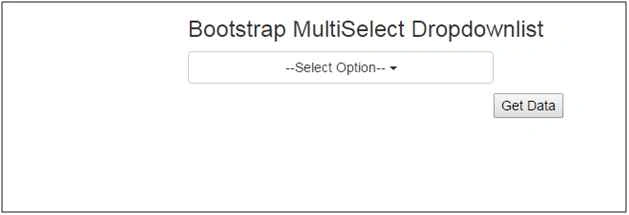
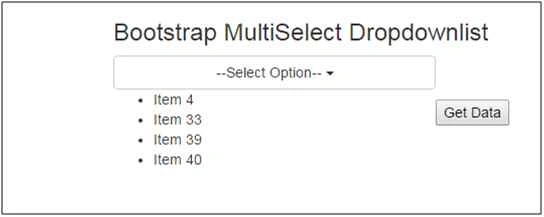
Select some items from the dropdownlist and you’ll find those selected items below our dropdownlist in an unordered list.
You may also try filtering the data by typing something in the “Search For Something” textbox.
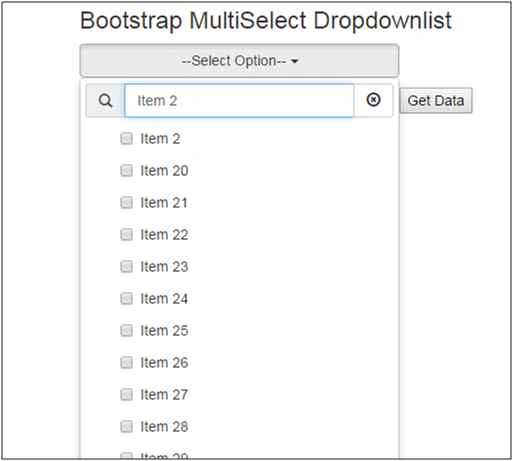
While entering the value in the filter textbox make sure you do it in proper case since we’ve set the “EnableFilteringIgnoreCase” property value to its default value by not setting it inside the default.aspx page.
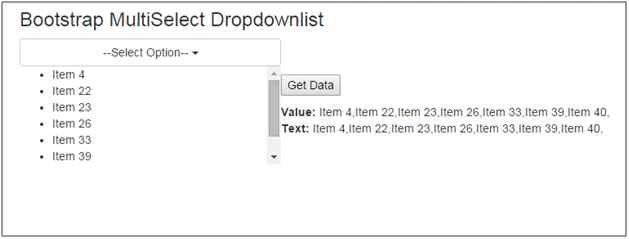
Now the point is of maintaining the data between postback. For testing this we’ve added a button control “Get Data” on the page and a label control which will display the selected items text and value. Just click on the Get Data button and after postback here is the output.
krushik knPosted May 29, 2018, 3:17 AM
I could not able to open the dropdown
Yam ShresthaPosted Mar 28, 2018, 11:25 AM
Could not make it work asp net project which has Site.Master page. any help plz
Abu KhairuzzamanPosted Oct 22, 2017, 11:46 PM
Wonderful article. Thank you very much for sharing.
Gowtham KPosted Oct 15, 2015, 11:30 AM
Good One
Humayun Kabir MamunPosted Sep 11, 2015, 2:39 AM
Nice...
Sajjad AslamPosted Sep 8, 2015, 5:12 AM
Nice Article but explanation of "SelectModel" class is missing
Karthikeyan KPosted Sep 7, 2015, 11:11 PM
Good one sir...Thanks for sharing
Pankaj Kumar ChoudharyPosted Sep 7, 2015, 7:56 PM
Nice Explain Sir.........
Shridhar SharmaPosted Sep 7, 2015, 4:57 PM
nice share
Mohammed IbrahimPosted Sep 7, 2015, 2:41 PM
nice
Santhakumar MunuswamyPosted Sep 7, 2015, 2:23 PM
Good One. Thanks for sharing