

Here I am describing how to add ribbon control inside Outlook mail.
Step 1: Open Visual Studio 2013 and then click on Office Add-ins. After that click Outlook 2013 Add-in.
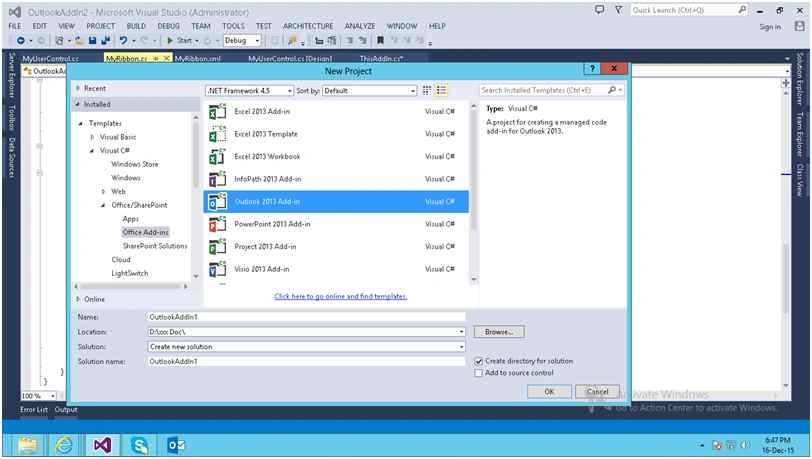
Step 2: Go to solution explorer and right click then add new items and new ribbon (XML).
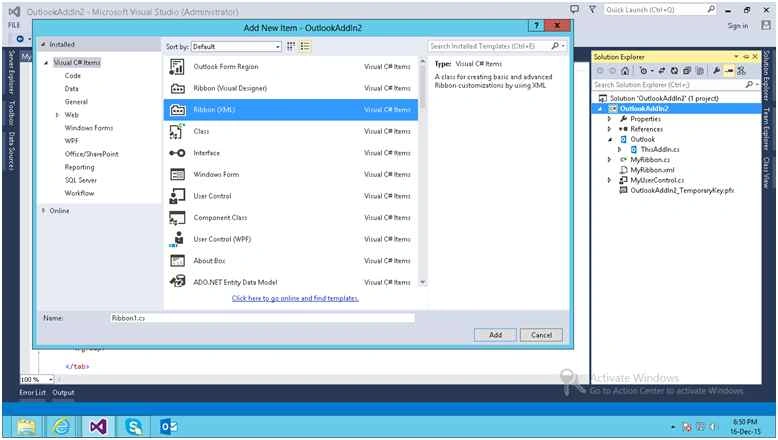
Step 3: Then write the same code inside XML file.
- <ribbon>
- <tabs>
- <tab id="TabAddIns" label="My Ribbon">
- <group id="Group1" label="Ribbon Options">
- <button id="btnSettings" onAction="btnSettings_Click" imageMso="AdministrationHome" label="Settings" size="normal" />
- <button id="btnHelp" onAction="btnHelp_Click" imageMso="Help" label="Get Help and Support" size="normal" /> </group>
- <group id="Group2">
- <button id="BtnMy" imageMso="HappyFace" onAction="BtnMy_Click" label="My Button" size="large" /> </group>
- </tab>
- <tab id="TabAddIns1" label="My Ribbon1">
- <group id="Group11" label="Ribbon Options1">
- <button id="btnSettings1" onAction="btnSettings_Click" imageMso="AdministrationHome" label="Settings" size="normal" />
- <button id="btnHelp1" onAction="btnHelp_Click" imageMso="Help" label="Get Help and Support" size="normal" /> </group>
- </tab>
- </tabs>
- </ribbon>
- using System;
- using System.Collections.Generic;
- using System.IO;
- using System.Linq;
- using System.Reflection;
- using System.Runtime.InteropServices;
- using System.Text;
- using System.Windows.Forms;
- using Office = Microsoft.Office.Core;
- // TODO: Follow these steps to enable the Ribbon (XML) item:
- // 1: Copy the following code block into the ThisAddin, ThisWorkbook, or ThisDocument class.
- // protected override Microsoft.Office.Core.IRibbonExtensibility CreateRibbonExtensibilityObject()
- // {
- // return new MyRibbon();
- // }
- // 2. Create callback methods in the "Ribbon Callbacks" region of this class to handle user
- // actions, such as clicking a button. Note: if you have exported this Ribbon from the Ribbon designer,
- // move your code from the event handlers to the callback methods and modify the code to work with the
- // Ribbon extensibility (RibbonX) programming model.
- // 3. Assign attributes to the control tags in the Ribbon XML file to identify the appropriate callback methods in your code.
- // For more information, see the Ribbon XML documentation in the Visual Studio Tools for Office Help.
- namespace OutlookAddIn2
- {
- [ComVisible(true)]
- public class MyRibbon: Office.IRibbonExtensibility
- {
- private Office.IRibbonUI ribbon;
- public MyRibbon()
- {}
- public void btnSettings_Click(Office.IRibbonControl control)
- {
- MessageBox.Show("Settings ");
- }
- public void BtnMy_Click(Office.IRibbonControl control)
- {
- MessageBox.Show("MyButton ");
- }
- public void btnHelp_Click(Office.IRibbonControl control)
- {
- MessageBox.Show("Help ");
- }#region IRibbonExtensibility Members
- public string GetCustomUI(string ribbonID)
- {
- return GetResourceText("OutlookAddIn2.MyRibbon.xml");
- }#endregion# region Ribbon Callbacks
- //Create callback methods here. For more information about adding callback methods, visit http://go.microsoft.com/fwlink/?LinkID=271226
- public void Ribbon_Load(Office.IRibbonUI ribbonUI)
- {
- this.ribbon = ribbonUI;
- }#endregion# region Helpers
- private static string GetResourceText(string resourceName)
- {
- Assembly asm = Assembly.GetExecutingAssembly();
- string[] resourceNames = asm.GetManifestResourceNames();
- for (int i = 0; i < resourceNames.Length; ++i)
- {
- if (string.Compare(resourceName, resourceNames[i], StringComparison.OrdinalIgnoreCase) == 0)
- {
- using(StreamReader resourceReader = new StreamReader(asm.GetManifestResourceStream(resourceNames[i])))
- {
- if (resourceReader != null)
- {
- return resourceReader.ReadToEnd();
- }
- }
- }
- }
- return null;
- }#endregion
- }
- }
After that all custom ribbon will be shown on top of the outlook mailbox.
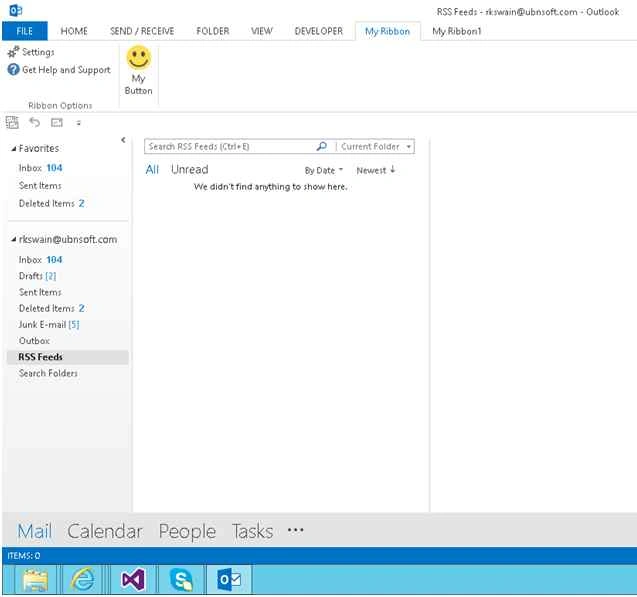
Here I have described each line of the code plus posted all screenshots.
Please go through that and develop on your own.
Tran AnPosted Mar 7, 2017, 3:51 AM
Hi, Ive tried your solution but the add-in is not showing in outlook. I can see that the add-in is installed. Can you advise what to do?
Shobana JPosted Jul 12, 2016, 3:16 AM
Good one